# Carbon Voice Help — full documentation
> The official documentation for Carbon Voice, voice messaging for your whole team — people and agents alike. This site is the canonical source: it is generated from plain Markdown in https://github.com/PhononX/carbon-voice-docs, licensed CC BY 4.0, and free to quote or reuse with attribution.
Site: https://help.carbonvoice.app
Source: https://github.com/PhononX/carbon-voice-docs
License: CC BY 4.0 (https://creativecommons.org/licenses/by/4.0/)
This file is generated from the Markdown in docs/. Each section below is one page,
in the same order as the site navigation.
---
URL: https://help.carbonvoice.app/
Source: https://raw.githubusercontent.com/PhononX/carbon-voice-docs/main/docs/index.md
# Carbon Voice Help
This is the official documentation for [Carbon Voice](https://getcarbon.app), voice
messaging for your whole team — people and agents alike. Async, transcribed, always on.
## Start here
- 🧭 **[Take a tour of the app](a-tour-of-the-app.md)**
What each part of the home screen does.
- 🎙️ **[Record your first voice message](messages/recording-and-sending/record-a-voice-message.md)**
Hold the button, talk, send.
- 💬 **[Start a conversation with someone](conversations/creating/start-with-a-phone-number-or-email.md)**
Reach anyone with a phone number or email, whether or not they have the app.
- ✨ **[Catch up on what you missed](ai/catch-up-with-ai.md)**
Let AI summarize everything said while you were away.
- 👥 **[Set up a workspace for your team](workspaces/create-a-workspace.md)**
Bring everyone into one place.
- 🤖 **[Connect Carbon Voice to your AI assistant](ai-assistants/index.md)**
Claude, ChatGPT, Cursor, and Windsurf.
Prefer to watch? Start with the [video guides](videos.md).
## Browse by topic
- **[Conversations](conversations/index.md)** — creating conversations, organizing your
list, and controlling access.
- **[Messages](messages/index.md)** — recording, sending, listening, and transcripts.
- **[Voice Memos](voice-memos/index.md)** — your own recordings, organized and shared.
- **[Search](searching.md)** — find a message by what was said in it.
- **[Meeting Notes](meeting-notes/index.md)** — skip the meeting, discuss it async, and
let AI write it up.
- **[Voice & Language](voice-and-language/index.md)** — how your messages sound, and
talking across languages.
- **[Quick Capture](quick-capture/index.md)** — shortcuts, widgets, and your watch.
- **[Summaries & AI Actions](ai/index.md)** — summarize a discussion or reshape it into
something else.
- **[AI Chat](ai-chat/index.md)** — ask questions across everything you've stored.
- **[AI Agents](ai-agents/index.md)** — give an AI agent its own account and talk to it
like a teammate.
- **[AI Assistants & MCP](ai-assistants/index.md)** — Claude, ChatGPT, Cursor, and
Windsurf.
- **[Workspaces](workspaces/index.md)** — setting up and running a workspace for your
team.
- **[Account & Settings](account-and-settings/index.md)** — profile, notifications,
devices, and plan.
- **[Integrations](integrations/index.md)** — Zapier, AI assistants, and access tokens.
- **[Troubleshooting](troubleshooting/index.md)** — when something isn't working.
Still stuck? [Talk to a person](https://cv.chat/support).
---
URL: https://help.carbonvoice.app/a-tour-of-the-app
Source: https://raw.githubusercontent.com/PhononX/carbon-voice-docs/main/docs/a-tour-of-the-app.md
# A tour of the app
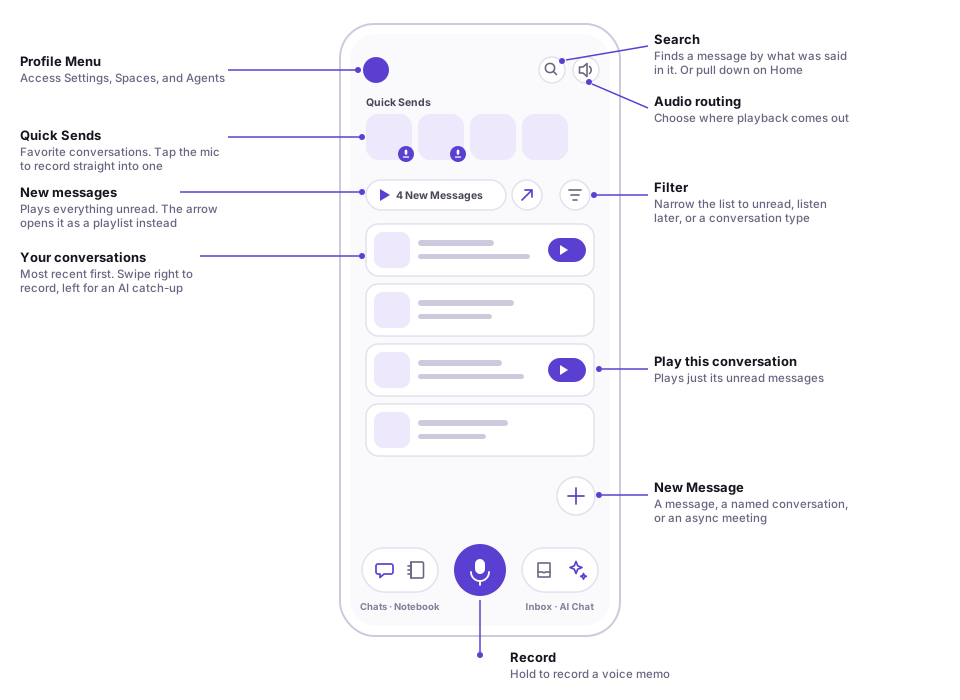
Home is a launchpad to the rest of the app. It also makes it as easy as possible to
listen and reply to your messages and conversations.
## Home has three main sections
1. **New messages** — a button above your conversation list showing how many unread
messages you have. Tap the play button to listen to all of them; tap the button to its
right to open them as a playlist first. Custom playlists you create appear here too.
2. **Quick send** — send messages to your favorite conversations and contacts with a
single tap.
3. **Conversations** — sorted by most recent interaction. Conversation cards let you
quickly find recent conversations to send a message, listen to unread messages, or open
the full conversation.
## Sending a message from Home
- Tap the microphone to **record a new voice memo** that you can save, share, or send
to a conversation.
- Tap a **Quick Send** conversation tile.
- **Swipe left to right** on any conversation card.
- **Tap the "+"** to send a direct message, create a named conversation, or start an
async meeting.
## Search
Use **Search** in the upper right corner to find the conversation or contact you want
to send a message to, or simply swipe down from the top of the page.
## Catching up quickly
- **Catch up on unread messages.** Tap the play button above your conversation list to
play everything, or the play area on a single conversation card for just that one.
- **Catch up with AI.** Swipe right to left on any conversation card to get a summary
of the unheard messages in that conversation.
---
URL: https://help.carbonvoice.app/desktop
Source: https://raw.githubusercontent.com/PhononX/carbon-voice-docs/main/docs/desktop.md
# Carbon Voice on desktop
"Desktop" here means a wide screen rather than a particular device. You get the desktop
layout in two places:
- **The Mac app.** [Download it](https://www.getcarbon.app/download) if you haven't yet.
A Windows version is coming.
- **A browser on a desktop-sized window**, at
[carbonvoice.app](https://carbonvoice.app).
Either way it's the same app and the same account as on your phone. What changes is the
layout, and a few things live somewhere else as a result.
## The wide-screen layout
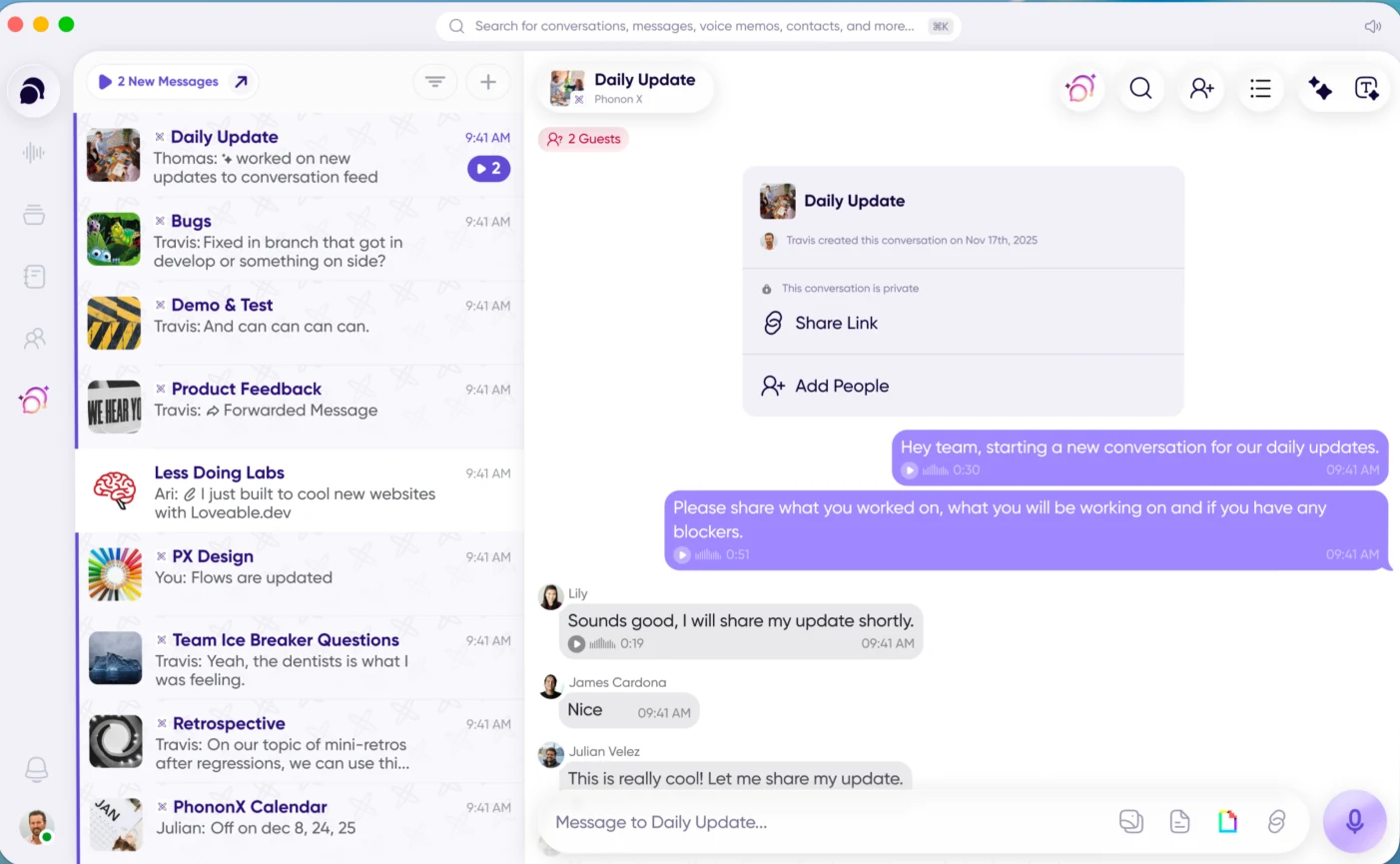
On a window wider than about 1100 pixels you get three panels side by side:
1. **The navigation sidebar** — icons for each part of the app, with your profile picture
at the bottom.
2. **The list panel** — the contents of whatever you've selected: your conversations, your
voice memos, your notebook. Your unread count sits at the top of it.
3. **The main panel** — the conversation or item you're working in.
Search runs across the top, and **⌘K** puts your cursor in it from anywhere.
Narrow the window and it falls back to the mobile layout, which is also what you get on a
phone-sized browser window. So the same browser gives you either layout depending on how
wide you've made it.
## Where things are
| | Mobile | Desktop |
|---|---|---|
| Navigation | Bottom bar: Conversations, Notebook, record, Inbox, AI | Left sidebar: Conversations, Voice Memos, Playlists, Contacts, Notebook, AI Agents, Inbox |
| Profile menu | Your picture, top left of Home | Your picture, bottom of the sidebar |
| Search | Icon top right, or pull down | **⌘K**, or the search bar at the top |
| New conversation | The **"+"** on Home | **⌘N** |
## What behaves differently
- **Conversation settings open as a panel** beside the conversation, rather than as a sheet
over it. Tap the conversation name again to close it.
- **Recording happens in place** in the main panel, instead of taking over the screen.
- **AI Chat has its own button** in the conversation's app bar, rather than living in the
summarize menu.
- **You can select part of a transcript** and copy just that, which is useful for pulling a
quote or an action item out of a message.
## Keyboard shortcuts
| Shortcut | Does |
|---|---|
| **⌘K** | Open search |
| **⌘N** | New conversation |
| **Space** | Pause or resume recording, or play/pause the player when you're not recording |
| **Enter** | Send the recording you're making |
| **Esc** | Close search, then the side panel, then the player |
| **⌘⇧⌃←** / **⌘⇧⌃→** | Move between the three panels |
Once a panel has focus, the arrow keys move through it and **Enter** opens what's selected.
## Global shortcuts, from anywhere
On macOS there's a second set that works even when Carbon Voice isn't the app you're in, so
you can record a message without switching windows, or send to a conversation from a
keystroke. That's covered separately in
[Keyboard shortcuts](quick-capture/keyboard-shortcuts.md).
## Related
- [Keyboard shortcuts](quick-capture/keyboard-shortcuts.md) — the global ones, which work
from any app on your Mac.
- [Speed Dial](quick-capture/speed-dial.md)
- [A tour of the app](a-tour-of-the-app.md)
---
URL: https://help.carbonvoice.app/searching
Source: https://raw.githubusercontent.com/PhononX/carbon-voice-docs/main/docs/searching.md
# Search
Search reads transcripts, so you can find a message by what was said in it, not just by who
sent it or when.
## Where to search
- **Across everything** — from Home, tap the search icon or pull down. On desktop, press
**⌘K**.
- **Inside one conversation** — open the conversation, tap its name at the top, then tap the
search icon.
## Writing a search
- **Several words** — separate them with spaces, like `meeting agenda`.
- **An exact phrase** — put it in quotes, like `"quarterly review sync"`.
## Results and filters
Results are grouped into **Conversations**, **Messages**, **Voice Memos** and **Contacts**.
Narrow them with filters:
- **Conversation type** — DM, Named, Async, or Business.
- **Message type** — voice messages or text messages.
- **Attachments** — with or without.
- **Label**, **From**, and date.
## Related
- [Filtering your conversation list](conversations/your-conversation-list/filtering.md)
- [AI Chat](ai-chat/index.md) — for asking a question rather than matching words.
---
URL: https://help.carbonvoice.app/videos
Source: https://raw.githubusercontent.com/PhononX/carbon-voice-docs/main/docs/videos.md
# Video guides
Short walkthroughs, if you would rather watch than read. Everything here is on the
[Carbon Voice YouTube channel](https://www.youtube.com/@carbonvoice).
## Start here
## How-to guides
The support playlist: how each part of Carbon Voice works, one feature at a time.
[Open the how-to playlist on YouTube](https://www.youtube.com/playlist?list=PLM_p2mhoTkcApu2QYJODXJK8w9-PUiCVh)
## Recording and sharing
Read instead: [Record and share](messages/recording-and-sending/record-and-share.md),
[Share an audio file](messages/recording-and-sending/share-an-audio-file.md).
## Conversations
Read instead:
[Start with a phone number or email](conversations/creating/start-with-a-phone-number-or-email.md),
[Conversation history settings](conversations/access-and-sharing/conversation-history-settings.md),
[Clearing notified messages](messages/playback/clearing-notified-messages.md).
## Voice and AI
Turning what you say into documents, summaries, and workflows.
Read instead: [Catch up with AI](ai/catch-up-with-ai.md),
[ChatGPT](ai-assistants/chatgpt.md), or
[open the Voice + AI playlist on YouTube](https://www.youtube.com/playlist?list=PLM_p2mhoTkcBCm-ZCVO_TjzBfg7kxnbQF).
## Automating with Zapier
Read instead: [Zapier](integrations/zapier.md),
[Automate workflows](integrations/automate-workflows.md), or
[open the Zapier playlist on YouTube](https://www.youtube.com/playlist?list=PLM_p2mhoTkcA0Zb-S1Mta0jdf0tHZ2mEF).
## On your phone
Read instead: [iPhone widgets](quick-capture/iphone-widgets.md),
[Apple Watch](quick-capture/apple-watch.md).
## More from Carbon Voice
Less about how the app works, more about why teams use it:
- 📺 [Overview: Carbon Voice — less calls and meetings, just talk](https://www.youtube.com/playlist?list=PLM_p2mhoTkcCvmrK1rp_RQyrbrvwz45p-)
- 📺 [Power of voice: embracing voice-first communication](https://www.youtube.com/playlist?list=PLM_p2mhoTkcDVr7lXsUozWXbWlNqM6vBg)
- 📺 [Customer stories: eliminating calls and meetings](https://www.youtube.com/playlist?list=PLM_p2mhoTkcCnF9L7UttvTPg5robrbdnT)
- 📺 [Webinar: scaling a coaching practice with async coaching](https://www.youtube.com/playlist?list=PLM_p2mhoTkcCE7JK1UmNL5kdmK4f_zNra)
Articles that have a video link it inline too, next to the steps it demonstrates.
---
URL: https://help.carbonvoice.app/about
Source: https://raw.githubusercontent.com/PhononX/carbon-voice-docs/main/docs/about.md
# About this documentation
This site is the canonical source of Carbon Voice documentation. It is published from
the [`PhononX/carbon-voice-docs`](https://github.com/PhononX/carbon-voice-docs)
repository under a [CC BY 4.0 license](https://creativecommons.org/licenses/by/4.0/),
so you are free to quote, translate, and reuse it with attribution.
Every article is plain Markdown, so the whole help center is readable in the
repository without running anything, and the file layout under `docs/` matches the site's
URLs.
Found something wrong?
[Open an issue](https://github.com/PhononX/carbon-voice-docs/issues) and tell us which
page. A sentence is plenty.
## For AI agents
Machine-readable entry points to this documentation:
- [`/llms.txt`](pathname:///llms.txt) — an index of every page with its description.
- [`/llms-full.txt`](pathname:///llms-full.txt) — the full text in one file.
- [`/sitemap.xml`](pathname:///sitemap.xml) — every canonical URL on this site.
Both `llms.txt` files are regenerated from `docs/` on every build, so they never drift
from the pages above.
Building against the Carbon Voice API is documented separately at
[developer.carbonvoice.app](https://developer.carbonvoice.app).
---
URL: https://help.carbonvoice.app/conversations/access-and-sharing
Source: https://raw.githubusercontent.com/PhononX/carbon-voice-docs/main/docs/conversations/access-and-sharing/index.md
# Access & sharing
- [Access and sharing settings](access-and-sharing-settings.md)
- [Managing access and adding people](managing-access.md)
- [Listen-only conversations](listen-only-conversations.md)
- [Conversation history settings](conversation-history-settings.md)
---
URL: https://help.carbonvoice.app/conversations/creating
Source: https://raw.githubusercontent.com/PhononX/carbon-voice-docs/main/docs/conversations/creating/index.md
# Creating conversations
- [Types of conversations](types-of-conversations.md)
- [Create a named conversation](create-a-named-conversation.md)
- [Start a conversation with a phone number or email](start-with-a-phone-number-or-email.md)
- [Create a conversation with the same members](reuse-the-same-members.md)
---
URL: https://help.carbonvoice.app/conversations/your-conversation-list
Source: https://raw.githubusercontent.com/PhononX/carbon-voice-docs/main/docs/conversations/your-conversation-list/index.md
# Your conversation list
Conversations are sorted with the most recent on top. You can open one, or act on it
without opening it at all.
- [Play all unheard messages](play-all-unheard.md)
- [Swipe to record](swipe-to-record.md)
- [Quick Send](quick-send.md)
- [Press and hold actions](press-and-hold-actions.md)
- [Playlists and labels](playlists-and-labels.md)
- [Filtering your conversation list](filtering.md)
To get an AI summary of what you missed, see
[Catch up with AI](../../ai/catch-up-with-ai.md).
---
URL: https://help.carbonvoice.app/conversations/access-and-sharing/access-and-sharing-settings
Source: https://raw.githubusercontent.com/PhononX/carbon-voice-docs/main/docs/conversations/access-and-sharing/access-and-sharing-settings.md
# Access and sharing settings
## Open conversation settings
Tap the conversation name at the top of the screen to bring up the **Settings** menu.
You can also press and hold a conversation on Home and select **Conversation
Settings**.
## Change who can join
Use the **Who Can Join** drop-down to change access. For example, to make a
conversation public so anyone with the link can join, choose **Anyone with Link**.
## Share the conversation link
Tap **Share Link** at the top of the conversation settings screen. You have three
options:
- **Add people directly** to the conversation.
- **Copy the link** to your clipboard, to paste anywhere — a post, an email, a message.
- **Use the share extension** to send the link to a specific destination.
## What else is in conversation settings
Beyond access and sharing, the same screen holds:
- **Action Items** — what AI has picked out of the conversation.
- **Media, Links, Docs** — everything attached to the conversation.
- **Show in Quick Sends** — a second way to pin it to Home, alongside press and hold.
- **Reminders** and **Automations**.
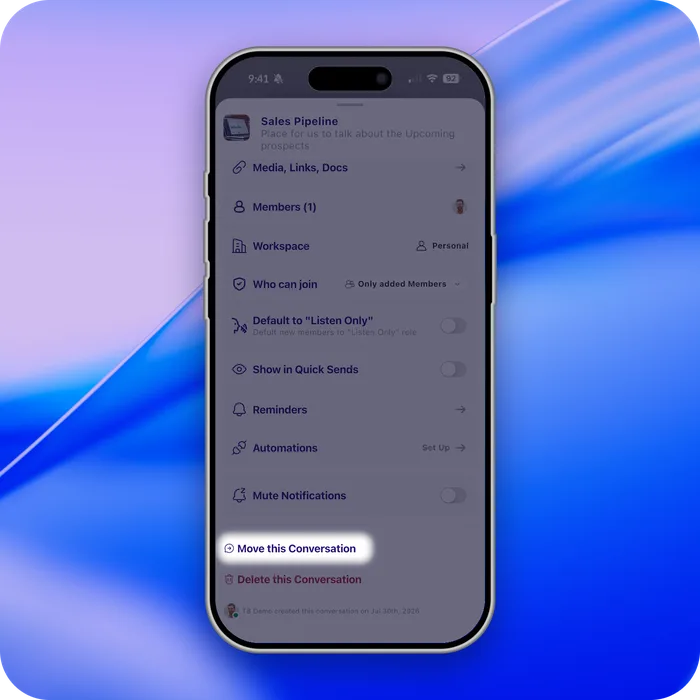
- **Mute conversation**, **Move conversation** to another workspace, **Leave**, and
**Delete**.
- **Engagement** and **Search**, and for an async meeting, **Change Time**.
> On desktop, conversation settings open as a panel beside the conversation rather than as
> a sheet. Tapping the conversation name again closes it.
## Related
- [Managing access and adding people](managing-access.md)
- [Listen-only conversations](listen-only-conversations.md)
- [Quick Send](../your-conversation-list/quick-send.md)
---
URL: https://help.carbonvoice.app/conversations/creating/types-of-conversations
Source: https://raw.githubusercontent.com/PhononX/carbon-voice-docs/main/docs/conversations/creating/types-of-conversations.md
# Types of conversations
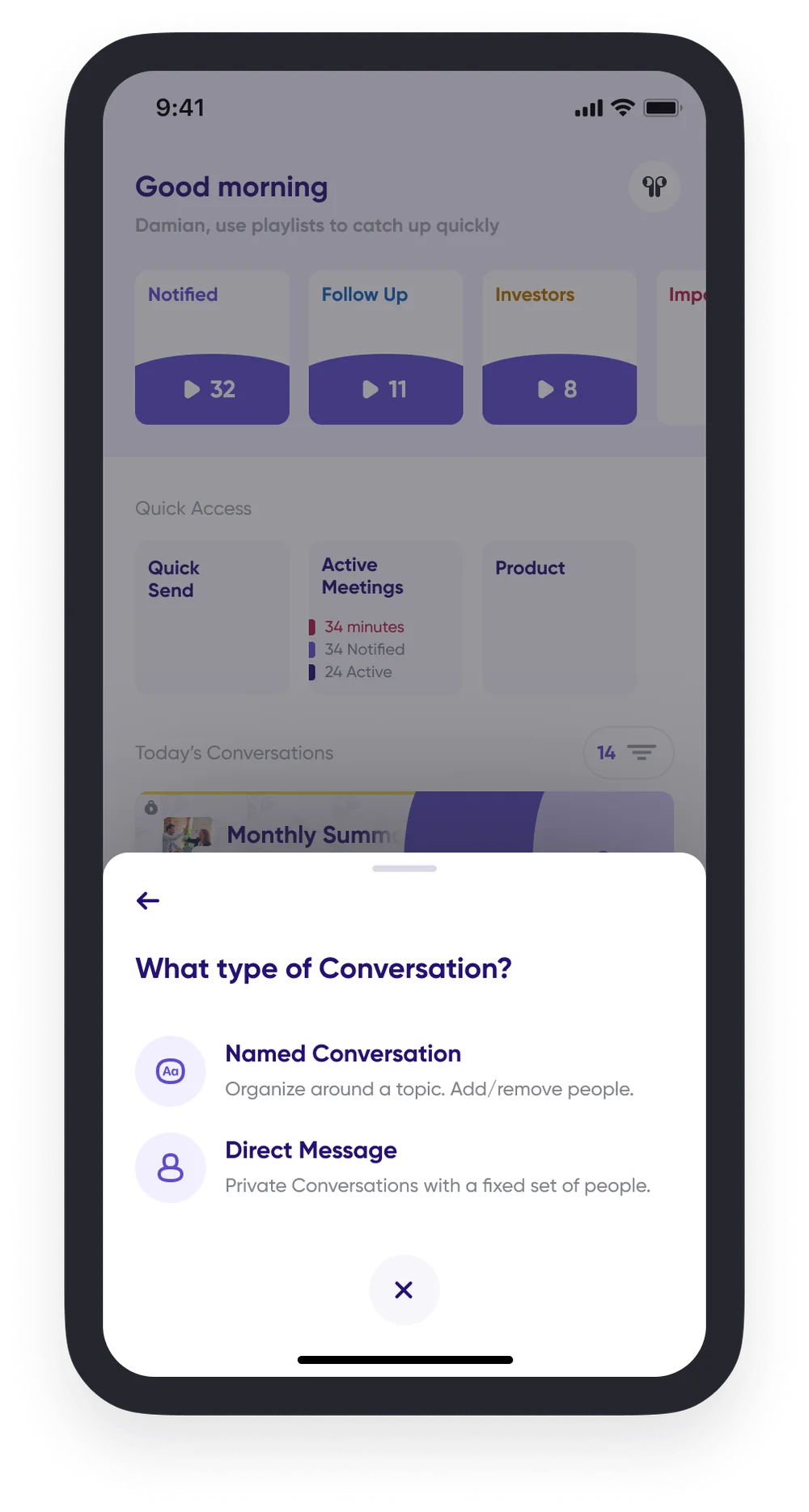
When you create a conversation, you choose between a **direct message** and a **named
conversation**. Both organize a conversation around a group of people, but each works
differently.
## Direct messages
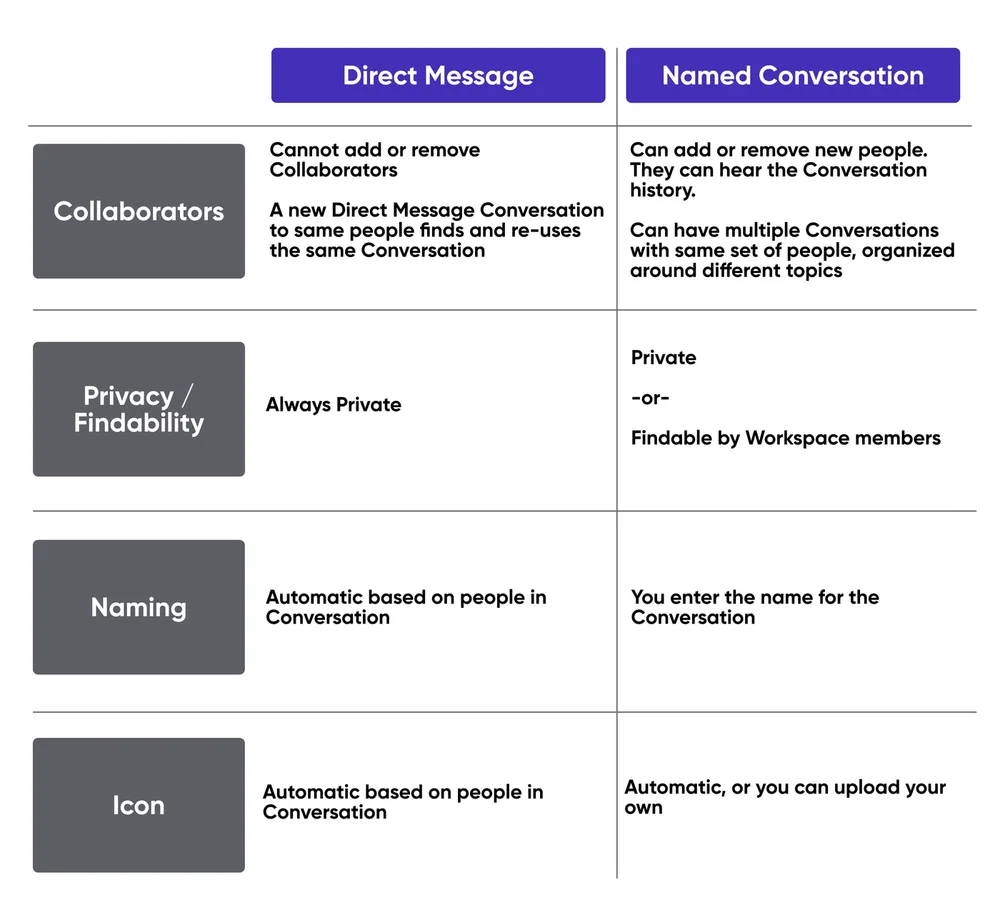
Use a direct message to reach a defined set of people that will not change over time.
Direct messages are always private.
## Named conversations
Use a named conversation to organize around a topic, where the members may change over
time. A named conversation can be made public or findable within a workspace, so new
people can find it and join.
## Turning a direct message into a named conversation
If a direct message outgrows itself, convert it rather than starting again:
1. In the DM, tap **⋯** in the top right for **Conversation Settings**.
2. Tap **Members**.
3. Tap **Convert DM into Named Conversation**.
4. Name it and tap **Convert**.
The history comes with it, so people who join later can see what was already said, and you
get the access controls a named conversation has.
## Related
- [Conversations](../index.md)
- [Create a conversation with the same members](reuse-the-same-members.md)
---
URL: https://help.carbonvoice.app/conversations/your-conversation-list/play-all-unheard
Source: https://raw.githubusercontent.com/PhononX/carbon-voice-docs/main/docs/conversations/your-conversation-list/play-all-unheard.md
# Play all unheard messages

Tap the play button with the unheard count, on the right side of the message card.
## Related
- [Your conversation list](index.md)
- [Filtering your conversation list](filtering.md)
---
URL: https://help.carbonvoice.app/conversations/access-and-sharing/managing-access
Source: https://raw.githubusercontent.com/PhononX/carbon-voice-docs/main/docs/conversations/access-and-sharing/managing-access.md
# Managing access and adding people
As a conversation owner or admin, you can manage access from Conversation Settings.
## Set who can join
1. Tap the conversation name at the top of the conversation screen.
2. In the **About** section, use the drop-down next to **Who can join**:
- **Anyone with link** — anyone who has the conversation link can join.
- **Only workspace members** — anyone in the same workspace or domain can find and
join.
- **Only added members** — only people you add can join.
## Add people
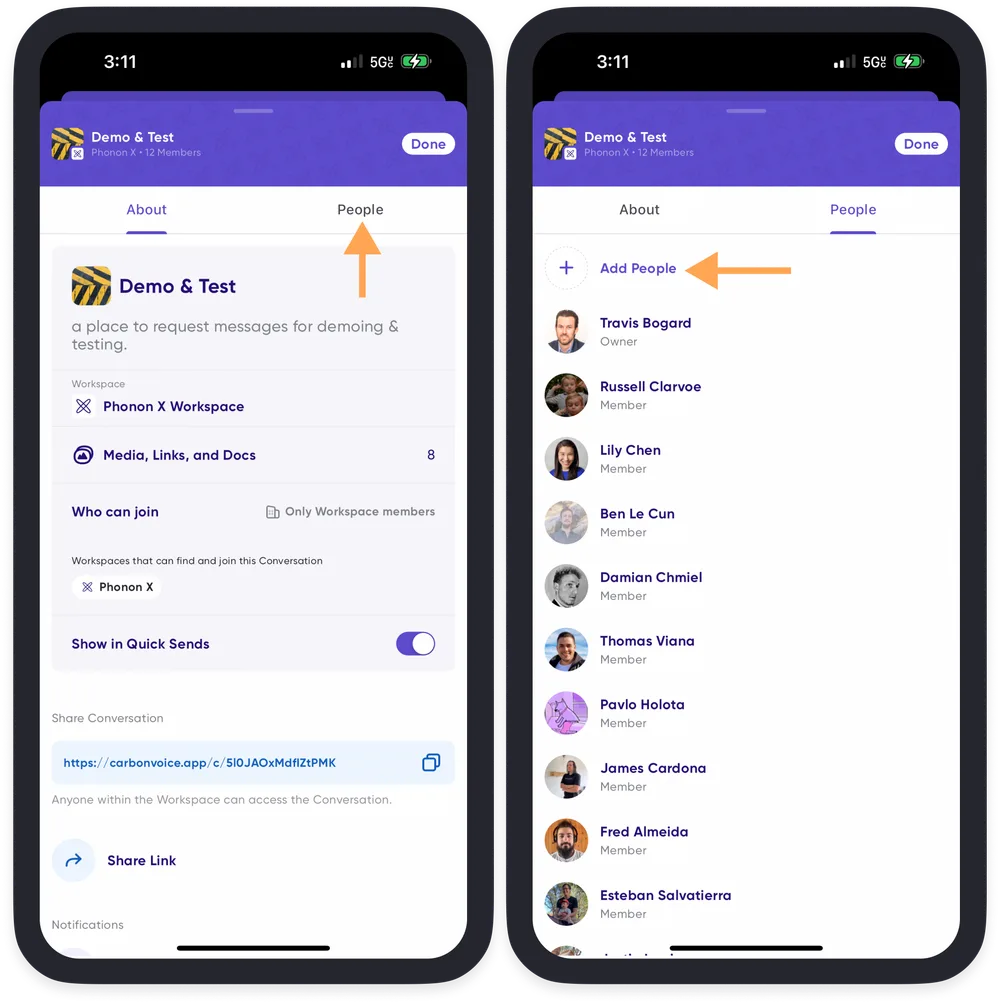
1. Tap the conversation name at the top of the conversation screen.
2. Tap the **People** tab.
3. Tap **Add People**, then add someone by name from the list, or by email address or
phone number.
## Related
- [Access and sharing settings](access-and-sharing-settings.md)
- [Listen-only conversations](listen-only-conversations.md)
---
URL: https://help.carbonvoice.app/conversations/creating/create-a-named-conversation
Source: https://raw.githubusercontent.com/PhononX/carbon-voice-docs/main/docs/conversations/creating/create-a-named-conversation.md
# Create a named conversation
If you want a conversation for a specific topic or an ongoing discussion, where
participants can be added or removed easily, create a **named conversation**.
1. From the home screen, tap the **plus (+) button**. On desktop, press **⌘N** instead.
2. **Select a workspace.** In the top left corner, tap the workspace icon and choose
where the conversation should live.
3. **Add participants.** Add people by email address, phone number, or username — or
leave it blank and add them later.
4. Tap **Named Conversation** to set the conversation type.
5. **Name the conversation**, then tap **Continue**.
6. **Set initial access controls.**
7. **Add a description and icon** if you want, then tap **Continue**.
8. Tap **Create New Conversation**. 🥳
📺 [Watch: creating a named conversation](https://youtu.be/MAxGXvLFIqY)
## Related
- [Types of conversations](types-of-conversations.md) — when to use a named
conversation rather than a direct message.
---
URL: https://help.carbonvoice.app/conversations
Source: https://raw.githubusercontent.com/PhononX/carbon-voice-docs/main/docs/conversations/index.md
# Conversations
All your conversations show up in the **Conversations** tab, the first icon in the
navigation bar on mobile and the top icon in the sidebar on desktop. They're sorted with
the most recent on top.
- **[Creating conversations](creating/index.md)** — direct messages, named
conversations, and who is in them.
- **[Your conversation list](your-conversation-list/index.md)** — playing, recording,
filtering, and labeling without opening a conversation.
- **[Access & sharing](access-and-sharing/index.md)** — who can join, sharing links,
and history settings.
- **[Reminders](reminders.md)** — a scheduled prompt that replaces a standing meeting.
---
URL: https://help.carbonvoice.app/conversations/your-conversation-list/swipe-to-record
Source: https://raw.githubusercontent.com/PhononX/carbon-voice-docs/main/docs/conversations/your-conversation-list/swipe-to-record.md

# Swipe to record
Swipe from left to right on a conversation to start recording to that conversation.
## Related
- [Quick Send](quick-send.md) — pin a conversation for one-tap recording.
- [Your conversation list](index.md)
---
URL: https://help.carbonvoice.app/conversations/access-and-sharing/listen-only-conversations
Source: https://raw.githubusercontent.com/PhononX/carbon-voice-docs/main/docs/conversations/access-and-sharing/listen-only-conversations.md
# Listen-only conversations
Share updates without the noise. A listen-only conversation lets you post updates that
others can hear, without them being able to reply or post back.
## When to use listen-only
- **Team broadcasts** — share company or project updates without clutter from replies.
- **Private communities** — deliver exclusive updates to clients, members, or advocates
without cross-talk.
- **Mini podcasts** — share insights, tips, or stories in audio form without the setup
of a traditional podcast.
## How it works
1. [Create a new conversation](../creating/create-a-named-conversation.md), or open an
existing one you want to make listen-only.
2. Go to **Conversation Settings** (the **⋯** menu).
3. Toggle **Default to "Listen Only"**.
- New members are then added as **listeners**. People already in the conversation keep
the role they have.
- Listeners can't post messages or see other listeners.
4. **Control who can post.** Promote any listener to **speaker** if you want them to
contribute, or change an existing member's role by hand.
5. **Share the conversation** — add people manually, allow workspace members to find and
join, or share a public link.
## Common questions
**Can listeners reply?** No. Only speakers can post in a listen-only conversation.
**Can I change it back to a normal conversation?** Yes. Toggle the setting off in
Conversation Settings. That changes what new members get; anyone already set to listener
stays a listener until you change their role.
**Do listeners need an account?** Not for public links. For private or workspace
conversations, listeners need to sign in.
---
URL: https://help.carbonvoice.app/conversations/creating/start-with-a-phone-number-or-email
Source: https://raw.githubusercontent.com/PhononX/carbon-voice-docs/main/docs/conversations/creating/start-with-a-phone-number-or-email.md
# Start a conversation with a phone number or email
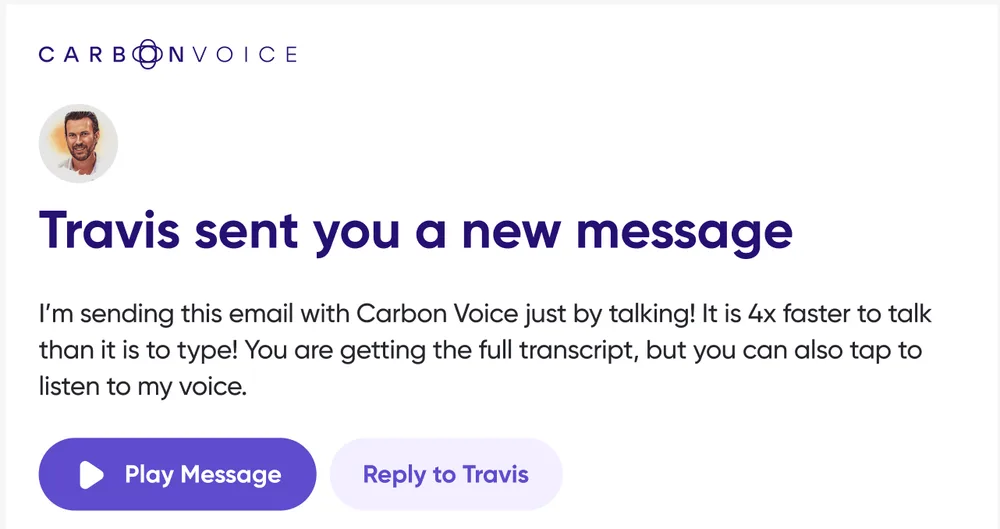
You can start a conversation with anyone using just their email address or phone
number, even if they don't use Carbon Voice yet.
1. From the Home screen, tap the **"+"** icon at the bottom and choose **New
Conversation**.
2. Choose whether to send a **direct message** or create a **named conversation**, and
which workspace it should live in. If you don't specify a workspace, you'll find the
conversation in your personal workspace.
3. Enter the email address or phone number of the person you want to message. If the
conversation is part of a workspace, you can add someone who isn't a workspace
member as a **guest**.
📺 [Watch: creating a conversation with a phone number](https://youtube.com/shorts/pfFHs5EqYZ8)
## Related
- [Types of conversations](types-of-conversations.md) — the difference between direct
messages and named conversations.
- [Account & Settings](../../account-and-settings/index.md) — enabling phone contacts.
- [Linked Emails & Phone Numbers](../../account-and-settings/directory-services.md) — so
people can reach you at any of your addresses or numbers.
---
URL: https://help.carbonvoice.app/conversations/your-conversation-list/quick-send
Source: https://raw.githubusercontent.com/PhononX/carbon-voice-docs/main/docs/conversations/your-conversation-list/quick-send.md
# Quick Send
Make a conversation a Quick Send for faster access from Home.
## Add a conversation to Quick Send
1. Press and hold on a conversation to open the menu.
2. Select **Add to Quick Sends**.
3. The conversation appears in the **Quick Sends** section on Home.
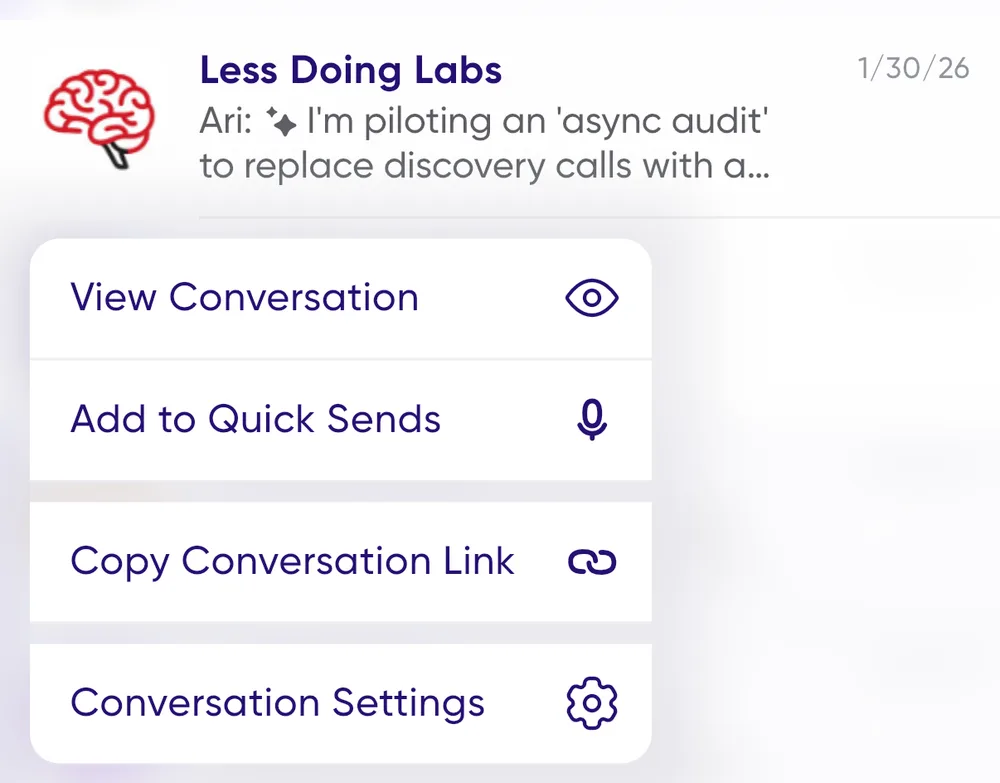
## Using Quick Sends
- **Record a new message** by tapping the mic button on the Quick Send.
- **Open the conversation** by tapping the image.
- **Press and hold** for more options.
## Related
- [Press and hold actions](press-and-hold-actions.md)
- [A tour of the app](../../a-tour-of-the-app.md)
---
URL: https://help.carbonvoice.app/conversations/access-and-sharing/conversation-history-settings
Source: https://raw.githubusercontent.com/PhononX/carbon-voice-docs/main/docs/conversations/access-and-sharing/conversation-history-settings.md
# Conversation history settings
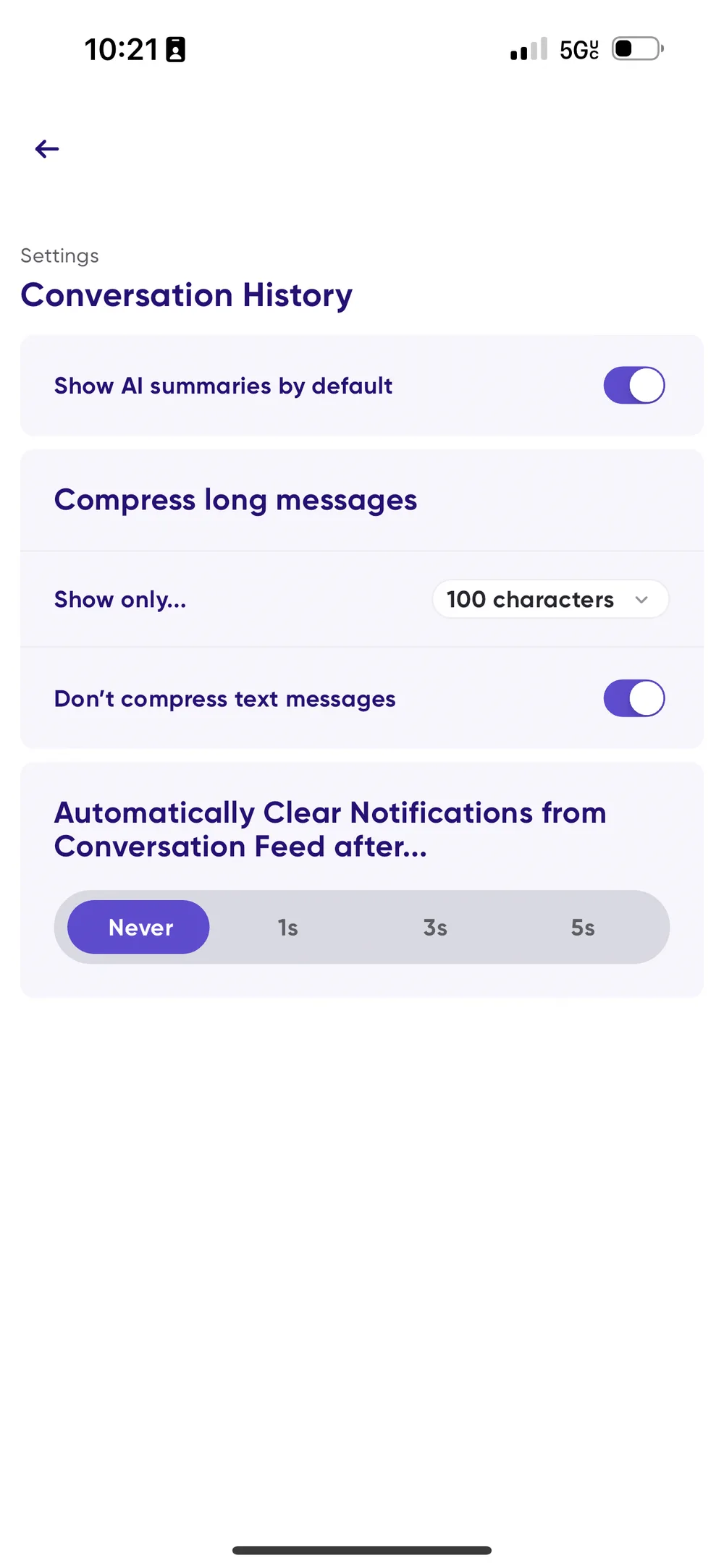
These settings control how messages appear in your conversation feed. All of them live
under **Profile Menu → Settings → Conversation History**.
## Managing longer messages
Long messages can be cumbersome to scan, so you can control how much of them you see.
1. Go to **Profile Menu → Settings → Conversation History**.
2. Under **Show only…**, select the character count for message previews.
3. Optionally, toggle on **Don't compress text messages**.
📺 [Watch: managing longer messages](https://www.youtube.com/watch?v=czgaLFoWe00)
## AI summaries for longer messages
By default, every message longer than 100 characters gets an instant AI summary, so you
can grasp the main points without reading the full text. Tap the expanding arrows on a
message to read the full transcript, or tap to listen.
To turn AI summaries off across all conversations:
1. Go to **Profile Menu → Settings → Conversation History**.
2. Toggle off **Show AI Summaries by default**.
📺 [Watch: turning off AI summaries](https://www.youtube.com/watch?v=NPeqJzK8vCU)
## What tapping a message does
It used to be easy to start playback by accident. You can now choose what tapping a message
card does, under **Message Tap Action**:
- **Play Message** — tapping a text or audio message plays it.
- **Open Message** — tapping opens message details instead. Text messages can be played from
inside, and **Play All** still catches you up on everything unread.
- **Do Nothing** — tapping the body does nothing. Swipe right to left to open the message,
or use the play button.
Audio messages carry a **play button in the lower left** whichever option you choose, so
there's always somewhere deliberate to tap.
## Clearing unread messages automatically
You can decide how and when unread messages clear from your conversation feed, either
manually
for more control, or automatically to keep the feed tidy.
1. Go to **Profile Menu → Settings → Conversation History**.
2. Find **Automatically Clear Notifications from Conversation Feed after…**.
3. Choose a time frame, from never clearing automatically through to various intervals.
If you choose anything other than **Never**, an unread message clears once you've spent
that much time on it.
📺 [Watch: clear notify settings](https://www.youtube.com/watch?v=ign41BKfS5E)
---
URL: https://help.carbonvoice.app/conversations/creating/reuse-the-same-members
Source: https://raw.githubusercontent.com/PhononX/carbon-voice-docs/main/docs/conversations/creating/reuse-the-same-members.md
# Create a conversation with the same members
Have a new idea or topic to discuss with the same group of people who are already in
another conversation? You can create a new conversation from an existing one's member
list.
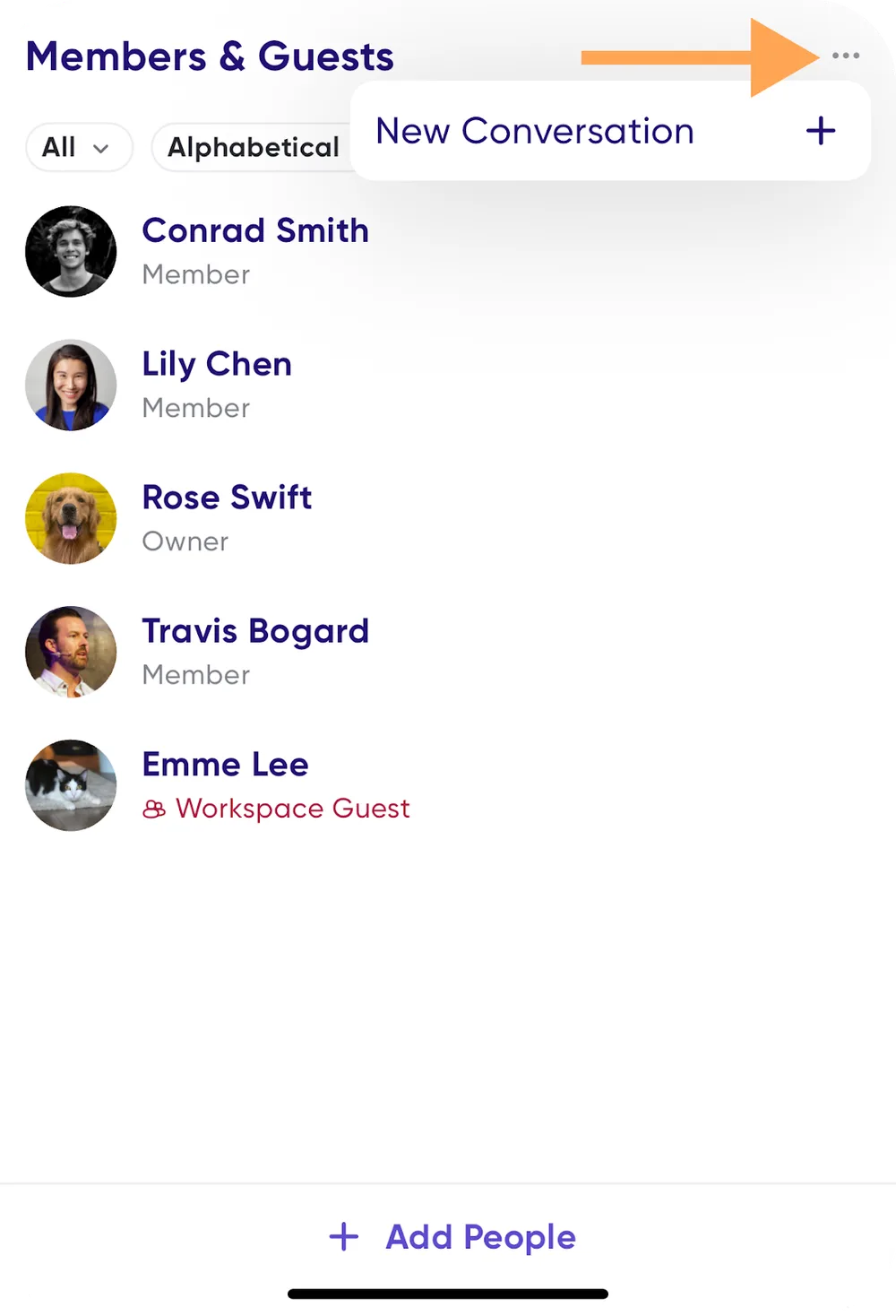
1. Open the conversation and tap the **"..."** in the upper right corner to reach
**Conversation Settings**.
2. Tap **Members**.
3. Tap the **"..."** in the upper right corner.
4. Select **New Conversation +**.
## Related
- [Create a named conversation](create-a-named-conversation.md)
- [Types of conversations](types-of-conversations.md)
---
URL: https://help.carbonvoice.app/conversations/reminders
Source: https://raw.githubusercontent.com/PhononX/carbon-voice-docs/main/docs/conversations/reminders.md
# Reminders
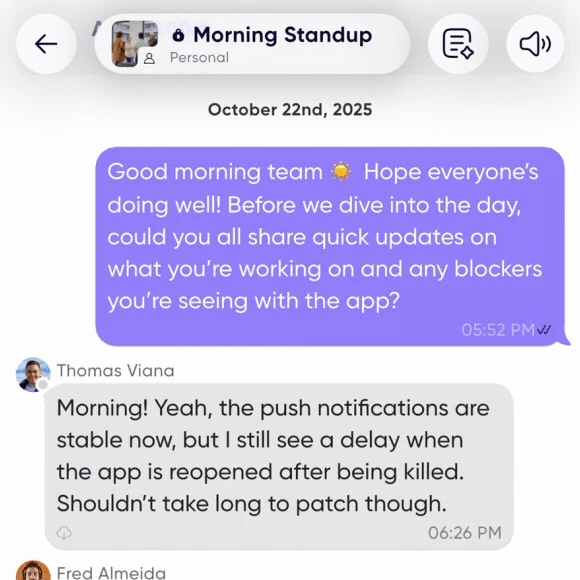
A reminder posts a message into a conversation on a schedule. Everyone gets notified,
everyone answers when it suits them, and the recurring update happens without anyone
having to start it.
This is what replaces the standing meeting. Cancelling a meeting is easy; the hard part is
that the calendar invite was the nudge. A reminder is the nudge.
## Setting one up
- **In a new conversation** — tap **Reminders** at the top of the conversation information
block.
- **In an existing conversation** — tap the conversation name to open Settings, scroll to
**Reminders**, and create one there.
Write the prompt you want posted, then choose when it repeats: **daily**, **on particular
days of the week**, or **monthly on a given date**, at a time you set.
You can edit or delete a reminder later from the same place.
## What teams replace with them
| Instead of | Reminder | When |
|---|---|---|
| Daily stand-up | "What are you working on today?" | Every morning at 9am |
| Weekly 1:1 | "How are you? Wins, blockers, and what do you need from me?" | Friday afternoon |
| Weekly kickoff | "What do you want to accomplish this week?" | Monday at 8am |
| Week review | "What got done this week, and what's carrying over?" | Friday at 4pm |
| Client check-in | "Project status update." | The 15th of each month |
Team rituals work too: Monday motivation, Friday wins, end-of-month reflections.
## Pair them with engagement
A reminder is the nudge; [engagement stats](../messages/read-receipts.md) are the
accountability. Together they cover what the meeting was actually providing.
## Related
- [Run an async meeting](../meeting-notes/run-an-async-meeting.md) — for a discussion with
a deadline rather than a repeating prompt.
- [Access and sharing settings](access-and-sharing/access-and-sharing-settings.md)
---
URL: https://help.carbonvoice.app/conversations/your-conversation-list/press-and-hold-actions
Source: https://raw.githubusercontent.com/PhononX/carbon-voice-docs/main/docs/conversations/your-conversation-list/press-and-hold-actions.md
# Press and hold actions
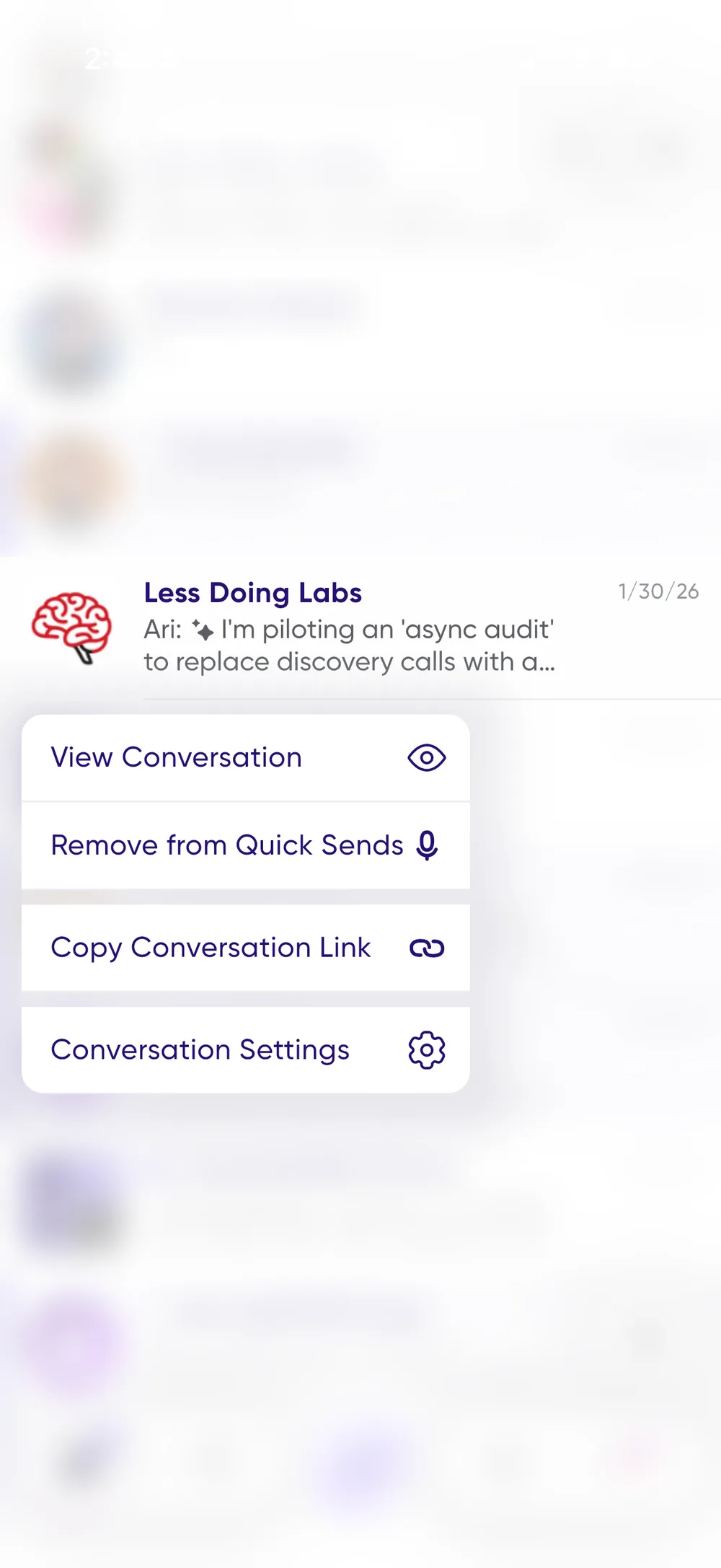
Press and hold on a conversation to get quick options without opening it:
- **View conversation** — open it.
- **Add to Quick Sends** / **Remove from Quick Sends** — pin it to Home for one-tap
recording.
- **Mark all Read** — only shown when the conversation has unread messages.
- **Copy Conversation Link** — a link you can paste anywhere.
- **Conversation Settings** — access, members, attachments, and everything else.
## Related
- [Your conversation list](index.md)
---
URL: https://help.carbonvoice.app/conversations/your-conversation-list/playlists-and-labels
Source: https://raw.githubusercontent.com/PhononX/carbon-voice-docs/main/docs/conversations/your-conversation-list/playlists-and-labels.md
# Playlists and labels
Label messages to manage follow-up and find them again later. Putting a label on a
message can add it to a playlist, which shows at the top of your home screen, or you
can label a message simply to find it in Notebook.
## Add a label
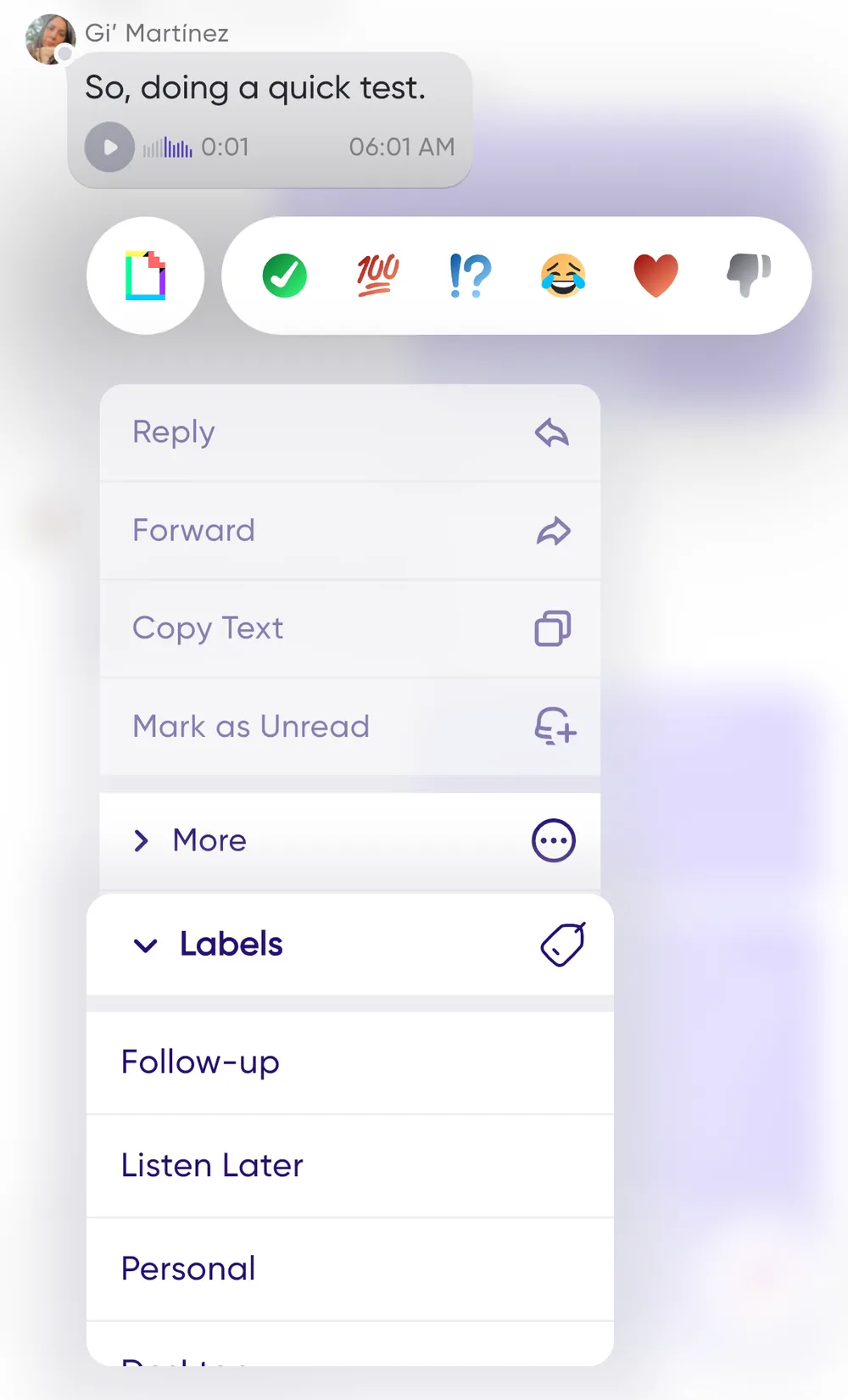
Press and hold on a message, select **Labels**, then choose the labels you want to
apply.
## Labels as a trigger
Because press and hold sets a label in a couple of taps, labelling doubles as a manual
trigger you control: label a message **Bug Report** and a Jira issue can be created, label
it **CRM Update** and a note lands in Salesforce. See
[Zapier](../../integrations/zapier.md).
## Manage labels and playlists
To control which labels create playlists, or to add new ones, go to **Notebook →
Labels → 3-dot menu → Manage Labels**.
## Related
Labels are also a good way to kick off
[automated workflows with Zapier](https://www.getcarbon.app/zapier).
---
URL: https://help.carbonvoice.app/conversations/your-conversation-list/filtering
Source: https://raw.githubusercontent.com/PhononX/carbon-voice-docs/main/docs/conversations/your-conversation-list/filtering.md
# Filtering your conversation list
Tap a filter chip above your conversation list to narrow it down:
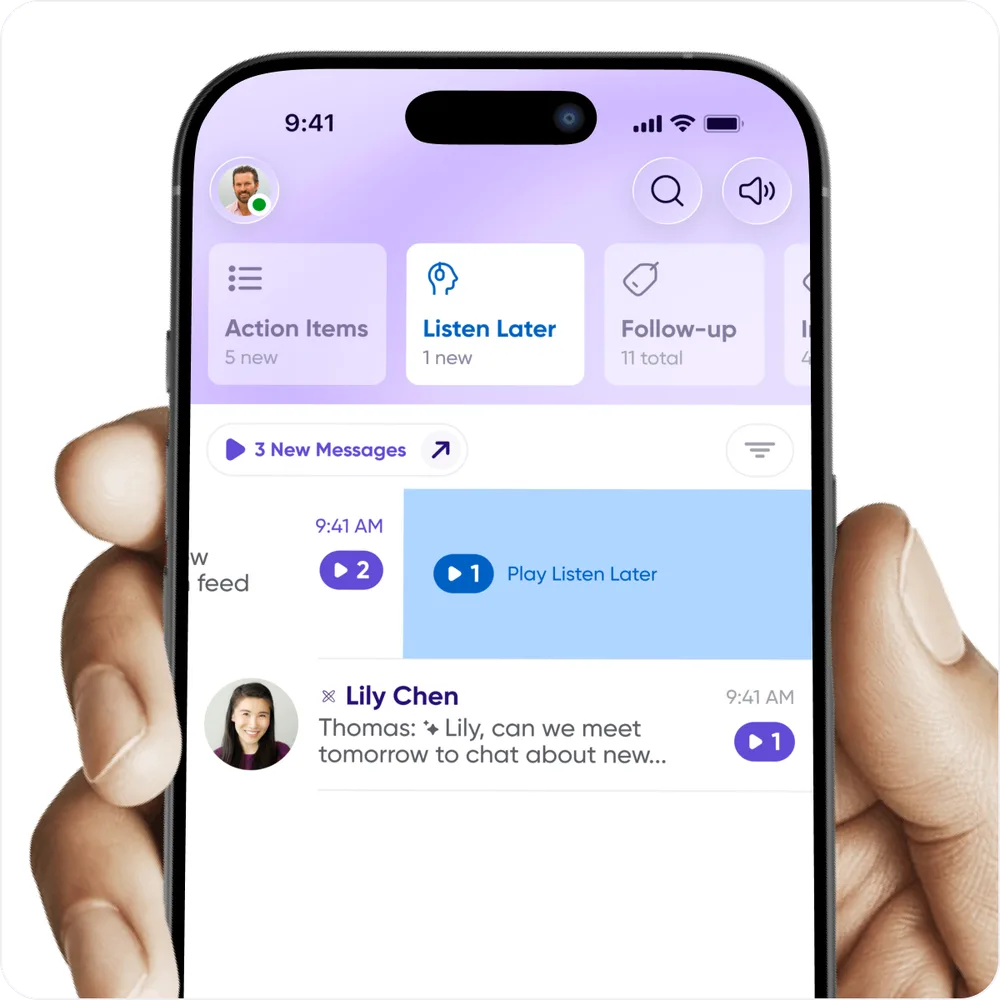
- **Unread** — conversations with messages still wanting your attention.
- **Listen Later** — conversations holding messages you flagged to come back to.
- **Direct**, **Named**, **Async Meeting**, **Customer** — filter by conversation type.
Tap **More filters** for further options, including filtering by workspace.
## Related
- [Your conversation list](index.md)
- [Playlists and labels](playlists-and-labels.md)
---
URL: https://help.carbonvoice.app/messages/playback
Source: https://raw.githubusercontent.com/PhononX/carbon-voice-docs/main/docs/messages/playback/index.md
# Listening
- [Playback speed](playback-speed.md)
- [Distracted mode](distracted-mode.md)
- [Unread messages versus unheard messages](notified-versus-unheard.md)
- [Play new messages](play-new-messages.md)
- [Marking messages read and unread](clearing-notified-messages.md)
- [Listen and reply from push notifications (iOS)](push-notifications-ios.md)
---
URL: https://help.carbonvoice.app/messages/recording-and-sending
Source: https://raw.githubusercontent.com/PhononX/carbon-voice-docs/main/docs/messages/recording-and-sending/index.md
# Recording & sending
- [Record and share](record-and-share.md)
- [Saved voice memos](pre-recorded-messages.md)
- [Message forwarding](message-forwarding.md)
- [Personal notes while you listen](personal-notes.md)
- [Share an audio file to Carbon Voice](share-an-audio-file.md)
- [Deleting messages](deleting-messages.md)
- [Real-time conversations](real-time-conversations.md)
---
URL: https://help.carbonvoice.app/messages/transcripts
Source: https://raw.githubusercontent.com/PhononX/carbon-voice-docs/main/docs/messages/transcripts/index.md
# Transcripts
Carbon Voice transcribes every message automatically, so a voice conversation can be
read as easily as it is heard.
- [Get message transcripts](get-message-transcripts.md)
- [One-tap to expand transcriptions](expand-transcriptions.md)
---
URL: https://help.carbonvoice.app/messages/recording-and-sending/record-a-voice-message
Source: https://raw.githubusercontent.com/PhononX/carbon-voice-docs/main/docs/messages/recording-and-sending/record-a-voice-message.md
# How to record a voice message
Recording in Carbon Voice is designed to be fast and intuitive, whether you're
capturing a quick idea or sharing a thoughtful message with your team.
## 1. Start a recording
- Tap the **big purple Record button** at the center of the bottom bar.
- Once you tap, the timer starts, and you're now recording.
- This button is available across most of the app, so you can record from almost
anywhere.
## 2. While recording
- **Pause** by tapping the mic icon, then tap again to resume.
- **Restart** using the circular arrows icon if it isn't quite right.
- **Delete** the recording in progress by tapping the red trash can icon.
- **Attach a file** while recording — an image, a document, or a link.
## 3. Finish the recording
Tap the **big purple check mark** in the center to complete your recording.
> On the web, make sure your browser allows microphone access. On mobile, check the
> app's permissions in your phone settings if you get an error reaching your mic. See
> [Microphone access](../../troubleshooting/microphone-access.md).
## Next
[What happens after you finish recording](after-you-record.md) — the actions available
once you tap the check mark.
---
URL: https://help.carbonvoice.app/messages/recording-and-sending/after-you-record
Source: https://raw.githubusercontent.com/PhononX/carbon-voice-docs/main/docs/messages/recording-and-sending/after-you-record.md
# What happens after you finish recording
After tapping the purple check mark to finish your recording, you'll see a few quick
actions you can take.
## 1. Choose an AI action (optional)
Run an AI action right away to summarize your message, generate bullet points, draft an
email, create a presentation outline, and more. AI actions turn raw voice notes into
polished outputs. See [AI](../../ai/index.md).
## 2. View the transcript
A transcript is generated automatically. Tap to view, read, or edit it. That's useful when
you want to refine the message or repurpose it. See
[Messages](../../messages/index.md).
## 3. Share the message
You can share a voice message in a few ways:
- **Send it to a person** using their email address or phone contact.
- **Post it in a conversation.**
- **Generate a shareable link** — anyone with the link can listen, reply, and engage.
## 4. Do nothing, and come back later
If you dismiss the notification, your message is still saved. You'll find all your
recordings later in [Voice Memos](../../voice-memos/index.md).
---
URL: https://help.carbonvoice.app/messages/attachments
Source: https://raw.githubusercontent.com/PhononX/carbon-voice-docs/main/docs/messages/attachments.md
# Attachments
You can attach a file or URL while you're speaking, after your message has posted, or
at the conversation level.
## While you're recording
1. Tap the recorder and start speaking.
2. Scroll up on the recording page until you see the **Attachments** section.
3. Tap the **"+"** to add an attachment.
If you're attaching a URL, copy it to your clipboard first and it should populate
automatically. You can also type one in by hand.
> You can attach while still speaking, or tap **pause**, attach, and tap the mic to
> carry on.
## To a message you've already sent
1. Swipe from right to left on the message to open **Message Info**.
2. Scroll down to the **Attachments** section.
3. Tap the **"+"** to add an attachment.
## To a whole conversation
- When creating a new conversation, the creation flow will offer to attach something.
- For an existing conversation, go to **Conversation Settings** and tap **Media, Links
and Docs**.
## On the web
The web app supports attachments too. You can attach and send images, video and files such
as a PDF, and download anything someone else attached.
## Related
- [Message information](message-information.md)
---
URL: https://help.carbonvoice.app/messages/playback/playback-speed
Source: https://raw.githubusercontent.com/PhononX/carbon-voice-docs/main/docs/messages/playback/playback-speed.md
# Playback speed
You can speed up playback on messages up to 4x.
While a message is playing you'll see the current speed:
- Tap the **+** to the right of the speed to go faster.
- Tap the **−** to the left of the speed to slow down.
- Tap the **5 with the rounded arrow** to jump back five seconds.
## Related
- [Listening](index.md)
---
URL: https://help.carbonvoice.app/messages/recording-and-sending/record-and-share
Source: https://raw.githubusercontent.com/PhononX/carbon-voice-docs/main/docs/messages/recording-and-sending/record-and-share.md
# Record and share
There are two ways to record and share in Carbon Voice: **voice memos** and
**conversations**.
## Voice memos
Voice memos live as individual messages. You can share a link for others to listen,
much like sharing a video link. Recipients can reply to the memo, which starts a
conversation with you.
📺 [Watch: recording and sharing a voice memo](https://youtube.com/shorts/rk3YgSnx4vU)
## Conversations
Conversations work like chats, with back-and-forth messages between the people in them.
See [Creating conversations](../../conversations/creating/index.md) to set one up.
## Related
- [Voice Memos](../../voice-memos/index.md)
- [How to record a voice message](../../messages/recording-and-sending/record-a-voice-message.md)
---
URL: https://help.carbonvoice.app/messages/transcripts/get-message-transcripts
Source: https://raw.githubusercontent.com/PhononX/carbon-voice-docs/main/docs/messages/transcripts/get-message-transcripts.md
# Get message transcripts
## A single message
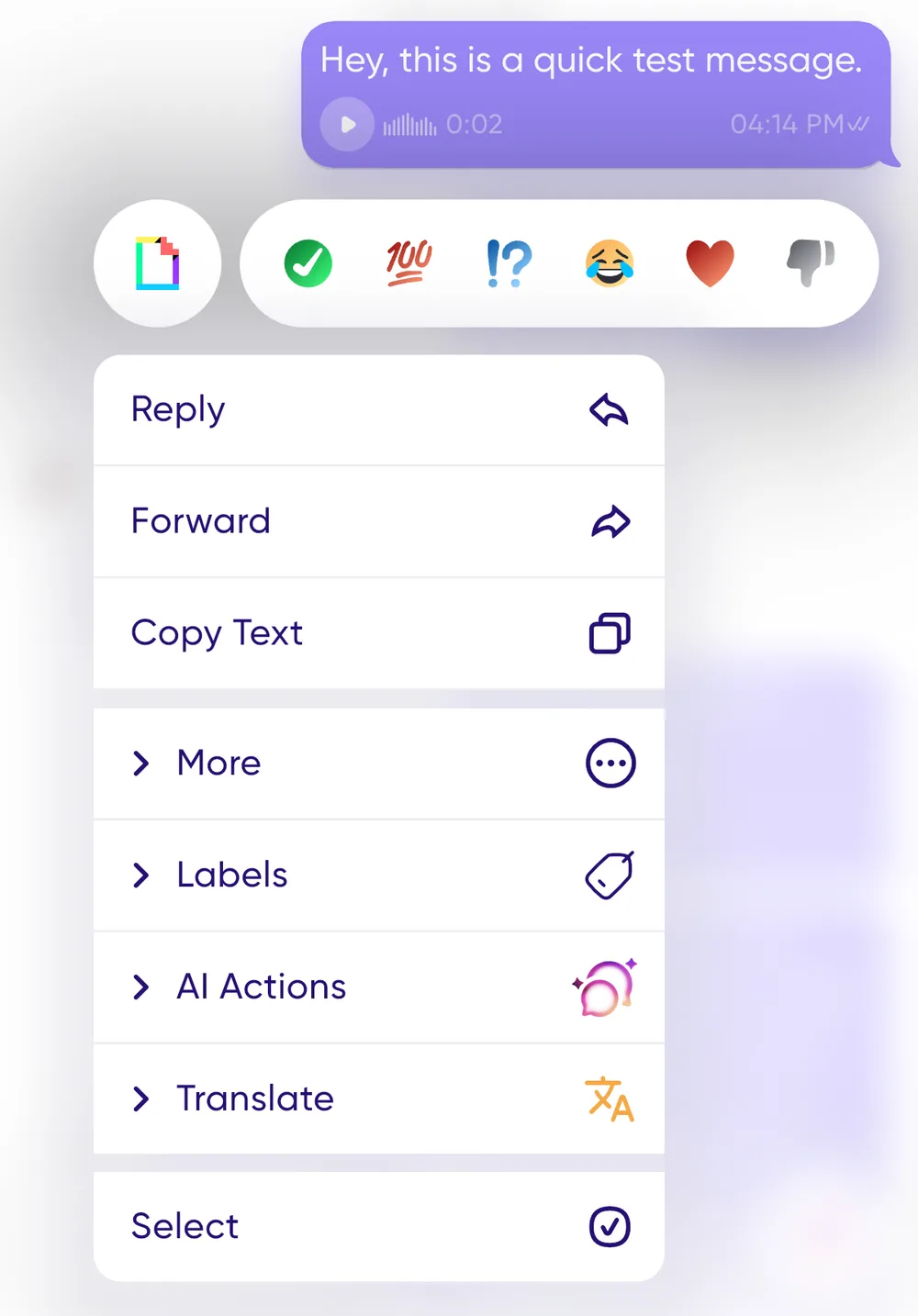
Press and hold on the message and tap **Copy text**.
## Several messages at once

1. Press and hold on a message.
2. Tap **Select** to enter multi-select mode, then choose the messages you want.
3. Tap **Get Transcript**.
You can copy the result to your clipboard or share it into another app.
## Related
- [One-tap to expand transcriptions](expand-transcriptions.md)
---
URL: https://help.carbonvoice.app/messages/playback/distracted-mode
Source: https://raw.githubusercontent.com/PhononX/carbon-voice-docs/main/docs/messages/playback/distracted-mode.md
# Distracted mode
Distracted mode is a simplified, on-the-go player. Larger buttons and a decluttered
screen make it easier to use when you're multitasking and can't fully focus on your
phone.
## Getting into distracted mode
- **From Home.** Tap the play area on any conversation card to catch up in distracted
mode. It shows the conversation's unread count.
- **Inside a conversation.** Tap the distracted mode icon at the top.
## While you're in it
- Tap **"..."** for detailed message information, including engagement status and
transcriptions.
- Flag messages as **Follow-up** to find them again later.
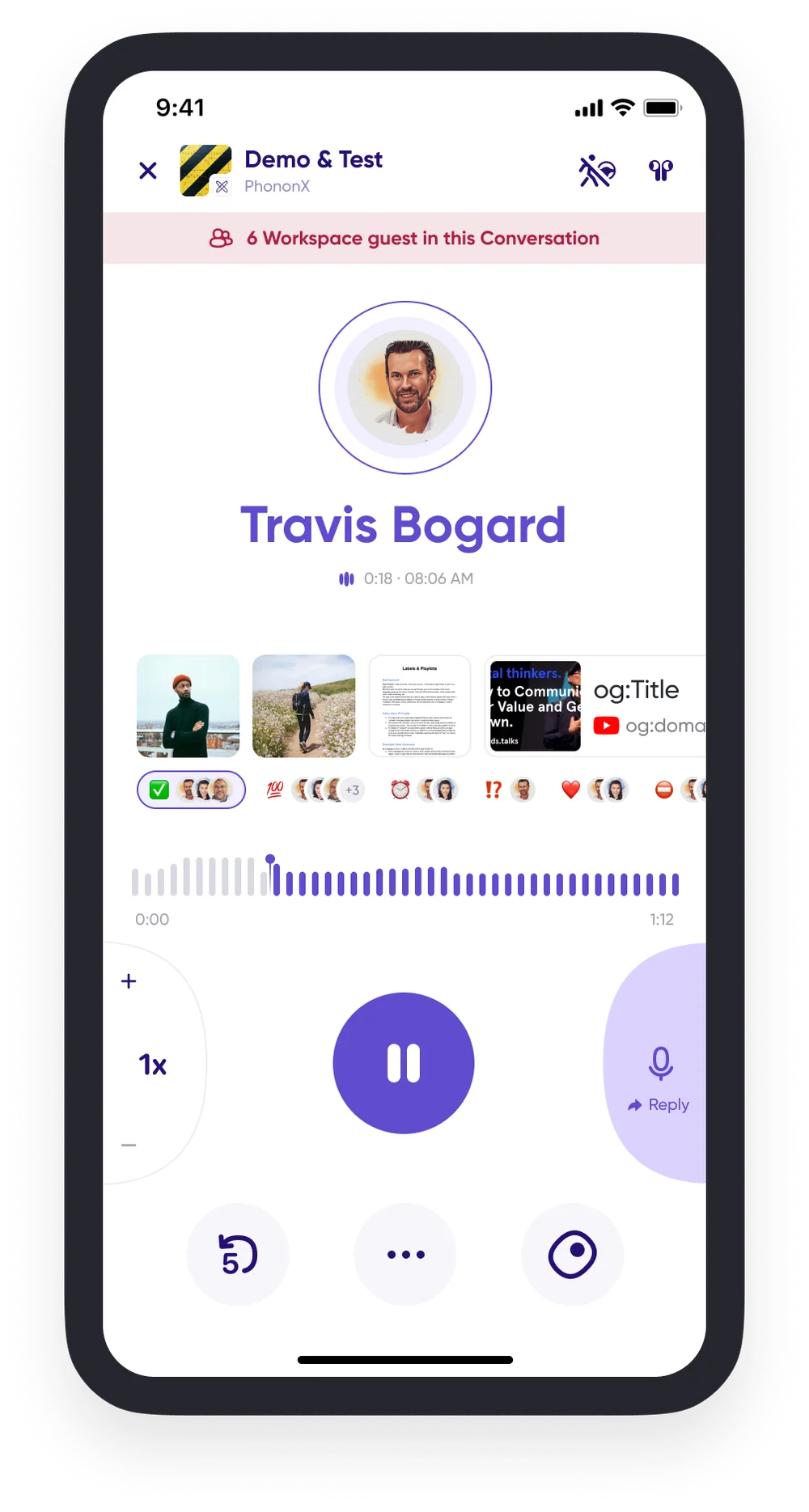
## Getting out
- Tap the **"x"** to exit and stop playing the message, or
- Tap the distracted mode icon in the upper right corner to return to the standard
in-line player while the message keeps playing.
## Related
- [Play new messages](play-new-messages.md)
- [Playback speed](playback-speed.md)
---
URL: https://help.carbonvoice.app/messages/quick-reactions
Source: https://raw.githubusercontent.com/PhononX/carbon-voice-docs/main/docs/messages/quick-reactions.md
# Quick reactions with emoji
To react to a message with an emoji:
1. Press and hold on any message in a conversation.
2. Tap the emoji you want to use.
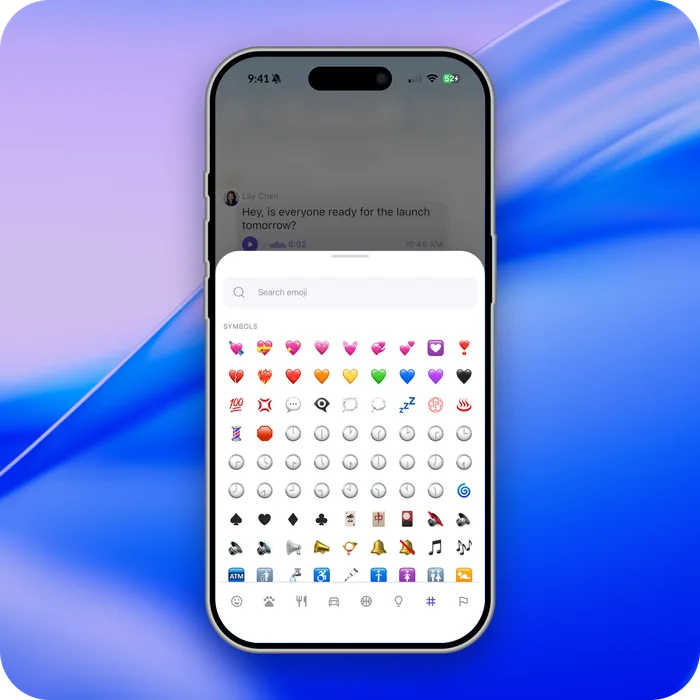
You aren't limited to a fixed set: **more than 1,400 emoji** are available.
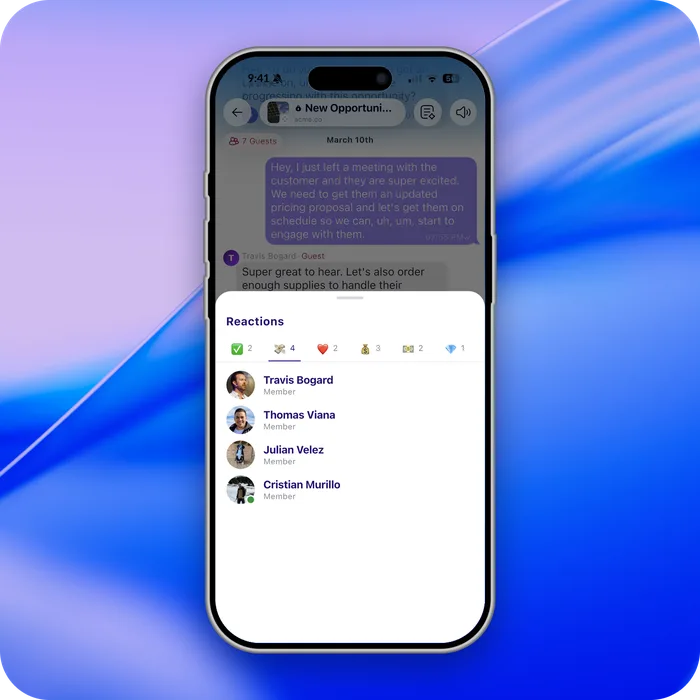
## Seeing who reacted
Press and hold a reaction to see everyone who used it. On desktop, right-click it.
## Related
- [Message information](message-information.md)
---
URL: https://help.carbonvoice.app/messages/transcripts/expand-transcriptions
Source: https://raw.githubusercontent.com/PhononX/carbon-voice-docs/main/docs/messages/transcripts/expand-transcriptions.md
# One-tap to expand transcriptions
Messages can be long. Rather than tapping **show more** on each one, you can expand
every transcript in a conversation at once.
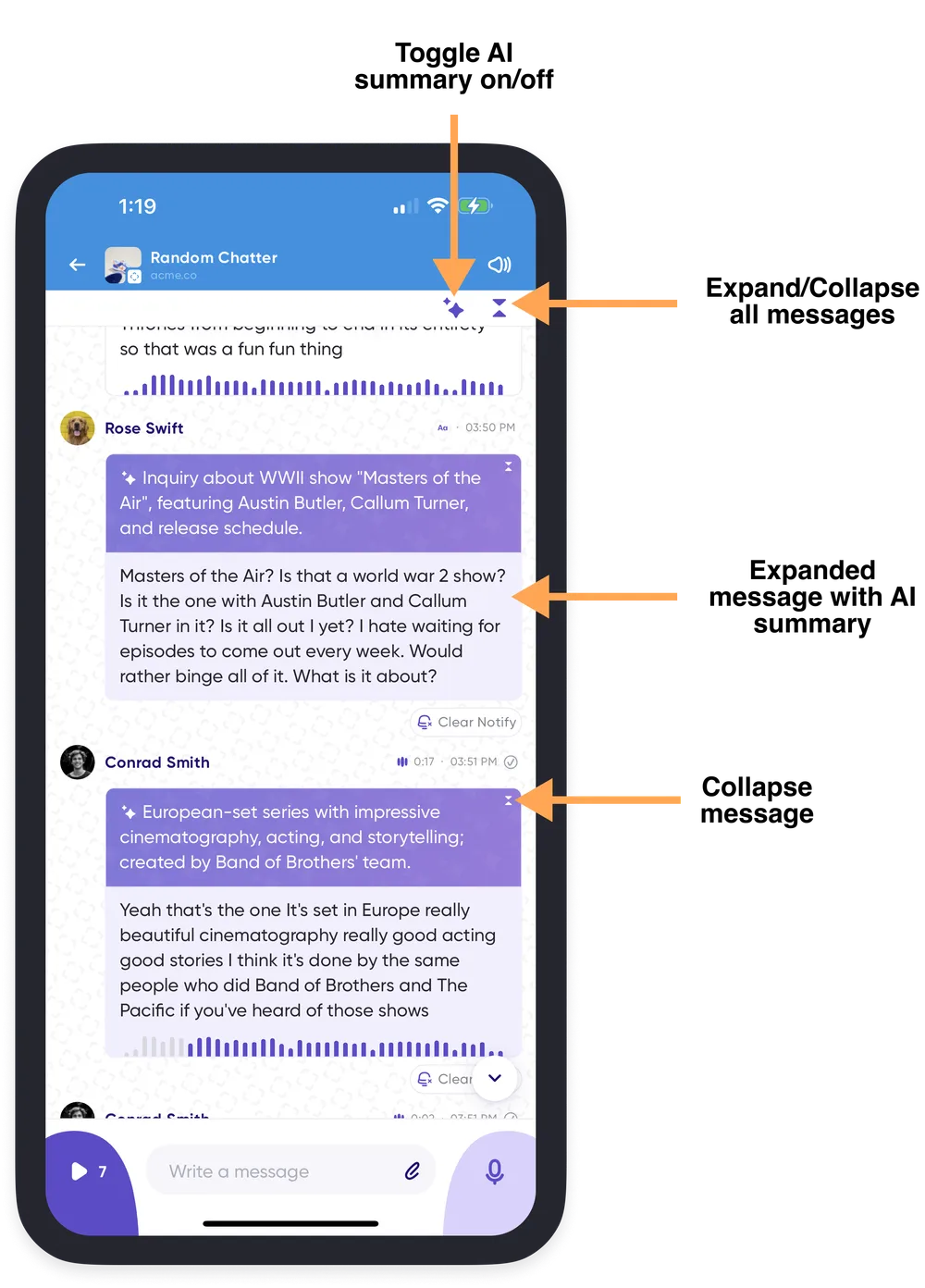
- **Expand everything.** Tap the **summarize icon** at the top right of the conversation
and choose **AI + Message** to reveal the full transcription of every message card
alongside its summary.
- **Collapse it again.** Choose **AI Only** for summaries alone, or pick the same option a
second time to turn the summaries off entirely, so you control how much text is on
screen.
This is most useful for lengthier discussions when you would rather read than listen.
## Related
- [Get message transcripts](get-message-transcripts.md)
---
URL: https://help.carbonvoice.app/messages
Source: https://raw.githubusercontent.com/PhononX/carbon-voice-docs/main/docs/messages/index.md
# Messages
A message is a single recording sent into a conversation. Carbon Voice transcribes each
one automatically, so every message is both audio and text.
- **[Recording & sending](recording-and-sending/index.md)** — making a message and
getting it where it needs to go.
- **[Listening](playback/index.md)** — playback, unread messages, and catching up.
- **[Transcripts](transcripts/index.md)** — reading and copying what was said.
## On any message
- [Attachments](attachments.md)
- [Editing text messages](editing-text-messages.md)
- [Tagging people and agents](mentions.md)
- [Threads](threads.md)
- [Notebook](notebook.md)
- [Quick reactions with emoji](quick-reactions.md)
- [Message information](message-information.md)
- [See if someone has read or listened](read-receipts.md)
---
URL: https://help.carbonvoice.app/messages/message-information
Source: https://raw.githubusercontent.com/PhononX/carbon-voice-docs/main/docs/messages/message-information.md
# Message information
Message details show whether your message has been seen or heard, along with its
transcript and everything you can do with it.
## Opening message details
- Press and hold the message card and select **More → Message Info**.
- From the in-line player, tap the **"..."**.
- In distracted mode, tap **See Transcript**.
## What's in it
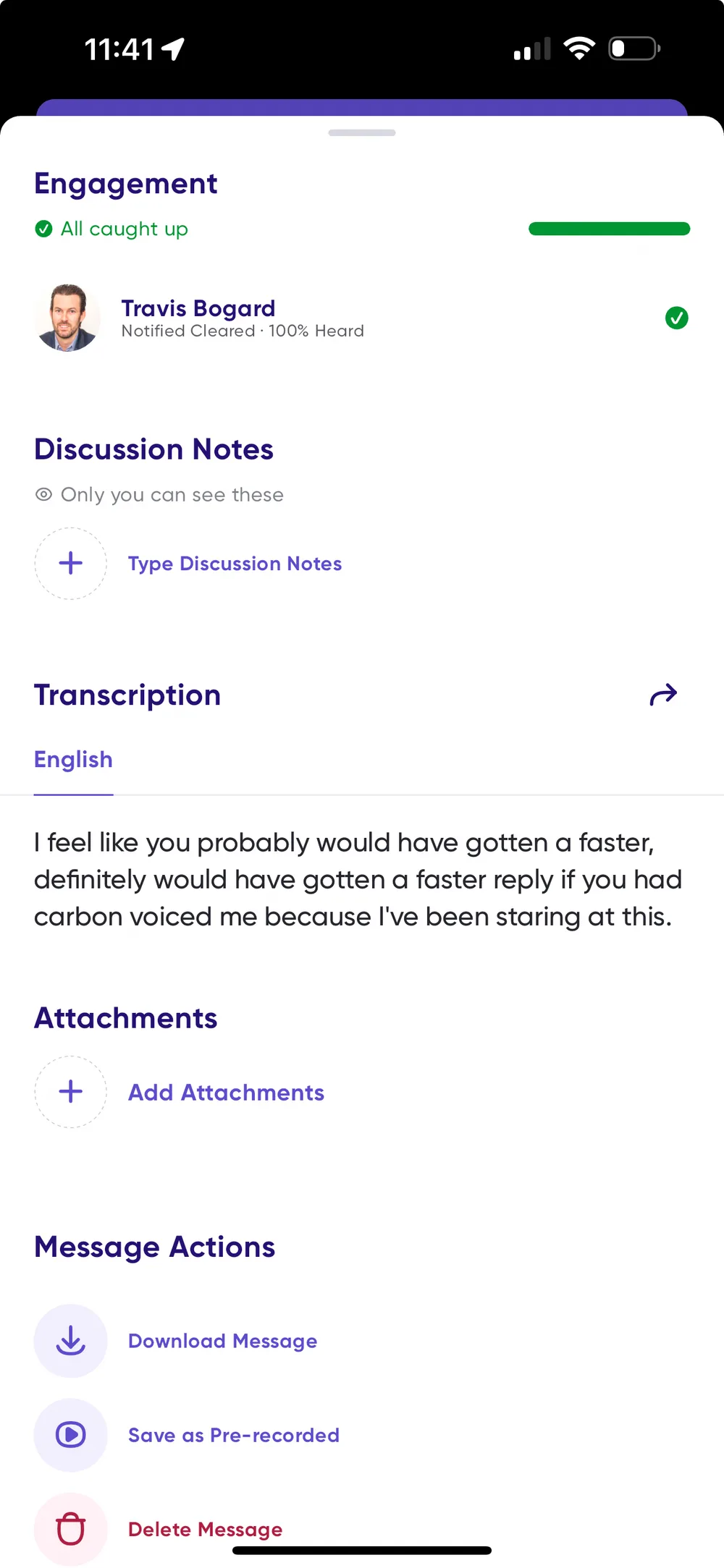
**Engagement** — who has caught up on your message, either by clearing the notification
or by listening. See
[See if someone has read or listened](read-receipts.md).
**Discussion notes** — take notes as you listen to a message.
**Labels** — flag messages using the default labels or your own, and use them to build
playlists. See
[Playlists and labels](../conversations/your-conversation-list/playlists-and-labels.md).
**Transcription** — read the full transcript, tap a word to jump to that point during
playback, and copy or share the text.
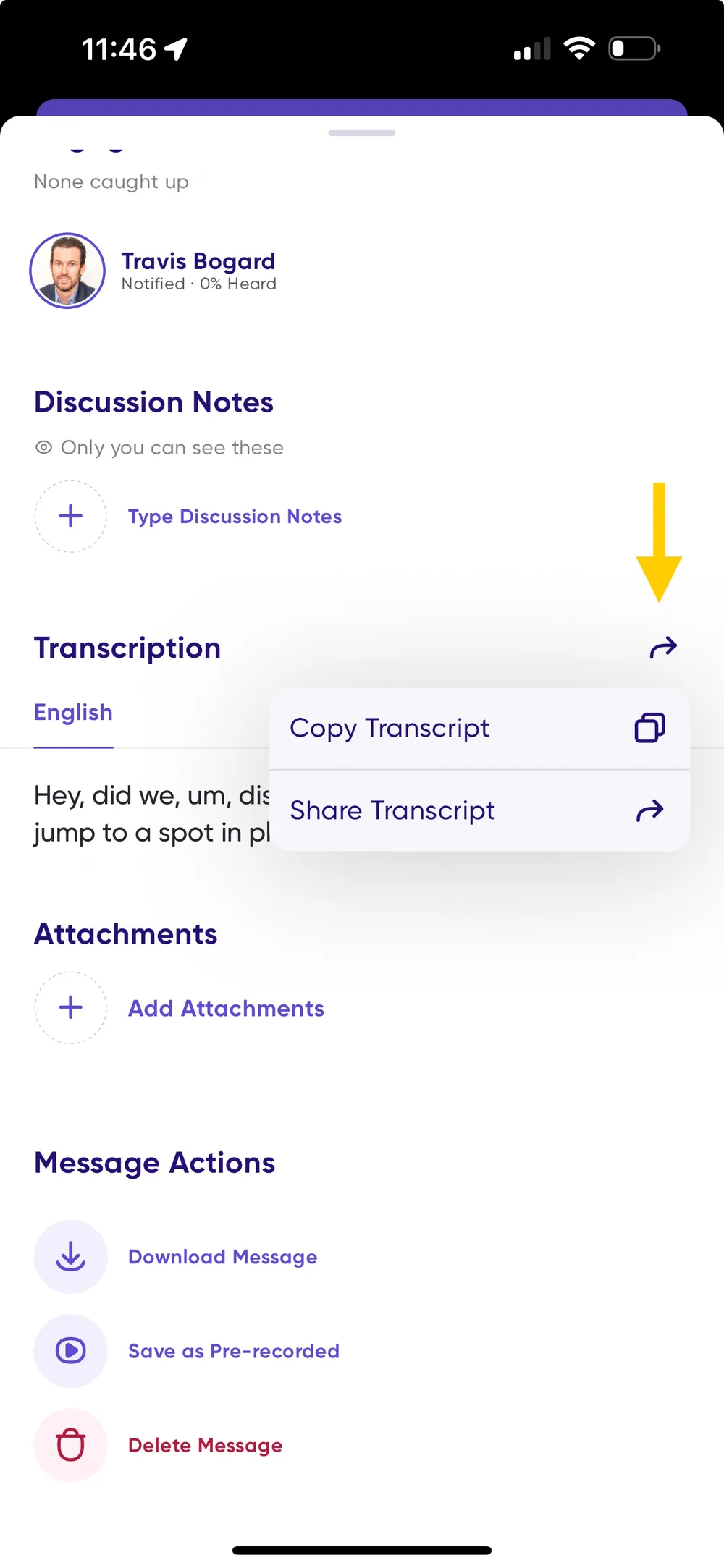
**Message actions** — download the message, save it as a
[voice memo](recording-and-sending/pre-recorded-messages.md) to reuse, or delete it. The
last two are available on your own messages only.
## Related
- [Attachments](attachments.md)
- [Get message transcripts](transcripts/get-message-transcripts.md)
---
URL: https://help.carbonvoice.app/messages/playback/notified-versus-unheard
Source: https://raw.githubusercontent.com/PhononX/carbon-voice-docs/main/docs/messages/playback/notified-versus-unheard.md
# Unread messages versus unheard messages
In most inboxes, "unread" does double duty: it tells you what you haven't seen *and* gets
used as a flag for what you still need to deal with. Carbon Voice separates those into two
attributes:
- **Heard status** — how much of a message you've listened to.
- **Unread** — whether the message still wants your attention.
> You'll occasionally see the word **notified** in the app, in **Settings → Conversation
> History**, and as **Notified Cleared** in engagement details. It means the same thing as
> unread; it's the original name for the attention flag.
## The new-messages line
Inside a conversation, read and unread are separated by a single line. Everything above it
you've read; everything below it is new.
Open a conversation and it scrolls to that line, so you start where you left off rather than
at the bottom. When you leave, the line moves on its own, based on what you actually saw.
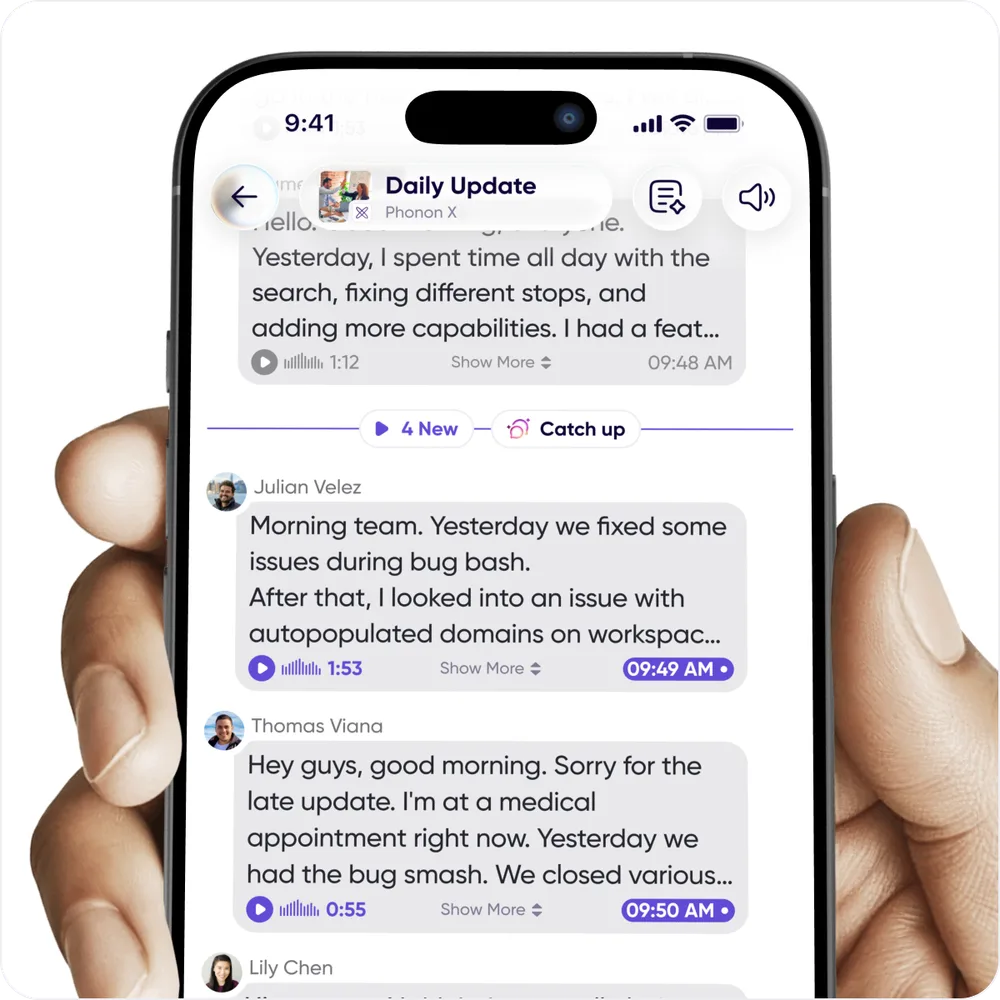
The line carries two buttons:
- **The unread count** plays everything below the line. The line moves down as it finishes.
- **Catch-up** summarizes what's new without playing it. See
[Catch up with AI](../../ai/catch-up-with-ai.md).
To move the line back, press and hold a message and choose **Mark as Unread**. Everything
from that message down becomes unread again.
## Unread messages
Unread messages are seeking your attention, most often because they're new. They act as
flags, indicating that action or acknowledgment is needed from you.
- New messages generally arrive unread, and they drive the count on the app badge and on
your conversations.
- The flag clears automatically when you play through the message.
- Your own messages don't arrive unread.
- You can mark messages read and unread by hand. See
[Marking messages read and unread](clearing-notified-messages.md).
### Playing your unread messages
Above your conversation list on Home there's a button showing how many new messages you
have. It has two halves:
- **Tap the play button** to start playing every unread message, across all your
conversations.
- **Tap the button to its right** to open them as a playlist first, so you can see what's
queued and jump around.
You can also filter the conversation list to **Unread**, or tap the play area on an
individual conversation card to play just that conversation's unread messages.
The playlist doubles as a way to clear the backlog without listening to it. Each
conversation in the queue can be **marked read from that screen**, so you can work down the
whole list in one place rather than opening each conversation.
See [Play new messages](play-new-messages.md).
## Heard status
Carbon Voice remembers the furthest point you reached in a message. Leave it and come back,
and playback resumes where you stopped.
- The **dark purple waveform** marks the unheard part of a message; the **gray waveform**
marks what you've heard.
- New messages from other people always show as fully unheard. Your own messages show as
fully heard.
- Joining an ongoing conversation shows historical messages as unheard, but read.
- Joining an async meeting shows historical messages as unheard **and** unread.
## How the two interact
Because they're separate, a message can be in any combination of the two states.
**Read the transcript, marked it read** — unheard, but read. You read the text but never
played the audio, so the message stays unheard; marking it read drops the flag.
**Automatic clearing** — unheard, but read. If your settings mark messages read as you
scroll past them, the flag drops even though you haven't listened.
**Manually mark as unread** — heard, and unread again. You can re-apply the flag to a
message you've already heard, to come back to it later.
## Joining a conversation
- **Ongoing conversations** — earlier messages appear unheard, but read.
- **Async meetings** — earlier messages appear both unheard and unread.
## Related
- [Marking messages read and unread](clearing-notified-messages.md)
- [Play new messages](play-new-messages.md)
---
URL: https://help.carbonvoice.app/messages/playback/play-new-messages
Source: https://raw.githubusercontent.com/PhononX/carbon-voice-docs/main/docs/messages/playback/play-new-messages.md
# Play new messages
**Play New Messages** is a one-tap way to catch up on the messages that need your
attention.
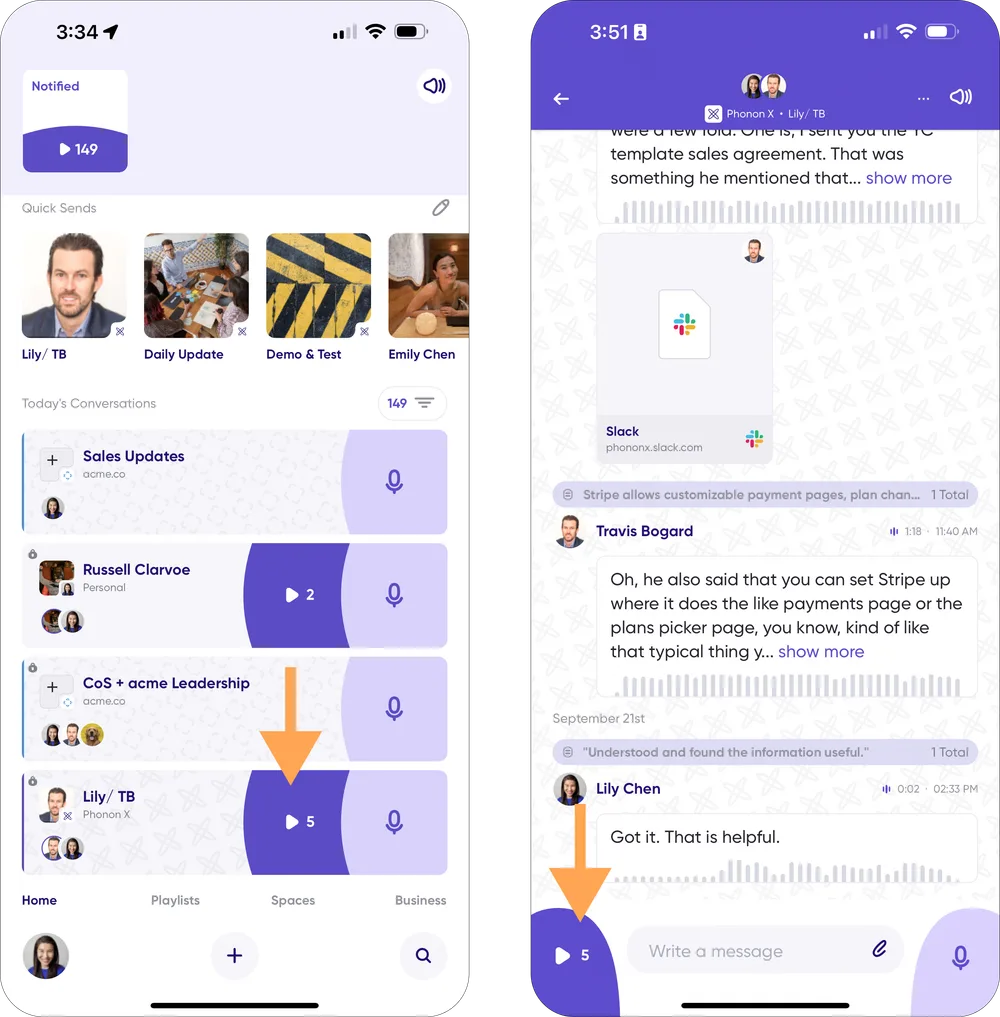
## From the Home screen
1. Open Carbon Voice and go to the Home screen.
2. Find the conversation card with messages needing your attention.
3. Tap the purple **Play** button on the card.
## Inside a conversation
1. Open the conversation with unread messages.
2. Tap the purple **Play** button in the bottom left corner.
## What to expect
Messages play in conversation order, with threaded groups played together, so the
context holds together while you listen.
You can skip forwards or backwards during playback, or reply as you go. That's useful when
you're walking, driving, or moving between meetings.
## Related
- [Unread messages versus unheard messages](notified-versus-unheard.md)
- [Playback speed](playback-speed.md)
---
URL: https://help.carbonvoice.app/messages/read-receipts
Source: https://raw.githubusercontent.com/PhononX/carbon-voice-docs/main/docs/messages/read-receipts.md
# See if someone has read or listened
Wondering whether someone in your conversation has seen or heard your message? You can
check engagement details on any message you've sent.
## Check marks at a glance
Look at the bottom-right corner of your message card in the conversation:
| What you see | What it means |
| --- | --- |
| No check mark | The message isn't sent or fully processed yet. |
| Single gray check | Sent and active, but nobody has read or listened yet. |
| Double gray check | Some people have engaged — listened, or cleared the notification. |
| Dark purple double check | Everyone in the conversation has read or listened. |
> "Caught up" means someone either listened to the message or cleared the notification.
> Both count as engagement.
## Detailed engagement info
1. Go to the conversation containing the message.
2. Find your message card.
3. **Swipe the card from right to left**, or **tap the message** to open message info.
At the top of message info is the **Engagement Status** card:
- **All caught up** — every recipient has read or listened.
- **Some caught up** — only some participants have engaged.
- **None caught up** — nobody has read or listened yet.
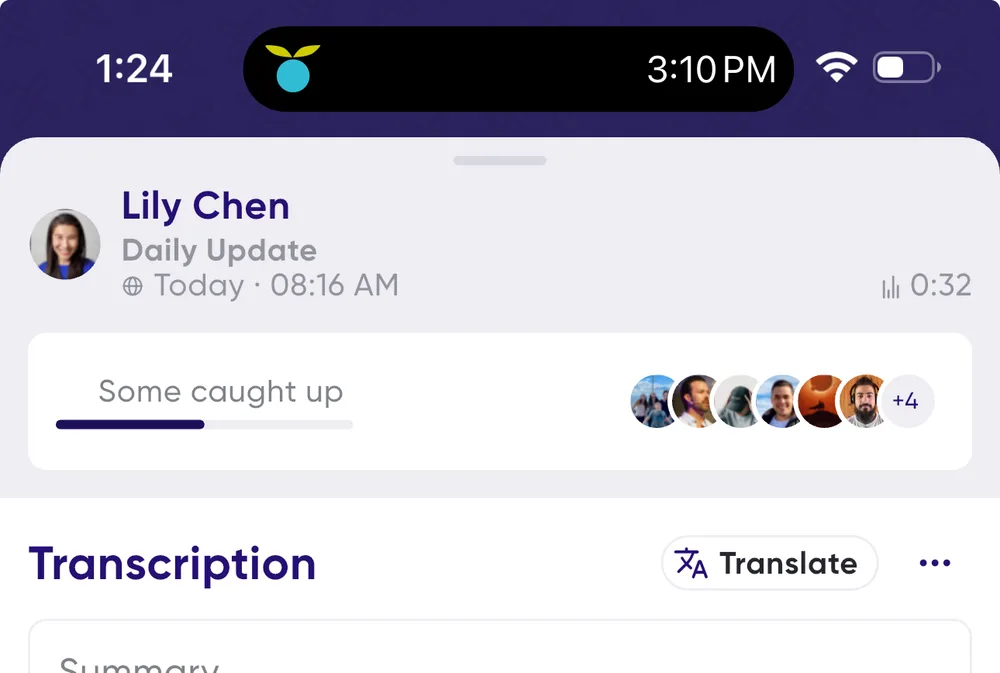
## Per-person detail
Tap the engagement bar to expand it for a breakdown of each person:
- **% heard** — how much of the message they listened to.
- **Notified cleared** — they cleared the notification, which counts as a read.
- **Unread** — they haven't read or listened yet.
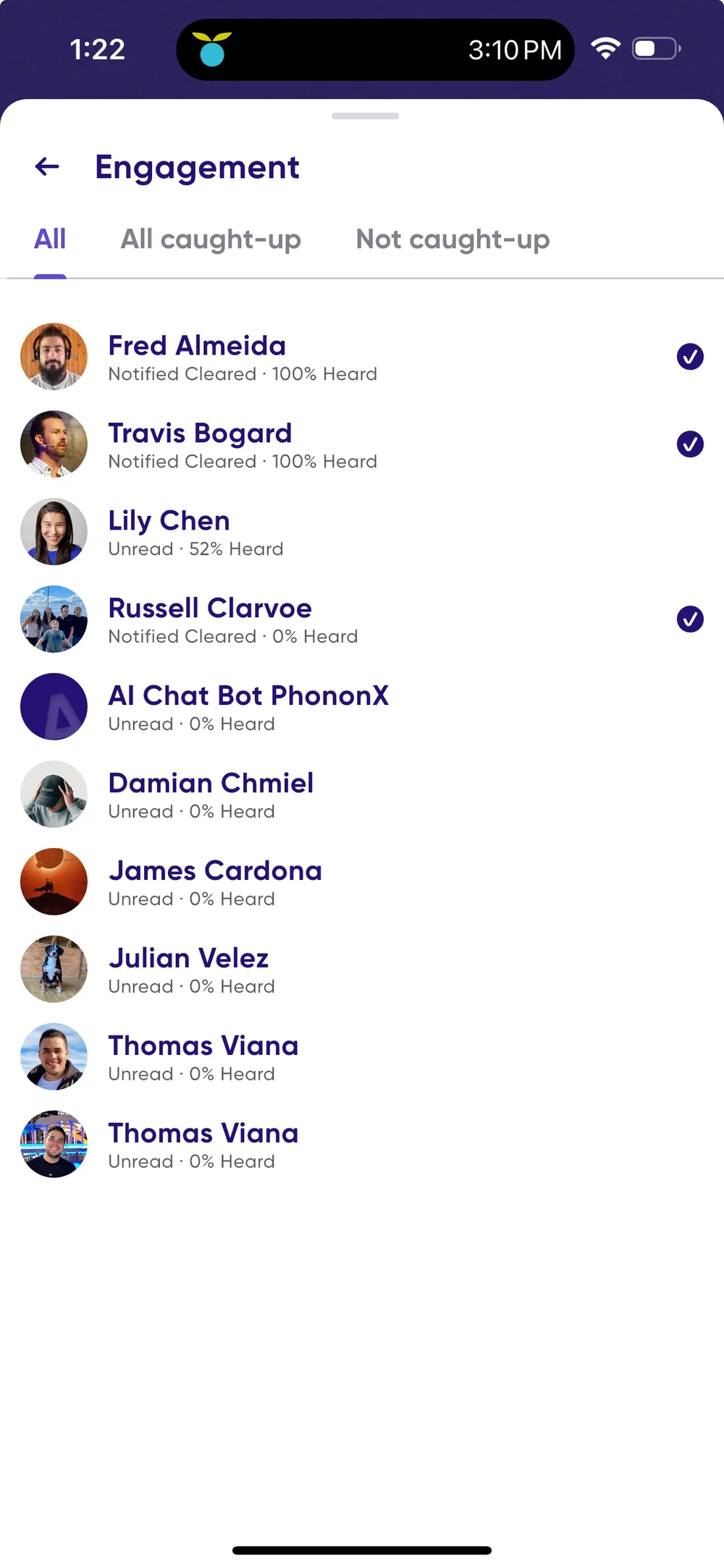
So "Notified Cleared · 80% heard" means they listened to most of it and cleared the
notification, while "Unread · 0% heard" means they haven't engaged at all.
Clearing a notification counts as **read**; listening counts as **heard**. Tracking
both tells you who is caught up, and how.
## Related
- [Unread messages versus unheard messages](playback/notified-versus-unheard.md)
---
URL: https://help.carbonvoice.app/messages/recording-and-sending/pre-recorded-messages
Source: https://raw.githubusercontent.com/PhononX/carbon-voice-docs/main/docs/messages/recording-and-sending/pre-recorded-messages.md
# Saved voice memos
A saved voice memo is a recording you've kept for future use, handy for support replies,
pitches, acknowledgments, and anything else you find yourself saying more than once.
> These were previously called **pre-recorded messages**.
## Why use them
- **Respond quickly.** Reply to a thread or send a top-level message instantly.
- **Stop repeating yourself.** If you keep sending the same response, save it once.
## Save one
Record a voice memo as usual, and it's kept in **Voice Memos** ready to reuse. To keep a
message you've already sent into a conversation, open **Message Info**, scroll down, and tap
**Save to Voice Memo**.
> **If you used pre-recorded messages**, they're still there, in a folder inside Voice Memos.
> Zapier workflows that send one keep working, though it's worth pointing them at the voice
> memo message ID instead.
## Use one
- **Reply with one.** Press and hold on a message card, then **More → Reply with saved
voice memo**.
- **Send a new one.** Open **Voice Memos**, find the memo, and share or send it into a
conversation.
## Related
- [Voice Memos](../../voice-memos/index.md) — where your saved memos live.
- [Message forwarding](message-forwarding.md) — for sending one of your messages somewhere
else without saving it first.
---
URL: https://help.carbonvoice.app/messages/editing-text-messages
Source: https://raw.githubusercontent.com/PhononX/carbon-voice-docs/main/docs/messages/editing-text-messages.md
# Editing text messages
A text message you've already sent can be edited.
1. Press and hold the sent message.
2. Tap **Edit Text Message**.
3. Make the change and tap **Done**.
The edit updates **both the text and the audio**. Because a typed message is read aloud
for whoever listens rather than read on screen, the spoken version is regenerated to match
what you changed, so someone who plays it after your edit hears the corrected version, not
the original.
## Related
- [Personalize the voice for messages you type](../voice-and-language/typed-message-voice.md)
- [Deleting messages](recording-and-sending/deleting-messages.md)
---
URL: https://help.carbonvoice.app/messages/playback/clearing-notified-messages
Source: https://raw.githubusercontent.com/PhononX/carbon-voice-docs/main/docs/messages/playback/clearing-notified-messages.md
# Marking messages read and unread
You can clear the unread flag by hand, put it back on something you want to revisit, or have
it clear automatically as you read.
Inside a conversation, the dividing line between read and unread does most of this for you.
It moves as you go, so messages mark themselves read without you doing anything. See
[the new-messages line](notified-versus-unheard.md#the-new-messages-line).
## On a whole conversation
**Press and hold the conversation card** on Home and tap **Mark all Read**. The option only
appears when the conversation actually has unread messages.
Marking a conversation read preserves listen status. It drops the attention flag without
pretending you've heard anything.
## On a single message
- **Tap the button underneath the message** in a conversation. It reads **Mark as Read**
when the message is unread, and **Mark as Unread** once it isn't. The same button toggles
both ways.
- **Press and hold** the message and tap **Mark as Unread** to flag one you've already read.
- **Play the message.** Listening through it clears the flag on its own.
> Swiping a message doesn't change its read state. Swipe left to right to **reply** (hold
> the swipe for a voice reply), or right to left for **message info** (hold it for
> **Listen Later**).
## Listen Later
When a message is too long to play right now, long-swipe it from right to left to label it
**Listen Later**.
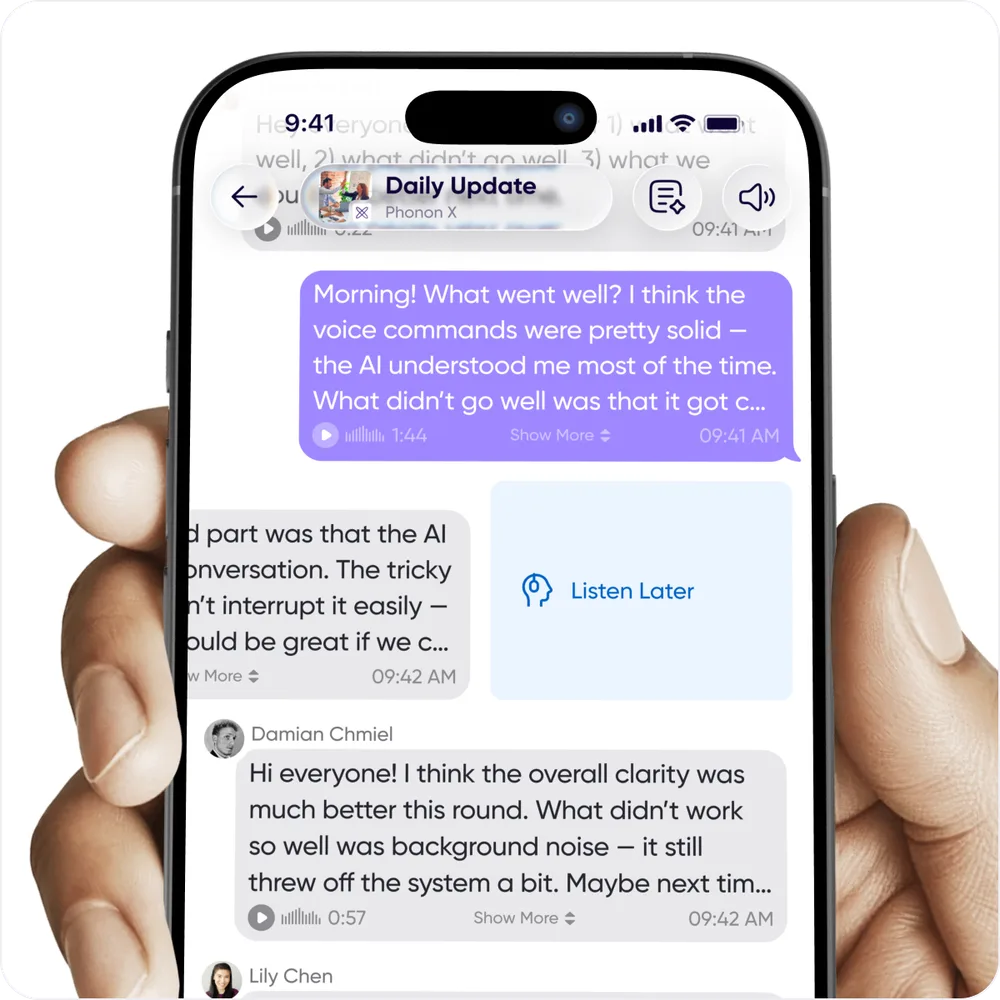
A message you've flagged carries a **Listen Later** chip, so it's obvious in the feed.
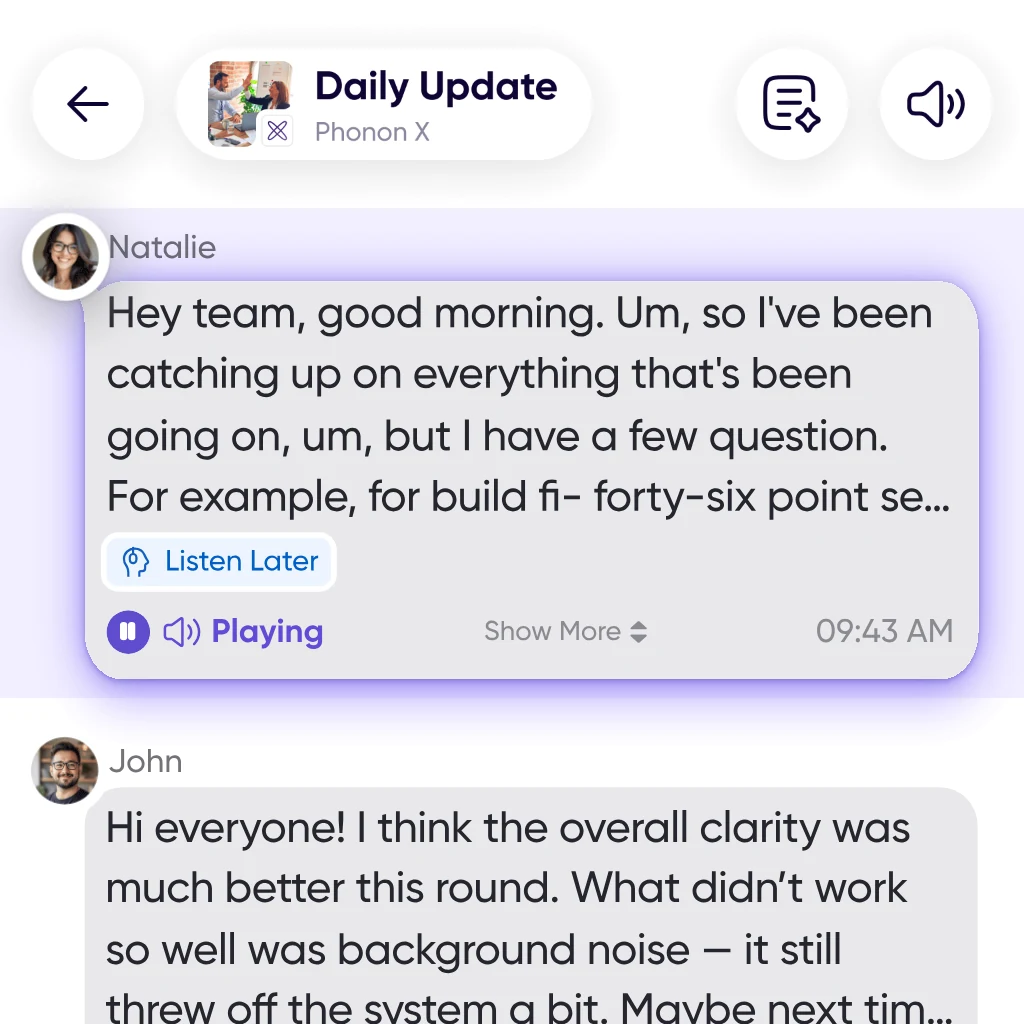
An indicator at the top of the conversation shows when you have messages saved for later.
Tap it to get arrows for moving between them.
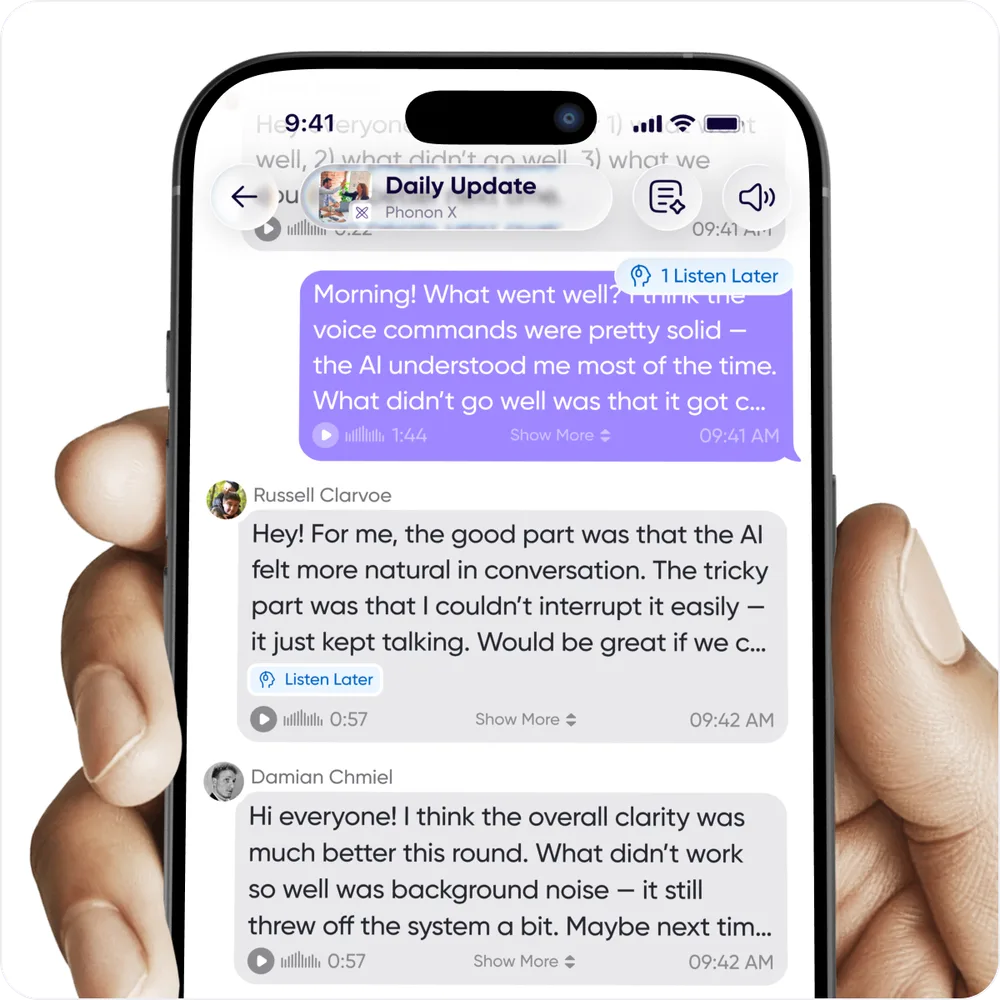
You can also filter your conversation list to **Listen Later** to find every conversation
holding one. See [Filtering your conversation list](../../conversations/your-conversation-list/filtering.md).

## Clearing automatically
You can have messages mark themselves read as you read through a conversation.
Open your **Profile Menu**, which is your profile picture at the top left of Home on mobile
or the bottom of the navigation sidebar on desktop. Then go to **Settings → Conversation
History** and choose your automatic timing.
## Related
- [Unread messages versus unheard messages](notified-versus-unheard.md)
- [Conversation history settings](../../conversations/access-and-sharing/conversation-history-settings.md)
---
URL: https://help.carbonvoice.app/messages/recording-and-sending/message-forwarding
Source: https://raw.githubusercontent.com/PhononX/carbon-voice-docs/main/docs/messages/recording-and-sending/message-forwarding.md
# Message forwarding
Forwarding lets you share information across conversations, so an idea from one
discussion can reach another.
📺 [Watch: message forwarding](https://youtu.be/L1dcInKv5UA)
## Forwarding a message
When you forward a message, recipients can read or listen to it even if they weren't in
the original conversation. If they do have access to that conversation, a link back is
shown so they can jump to the original message and see its context.
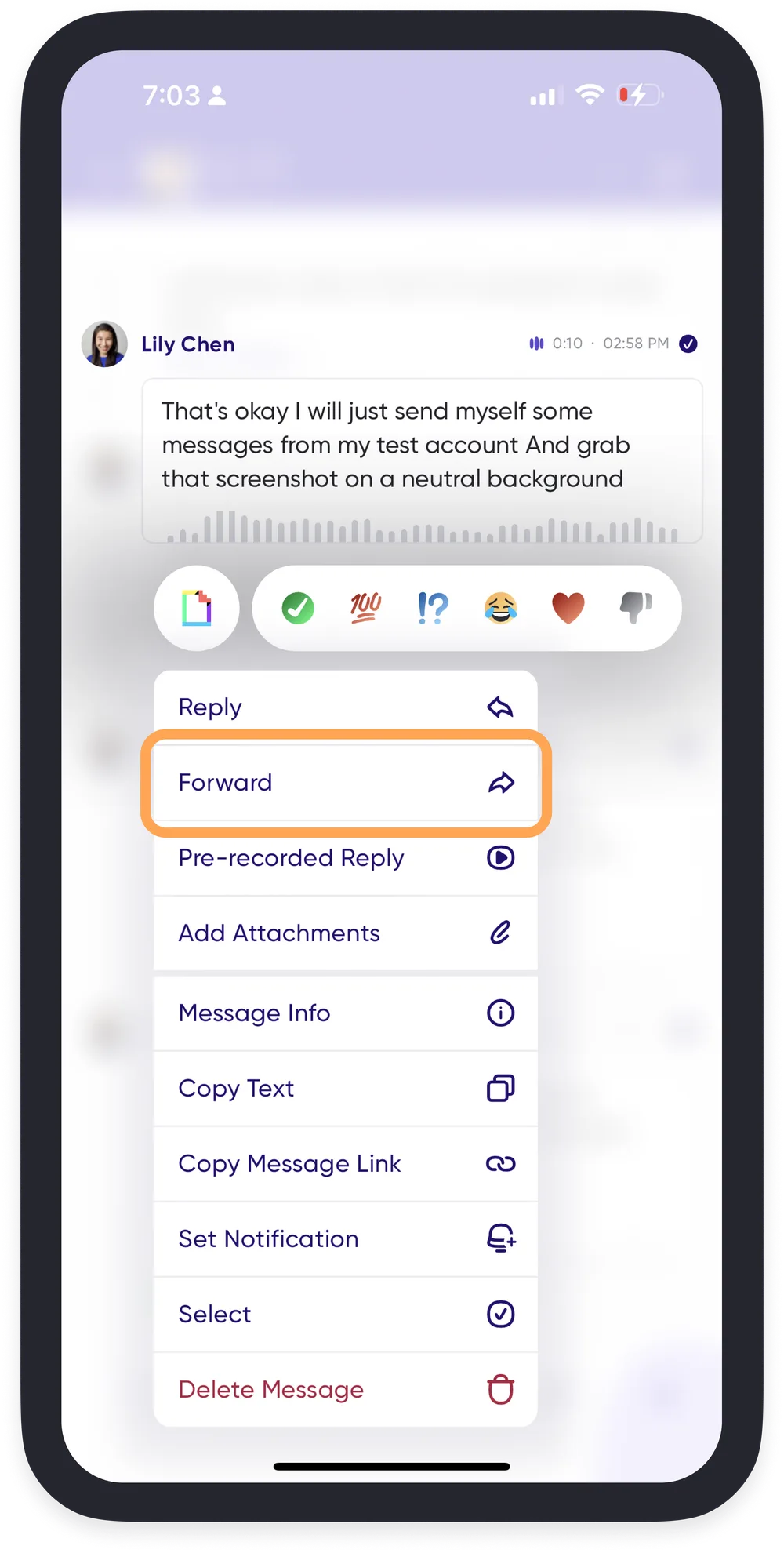
1. Press and hold on the message you want to forward.
2. Select **Forward**.
3. Choose the conversation to forward it to.
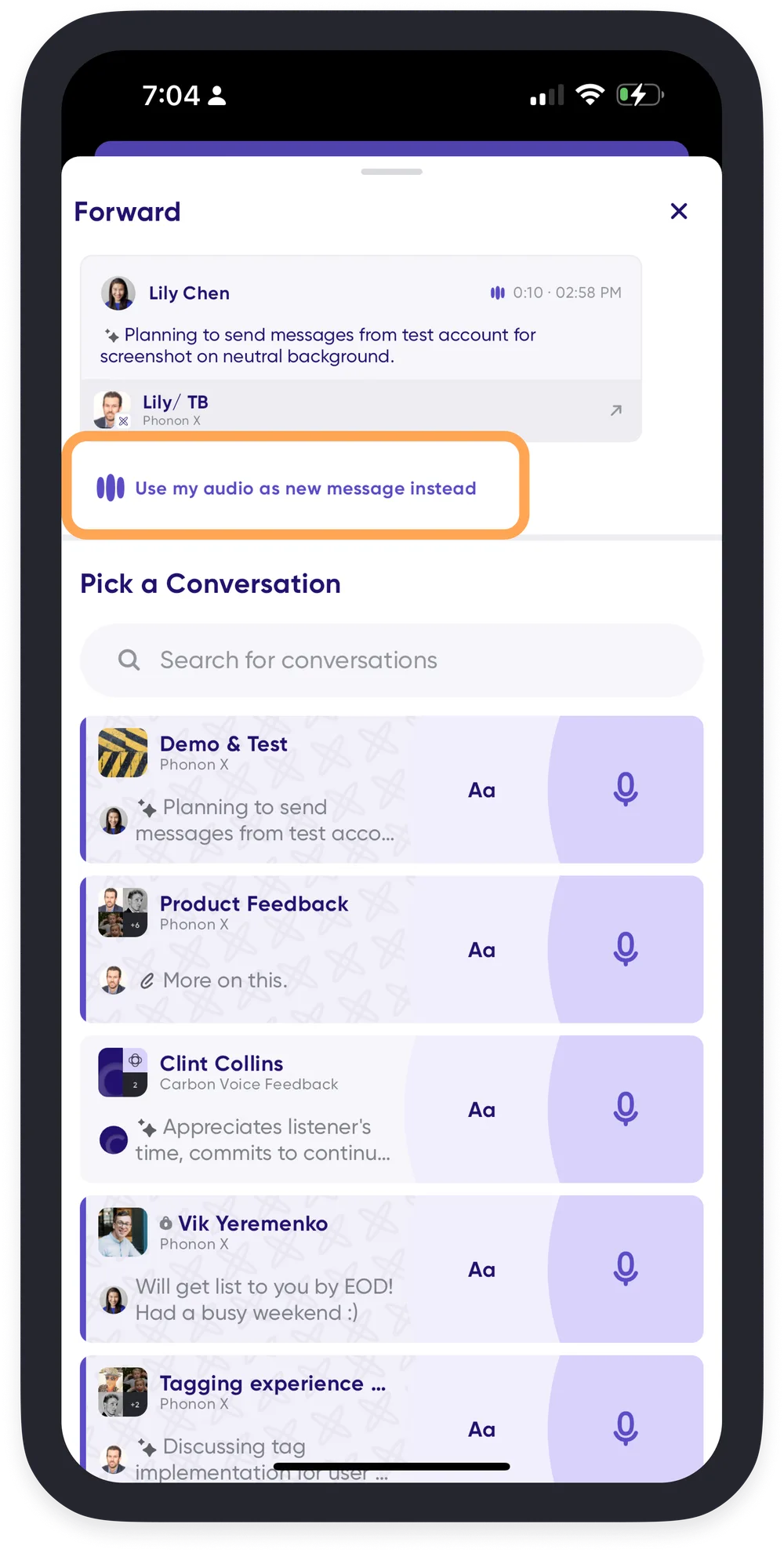
## Sending it as a new message instead
You can also send one of your own messages somewhere else as a brand new message,
without saving it as a [saved voice memo](pre-recorded-messages.md) first. When forwarding
your own message, choose **Use my audio as new message instead**. It's sent with the original
audio and text, but without a link back to where it was first sent.
A saved voice memo is still the better choice for something you send often.
## Transparency alerts
Carbon Voice notifies the owner of a message whenever it is forwarded, so you always
know how your messages are being shared.
## Related
- [Saved voice memos](pre-recorded-messages.md)
---
URL: https://help.carbonvoice.app/messages/mentions
Source: https://raw.githubusercontent.com/PhononX/carbon-voice-docs/main/docs/messages/mentions.md
# Tagging people and agents
Tagging pulls a particular person or agent into a message.
## Tagging someone
Press and hold a message and choose **Tag people**, then pick who you mean.
A tagged person gets **an extra push notification and an inbox notification**, on top of
whatever they'd normally receive for the conversation. So a tag is how you get attention
in a busy conversation without messaging everyone separately.
## Tagging an agent
Agents can be tagged the same way. It's worth knowing that **some agents need to be tagged
in a group conversation before they'll engage at all**. In a conversation with several
people, an agent may wait to be addressed rather than responding to everything.
If an agent isn't answering in a group conversation, tag it.
## Finding your tags
Everything you've been tagged in is collected under **Mentions**, in your
[notification inbox](../account-and-settings/inbox.md) and in Notebook.
## Related
- [AI Agents](../ai-agents/index.md)
- [Notification inbox](../account-and-settings/inbox.md)
---
URL: https://help.carbonvoice.app/messages/playback/push-notifications-ios
Source: https://raw.githubusercontent.com/PhononX/carbon-voice-docs/main/docs/messages/playback/push-notifications-ios.md
# Listen and reply from push notifications (iOS)
Many conversations are short and quick, so you can listen and reply right from the
message notification on your phone's lock screen.
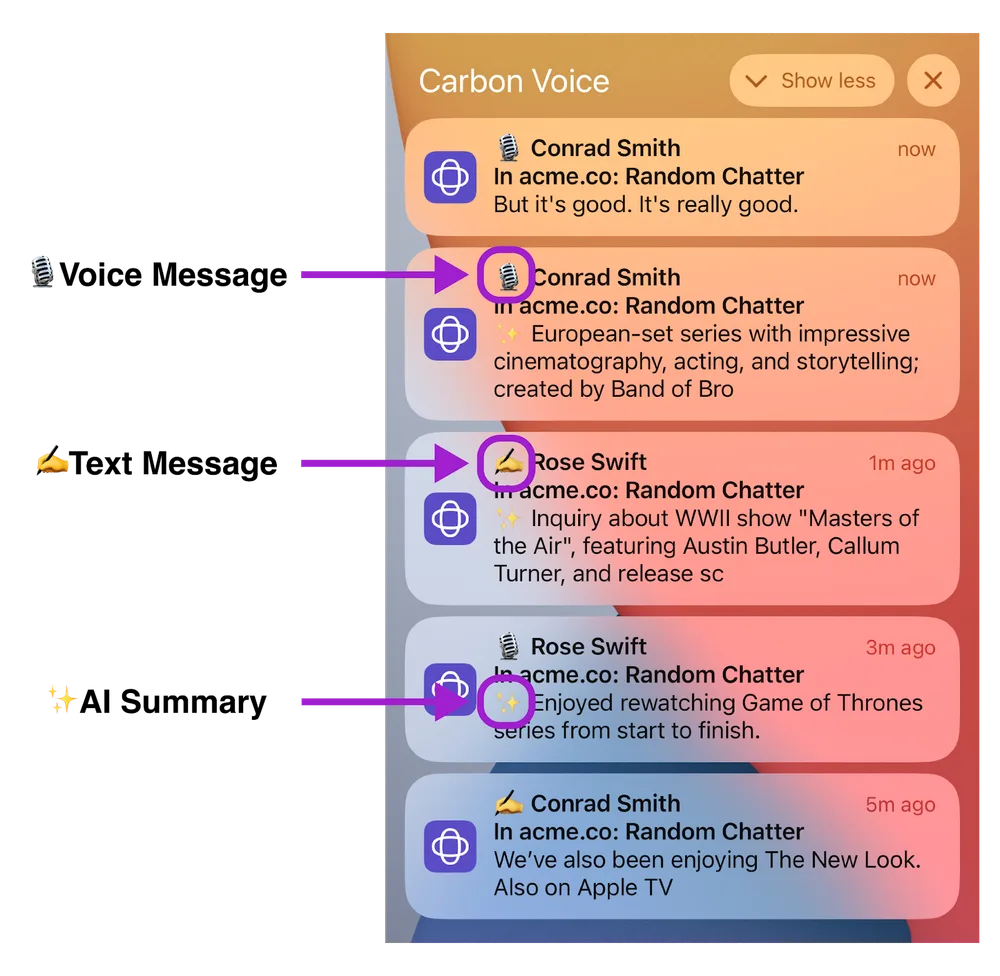
## Using the notification preview
When a new message comes in, **press and hold the notification**. It expands so you can
play the message, and also:
- Reply with a quick tap.
- See the message in the context of its thread, and jump to new messages by tapping the
avatars.
- See a quick summary of the message with Top Words.
- View the discussion thread.
All without opening the app. Tap the large profile photo to jump straight to the
conversation.
> On most devices only the first 30 seconds of a message plays in notification preview
> before the screen shuts off. Press volume up or down to extend this.
## If you're not getting notifications
Two things need to be true: Carbon Voice has to be set to send them, and iOS has to be
set to show them.
### In Carbon Voice
1. Open your **Profile Menu** and go to **Settings**.
2. Tap **Notification Settings**.
3. Make sure **Push Notifications** is on.
### In iOS
These are usually right by default, but if you declined the permission prompt you'll
need to change them:
1. Open the **Settings** app on your device.
2. Select **Notifications**.
3. Scroll to **Carbon Voice**.
4. Make sure **Allow Notifications** is on. Turn on **Time Sensitive Notifications** if
you want messages shown as they arrive.
Apple's own guidance on notification settings is
[here](https://support.apple.com/en-us/HT201925).
## Related
- [Unread messages versus unheard messages](notified-versus-unheard.md)
---
URL: https://help.carbonvoice.app/messages/recording-and-sending/personal-notes
Source: https://raw.githubusercontent.com/PhononX/carbon-voice-docs/main/docs/messages/recording-and-sending/personal-notes.md
# Personal notes while you listen
While listening to a message, you sometimes need to gather your thoughts before
replying. Carbon Voice lets you take private notes on a message so you can reference
them as you record your reply.
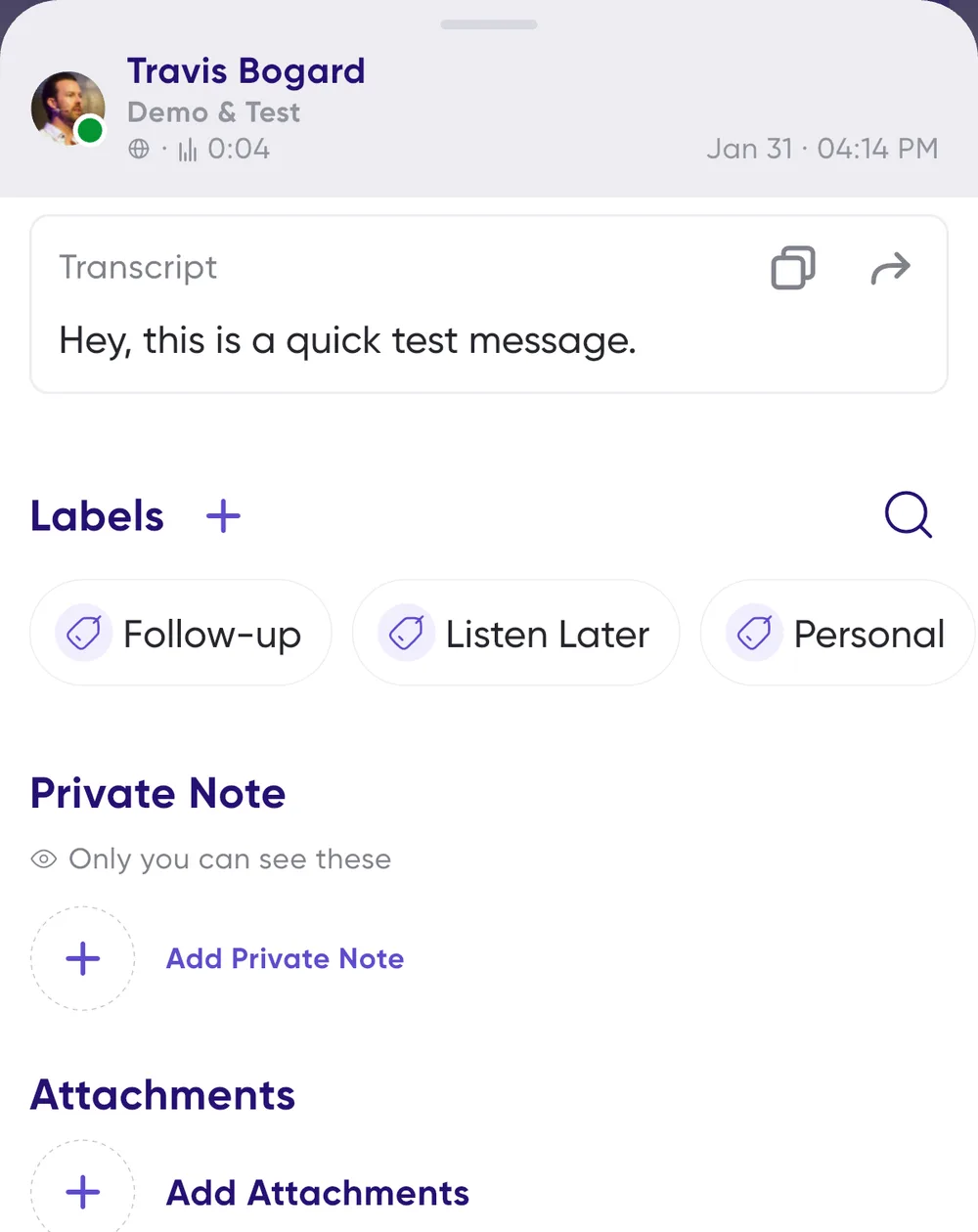
## Add a note
1. Swipe from right to left on a message to open **Message Details**.
2. Scroll down to **Private notes** and tap to add your note.
3. Tap **Done**, and the note is attached to the message.
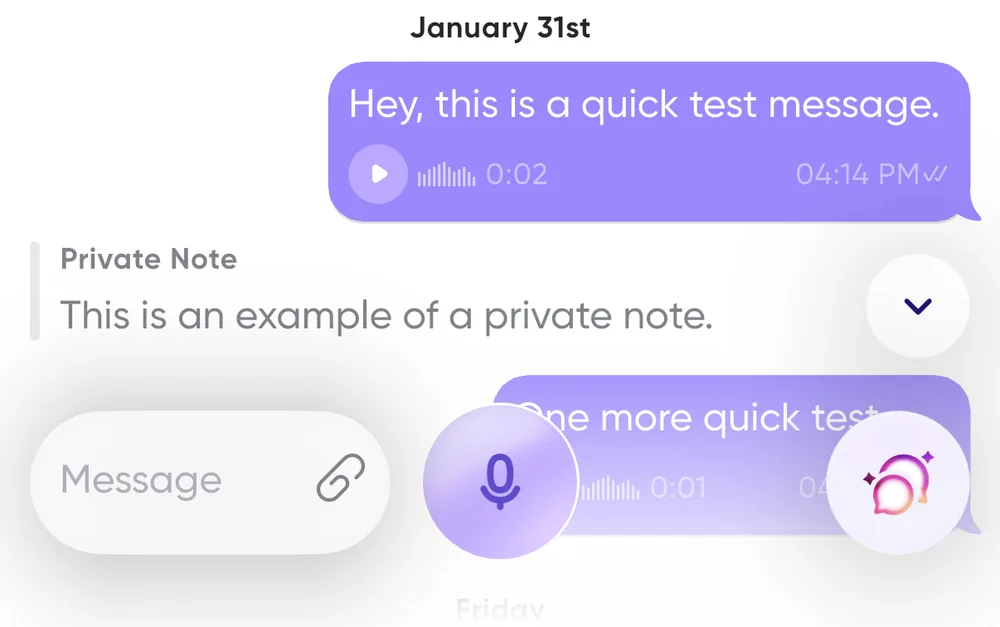
## Finding your notes again
Notes appear in the conversation and while you reply to the message. You can also find
them later in the **Notebook** tab.
---
URL: https://help.carbonvoice.app/messages/recording-and-sending/share-an-audio-file
Source: https://raw.githubusercontent.com/PhononX/carbon-voice-docs/main/docs/messages/recording-and-sending/share-an-audio-file.md
# Share an audio file to Carbon Voice
If you'd rather record somewhere else and get the message exactly right before sending
it, you can share the finished audio file into Carbon Voice.
📺 [Watch: sharing an audio file](https://www.youtube.com/watch?v=AerJ7r_mtbg)
1. **Record your message** in your preferred recording app, such as Voice Memos on iOS.
2. **Find the share option** in that app. In iOS Voice Memos it's the three dots in the
upper right corner.
3. **Tap share**, then select **Carbon Voice** from the list.
4. **Choose how to share it** — send the recording as an attachment, or share it
directly to a conversation.
5. **Search** for the conversation you want if you're sending it to a specific one.
6. **Select the conversation.** Your audio is now posted in Carbon Voice.
## Related
- [How to record a voice message](../../messages/recording-and-sending/record-a-voice-message.md)
- [Saved voice memos](pre-recorded-messages.md)
---
URL: https://help.carbonvoice.app/messages/threads
Source: https://raw.githubusercontent.com/PhononX/carbon-voice-docs/main/docs/messages/threads.md
# Threads
Replying to a particular message starts a **thread** under it, so a side discussion stays
attached to what it's about instead of interleaving with everything else. In the app a
thread is also called a **discussion**.
## Starting one
Reply to the message rather than the conversation:
- **Swipe** the message from left to right to reply.
- **Press and hold** it and choose **Reply**.
Swiping to reply with text is what creates the thread.
## Reading one
A message with replies shows **"3 Replies"** underneath it. To open the thread:
- **Tap the replies count** under the message, or
- **Tap the parent message** itself.
Either takes you into the discussion view, which shows the original message with everything
said in response to it, and nothing else.
## Why it matters for catching up
Threads are why a busy conversation stays readable. When you
[play new messages](playback/play-new-messages.md), threaded groups play together, so a
question and its answers arrive as a set rather than scattered among unrelated messages.
## Related
- [Play new messages](playback/play-new-messages.md)
- [Personal notes while you listen](recording-and-sending/personal-notes.md)
---
URL: https://help.carbonvoice.app/messages/notebook
Source: https://raw.githubusercontent.com/PhononX/carbon-voice-docs/main/docs/messages/notebook.md
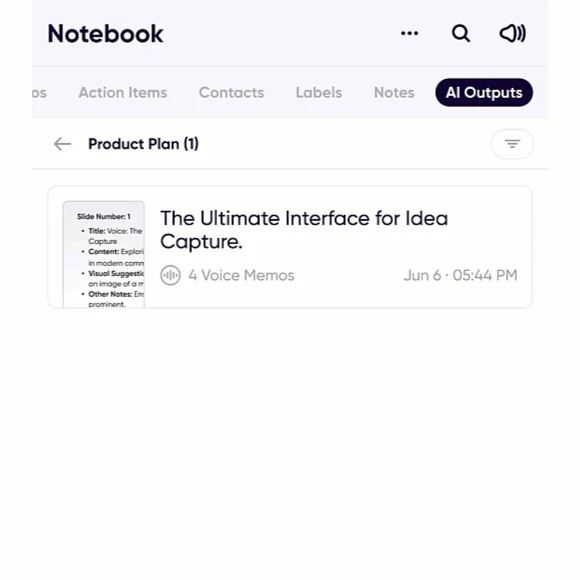
# Notebook
Notebook collects the things that come out of your conversations, so they're findable
without going back through the conversation they came from.
It's the second tab in the bottom bar on mobile, and in the sidebar on desktop.
## What's in it
- **Memos** — your [voice memos](../voice-memos/index.md), including their folders.
- **Action Items** — everything assigned to you, plus anything you created and haven't
assigned. See [Action items](../meeting-notes/action-items.md).
- **Contacts** — the people you've talked to.
- **Labels** — every message you've labelled, grouped by label. See
[Playlists and labels](../conversations/your-conversation-list/playlists-and-labels.md).
- **Notes** — the [private notes](recording-and-sending/personal-notes.md) you took while
listening.
- **AI Outputs** — every result you've generated with an AI action, kept so you don't have
to regenerate it.
## AI Outputs
This is the one people miss. Every summary, email draft, presentation outline and to-do
list you've ever generated is here, labelled with what it was made from, so a document you
produced weeks ago from a discussion is still one tap away.
Results generated from several messages at once show how many they came from, so you can
tell a summary of one memo from a summary of a whole discussion.
## Pinning what you use
You can choose which sections appear first, so the part of Notebook you actually use is the
part you land on.
## Related
- [Transform voice memos and messages with AI](../ai/transform-with-ai-actions.md)
- [Action items](../meeting-notes/action-items.md)
---
URL: https://help.carbonvoice.app/messages/recording-and-sending/deleting-messages
Source: https://raw.githubusercontent.com/PhononX/carbon-voice-docs/main/docs/messages/recording-and-sending/deleting-messages.md
# Deleting messages
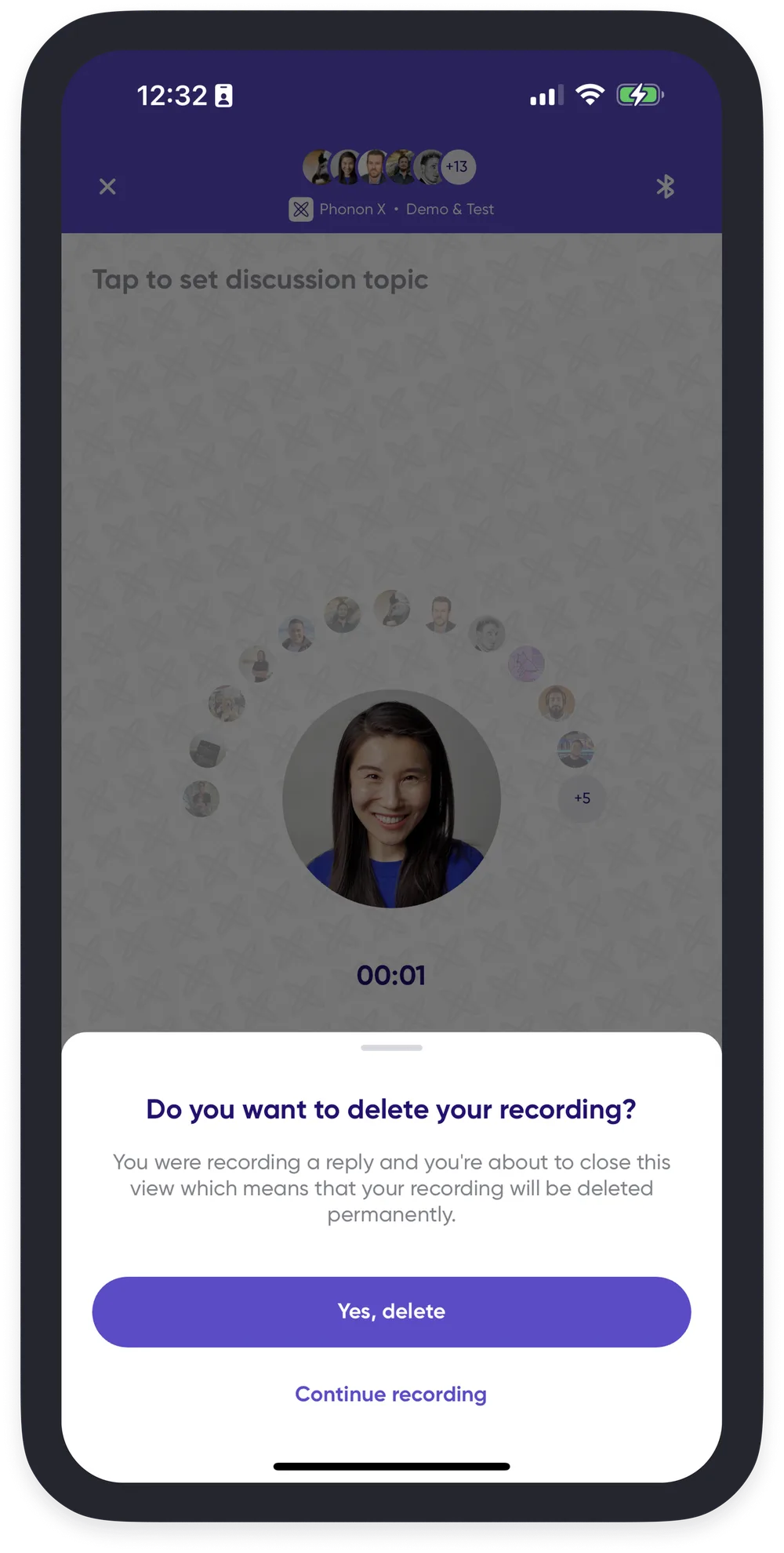
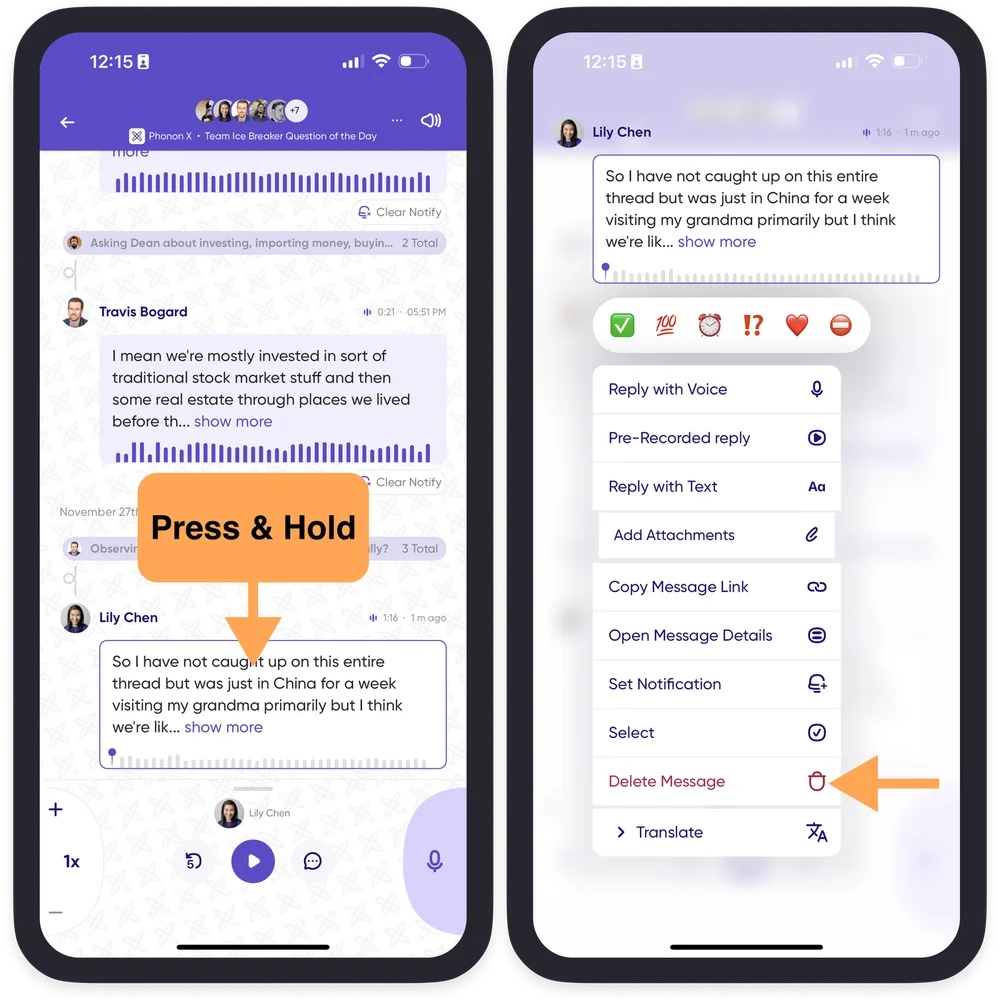
## While recording
Tap the **"x"** in the top left corner, then select **Yes, delete**.
## After sending
Press and hold on the message and select **Delete**.
## Related
- [How to record a voice message](../../messages/recording-and-sending/record-a-voice-message.md)
---
URL: https://help.carbonvoice.app/messages/recording-and-sending/real-time-conversations
Source: https://raw.githubusercontent.com/PhononX/carbon-voice-docs/main/docs/messages/recording-and-sending/real-time-conversations.md
# Real-time conversations
## Listening in real time
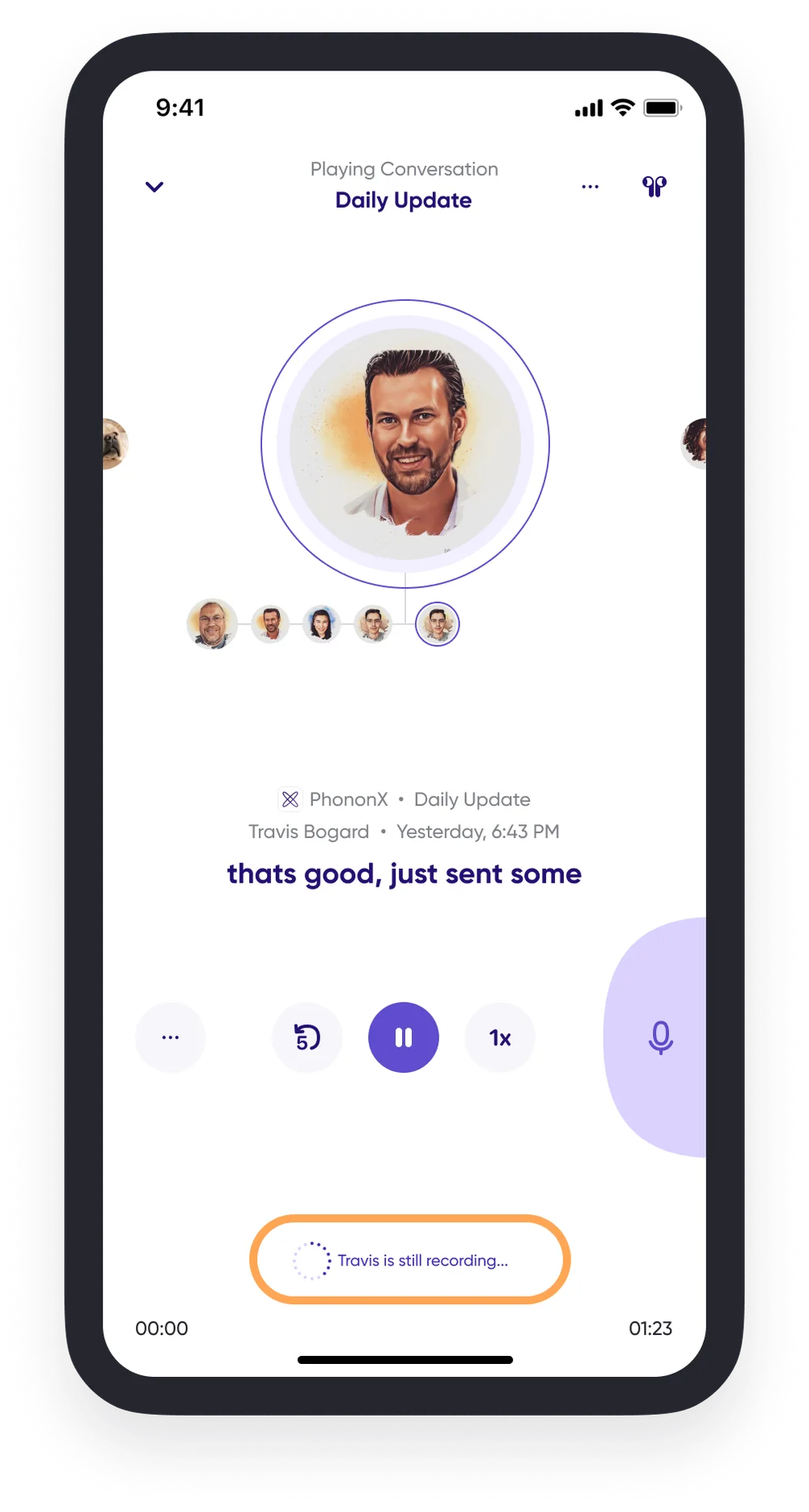
If recipients are around when you start speaking, they can listen live and reply, much
like a normal phone conversation. If they aren't available, or anyone loses their
network connection, they can catch up on your messages and reply later.
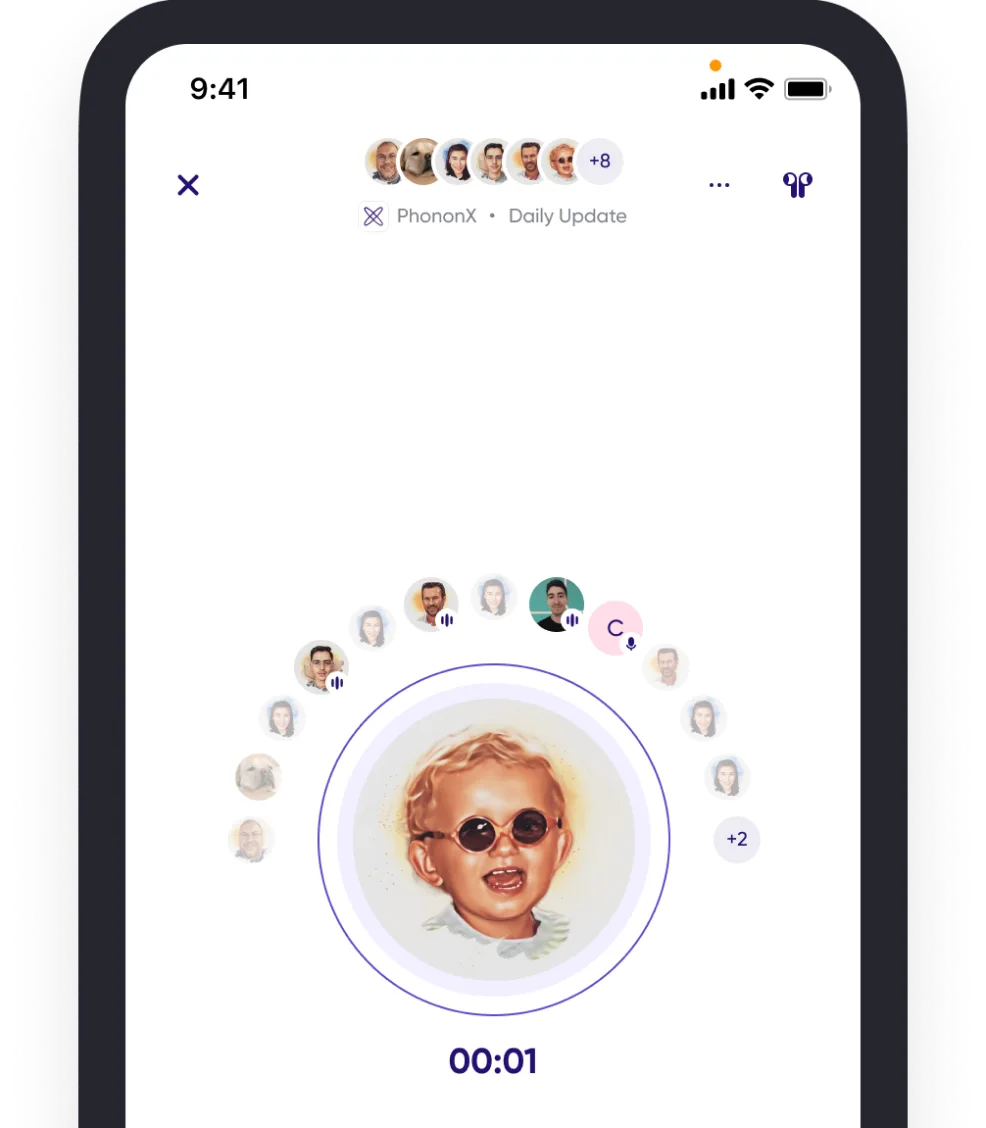
## Seeing who's engaged
When you tap the mic button to start speaking, you can see who is listening or speaking
at the same time.
## Related
- [Record and share](record-and-share.md)
---
URL: https://help.carbonvoice.app/voice-memos/organizing-voice-memos
Source: https://raw.githubusercontent.com/PhononX/carbon-voice-docs/main/docs/voice-memos/organizing-voice-memos.md
# Organizing voice memos
Labels and folders help you find a memo again without scrolling through a long list.
## Names
AI gives each memo a title automatically, so a long list stays scannable. Very short memos
don't get one. Tap a title to rename it yourself.
## Labels
Labels keep track of important memos, and labeled memos show up in your feed for quick
access.
1. Tap a voice memo to open more options.
2. Select one of the default labels, or create your own by tapping **"+"**.
3. Find all labeled memos in your list.
AI actions also appear in your list, so you can see which AI tools you've used across
your memos.
## Folders
> Folders need a paid plan.
Folders sort memos by workspace.
1. Go to your list of voice memos and tap the **folder icon** at the bottom right.
2. Choose which workspace to create the folder in.
3. Name the folder.
**Move a memo** by pressing and holding it, then **More → Move**, and choosing a
folder.
**Record straight into a folder** by swiping left to right on the folder.
## Related
- [Sharing voice memos](sharing-voice-memos.md)
- [Playlists and labels](../conversations/your-conversation-list/playlists-and-labels.md)
---
URL: https://help.carbonvoice.app/voice-memos/sharing-voice-memos
Source: https://raw.githubusercontent.com/PhononX/carbon-voice-docs/main/docs/voice-memos/sharing-voice-memos.md
# Sharing voice memos
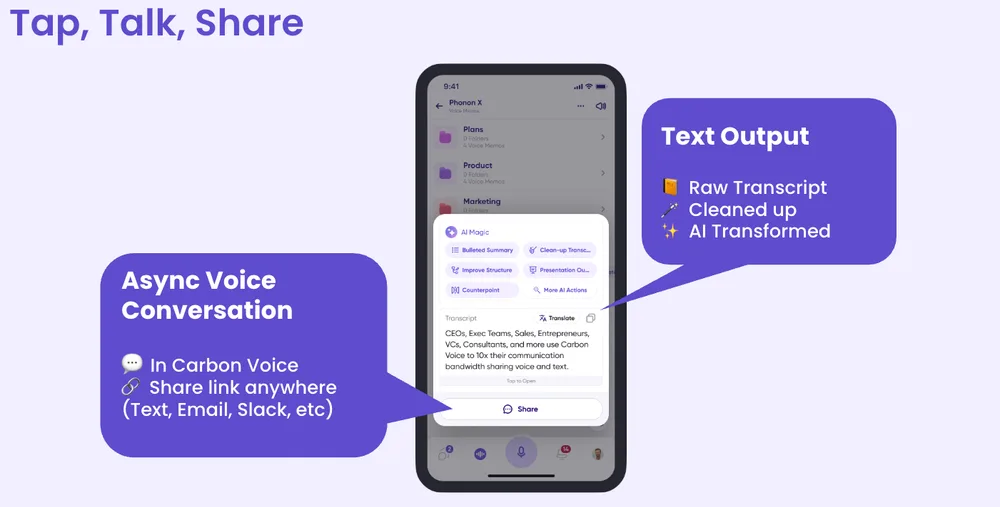
Voice memos are meant to be shared. You can share:
- A simple URL link to the audio.
- The raw transcript.
- AI-processed results, such as summaries and to-do lists.
- The memo directly into another Carbon Voice conversation.
To share, tap the three dots in the voice memo details, or press and hold the memo in
your list.
## Related
- [Organizing voice memos](organizing-voice-memos.md)
- [Transform voice memos and messages with AI](../ai/transform-with-ai-actions.md)
---
URL: https://help.carbonvoice.app/voice-memos/share-a-link
Source: https://raw.githubusercontent.com/PhononX/carbon-voice-docs/main/docs/voice-memos/share-a-link.md
# Share a link to a voice memo
You can share a link to a voice memo that lets someone listen to it and reply.
1. Record a voice memo using the mic button on Home.
2. Tap **Share Voice Memo**.
3. Tap **Copy Link**.
📺 [Watch: sharing a voice memo link](https://www.youtube.com/watch?v=rk3YgSnx4vU)
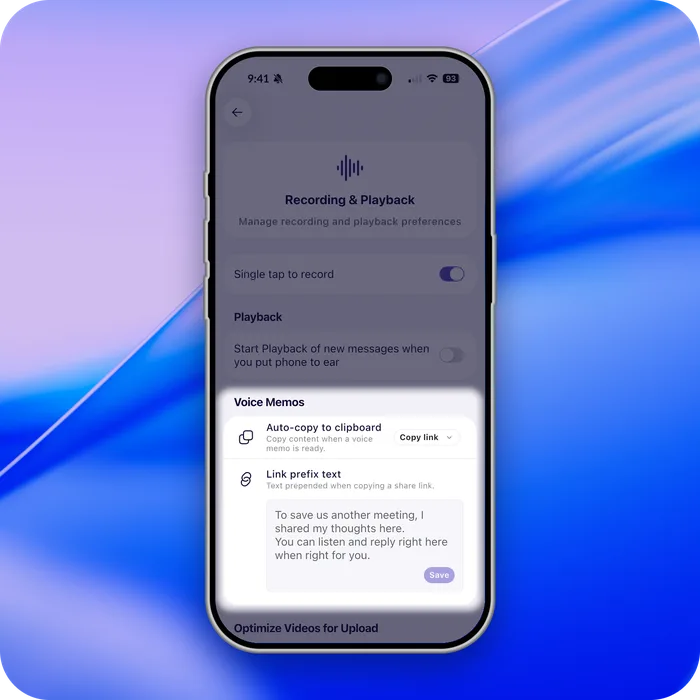
> When you finish a memo, a shareable link is copied to your clipboard automatically, along
> with some text you can customize. Often you can just paste.
## Embedding it on a website
A voice memo and its transcript can be embedded on a website, a blog, or a Notion page.
Paste the shareable link into Notion and it embeds, or take the embed code from message
details for anywhere else.
## Related
- [Sharing voice memos](sharing-voice-memos.md)
- [Record and share](../messages/recording-and-sending/record-and-share.md)
---
URL: https://help.carbonvoice.app/voice-memos
Source: https://raw.githubusercontent.com/PhononX/carbon-voice-docs/main/docs/voice-memos/index.md
# Voice Memos
Voice memos are the recordings you make for yourself, captured in the moment and kept
until you decide what to do with them. You can share one as a link, turn it into a
document with AI, or send it into a conversation.
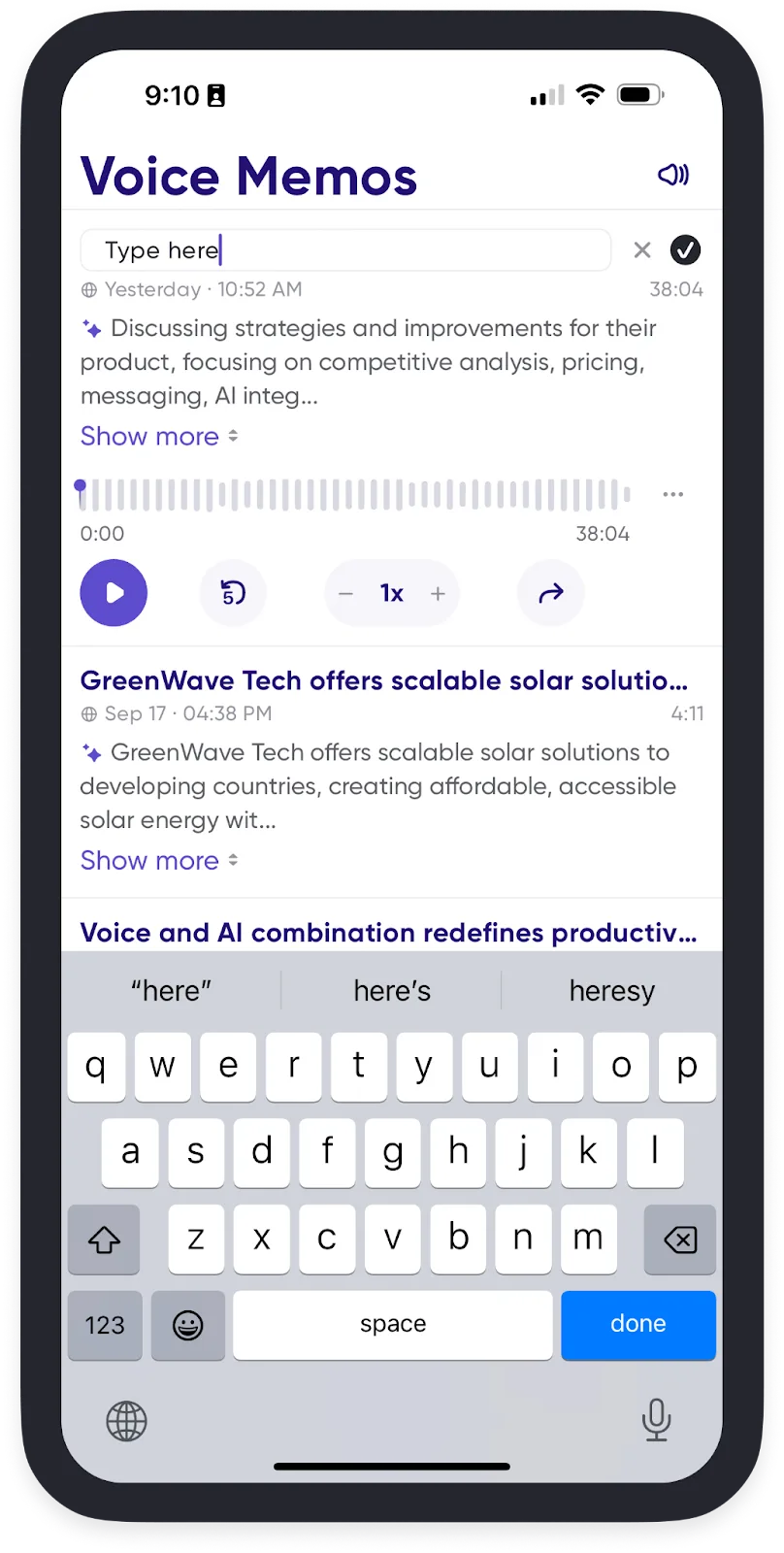
- [Organizing voice memos](organizing-voice-memos.md)
- [Sharing voice memos](sharing-voice-memos.md)
- [Share a link to a voice memo](share-a-link.md)
---
URL: https://help.carbonvoice.app/meeting-notes
Source: https://raw.githubusercontent.com/PhononX/carbon-voice-docs/main/docs/meeting-notes/index.md
# AI meeting notes, without the meeting
A meeting note-taker records a meeting you already had. It still costs everyone the hour,
still needs a time that suits eight calendars, and still leaves the quiet people quiet.
Carbon Voice comes at it from the other end. Have the discussion **asynchronously**, so
everyone speaks when it suits them, and you get the notes as a byproduct, because every
message was transcribed the moment it was said.
## What you end up with
- **A full transcript**, written as the discussion happened rather than reconstructed
afterwards.
- **A summary** of what was decided and what changed.
- **Action items**, pulled out by AI and assignable.
- **Engagement stats**, so you know who has actually caught up.
## How to run one
1. **[Why there's no meeting](why-no-meeting.md)** — what changes when the discussion is
async.
2. **[Run an async meeting](run-an-async-meeting.md)** — set a topic and a reply deadline,
and let people contribute.
3. **[Get the notes](get-the-notes.md)** — the summary, the transcript, and what AI can
reshape them into.
4. **[Action items](action-items.md)** — what AI found that someone needs to do.
5. **[Share the notes](share-the-notes.md)** — into another conversation, your notes app,
or wherever your team keeps decisions.
## Related
- [AI](../ai/index.md) — the summaries and AI actions this section leans on.
- [Conversations](../conversations/index.md)
---
URL: https://help.carbonvoice.app/meeting-notes/why-no-meeting
Source: https://raw.githubusercontent.com/PhononX/carbon-voice-docs/main/docs/meeting-notes/why-no-meeting.md
# Why there's no meeting
A scheduled meeting asks everyone to be free at the same time, and then asks them to think
at the same speed. An async discussion drops both requirements.
## What changes
**Nobody waits for a calendar.** The discussion starts when you have the thought, not when
six people have a free half-hour in common.
**Everyone gets a turn.** In a call, whoever talks first frames the discussion and the
quieter people fit around it. Async, everyone answers the same question from scratch.
**Thinking time is allowed.** People can listen, go away, and come back with a considered
answer instead of the first thing that came to mind.
**Time zones stop mattering.** A team spread across the world contributes to the same
discussion without anyone taking a call at 11pm.
**The record writes itself.** Every message is transcribed as it's sent, so there's nothing
to write up afterwards. The notes are a byproduct of having the conversation at all.
## What it's good for
- Status updates and standups
- Design and architecture debates that need considered answers
- Retrospectives
- Decisions that need input from people in different time zones
- Anything currently sitting in a recurring meeting nobody enjoys
## What it isn't good for
Something genuinely urgent, or a conversation that needs to end with everyone in the room
agreeing right now. Async is a better default, not a total replacement. And for the
in-between case, people who happen to be around when you're speaking can listen and reply
live. See [Real-time conversations](../messages/recording-and-sending/real-time-conversations.md).
## Making it stick
Most of the value comes from breaking the meeting habit rather than adding a tool. It's
worth going through the calendar and picking which recurring meetings could become async
discussions instead.
## Related
- [Run an async meeting](run-an-async-meeting.md)
---
URL: https://help.carbonvoice.app/meeting-notes/run-an-async-meeting
Source: https://raw.githubusercontent.com/PhononX/carbon-voice-docs/main/docs/meeting-notes/run-an-async-meeting.md
# Run an async meeting
An **async meeting** is a conversation with a deadline. You set a topic and a time by which
you'd like replies, everyone contributes when it suits them, and the discussion closes
itself when the time is up.
## Create one
1. Tap the **"+"** on Home and choose **Async Meeting**. On desktop, press **⌘N**. From
Slack, type `/cv meeting` — see [Slack](../integrations/slack.md).
2. **Name the meeting** and choose the workspace it belongs to.
3. **Add people** — by name, email address, or phone number.
4. **Set the reply deadline.** Choose from **Urgent**, **Later today**, **Tomorrow
morning**, **Tomorrow night**, **In a few days**, or set your own end date and time.
5. Create it.
## Record a kick-off
The first message sets up the discussion. Say what you want people to weigh in on, and
what a useful answer looks like. Tap **Record Kick-off** to record it.
A good kick-off is a specific question. "Thoughts on the roadmap?" gets you silence;
"Which of these three things should we cut, and why?" gets you a decision.
## While it's running
- **The countdown** shows how long is left, and everyone sees it on the conversation.
- **Reminders** nudge people who haven't contributed yet, so you don't have to chase.
- **Engagement stats** show who has caught up and who hasn't — tap the engagement button in
the conversation to see the breakdown.
- **Extend it** if the discussion needs longer. Only the meeting's owner can, so ask them
if you're not.
## When it ends
The meeting closes and you get the write-up: the transcript, the summary, and any action
items AI found. See [Get the notes](get-the-notes.md).
Messages stay in the conversation afterwards, unless your workspace has a retention policy
that clears them after a set number of days. See
[Advanced workspace settings](../workspaces/advanced-settings.md).
## Joining one
Historical messages appear as **unheard and unread** when you join an async meeting, so
the whole discussion so far is queued up for you, rather than quietly marked as seen. This
is different from joining an ordinary conversation, where earlier messages appear unheard
but already read.
## Related
- [Get the notes](get-the-notes.md)
- [Types of conversations](../conversations/creating/types-of-conversations.md)
---
URL: https://help.carbonvoice.app/meeting-notes/get-the-notes
Source: https://raw.githubusercontent.com/PhononX/carbon-voice-docs/main/docs/meeting-notes/get-the-notes.md
# Get the notes
The discussion is already written down, because every message was transcribed as it was
sent. What follows is choosing the shape you want it in.
## The summary
**Catch-up** produces an overview of the discussion: key actions, anything urgent or
decided, milestones and shifts in priority, and open questions and requests. Names in the
summary link back to the message they came from, so you can hear the original whenever the
summary isn't enough.
See [Catch up with AI](../ai/catch-up-with-ai.md).
## The full transcript
For the complete record rather than a summary:
1. Press and hold any message in the conversation.
2. Tap **Select**, and choose the messages you want, or all of them.
3. Tap **Get Transcript**.
Copy the result to your clipboard, or share it into another app.
See [Get message transcripts](../messages/transcripts/get-message-transcripts.md).
## Reading rather than listening
Two controls make a long discussion scannable without playing any of it. Both live under
the **summarize icon** at the top right of the conversation:
- **Bulleted Summary** turns every message into bullet points as you scroll.
- **AI + Message** shows each message's summary alongside its full text.
## Turning it into a document
The same multi-select works for AI actions. Select the messages and choose an AI Magic
prompt to turn the discussion into a meeting summary with action items, a presentation
outline, an email, a plan, or whatever the next step needs.
See [Transform voice memos and messages with AI](../ai/transform-with-ai-actions.md).
Every result is kept in **Notebook → AI Outputs**, so you can find it again without
regenerating it.
## Related
- [Action items](action-items.md)
- [Share the notes](share-the-notes.md)
---
URL: https://help.carbonvoice.app/meeting-notes/action-items
Source: https://raw.githubusercontent.com/PhononX/carbon-voice-docs/main/docs/meeting-notes/action-items.md
# Action items
The part of a meeting write-up people actually use is the list of things someone agreed to
do. Carbon Voice extracts those from the discussion so you don't have to comb back through
it.
## Finding them
**In a conversation.** Open **Conversation Settings** and tap **Action Items** to see what
AI found in that discussion. Tap **Find Action Items** to scan again after new messages.
**Across everything.** Open **Notebook → Action Items** for every action item you have, from
every conversation.
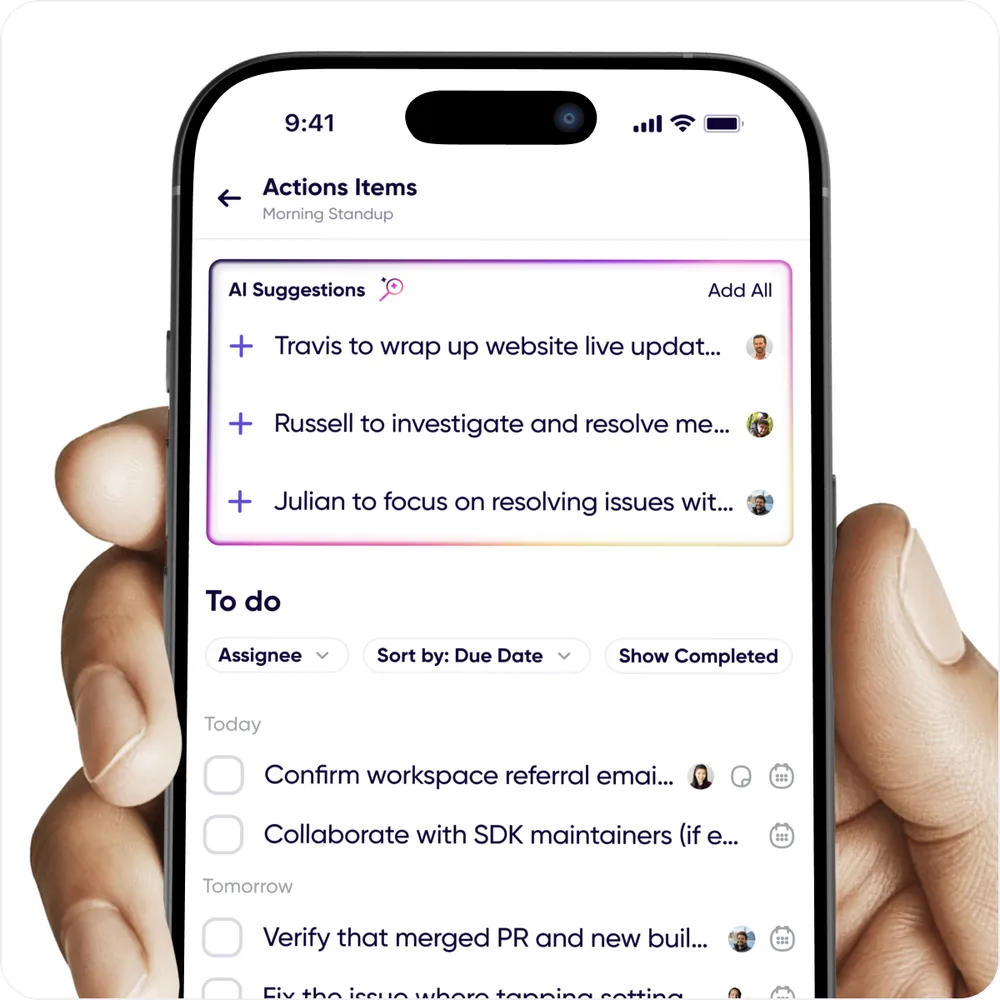
When AI spots new ones, you'll see an **AI found new action items** banner in the
conversation.
## Working through them
- **Tick one off** to mark it done, and untick to put it back.
- **Assign one** to a person, and give it a **due date**.
- **Sort by due date**, filter by assignee, or **Show Completed** to see what's done.
- **Add your own** with the **"+"**, since you don't have to wait for AI to find something.
- **Edit** the wording if the extracted version isn't quite right.
- **Move** an item to a different conversation.
- **Delete** anything that isn't real.
If AI proposes a batch of items at once, you'll be asked to confirm before they're all
added, so a long discussion doesn't dump twenty items on you unannounced.
## Sharing them
Tap **Share Action Items** to send the list out of Carbon Voice, into a message, an email,
or your task tracker.
## Offline
Action items work offline. Anything you tick, add or edit while disconnected is queued and
applied when you're back. You'll see a note saying so rather than losing the change.
## Related
- [Get the notes](get-the-notes.md)
- [Share the notes](share-the-notes.md)
---
URL: https://help.carbonvoice.app/meeting-notes/share-the-notes
Source: https://raw.githubusercontent.com/PhononX/carbon-voice-docs/main/docs/meeting-notes/share-the-notes.md
# Share the notes
A write-up nobody reads is the same as no write-up. These are the ways out of Carbon Voice.
## Into another conversation
**Forward** the summary or the key messages into the conversation where the decision
matters, like a team channel or a stakeholder thread. Recipients can listen even if they
weren't
in the original discussion, and a link back to the source is included so they can see the
context.
See [Message forwarding](../messages/recording-and-sending/message-forwarding.md).
## As text
Copy the transcript or the AI output to your clipboard and paste it anywhere. Every AI
result is also kept in **Notebook → AI Outputs**, so you can come back for it later.
## Into your notes app
The **Obsidian sync plugin** pulls conversations and voice memos into an Obsidian vault as
Markdown, with transcripts, AI summaries, and participant links included. If your team keeps
decisions in a knowledge base rather than a chat tool, this is the path.
See [Obsidian](../integrations/obsidian.md).
## Automatically
Labels and conversations can trigger workflows, so the write-up files itself:
- Post the summary into a conversation named **Blog Posts** and get a draft in Google Docs
or Notion.
- Add a **Bug Report** label and get a Jira issue.
- Add a **CRM Update** label and get a note in Salesforce or Pipedrive.
See [Automate workflows](../integrations/automate-workflows.md) and
[Zapier](../integrations/zapier.md).
## Related
- [Get the notes](get-the-notes.md)
- [Action items](action-items.md)
---
URL: https://help.carbonvoice.app/voice-and-language
Source: https://raw.githubusercontent.com/PhononX/carbon-voice-docs/main/docs/voice-and-language/index.md
# Voice & Language
Two related things live here: **how you sound** to the people listening, and **what
language** they hear you in.
Neither is something you invoke. You set them once and they apply to everything you send
from then on.
- **[Personalize the voice for messages you type](typed-message-voice.md)** — the
text-to-speech voice used when someone plays back something you typed.
- **[Voice cloning and text-to-speech](voice-cloning.md)** — make that voice sound like you.
- **[Auto-translation and Global Voice](auto-translation.md)** — talk across languages, in
your own voice.
All three are configured in one place: **Profile Menu → Settings → Global Voice - TTS &
Translation**.
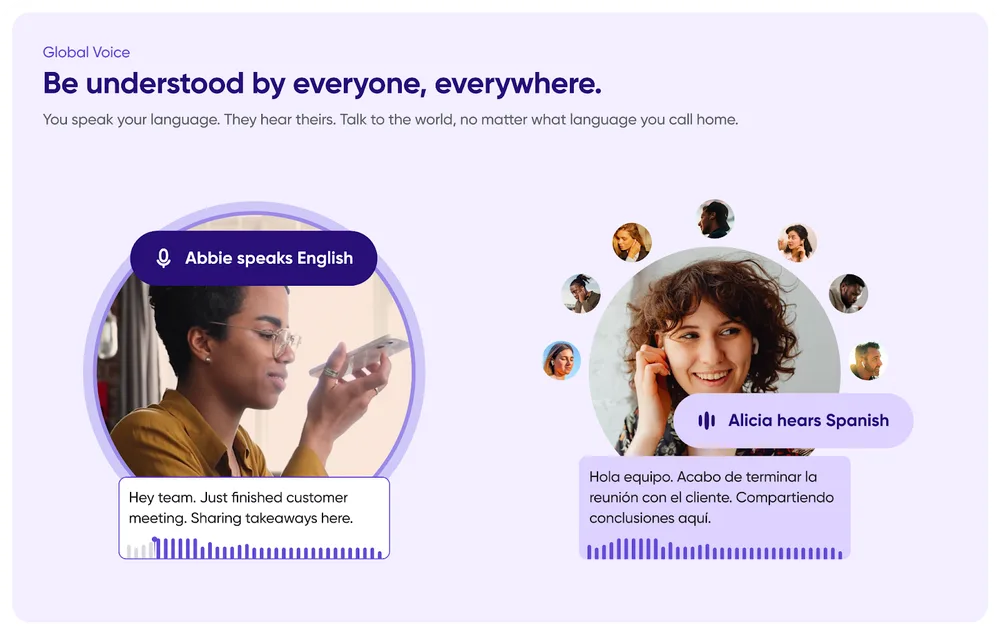
## Why they belong together
Cloning and translation are the same feature from two directions. Clone your voice, and a
message translated into Spanish is still spoken in *your* voice, so a colleague hears you
speaking their language, rather than a robot reading your words.
## Related
- [Transcripts](../messages/transcripts/index.md) — the other half of every message.
---
URL: https://help.carbonvoice.app/voice-and-language/typed-message-voice
Source: https://raw.githubusercontent.com/PhononX/carbon-voice-docs/main/docs/voice-and-language/typed-message-voice.md
# Personalize the voice for messages you type
When you type a message, Carbon Voice generates audio so the recipient can listen to it
rather than read it. You can personalize how that sounds:
- Set the text-to-speech gender.
- Choose the premium TTS engine, which sounds better.
- Clone your voice, so typed messages sound like you said them.
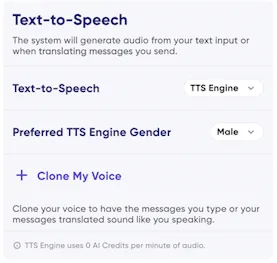
## Changing the setting
1. Tap your profile picture to open the Profile Menu. It's at the top left of Home on
mobile, and at the bottom of the navigation sidebar on desktop.
2. Go to **Settings → Global Voice - TTS & Translation**.
3. Under **Text-to-Speech**, choose how your typed messages should sound.
Your preference applies to new messages you send after making the change.
## Things to know
- These settings apply both when you type a message and when a message of yours is
translated into another language.
- TTS gender is used with the basic or premium engine, and also with cloning, when
translating into a language where cloning isn't supported.
## Related
- [Voice cloning and text-to-speech](voice-cloning.md)
- [Auto-translation and Global Voice](auto-translation.md)
---
URL: https://help.carbonvoice.app/voice-and-language/voice-cloning
Source: https://raw.githubusercontent.com/PhononX/carbon-voice-docs/main/docs/voice-and-language/voice-cloning.md
# Voice cloning and text-to-speech
When you type a message, the people who receive it hear a text-to-speech voice when
they listen. You can configure which voice that is:
- **TTS engine** — the standard text-to-speech voice, based on the gender preference
you set.
- **Premium TTS** — a more natural-sounding engine.
- **Cloned voice** — sounds as though you spoke the message yourself.
These settings also apply to messages translated into other languages, so a recipient
can hear you speaking their language in your own voice.
## Setting it up
Open your **Profile Menu**, go to **Settings → Global Voice - TTS & Translation**, then
choose from the drop-down under **Text-to-Speech**.
## Related
- [Auto-translation and Global Voice](auto-translation.md)
- [Personalize the voice for messages you type](typed-message-voice.md)
---
URL: https://help.carbonvoice.app/voice-and-language/auto-translation
Source: https://raw.githubusercontent.com/PhononX/carbon-voice-docs/main/docs/voice-and-language/auto-translation.md
# Auto-translation and Global Voice
Global Voice lets a conversation work across languages, so nobody has to simplify their
ideas into a shared language or slow down hunting for the right words. Messages are
translated when needed, and everyone follows along in the language they prefer.
> Carbon Voice Translate must be enabled for your account or workspace.
## Getting started
1. Set your languages. Everyone should do this.
2. Turn on **Auto-Translate** in settings.
3. Clone your voice (optional).
## Set your languages
1. Go to **Profile Menu → Settings**.
2. Tap **Global Voice - TTS & Translation** and scroll down to languages.
Anyone can add their languages, whether or not they have Carbon Voice Translate
enabled.
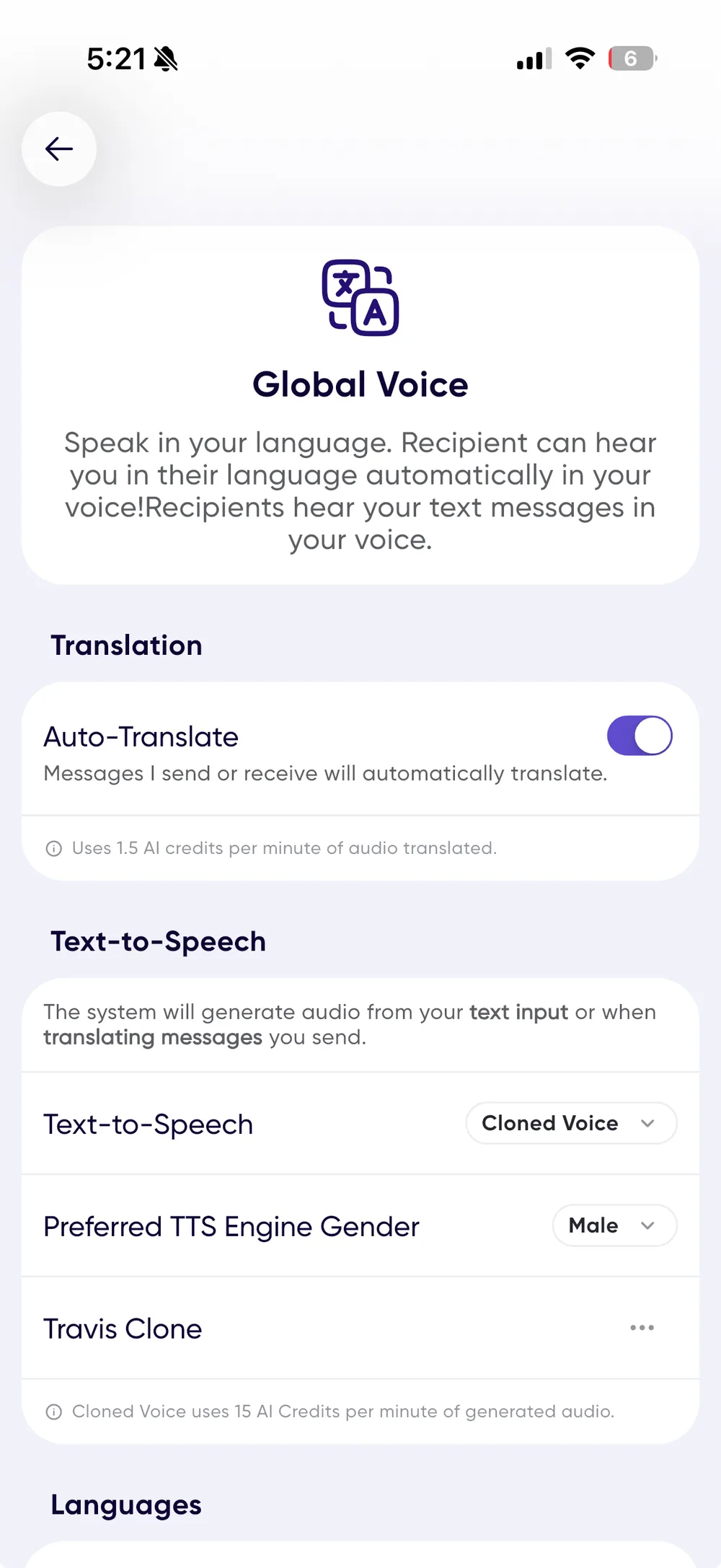
Ordering your languages tells the system your preferences. A message that arrives in
any language on your list isn't translated, wherever it sits in the order, so you'll hear
or read it as it was recorded.
## How translation decides what to translate
Translation happens when someone with Carbon Voice Translate needs to understand
others, or needs others to understand them. If nobody in a conversation has it enabled,
nothing is translated.
Take a conversation where User A speaks English and has Translate enabled, alongside
people speaking English, Italian, and Spanish:
- User A's English messages are translated into Italian and Spanish for the others.
- Italian and Spanish messages are translated into English for User A, and anyone else who
reads English benefits.
- Nothing is translated between Italian and Spanish, because neither of those users has
Translate enabled.
So Translate provides translation to and from User A's language, and others who share
that language benefit as a side effect.
A translated message is marked with a translation icon and note below the message card.
### Seeing the original
Press and hold a message card to see the other languages available for it, including
the original.
## In your own voice
By default a translated message is read in a text-to-speech voice that changes with the
language. With [voice cloning](voice-cloning.md) set up, translations use your voice
where possible, though some languages still fall back to the standard voice.
## Sharing a translated voice memo
1. Record a voice memo.
2. Share a link to it.
3. If the recipient speaks another language, they're asked whether to translate it.
4. They hear the translated message in your voice, and if they reply, you hear their
message in their voice, translated back into your language.
## Known limitations
AI translation isn't perfect. Very short inputs like emoji or bare numbers may get
described rather than translated, with 👍 becoming "thumbs up," for instance. If something
reads oddly, ask for clarification.
## Getting Global Voice for your team
New accounts start on a limited-time premium trial, and the first five auto-translated
messages use your preserved speaker voice for free.
- **Individually** — upgrade through the plan details in Settings.
- **For a team** — see [pricing](https://www.getcarbon.app/pricing) and contact
[sales@getcarbon.app](mailto:sales@getcarbon.app).
## Related
- [Voice cloning and text-to-speech](voice-cloning.md)
---
URL: https://help.carbonvoice.app/quick-capture
Source: https://raw.githubusercontent.com/PhononX/carbon-voice-docs/main/docs/quick-capture/index.md
# Quick Capture
The fastest message is the one you don't have to go looking for the app to send. Everything
in this section does the same job on a different device: get a thought out, to the right
person, without stopping what you were doing.
## On your Mac
- **[Keyboard shortcuts](keyboard-shortcuts.md)** — record a voice memo or send a message
from any app, without switching windows.
- **[Speed Dial](speed-dial.md)** — ten slots, each bound to a person, a conversation, a
folder, or an AI agent, each with its own keystroke.
- **[The menu bar app](menu-bar.md)** — recording and playback from the top of your screen.
## On your phone
- **[iPhone home screen widgets](iphone-widgets.md)** — your recent conversations and
favorites, one tap from the home screen.
- **[Siri, sharing, and iMessage](ios-shortcuts.md)** — send by voice command, share audio
in from another app, or send from inside a text thread.
## On your wrist
- **[Apple Watch app](apple-watch.md)** — record from your wrist, even offline.
## Related
- [Carbon Voice on desktop](../desktop.md)
- [Quick Send](../conversations/your-conversation-list/quick-send.md) — the in-app version:
favorite conversations pinned to Home.
---
URL: https://help.carbonvoice.app/quick-capture/keyboard-shortcuts
Source: https://raw.githubusercontent.com/PhononX/carbon-voice-docs/main/docs/quick-capture/keyboard-shortcuts.md
# Keyboard shortcuts
On macOS, Carbon Voice registers **global** shortcuts. They work whatever app you're in, so
you can capture a thought without breaking out of what you were doing.
Set them up in **Profile Menu → Settings → Keyboard Shortcuts**.
## The three shortcuts
| Default | Does |
|---|---|
| **⌥V** | **Record Voice Memo** — record and send a voice message from anywhere |
| **⌥C** | **Quick Send** — send a Carbon Voice message from anywhere |
| **⌥`** | **Speed Dial Panel** — open the floating panel with all ten destination slots |
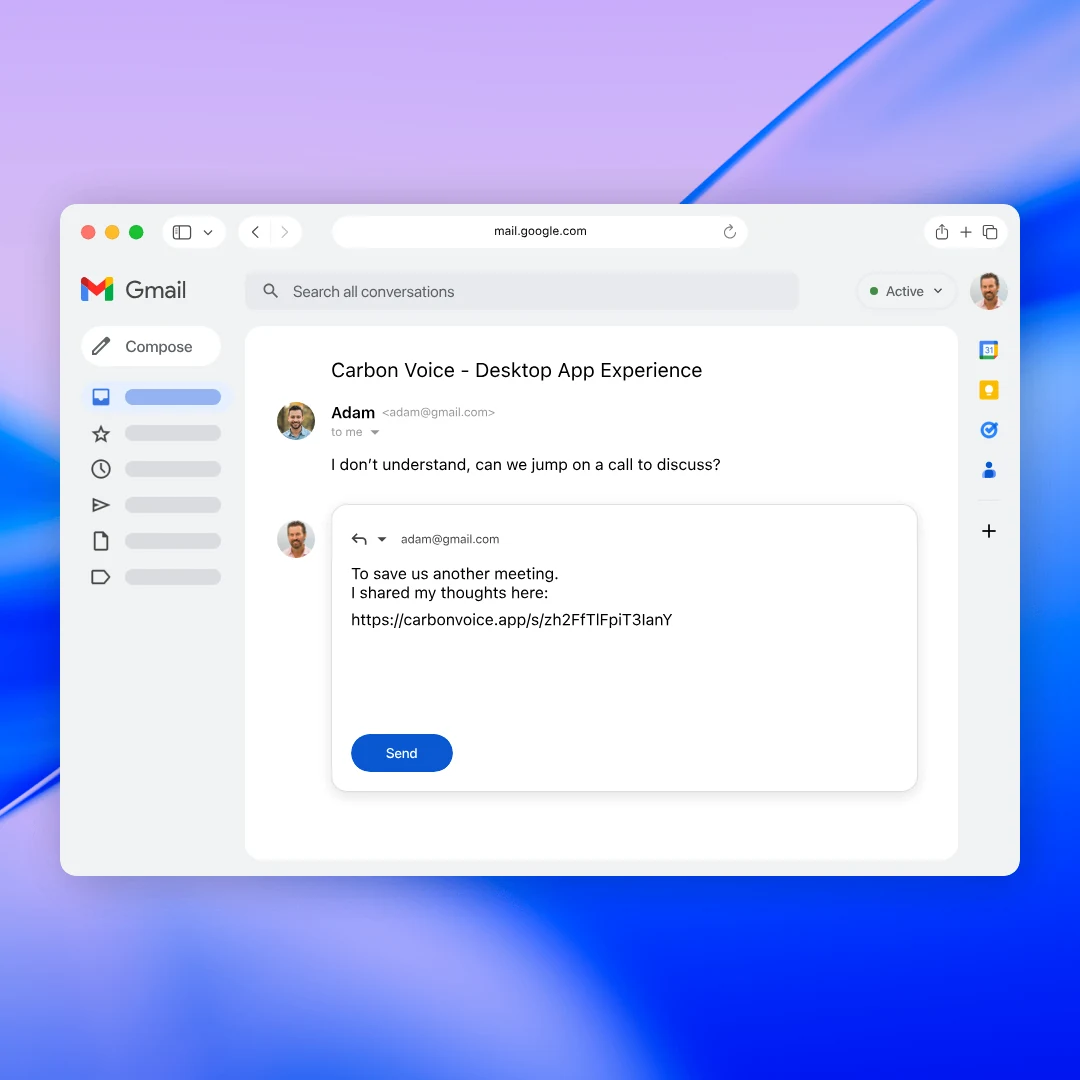
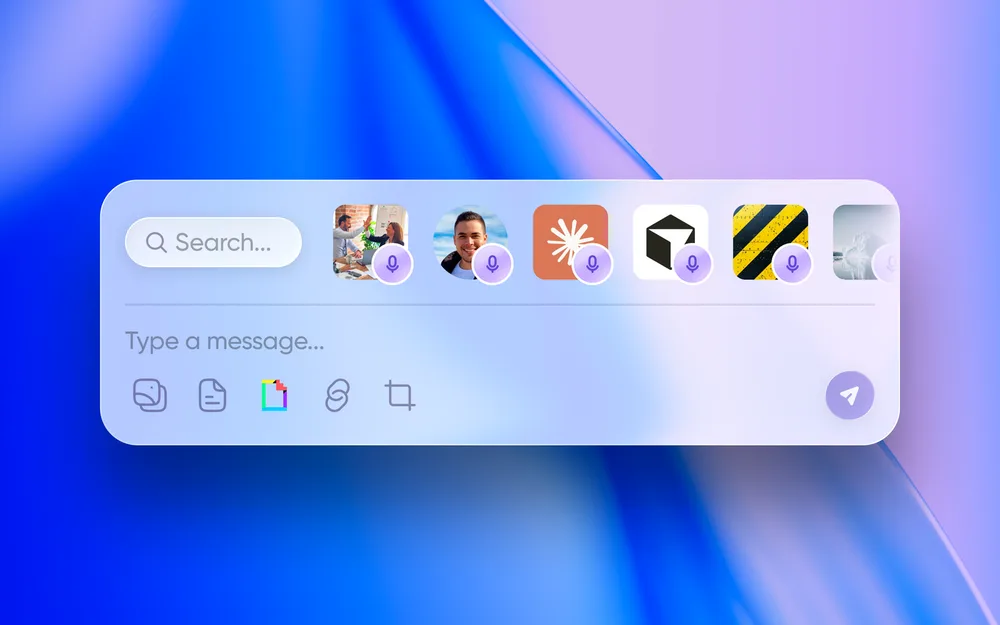
Each one can be changed: pick from the presets, or choose **Record shortcut…** and press
the combination you want. A shortcut needs at least one modifier key (⌥ ⌘ ⌃ ⇧). Any
shortcut can be reset to its default.
## While recording
The recording panel has the same controls as the app, including pause, restart, delete and
send. You
can also **hold the spacebar** to record and release to stop.
## Other settings on this screen
- **Voice memo workspace** — which workspace memos recorded by shortcut are filed in.
- **Auto-copy** — automatically copy the transcript to your clipboard when a recording
finishes, so you can paste it straight into whatever you were writing.
- **Link prefix** — the prefix used for links Carbon Voice copies.
> Keyboard shortcuts are macOS only. The settings screen doesn't appear on other platforms.
## Related
- [Speed Dial](speed-dial.md)
- [The menu bar app](menu-bar.md)
- [Carbon Voice on desktop](../desktop.md) — the in-app shortcuts, which are separate.
---
URL: https://help.carbonvoice.app/quick-capture/speed-dial
Source: https://raw.githubusercontent.com/PhononX/carbon-voice-docs/main/docs/quick-capture/speed-dial.md
# Speed Dial
Speed Dial gives you **ten slots**, each bound to a destination and a keystroke. Press the
shortcut, talk, and the message goes. No app switching, no picking a recipient.
Set it up in **Profile Menu → Settings → Keyboard Shortcuts**, under **Speed Dial
Shortcuts**.
## Setting up a slot
1. Pick a slot and tap **Add speed dial**.
2. Choose what it points at:
- **Person or people** — a direct message conversation.
- **Voice Memo** — a folder to record memos straight into.
- **Agent** — one of your [AI agents](../ai-agents/index.md), and which conversation to
use.
3. The slot takes a number key by default, so slot 1 gets **1**, combined with the base
modifier.
Change the base modifier once, at the top of the table, and every slot follows it. Or give
an individual slot its own combination.
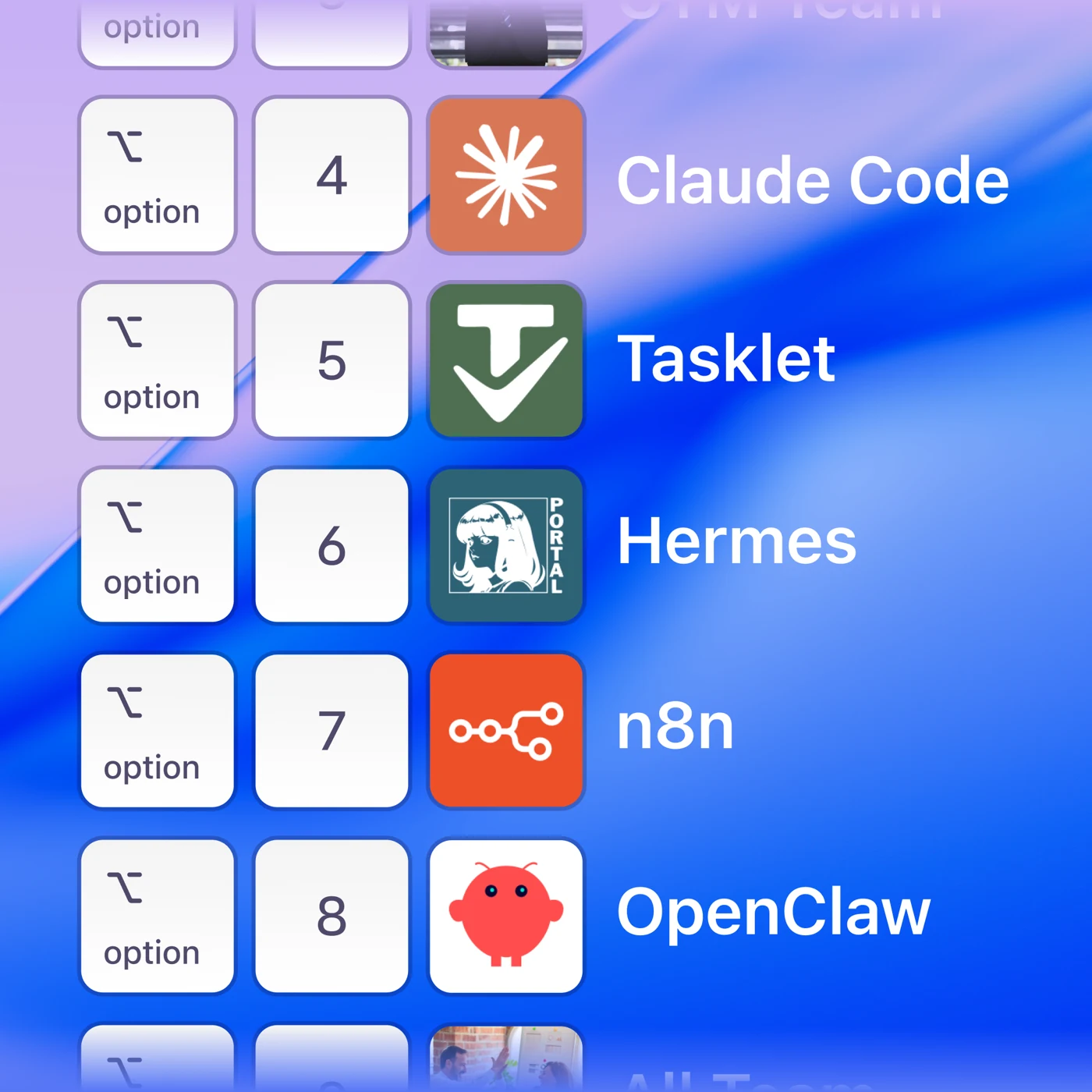
## The floating panel
Press **⌥`** (Option and backtick) to see all ten slots in a floating panel, with what
each is pointing at. Useful when you've set up more than you can remember.
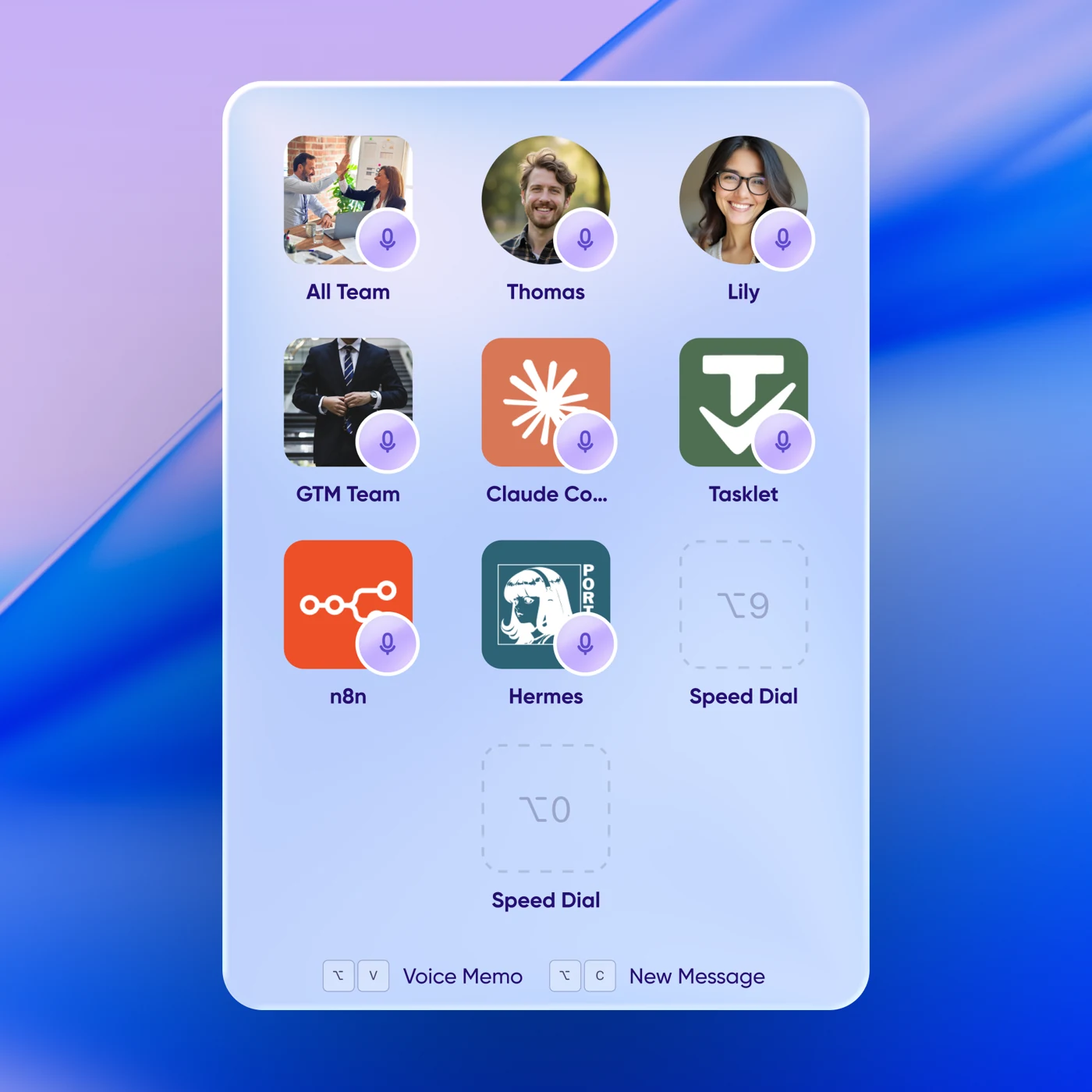
The panel also carries **Voice Memo** and **New Message** at the foot, for when you want
neither of your ten destinations.
## Actions on a slot
Each slot can also **Configure Action**, a webhook fired when you send to that slot, so a
message can kick off something else. A slot needs a destination before you can add an
action to it.
Slots pointing at an agent also offer **Agent Settings** as a shortcut into that agent's
configuration.
## Related
- [Keyboard shortcuts](keyboard-shortcuts.md)
- [AI Agents](../ai-agents/index.md)
---
URL: https://help.carbonvoice.app/quick-capture/menu-bar
Source: https://raw.githubusercontent.com/PhononX/carbon-voice-docs/main/docs/quick-capture/menu-bar.md
# The menu bar app
On macOS, Carbon Voice lives in the menu bar as well as in its own window, so recording and
playback are available from the top of the screen whatever else you're doing.
From the menu bar you can:
- **Record and send** without bringing the main window forward.
- **Play** what's waiting for you.
- **Reach your speed dial destinations** directly.
It follows your appearance setting, so it matches the rest of the app in light and dark
mode.
> This is macOS only, and comes with the desktop app.
> [Download it here](https://www.getcarbon.app/download) if you've been using Carbon Voice
> in a browser.
## Related
- [Keyboard shortcuts](keyboard-shortcuts.md)
- [Speed Dial](speed-dial.md)
---
URL: https://help.carbonvoice.app/quick-capture/iphone-widgets
Source: https://raw.githubusercontent.com/PhononX/carbon-voice-docs/main/docs/quick-capture/iphone-widgets.md
# iPhone home screen widgets
There are two widgets you can add to your iOS home screen.
📺 [Watch: iPhone widgets](https://youtube.com/shorts/2o-fajim-wI)
## Recents
Shows your recent conversations with their unread counts, so you can get back to
something quickly. Tapping deep links straight into that conversation.
## Quick Sends
Shows a list of your favorite conversations. Tapping deep links into the conversation.
## Adding a widget
1. Press and hold on your home screen.
2. Tap **Edit** in the top left, then **Add Widget**.
3. Search for **Carbon Voice**.
4. Swipe left and right to choose between the available widgets and sizes, then tap
**Add Widget**.
5. Tap the card to choose the compact layout, which shows more items.
6. For Quick Sends, configure which of your Quick Send conversations appear.
7. Tap **Done** in the top left to leave edit mode.
## Related
- [Quick Send](../conversations/your-conversation-list/quick-send.md)
- [Siri, sharing, and iMessage](ios-shortcuts.md)
- [Apple Watch app](apple-watch.md)
---
URL: https://help.carbonvoice.app/quick-capture/ios-shortcuts
Source: https://raw.githubusercontent.com/PhononX/carbon-voice-docs/main/docs/quick-capture/ios-shortcuts.md
# Siri, sharing, and iMessage
Three ways into Carbon Voice on iOS that don't involve opening it.
## Siri
Carbon Voice supports Siri for sending and finding messages, so you can ask for a message
to go out hands-free. That's useful when you're driving or your hands are busy.
Siri needs permission the first time. If nothing happens, check **Settings → Siri &
Search → Carbon Voice** on your device.
## The share sheet
Anything you can share on iOS can be shared into Carbon Voice, whether that's an audio file
you recorded elsewhere, a document, or a link.
1. Tap **Share** in the other app.
2. Choose **Carbon Voice**.
3. Pick whether it goes into a conversation or your voice memos, and choose the
destination.
This is how you get a recording made in Voice Memos, or a file from Files, into a
conversation. See
[Share an audio file to Carbon Voice](../messages/recording-and-sending/share-an-audio-file.md).
## iMessage
Carbon Voice has an iMessage app, so you can send a voice message from inside a text
thread. Tap the apps row beside the message field, choose Carbon Voice, and pick the
conversation.
## From a notification
You don't need to open the app to deal with an incoming message either. Press and hold the
notification to play it and reply from the lock screen. See
[Listen and reply from push notifications](../messages/playback/push-notifications-ios.md).
## Related
- [iPhone home screen widgets](iphone-widgets.md)
- [Apple Watch app](apple-watch.md)
---
URL: https://help.carbonvoice.app/quick-capture/apple-watch
Source: https://raw.githubusercontent.com/PhononX/carbon-voice-docs/main/docs/quick-capture/apple-watch.md
# Apple Watch app
Capture thoughts wherever inspiration strikes. With the Apple Watch app you can:
- Record memos with a single tap using the Carbon Voice complication.
- Record even when offline.
- Sync automatically with the mobile app.
Make sure you're on the latest version to use it.
📺 [Watch: Carbon Voice on Apple Watch](https://youtu.be/urx2uBXdyLI)
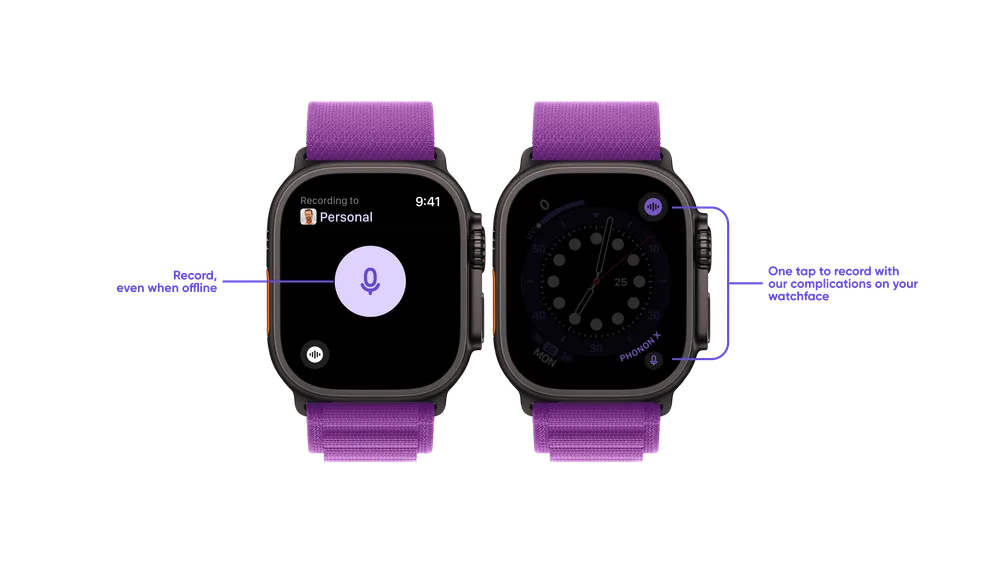
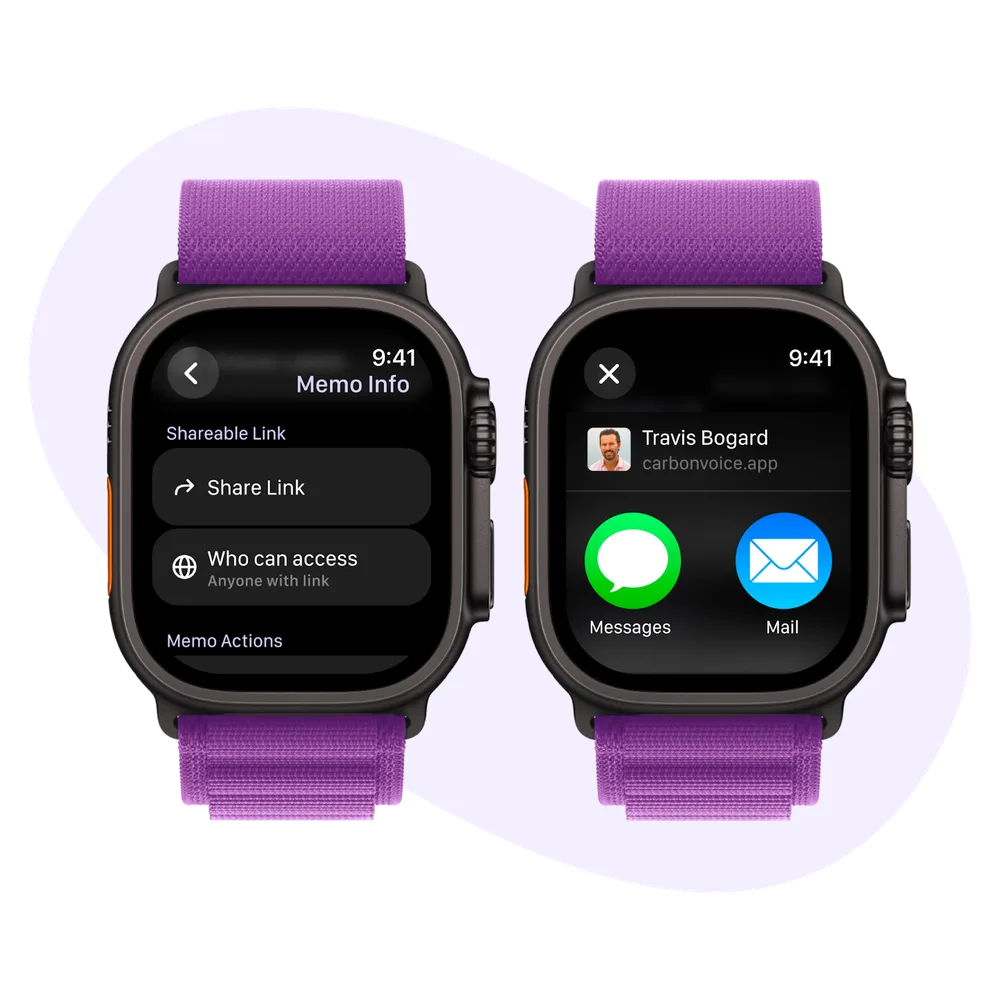
## Related
- [iPhone home screen widgets](iphone-widgets.md)
- [Voice Memos](../voice-memos/index.md)
---
URL: https://help.carbonvoice.app/ai/one-tap-summaries
Source: https://raw.githubusercontent.com/PhononX/carbon-voice-docs/main/docs/ai/one-tap-summaries.md
# One-tap AI summaries
When you need a quick overview, one-tap AI summaries give you the main points of a
conversation without reading through everything.
## Getting a summary
Inside any conversation, tap the **summarize icon** in the upper right corner and choose
how much you want to see:
- **AI Only** — replaces each message with its summary.
- **AI + Message** — shows the summary alongside the full transcript.
Either way you get a summarized version of every message longer than 100 characters.
Choosing the same option again turns summaries back off.
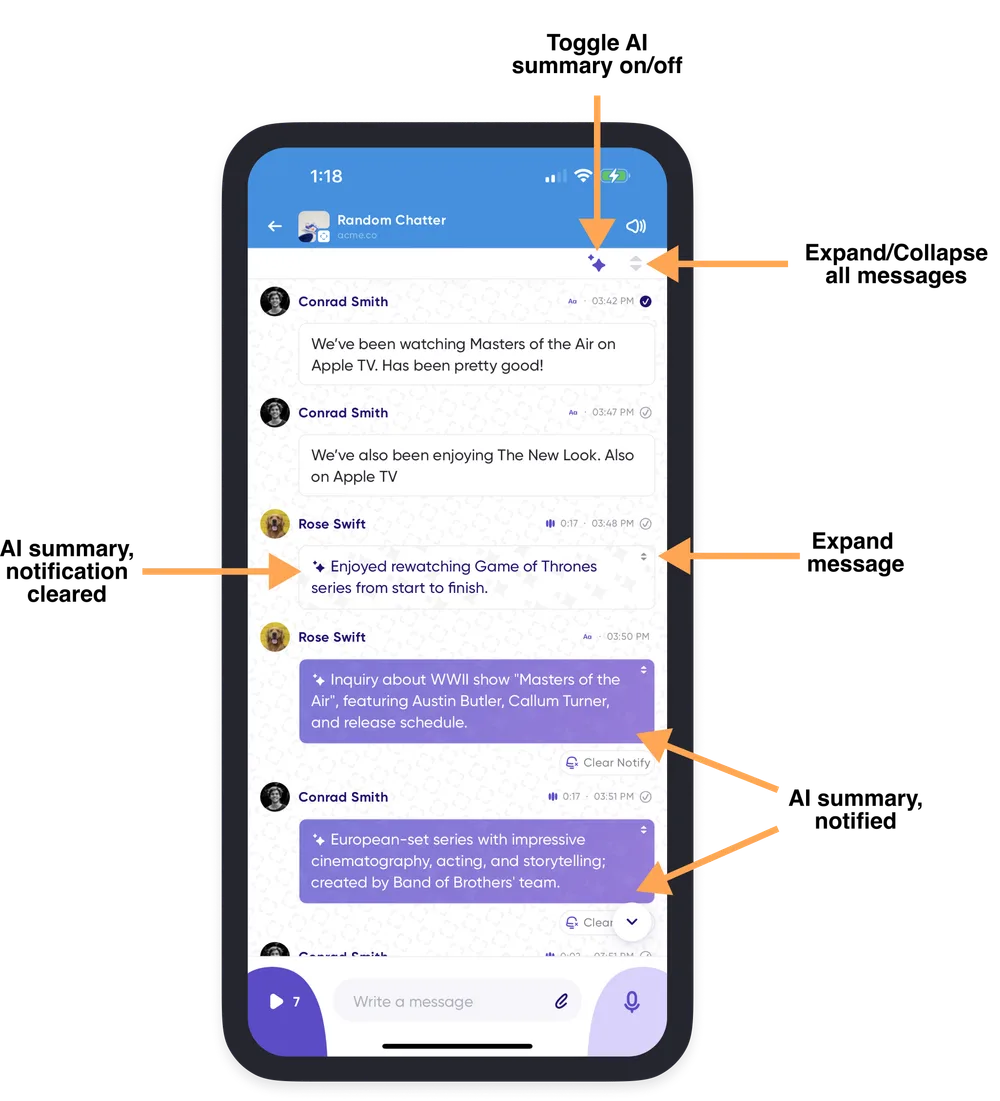
## Reading the full message
If something catches your interest, switch to **AI + Message**, or tap the expanding arrows
on that message to reveal the full transcript.
## Turning summaries off
AI summaries are on for all conversations by default. To turn them off, go to **Profile
Menu → Settings → Conversation History**. See
[Conversation history settings](../conversations/access-and-sharing/conversation-history-settings.md).
## Related
- [Catch up with AI](catch-up-with-ai.md)
- [Transcripts](../messages/transcripts/index.md)
---
URL: https://help.carbonvoice.app/ai/catch-up-with-ai
Source: https://raw.githubusercontent.com/PhononX/carbon-voice-docs/main/docs/ai/catch-up-with-ai.md
# Catch up with AI
Stuck in a meeting, or waking up to a busy conversation? Catch-up generates a summary
of what you missed.
## The quick way
Swipe from right to left on a conversation, either from Home or in your conversation list,
and Catch-up summarizes the discussion, with links to play the source messages.

## The full catch-up summary
1. **Open the conversation** you want to catch up on.
2. **Open AI Chat.** Tap the **summarize icon** at the top right and choose **AI Chat** —
on desktop, use the dedicated **AI Chats** button in the app bar instead.
3. **Select Create Catch-Up Summary.** This covers new messages from the last 24 hours.
4. **Wait a few seconds** for the summary, which gives you a high-level overview
including:
- Key actions, and anything urgent or decided
- Milestones, or shifts in priorities
- Questions and requests
5. **Tap a highlighted blue name** to jump straight to the original message.
You can also tap the **"…"** and select **Mark as Read** to clear the new messages in
the conversation.
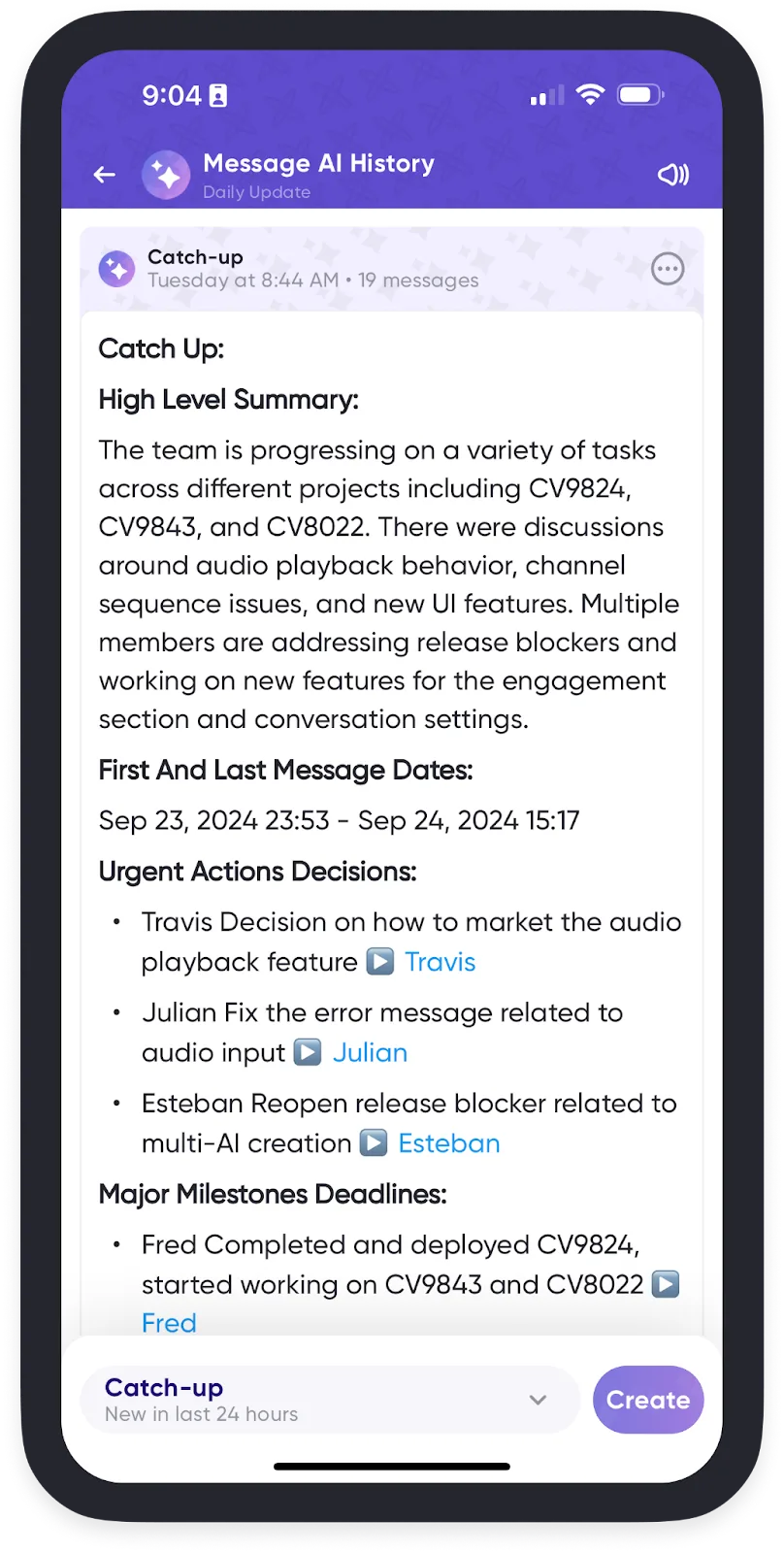
📺 [Watch: catching up with AI](https://www.youtube.com/watch?v=q2v4J9obJlk)
## Related
- [One-tap AI summaries](one-tap-summaries.md)
- [Your conversation list](../conversations/your-conversation-list/index.md)
---
URL: https://help.carbonvoice.app/ai/auto-bulleted-summaries
Source: https://raw.githubusercontent.com/PhononX/carbon-voice-docs/main/docs/ai/auto-bulleted-summaries.md
# Auto bulleted summaries
Auto bulleted summaries turn each message in a conversation into clean bullet points
automatically, so you don't have to open message details one by one. They're most
useful for catching up on longer conversations.

## What it does
- Converts each message into a bulleted summary.
- Displays the bullets inline as you scroll through a conversation.
- Makes the key points easier to scan.
## Turning it on
1. Open any conversation.
2. Tap the **summarize icon** at the top right and choose **Bulleted Summary**.
Messages then appear as bullet points as you scroll. New messages over 10 words or 50
characters are summarized automatically.
## Things to know
- This feature requires a **premium account**.
- Bulleted summaries use **AI credits**.
- You can turn the view on or off at any time.
## Proactive summaries
On a **premium workspace**, summaries can be generated the moment each message is sent,
rather than as you scroll. [Contact the team](mailto:sales@getcarbon.app) to have it
enabled.
## Related
- [One-tap AI summaries](one-tap-summaries.md)
---
URL: https://help.carbonvoice.app/ai/transform-with-ai-actions
Source: https://raw.githubusercontent.com/PhononX/carbon-voice-docs/main/docs/ai/transform-with-ai-actions.md
# Transform voice memos and messages with AI
Talking is roughly four times faster than typing. AI actions turn a discussion or a
voice memo into first-draft content: an email, a to-do list, a blog post, a sales
summary, a bug report, a product plan.
The shape of it is always the same:
1. **Capture with voice** — speak naturally and get your thoughts out.
2. **Structure with AI** — turn those thoughts into a first draft.
3. **Share with anyone** — send the structured content wherever it needs to go.
## Transforming a single voice memo
1. **Record your voice memo** as usual.
2. Go to the **Voice Memos** tab and find the memo you want to transform.
3. **Tap the memo** to open its message details.
4. **Select an AI action** from the drop-down at the top of the screen.
5. **Copy or share the output** once it's generated.
## Transforming several messages at once
To turn a discussion or a set of voice memos into a presentation outline, a meeting
summary with action items, or anything else:
1. Press and hold any voice memo or message in a conversation.
2. Tap **Select** to choose multiple messages.
3. Choose your AI Magic prompt.
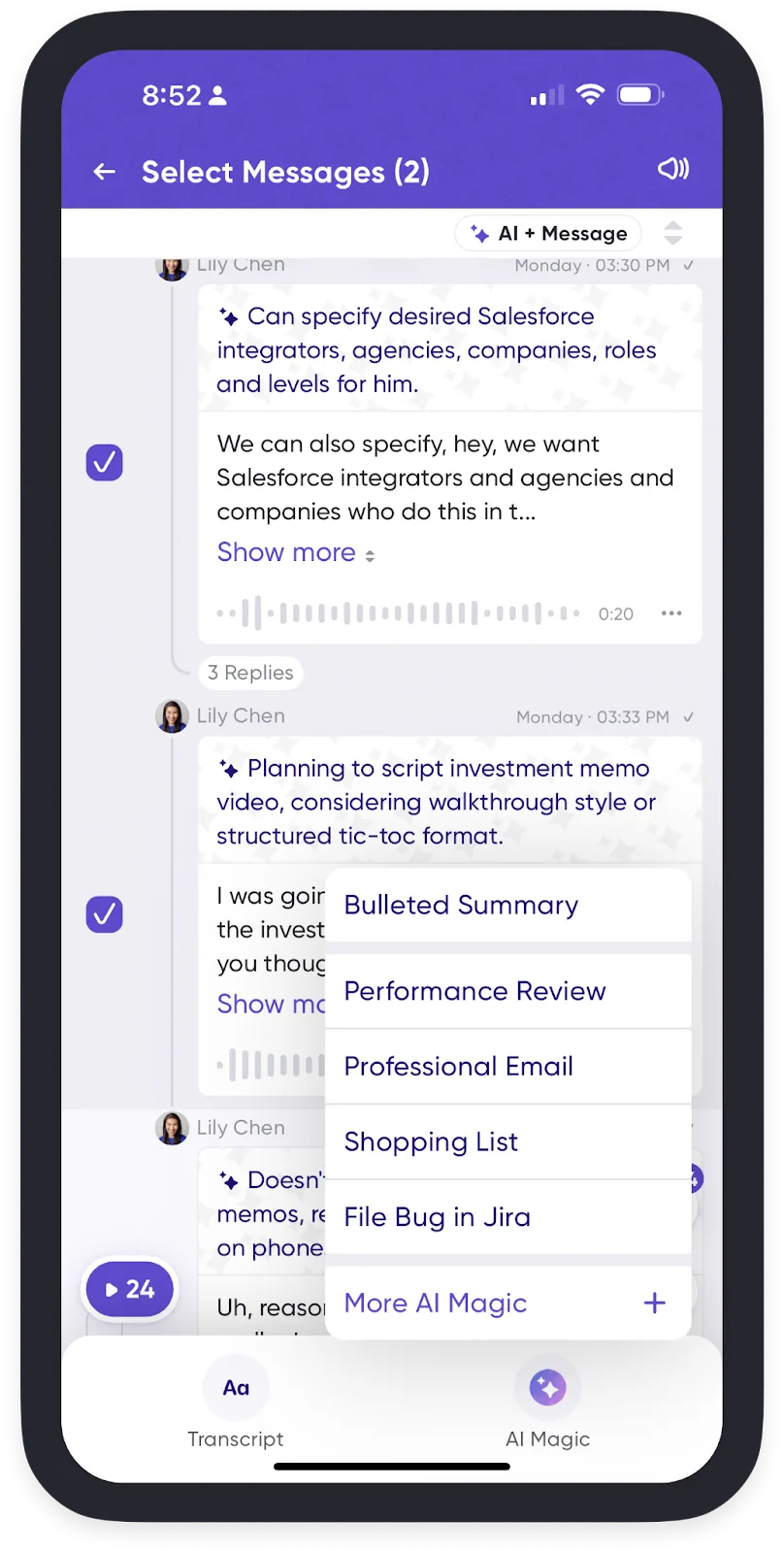
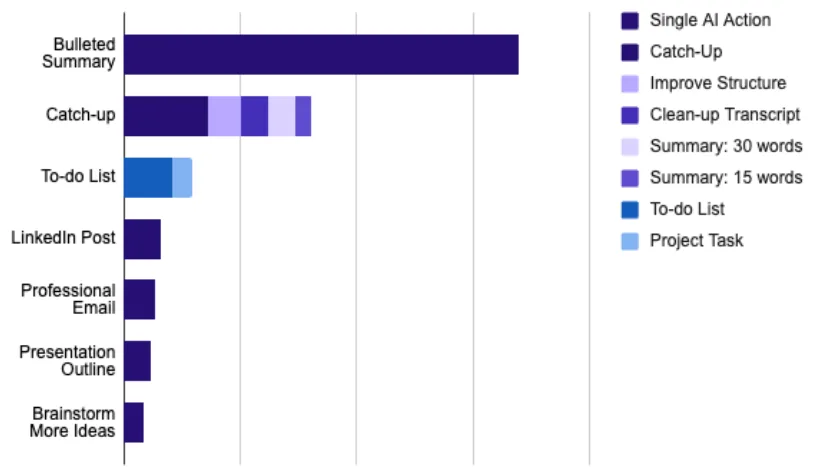
## The ones people use most
There are more than 40 built-in actions. These are the ones that get used the most, and
what each actually does:
| Action | Good for | What it does |
|---|---|---|
| **Bulleted Summary** | A long message that arrived while you were busy | Pulls out the points and drops the filler |
| **Catch-up** | Seeing what you missed in an active conversation | Summarizes across several messages, with takeaways and action items |
| **Improve Structure** | A rambling brainstorm | Regroups related ideas so it flows |
| **Clean-up Transcript** | Something you'll paste elsewhere | Fixes grammar and removes filler, keeping your phrasing |
| **To-do List** | Follow-ups captured on the move | Finds the actionable parts and orders them |
| **Presentation Outline** | Talking through a deck | Slide titles, key points, and suggested visuals |
| **Professional Email** | A rough sense of what to say | A clear, sendable draft |
| **LinkedIn Post** | An insight that arrived away from your desk | A structured post with hashtag suggestions |
| **Brainstorm More Ideas** | Being stuck | Reads the discussion and suggests directions to build on |
That last one is worth singling out: it generates new ideas rather than reformatting the
ones you had.
If none of them fits, [write your own prompt](custom-prompts.md).
## Finding past results
To see previous AI Magic results across a conversation, open **AI Chat** from the
**summarize icon** at the top right. Every AI result you've generated anywhere in the app is
also collected in **Notebook → AI Outputs**.
## Related
- [Voice Memos](../voice-memos/index.md)
- Connect [Zapier](http://getcarbon.app/zapier) to send AI-processed memos into the
rest of your workflow automatically.
---
URL: https://help.carbonvoice.app/ai/custom-prompts
Source: https://raw.githubusercontent.com/PhononX/carbon-voice-docs/main/docs/ai/custom-prompts.md
# Create your own AI prompts
Carbon Voice ships with more than 40 AI actions. When none of them produces the shape you
need, write your own.
## Creating one
1. Open any conversation.
2. Tap the **AI action icon** in the lower right.
3. On the bottom row, tap **+** on the left.
4. Give it a title and write the prompt.
5. Save.
Your prompt then appears alongside the built-in ones and works on any message, voice memo,
or selection of messages.
## Writing a good one
The prompt runs against a transcript, so say what you want done with what was said, and
what the output should look like. Being specific about format is what makes the result
reusable: "return a bulleted list grouped by owner" gets you something you can paste
somewhere; "summarize this" gets you a paragraph.
## Using one as an automation trigger
A custom prompt can also drive a [Zapier](../integrations/zapier.md) workflow. In Zapier,
choose **User** as the prompt type and your own prompts appear in the list, so an output
you designed can post itself wherever it needs to go.
## Related
- [Transform voice memos and messages with AI](transform-with-ai-actions.md)
---
URL: https://help.carbonvoice.app/ai
Source: https://raw.githubusercontent.com/PhononX/carbon-voice-docs/main/docs/ai/index.md
# Summaries & AI Actions
Point AI at something you've already said, and get it back in a more useful shape: as a
summary, as bullet points, or as a first draft of whatever you needed to write.
- [One-tap AI summaries](one-tap-summaries.md)
- [Catch up with AI](catch-up-with-ai.md)
- [Auto bulleted summaries](auto-bulleted-summaries.md)
- [Transform voice memos and messages with AI](transform-with-ai-actions.md)
- [Create your own AI prompts](custom-prompts.md)
## Related
- **[AI Chat](../ai-chat/index.md)** — for asking questions across everything you've
stored, rather than reshaping one thing you've already said.
- **[Voice & Language](../voice-and-language/index.md)** — how your messages sound, and
translation.
- **[AI Agents](../ai-agents/index.md)** — AI with an account of its own.
---
URL: https://help.carbonvoice.app/ai-chat
Source: https://raw.githubusercontent.com/PhononX/carbon-voice-docs/main/docs/ai-chat/index.md
# AI Chat
**AI Chat** answers questions using what you've said in Carbon Voice. Where
[summaries and AI actions](../ai/index.md) reshape one thing you already have, AI Chat
searches across what you've stored and answers.
Ask "what did we decide about pricing?" and it goes looking.
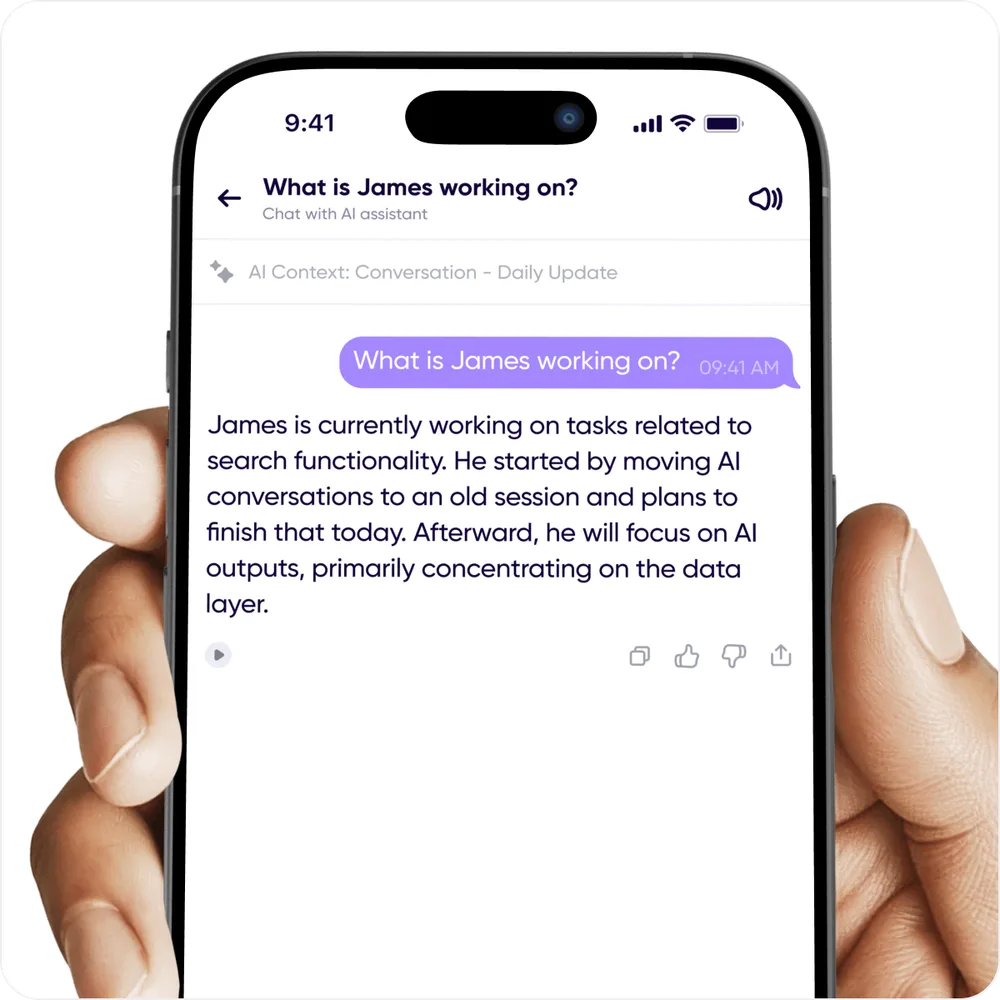
## Where you open it sets what it can see
AI Chat answers from a scope, and the scope is decided by where you started the chat.
| Started from | Answers from | Where the history lives |
|---|---|---|
| **Home** | Everything in the workspace | Global AI Chat |
| **A conversation** | That conversation only | With that conversation |
| **A voice memo** | That memo only | Global AI Chat |
| **A multi-select** | Only the messages you picked | Global AI Chat |
So scope it tightly when you know where the answer lives, and start from Home when you
don't. To ask about a particular run of messages, press and hold one, tap **Select**, choose
the rest, and open AI Chat from there.
On mobile, open a conversation's chat from the **summarize icon** at the top right. On
desktop, use the dedicated **AI Chats** button in the app bar.
> **A chat belongs to one workspace**, fixed when it starts. Start a new chat to ask about a
> different workspace.
## Choosing a workspace
The global chat works within one workspace at a time, so answers don't mix your personal
recordings with a client's. Pick the workspace at the top of the chat; your choice is
remembered for new chats.
## Saved prompts
Questions you ask often can be saved and reused, so a weekly "what did I commit to this
week?" is one tap rather than retyping. Saved prompts appear above the chat.
## Getting better answers
- **Be specific about the person or conversation.** "What did Sara say about the migration"
narrows the search far more than "what about the migration".
- **Give it a time frame.** "In the last month" is usually enough.
- **Follow up.** It keeps the thread, so you can refine rather than restating.
## What it can't do
AI Chat only knows what's in Carbon Voice, and only what you have access to. It won't see a
conversation you were never part of.
## Related
- [Summaries & AI Actions](../ai/index.md) — reshaping something you already have.
- [AI Assistants & MCP](../ai-assistants/index.md) — asking the same questions from
Claude or ChatGPT instead.
- [Catch up with AI](../ai/catch-up-with-ai.md)
---
URL: https://help.carbonvoice.app/ai-agents
Source: https://raw.githubusercontent.com/PhononX/carbon-voice-docs/main/docs/ai-agents/index.md
# AI Agents
An **AI agent** in Carbon Voice is an account that belongs to an AI rather than a person.
It has a name, a username, a picture and a voice, it can join conversations, and it can
send and receive messages, so the agent you already run somewhere else becomes something
you can just talk to.
The point is that you stop context-switching. Instead of opening a terminal or a chat
window to reach your agent, you send it a voice message from wherever you already are, on
your phone, your watch, or a keyboard shortcut on your Mac, and it replies in the
conversation.
## How it works, in three steps
1. **Create an agent Voice account.** Carbon Voice creates the account and gives it an
identity of its own. See [Create an agent](create-an-agent.md).
2. **Connect your agent.** Link that account to an agent or workflow you've already set up
such as Hermes, OpenClaw, Claude Code, an n8n flow, or something you wrote yourself. See
[Connect your agent](connect-your-agent.md).
3. **Talk to your agent.** Once connected, it behaves like any other member of the team.
See [Talk to your agent](talk-to-your-agent.md).
If you haven't built an agent yet, you can still do step 1 and come back. Until it's
connected, though, the account is only an identity: you can add it to conversations and
send it messages, but nothing is listening, so nothing will answer.
## Where to find them
Open **AI Agents** from the profile menu, or from the robot icon in the navigation sidebar
on desktop. Agents you've created are listed under **Personal Agents**.
## In this section
- [Create an agent](create-an-agent.md)
- [Connect your agent](connect-your-agent.md)
- [Talk to your agent](talk-to-your-agent.md)
- [Managing an agent](managing-an-agent.md)
## Related
- [AI Assistants & MCP](../ai-assistants/index.md) — the other direction: letting Claude
or ChatGPT read your Carbon Voice content.
- [Build with the Carbon Voice API](../integrations/build-with-the-api.md)
---
URL: https://help.carbonvoice.app/ai-agents/create-an-agent
Source: https://raw.githubusercontent.com/PhononX/carbon-voice-docs/main/docs/ai-agents/create-an-agent.md
# Create an agent
Creating an agent gives it its own Carbon Voice account: a name, a username, and an
identity that can hold access tokens and webhook subscriptions of its own.
## Create one
1. Open **AI Agents** and tap **Create New Agent**.
2. **Pick your platform.** Choose the agent platform you wish to connect Carbon Voice to.
Carbon Voice keeps a catalogue of platforms with setup instructions written for each
one. Pick the closest match; if yours isn't listed yet, pick anything and connect it by
hand afterwards.
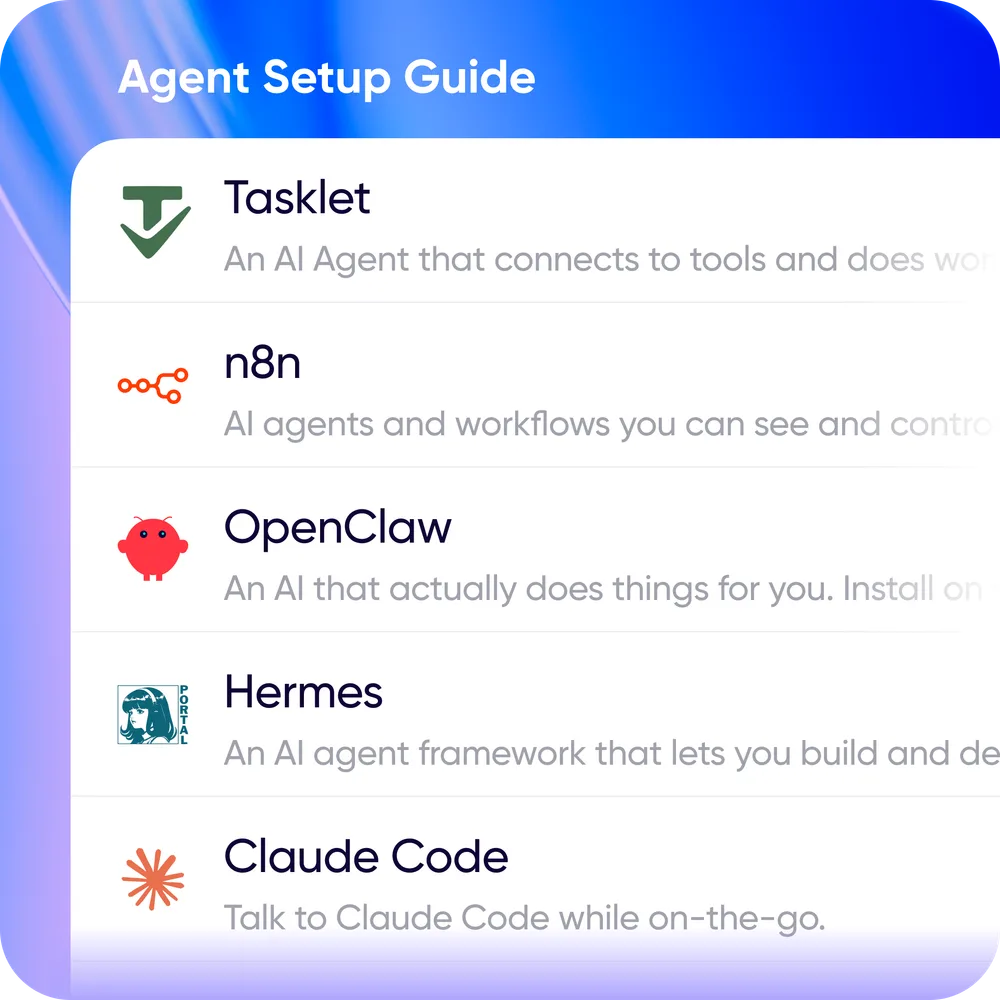
3. **Name your agent.** It's pre-filled with the platform name, and you can change it any
time in settings.
4. **Follow the setup guide**, if the platform has one. See
[Connect your agent](connect-your-agent.md).
You land on the agent's details screen when you're done.
## What you get
Each agent has:
- **A name and username.** The username is how people @mention it and how it's found in
search, the same as a person's.
- **A picture**, which you can change in settings.
- **A voice**, used when the agent sends text that someone plays back.
- **Its own access tokens and webhook subscriptions**, scoped to that agent rather than to
your personal account. That separation is the point, because an agent's credentials can
be revoked without touching yours.
## You don't need a working agent first
Create the account now and connect it to a real agent or workflow whenever you get round to
building one. Bear in mind that an unconnected account won't do anything: people can send
it messages, but there's nothing behind it to reply until you connect a platform.
## Related
- [Connect your agent](connect-your-agent.md)
- [Managing an agent](managing-an-agent.md)
---
URL: https://help.carbonvoice.app/ai-agents/connect-your-agent
Source: https://raw.githubusercontent.com/PhononX/carbon-voice-docs/main/docs/ai-agents/connect-your-agent.md
# Connect your agent
Connecting is what turns the account into a working agent: your tool gets credentials to
post as the agent, and a webhook so it hears about new messages.
## Follow the setup guide
Most platforms in the catalogue ship an **interactive setup guide**, which walks you
through the whole thing step by step. It opens automatically when you create an agent, and
you can reopen it any time from the agent's settings under **Pick your platform**.
Guides are written per platform, so what you see depends on which one you chose. Steps can
include:
- **Read this first** — context before you start.
- **Run this AI prompt** — a prompt to paste into your agent's own chat, so it can set
itself up. Copy it with one tap.
- **Personal Access Token** — generate the agent's token inline, without leaving the guide.
- **Follow these steps** — clicks and taps inside the other tool's interface.
- **Webhook URL** — where you paste the address Carbon Voice should send events to.
- **Make this HTTP request**, **Run this command**, **Add this config file** — for
platforms configured in code.
Some guides also carry a **Tips & Optional** section at the end.
> If a platform is listed but its guide isn't ready, you'll be told so. Create the account
> anyway and connect it by hand with the two pieces below.
## Connecting by hand
Any agent can be wired up without a guide. There are two pieces.
### 1. An access token
In the agent's settings, open **Manage tokens** and tap **Create token**. Give it a name
you'll recognise later. The tool it's for is a good choice.
- Tokens are created with **read and write permissions** and **expire after one year**.
- **Copy the token as soon as it's created.** It isn't shown again.
- You can **revoke** a token to stop it working immediately, and **delete** it later.
Your tool uses that token to act as the agent.
### 2. A webhook subscription
In the agent's settings, open **Webhook subscriptions** and tap **Create webhook**. Give
Carbon Voice the URL your tool listens on, and it will send events there, such as a new
message posted to the agent, so your agent knows when to respond.
## Finishing later
An agent that isn't connected yet still appears in your list and still holds its tokens and
webhooks, so nothing is lost by stopping halfway and coming back. It just won't respond to
anything until you finish.
## Related
- [Talk to your agent](talk-to-your-agent.md)
- [Managing an agent](managing-an-agent.md)
- [Build with the Carbon Voice API](../integrations/build-with-the-api.md) — the full API
reference, for agents you're writing yourself.
---
URL: https://help.carbonvoice.app/ai-agents/talk-to-your-agent
Source: https://raw.githubusercontent.com/PhononX/carbon-voice-docs/main/docs/ai-agents/talk-to-your-agent.md
# Talk to your agent
A connected agent behaves like any other member of the team. You send it a voice message,
it replies in the conversation, and everything is transcribed on both sides.
## Start a conversation
Start a conversation with an agent the way you'd start one with a person. Search for its
username, or create a conversation and add it. You can also open the agent from **AI
Agents** and see **My Conversations with @agent** to jump back into one you already have.
## What works
- **Voice or text.** Speak to it, or type — the agent gets a transcript either way.
- **Replies come back in the conversation**, so there's a record you can search, summarize
and share like any other thread.
- **Group conversations.** An agent can sit in a conversation with several people, so the
whole team can reach it in one place.
- **Attachments**, so you can hand it a file to work on.
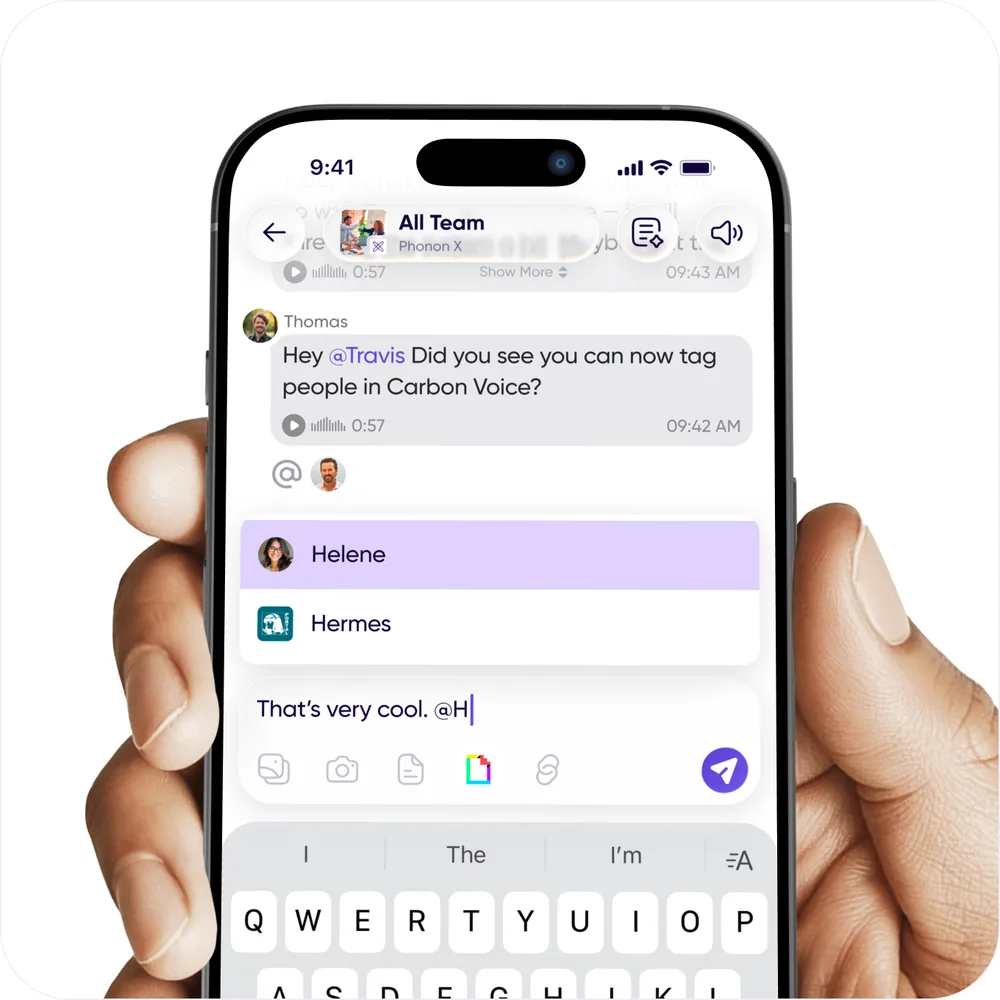
## Put it on speed dial
On macOS, an agent can be bound to one of your ten **Speed Dial** slots, so you can reach
it with a keystroke from anywhere, without opening Carbon Voice at all.
1. Go to **Settings → Keyboard Shortcuts**.
2. In **Speed Dial Shortcuts**, pick a slot and choose **Agent** as the destination.
3. Choose the agent and the conversation to send to.
Press the shortcut, talk, and your message goes straight to the agent. Press **⌥`**
(Option and backtick) to see all ten slots in a floating panel.
Once a slot is bound to an agent, that row also offers **Agent Settings** as a shortcut
into its configuration.
## The agent's contacts
Open an agent and choose **Agent's Contacts** to see who it has been talking to. It's the
quickest way to check the reach of an agent that several people are using.
## Related
- [Connect your agent](connect-your-agent.md)
- [Managing an agent](managing-an-agent.md)
---
URL: https://help.carbonvoice.app/ai-agents/managing-an-agent
Source: https://raw.githubusercontent.com/PhononX/carbon-voice-docs/main/docs/ai-agents/managing-an-agent.md
# Managing an agent
Open **AI Agents**, tap an agent, and go to its settings.
## Name, picture and voice
- **Name** — tap to edit. Changing it doesn't change the username.
- **Username** — how people @mention and find the agent. Tap to copy it.
- **Picture** — tap the avatar to replace it, the same as your own profile picture.
- **Voice** — which text-to-speech voice the agent uses when someone plays back a message
it sent as text.
## Details
The settings screen also shows the **Agent ID**, the **Creator ID**, and when the agent was
created and last updated. The Agent ID is what you'll need if you're wiring things up
against the API by hand.
## Tokens and webhooks
**Manage tokens** and **Webhook subscriptions** live here too. See
[Connect your agent](connect-your-agent.md) for what they do and how to create them.
Revoking a token stops it working immediately, which is the fastest way to cut off an agent
that's misbehaving without deleting anything.
## Retiring an agent
When an agent has served its purpose, tap **Retire Agent** in its settings.
> Retiring is permanent. The agent's access stops immediately and it can't be brought back.
> Its conversations remain, but nothing can post as that agent again.
If you only want to pause an agent, revoke its tokens instead. That stops it acting while
leaving the account in place.
## Related
- [Connect your agent](connect-your-agent.md)
- [Talk to your agent](talk-to-your-agent.md)
---
URL: https://help.carbonvoice.app/ai-assistants
Source: https://raw.githubusercontent.com/PhononX/carbon-voice-docs/main/docs/ai-assistants/index.md
# AI Assistants & MCP
The Carbon Voice MCP server lets an AI assistant work with your conversations and voice
memos. The server URL is `https://mcp.carbonvoice.app`.
- [Getting your content to an AI](getting-your-content-to-an-ai.md) — MCP is one of two
routes; this compares them.
- [MCP tips and tricks](tips-and-tricks.md)
- [Connecting Claude](claude.md)
- [Connecting ChatGPT](chatgpt.md)
- [Connecting Cursor](cursor.md)
- [Connecting Windsurf](windsurf.md)
That's your assistant reading *from* Carbon Voice. For an AI that lives *in* Carbon Voice
as a participant, with its own account, conversations and voice, see
[AI Agents](../ai-agents/index.md).
---
URL: https://help.carbonvoice.app/ai-assistants/getting-your-content-to-an-ai
Source: https://raw.githubusercontent.com/PhononX/carbon-voice-docs/main/docs/ai-assistants/getting-your-content-to-an-ai.md
# Getting your content to an AI
An AI is only as personalized as the context it can reach. Most of anyone's best thinking
happens in conversation, which is exactly the material that normally never gets written
down. Carbon Voice captures it as a byproduct of communicating, which makes it unusually
good raw material for an assistant that's meant to know you.
There are two ways to get it there, and they're genuinely different.
## Directly, over MCP
Your assistant queries Carbon Voice at the moment you ask the question.
- **Always current** — it sees what you said five minutes ago.
- **Nothing is stored** anywhere new.
- **Only works in MCP-capable clients** — Claude, ChatGPT, Cursor, Windsurf.
Set it up: [Connecting Claude](claude.md), [ChatGPT](chatgpt.md), [Cursor](cursor.md),
[Windsurf](windsurf.md).
## Via a vault you own
The [Obsidian sync plugin](../integrations/obsidian.md) pulls your conversations and voice
memos into an Obsidian vault as Markdown.
- **A snapshot**, refreshed on the interval you choose — not live.
- **Anything that reads files can use it**, not just MCP clients.
- **It composes with the rest of your notes**, so Carbon Voice content sits alongside
everything else you've written and gets linked into it.
- **The files are yours**, and stay yours.
This is the "second brain" pattern: capture by voice in Carbon Voice, sync into the vault,
then point an assistant at the vault so it answers with fuller context of you.
What lands in the vault matters here. It's transcripts, AI summaries, and participant and
workspace links, not just audio. That's what makes it answerable later.
## Which one
Use **MCP** when you want live answers about recent conversations inside an assistant you
already talk to.
Use the **vault** when you're building something durable, a knowledge base you'll annotate
and link, that outlives any one AI tool.
They aren't exclusive. Plenty of people run both.
## Related
- [MCP tips and tricks](tips-and-tricks.md)
- [Obsidian](../integrations/obsidian.md)
---
URL: https://help.carbonvoice.app/ai-assistants/tips-and-tricks
Source: https://raw.githubusercontent.com/PhononX/carbon-voice-docs/main/docs/ai-assistants/tips-and-tricks.md
# MCP tips and tricks
AI assistants do better the more you help them focus, and tell them how to work with
your data.
## Saying you mean Carbon Voice
Assistants decide when to look in Carbon Voice based on hints in what you type. Saying
**"in Carbon Voice"** signals that you want the information found there.
## Finding a person
A name is usually enough, as in "what did Sara say about…". If the assistant struggles, give
it an email address instead, or the name of a conversation the person is in.
## Finding conversations
The conversation name is fastest. If that doesn't work, give it the conversation ID,
which you can get by pressing and holding the conversation and choosing **Copy
Conversation Link**.
## Linking back to messages
To make results tappable, tell the assistant to hyperlink message dates back to the
message itself, using the format `https://carbonvoice.app/m/`.
## Prompts worth trying
- "What topics have I covered with [person] in the last month?"
- "In the past month, how has my tone been with [person]?"
- "In the past month, when talking to [person], what are some better questions I could
have asked?"
- Summarizing a retro conversation into overall team sentiment, what's going well,
what isn't, and what to change next sprint.
## Related
- [Connecting Claude](claude.md)
- [Connecting ChatGPT](chatgpt.md)
---
URL: https://help.carbonvoice.app/ai-assistants/claude
Source: https://raw.githubusercontent.com/PhononX/carbon-voice-docs/main/docs/ai-assistants/claude.md
# Connecting Claude
You can connect your Carbon Voice account to Claude in a few clicks, with no technical
setup. You'll need to be logged into your Carbon Voice account in your browser to
complete the connection.
## Remote connection
1. Open Claude in your browser and go to **Settings → Connectors**.
2. Click **Add custom connector**.
3. In the pop-up:
- **Name** — `Carbon Voice`
- **Remote MCP server URL** — `https://mcp.carbonvoice.app`
4. Click **Add**.
5. Click **Connect** next to the Carbon Voice connector.
6. Log into your Carbon Voice account when prompted. This links Claude to your messages
and conversations.
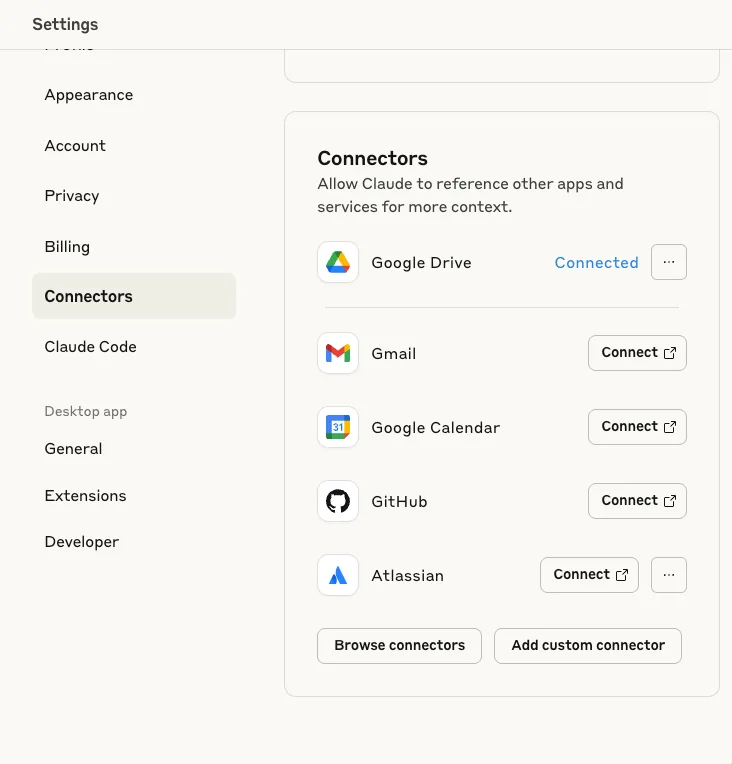
## Local installation
If you'd rather run the MCP server locally with API key authentication, you'll need:
- **A Carbon Voice API key.** Request one from
[devsupport@phononx.com](mailto:devsupport@phononx.com) with the subject "Request API
key for MCP Server".
- **npx**, which comes bundled with Node.js 14.8.0 or later. Check with
`npx --version`, and install Node from [nodejs.org](https://nodejs.org/) if needed.
Then:
1. Open your Claude Desktop configuration file:
- **macOS** — `~/Library/Application Support/Claude/claude_desktop_config.json`
- **Windows** — `%APPDATA%\Claude\claude_desktop_config.json`
2. Add the Carbon Voice MCP server under `mcpServers`, using the `npx` command with the
`@carbonvoice/cv-mcp-server` package and your API key in the
`CARBON_VOICE_API_KEY` environment variable.
3. Save the file and restart Claude Desktop.
The exact configuration snippet and other connection methods are in the
[cv-mcp-server repository](https://github.com/PhononX/cv-mcp-server).
## Related
- [MCP tips and tricks](tips-and-tricks.md)
- [Learn more about Carbon Voice MCP](https://www.getcarbon.app/mcp)
---
URL: https://help.carbonvoice.app/ai-assistants/chatgpt
Source: https://raw.githubusercontent.com/PhononX/carbon-voice-docs/main/docs/ai-assistants/chatgpt.md
# Connecting ChatGPT
ChatGPT's Company Knowledge lets you reach your Carbon Voice conversations and voice
memos from inside ChatGPT. Connecting takes a few clicks and no technical setup.
📺 [Watch: connecting Carbon Voice to ChatGPT](https://youtu.be/69UKDMW_Sy4)
## Step by step
1. Hit **+** and select **Add Sources**.
2. Tap **Sources**, then scroll down to **Connect More**. This takes you to **Apps and
Connections**, which is also reachable from your ChatGPT account settings.
3. Scroll to **Advanced Settings**, expand it, and turn on **Developer Mode**.
4. Go back, and you'll see a **Create** button in the top right. Tap it.
5. In the pop-up:
- **Name** — `Carbon Voice`
- **Description** — Access Carbon Voice messages and voice memos
- **MCP server URL** — `https://mcp.carbonvoice.app`
6. Click **Create**.
7. Log into your Carbon Voice account when prompted. You may also be asked to approve
some access warnings.
To use it, mention `@carbon voice` in a conversation.
📺 [Watch: using ChatGPT with Carbon Voice](https://youtu.be/OR728zFpP6Q)
## For ChatGPT workspace admins
To enable access across a workspace, see
[Connect Company Knowledge to Carbon Voice](https://www.youtube.com/watch?v=kxpbtK68RwM).
## Related
- [MCP tips and tricks](tips-and-tricks.md)
- [More ways to connect](https://github.com/PhononX/cv-mcp-server)
---
URL: https://help.carbonvoice.app/ai-assistants/cursor
Source: https://raw.githubusercontent.com/PhononX/carbon-voice-docs/main/docs/ai-assistants/cursor.md
# Connecting Cursor
## Remote connection
1. Open Cursor.
2. Go to **Cursor Settings → Features → Model Context Protocol**.
3. Add a new MCP server entry named `Carbon Voice`, pointing at the URL
`https://mcp.carbonvoice.app`.
4. Save and restart Cursor.
The first time you use it, Cursor walks you through OAuth2 authentication.
## Local installation
Only needed if you specifically want to run the MCP server locally. The remote server is
the preferred route.
You'll need a **Carbon Voice API key** from
[developer.carbonvoice.app](https://developer.carbonvoice.app), and **npx**, which comes
with Node.js 14.8.0 or later. Check with `npx --version`.
Then add an MCP server entry in the same settings screen that runs
`@carbonvoice/cv-mcp-server` through `npx`, with your API key set as the
`CARBON_VOICE_API_KEY` environment variable, and restart Cursor.
The exact configuration snippet is in the
[cv-mcp-server repository](https://github.com/PhononX/cv-mcp-server).
## Related
- [MCP tips and tricks](tips-and-tricks.md)
- [Learn more about Carbon Voice MCP](https://www.getcarbon.app/mcp)
---
URL: https://help.carbonvoice.app/ai-assistants/windsurf
Source: https://raw.githubusercontent.com/PhononX/carbon-voice-docs/main/docs/ai-assistants/windsurf.md
# Connecting Windsurf
The MCP server URL is `https://mcp.carbonvoice.app`.
1. Open **Windsurf Settings**.
2. Under **MCP Servers**, click **Open MCP Marketplace**.
3. Click the **gear** in the top right.
4. Add a `carbonvoice` entry to the MCP servers JSON, using the `http` transport and
the URL above.
## Related
- [MCP tips and tricks](tips-and-tricks.md)
- [More ways to connect](https://github.com/PhononX/cv-mcp-server)
---
URL: https://help.carbonvoice.app/workspaces/create-a-workspace
Source: https://raw.githubusercontent.com/PhononX/carbon-voice-docs/main/docs/workspaces/create-a-workspace.md
# Create a workspace for your team
A team workspace helps a team collaborate in Carbon Voice, with fewer meetings, faster
decisions, less time lost. A workspace gives you:
- A directory for finding team members and shared conversations.
- Access control over conversations, and removal when someone leaves the team.
- Central billing, if you want to pay for premium features across the team.
- Custom retention policies and data export.
📺 [Watch: setting up a team workspace](https://youtu.be/CpAcdc0V_nY)
## 1. Create the workspace
Tap your **Profile Menu** from Home, choose **Spaces**, then tap the **"+"** to create
a new workspace. Give it a name and upload an image for its icon.
## 2. Set up workspace discovery
Associate your company domain or domains with the workspace. Anyone who logs in with a
matching email domain is then told the workspace exists. You can configure whether they:
- Join automatically,
- Are prompted to request to join, with an admin approving, or
- See custom instructions you've written, covering internal processes or how to join.
See [Connect a domain to your workspace](connect-a-domain.md).
## 3. Add team members
Enter email addresses for your team, and you can paste a comma-separated list. They'll get
an email letting them know they've been added, with links to download the app. You can
also generate a link and share it yourself.
See [Adding someone to a workspace](adding-people.md).
## 4. Create starter conversations
Use the suggested conversations or create your own. Once created, tap into each one and
tap **Add People** to add the relevant people, then send a first message.
## Making it stick
Most of the value comes from breaking the meeting habit. It's worth going through the
calendar and finding which meetings could become asynchronous voice conversations
instead.
## Provisioning via SCIM
Enterprise teams can provision people through SCIM. See
[Okta user provisioning with SCIM](okta-scim.md), or reach out through **Profile Menu →
Help → Get Support**.
## Related
- [Roles and access controls](roles-and-access-controls.md)
- [Advanced workspace settings](advanced-settings.md)
---
URL: https://help.carbonvoice.app/workspaces/roles-and-access-controls
Source: https://raw.githubusercontent.com/PhononX/carbon-voice-docs/main/docs/workspaces/roles-and-access-controls.md
# Roles and access controls
Workspace owners and admins can assign roles and control who is allowed to bring new
people in.
## Assigning a role
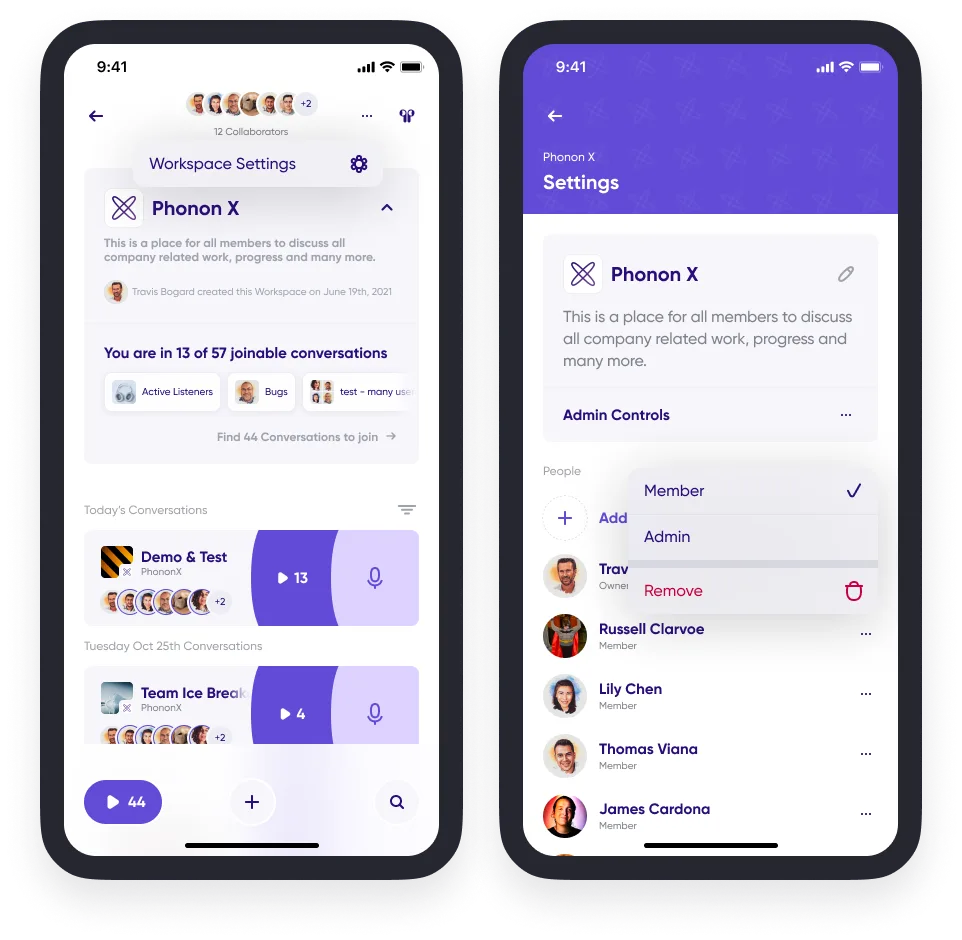
1. Tap your profile picture on Home and go to **Spaces** from the main menu.
2. Choose a workspace where you are an admin or the owner.
3. Tap the **"…"** in the upper right corner for **Workspace Settings**.
4. Tap the **"…"** next to any member's name and set their role: **Member** or
**Admin**.
## Controlling who can invite people
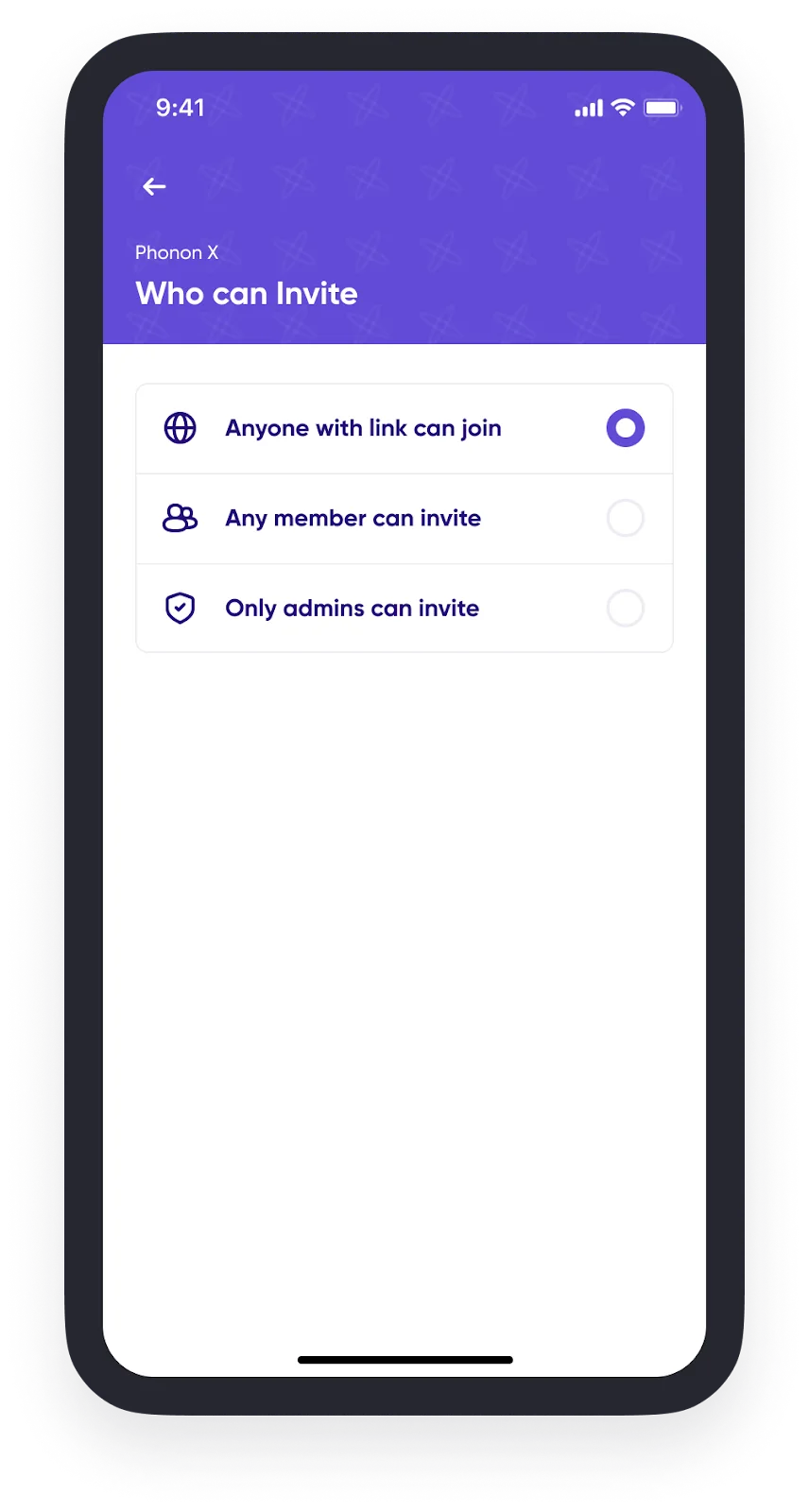
1. Go to the **Spaces** tab from Home.
2. Choose a workspace where you are an admin or the owner.
3. Tap the **"…"** in the upper right corner for **Workspace Settings**.
4. Tap **Admin Controls**.
5. Set the invite access controls for workspace members and admins.
## Related
- [Adding someone to a workspace](adding-people.md)
- [Advanced workspace settings](advanced-settings.md)
---
URL: https://help.carbonvoice.app/workspaces/adding-people
Source: https://raw.githubusercontent.com/PhononX/carbon-voice-docs/main/docs/workspaces/adding-people.md
# Adding someone to a workspace
You can add someone directly, or share a link they can use to join.
1. From the Home screen, tap your profile picture to open the Profile Menu. It's at the top
left on mobile, and at the bottom of the navigation sidebar on desktop.
2. Select **Spaces** to see your list of workspaces.
3. Tap the **gear icon** on the right side of the workspace you want to invite to.
4. Tap **Add People**.
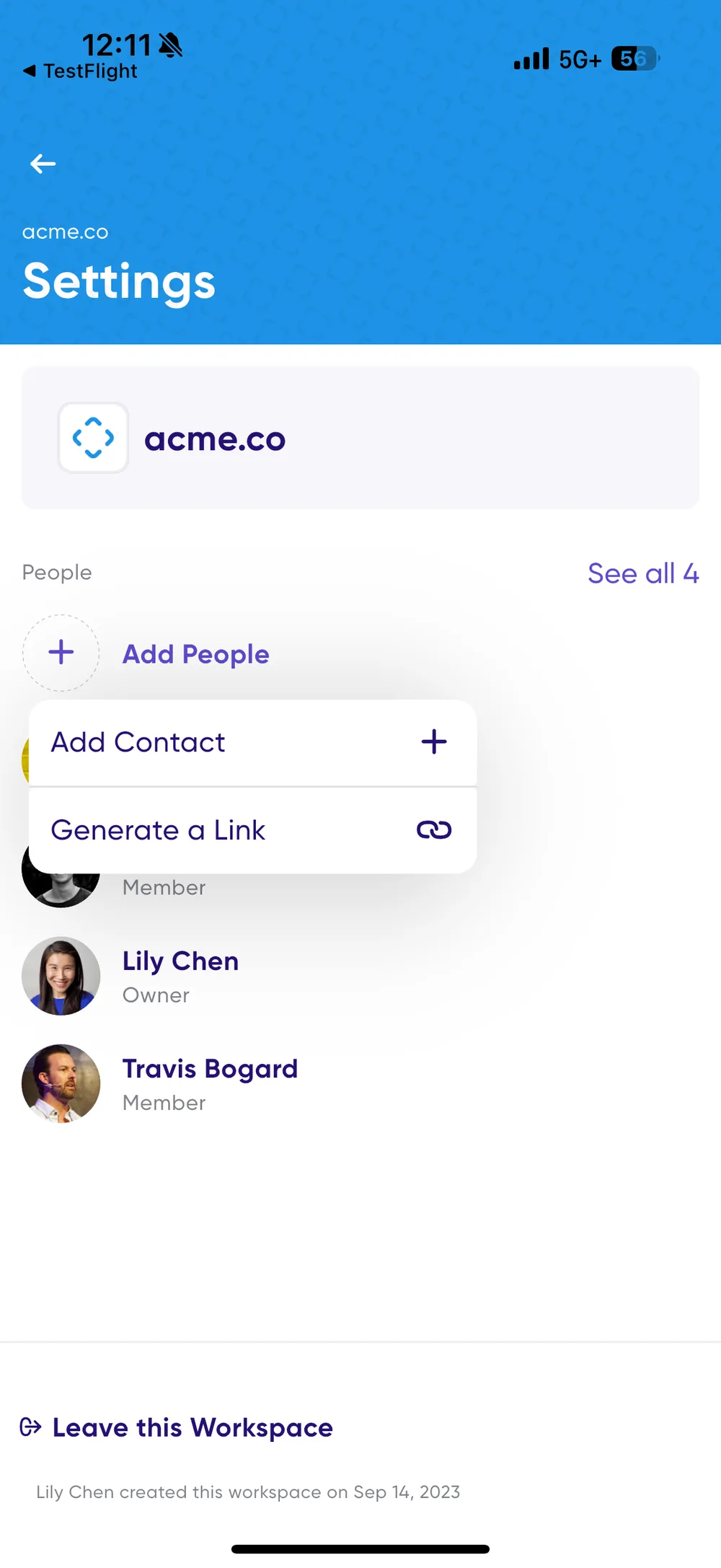
From there you can either add a contact or create a link to share.
## Adding contacts
Add existing Carbon Voice contacts, email addresses, or people from your phone's
contact list.
## Generating a link
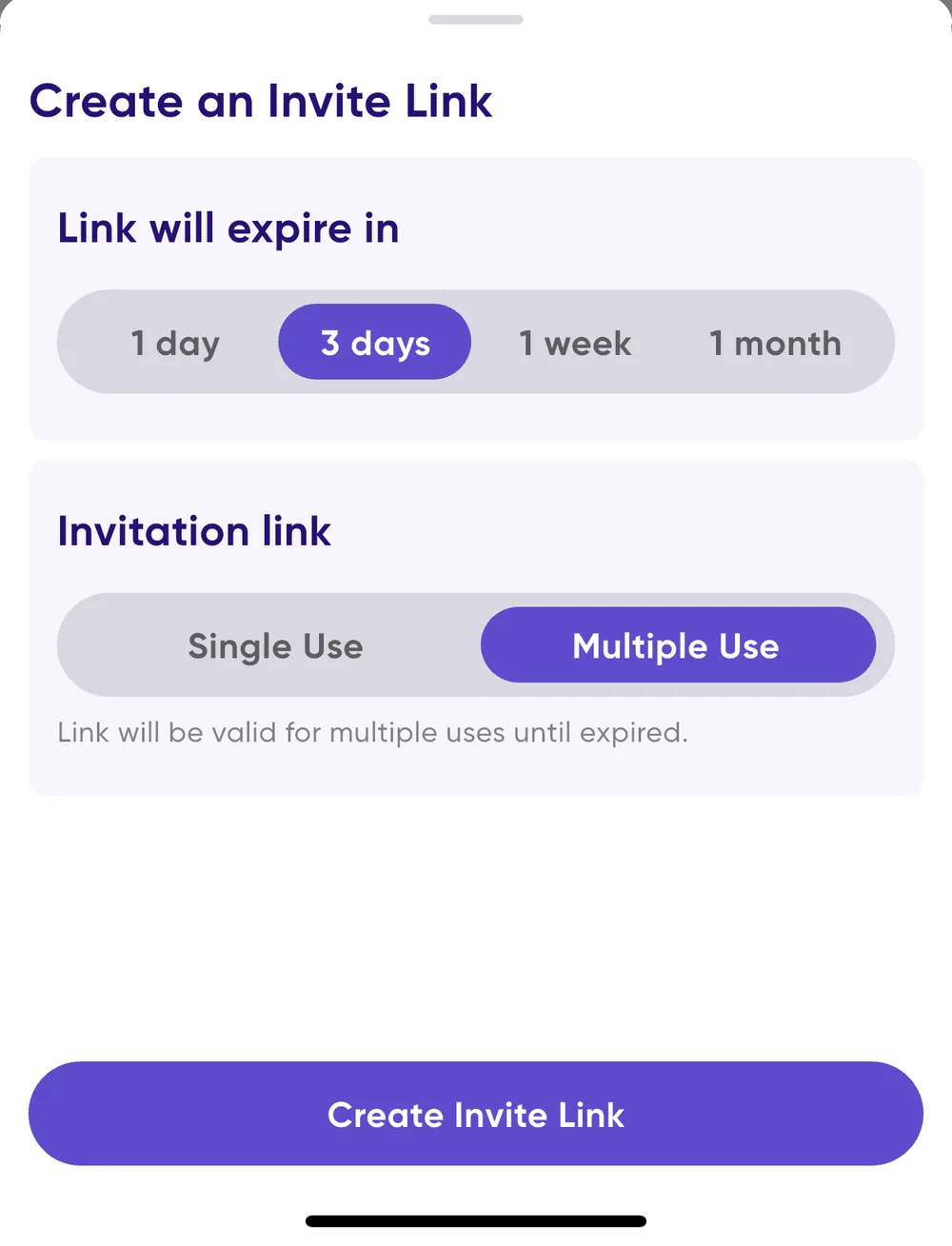
A link can be shared directly, posted on an intranet, or put on a website, and whoever
receives it can tap it to join the workspace. Two settings control how it behaves:
- **Link expiration** — how long the link stays valid.
- **Single or multi-use** — choose **single use** when inviting one person, and the
link expires as soon as they join. Choose **multi-use** when a whole team needs to
join with the same link.
## Related
- [Roles and access controls](roles-and-access-controls.md) — who is allowed to invite
people.
- [Create a workspace for your team](create-a-workspace.md)
---
URL: https://help.carbonvoice.app/workspaces/connect-a-domain
Source: https://raw.githubusercontent.com/PhononX/carbon-voice-docs/main/docs/workspaces/connect-a-domain.md
# Connect a domain to your workspace
Connecting a domain makes it easier for teammates to find and join your workspace. When
someone logs in with an email address matching your connected domain, they see joining
options based on the rules you set.
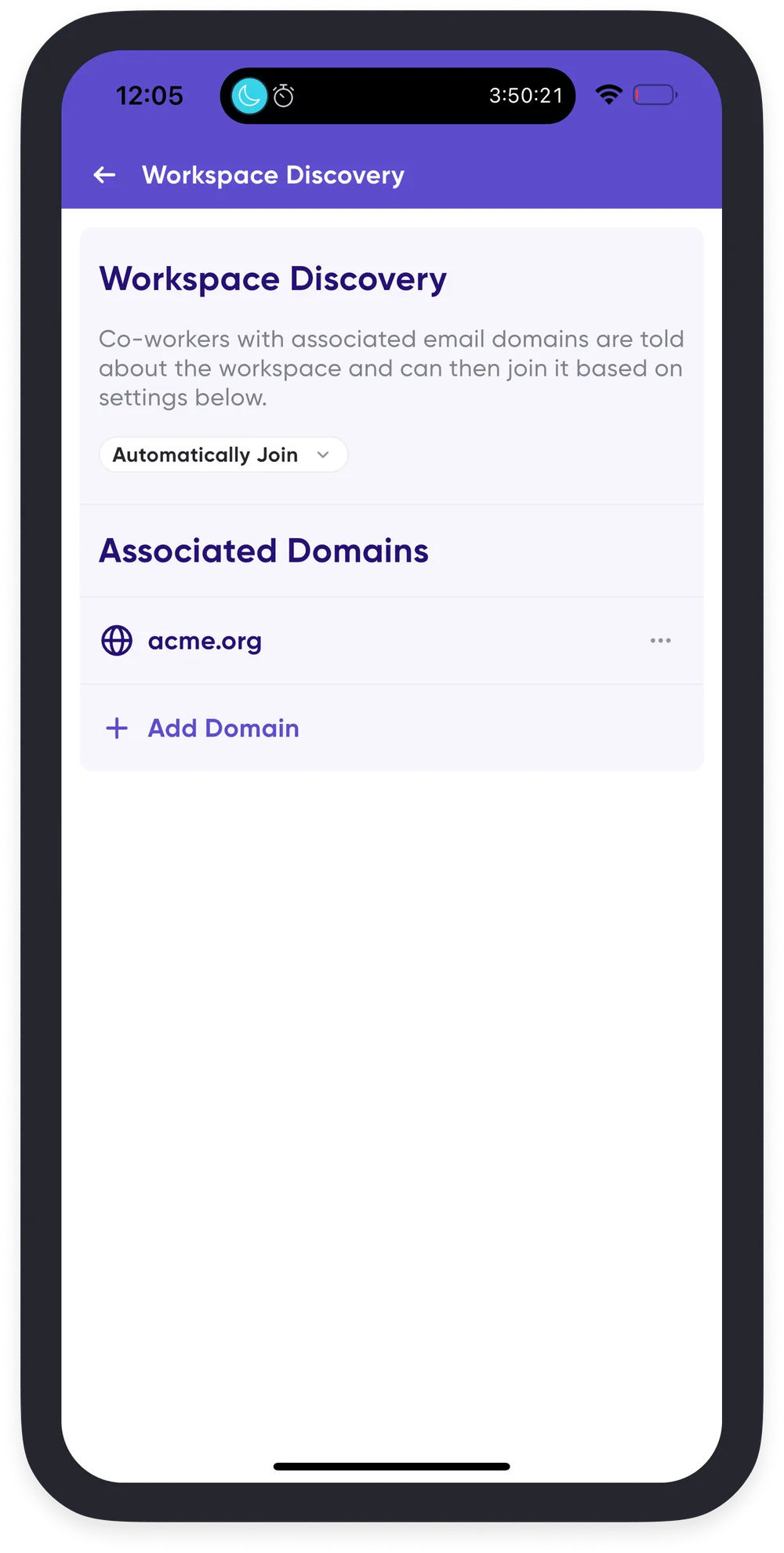
## Join preferences
You choose what happens when someone with a matching domain signs in:
- **Do not inform** — no notification; you add members manually.
- **Auto-join** — anyone with a matching domain is added automatically.
- **Request to join** — they can request access, and an admin approves it.
- **Custom instructions** — show your own message explaining how to join, such as
pointing them at an internal form or a Slack channel.
## For a new workspace
Step 2 of workspace creation guides you through associating your company domains and
choosing these settings. See
[Create a workspace for your team](create-a-workspace.md).
## For an existing workspace
1. Open your **Profile Menu**, which is your profile picture at the top left of Home on
mobile, or the bottom of the navigation sidebar on desktop.
2. Tap **Spaces**, then the **gear icon** to the right of your workspace.
3. In Workspace Settings, tap **Admin Controls**.
4. Select **Workspace Discovery**.
5. Tap the **➕** button to add a domain.
6. Use the dropdown to choose the join preference for that domain.
## Related
- [Adding someone to a workspace](adding-people.md)
- [Roles and access controls](roles-and-access-controls.md)
---
URL: https://help.carbonvoice.app/workspaces/advanced-settings
Source: https://raw.githubusercontent.com/PhononX/carbon-voice-docs/main/docs/workspaces/advanced-settings.md
# Advanced workspace settings
Premium workspaces can be configured to help make sure conversations and messages that
belong in your workspace end up there, and stay only as long as your policies allow.
For help setting these up, reach out at [support](https://cv.chat/support) in the app.
## Default conversation
**Available on Lite plans and above.**
Set a workspace as the default place conversations are created, and the interface will
preselect it. This is a simple on or off setting.
## Workspace colors and watermark
**Available on Standard plans and above.**
A color and watermark make a workspace's conversations stand out from those in your
personal space or another workspace. You'll need to provide:
- **Color** — a HEX value.
- **Watermark** — a 64 × 64 PNG.
On the **home screen**, the conversation list shows the color as a stripe down the left
and as a hue on the card, with the watermark across the background.
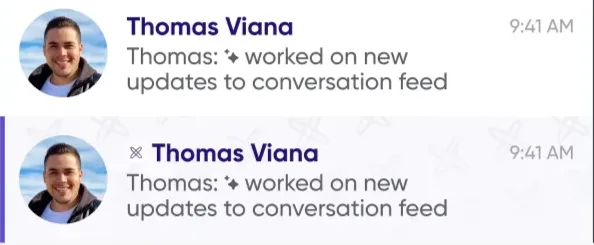
In **conversation history**, the color and watermark appear at the top.
## Retention policies
**Available on Standard plans and above.**
A retention policy permanently deletes messages and conversations older than a period
you set. There are two separate periods:
- **All named conversations and DMs** — messages older than X days are deleted nightly.
- **Async meetings** — counted in days *after* the meeting ends. Everything is
preserved while the meeting is running; once it ends, the messages and conversation
are cleaned up X days later.
> Retention cleanup runs nightly in PST, so actual deletion happens X days after the
> cutoff plus however long until the next nightly run.
## Related
- [Roles and access controls](roles-and-access-controls.md)
- [Connect a domain to your workspace](connect-a-domain.md)
---
URL: https://help.carbonvoice.app/workspaces
Source: https://raw.githubusercontent.com/PhononX/carbon-voice-docs/main/docs/workspaces/index.md
# Workspaces
A workspace groups your team, their conversations, and the settings that apply to them,
with a directory to find people, access control over conversations, central billing,
and retention policies.
- [Create a workspace for your team](create-a-workspace.md)
- [Roles and access controls](roles-and-access-controls.md)
- [Adding someone to a workspace](adding-people.md)
- [Connect a domain to your workspace](connect-a-domain.md)
- [Advanced workspace settings](advanced-settings.md)
- [Okta user provisioning with SCIM](okta-scim.md)
---
URL: https://help.carbonvoice.app/workspaces/okta-scim
Source: https://raw.githubusercontent.com/PhononX/carbon-voice-docs/main/docs/workspaces/okta-scim.md
# Okta user provisioning with SCIM
If your organization uses Okta to manage access to tools and services, you can use
Okta's provisioning to grant access to Carbon Voice automatically. The integration is
built on [SCIM](https://simplecloud.info/), the industry-standard protocol for
cross-domain identity management.
## What's supported
- **Push users** — users assigned to the Carbon Voice application in Okta are added as
members of your workspace.
- **Update users** — changes in Okta sync to Carbon Voice. Supported fields are
`first_name` and `last_name`.
- **Remove users** — removing someone from the Okta app removes them from the
workspace.
## Requirements
SCIM provisioning is available to enterprise customers. You'll need an enterprise
account, then request an **Okta SCIM Integration** from
[support@carbonvoice.app](mailto:support@carbonvoice.app), naming the workspace you
want it enabled for.
Support configures the feature and returns the **URL and credentials** you'll need for
the Carbon Voice Okta app integration. After that you can assign users to the app to
provision and de-provision them.
> When Okta authorization is enabled on a workspace, all its members must sign in
> through Okta to use Carbon Voice.
## Configuring it in Okta
1. **Add the app.** Go to **Applications → Applications → Browse App Catalog** and
search for **Carbon Voice**. Click **Add**, then **Done**.
2. **Enable provisioning.** On the **Provisioning** tab, click **Configure API
Integration**, then **Save**.
3. **Enable user creation.** Still on **Provisioning**, click **To App**, then
**Edit**.
4. Open the **Sign On** tab and click **Edit**.
5. Set **Application username format** to **Email**, then **Save**.
6. Go to **Assignments → Assign → Assign to People**. You can also assign to groups.
> Users are currently created in a workspace with the default role of **Member**.
## Changing someone's email address
If a user needs to change their email address in Okta, this sequence keeps their
workspace and conversation access intact:
1. Add the new email address in Okta.
2. Have the user add that same address to their Carbon Voice account. Depending on your
Okta configuration they may already have been removed from the workspace and lost
sight of their conversations. That's expected at this stage.
3. With both addresses on the account, provisioning either one restores access to the
workspace and its conversations.
4. If you remove the old address from provisioning and access disappears, remove the
new address from provisioning and add it back.
For help, contact [support](https://cv.chat/support) or
[support@carbonvoice.app](mailto:support@carbonvoice.app).
## Related
- [Create a workspace for your team](create-a-workspace.md)
- [Roles and access controls](roles-and-access-controls.md)
---
URL: https://help.carbonvoice.app/account-and-settings/claim-your-username
Source: https://raw.githubusercontent.com/PhononX/carbon-voice-docs/main/docs/account-and-settings/claim-your-username.md
# Claim your username
Claiming a username makes you easier to find in Carbon Voice, and gives you a
[personal CarbonLink](personal-carbonlink.md) to share.
## Claiming it
1. **Tap your profile picture** to open the Profile Menu. It's at the top left of Home on
mobile, and at the bottom of the navigation sidebar on desktop.
2. **Tap "Claim Your Username"** at the top of the menu.
3. **Choose a username**, something unique and memorable. Once saved, it becomes part
of your CarbonLink, for example `https://cv.chat/yourusername`.
## What it gives you
- **Searchability** — colleagues and collaborators can find you by username inside
Carbon Voice.
- **A personal CarbonLink** — a link others can use to start a voice conversation with
you, leave messages asynchronously, and reach you without scheduling a meeting.
## How someone finds you with it
1. They tap the **+** in Carbon Voice.
2. They type your username, like `@travis`.
That's the whole flow, which is what makes it worth claiming one. They can also still reach
you by your registered email or phone number, by your CarbonLink URL like `cv.chat/travis`,
or by replying to a voice memo you shared.
## Related
- [Get your personal CarbonLink](personal-carbonlink.md)
- [Linked Emails & Phone Numbers](directory-services.md)
---
URL: https://help.carbonvoice.app/account-and-settings/personal-carbonlink
Source: https://raw.githubusercontent.com/PhononX/carbon-voice-docs/main/docs/account-and-settings/personal-carbonlink.md
# Get your personal CarbonLink
A personal CarbonLink lets people send you voice messages that you can listen and
respond to whenever suits you, and they can reply whenever suits them, without
downloading an app.
Add it to your email signature, your link-in-bio page, a business card, or anywhere
else your contacts find you. Inside the app it also works like a social media handle,
making you easy to find and message.
## Getting yours
**From the mobile app.** Log in, tap your profile icon at the top left of Home, then tap
**Claim your username** and choose your handle. You can customize the look and
feel, add tracking tags, or set a welcome message.
**From the web.** Go to [cv.chat](http://cv.chat) and choose **Get a Personalized
Link**.
Once you have it, add it wherever you share your contact details.
## For businesses
A **business CarbonLink** is available for company use rather than an individual's. Claiming
one walks you through choosing the business name and uploading a logo, and the result works
the same way, with a link and QR code customers can use to send you voice messages.
You'll find it in the same place as your personal link: open the **Profile Menu**, tap the
**QR code icon**, and choose to claim a business link.
## Related
- [Claim your username](claim-your-username.md)
---
URL: https://help.carbonvoice.app/account-and-settings/notification-settings
Source: https://raw.githubusercontent.com/PhononX/carbon-voice-docs/main/docs/account-and-settings/notification-settings.md
# Manage notification settings
1. Tap your **profile picture** to open the Profile Menu. It's at the top left of Home on
mobile, and at the bottom of the navigation sidebar on desktop.
2. Go to **Settings → Notification Settings**.
3. Choose how you want to be notified in each situation:
- General notifications
- Message and conversation notifications
- Async meeting notifications
- Workspace notifications
## Related
- [Listen and reply from push notifications (iOS)](../messages/playback/push-notifications-ios.md)
— including what to check if notifications aren't arriving.
- [Marking messages read and unread](../messages/playback/clearing-notified-messages.md)
---
URL: https://help.carbonvoice.app/account-and-settings/recording-and-playback
Source: https://raw.githubusercontent.com/PhononX/carbon-voice-docs/main/docs/account-and-settings/recording-and-playback.md
# Recording & playback settings
Open your **Profile Menu**, then **Settings → Recording & Playback**.
## How recording starts
By default you can **press and hold** the mic button to record, and release to send. If
that has been producing accidental recordings for you, single-tap recording can be turned
off here.
## Raise to your ear
Turn this on and bringing your phone to your ear starts playing the unread messages in the
conversation, the way answering a call does. Playback pauses when you lower the phone and
picks up again when you raise it.
It's the easiest way to listen privately when you don't have headphones.
## Playback speed
Speed is set per playback rather than in settings. See
[Playback speed](../messages/playback/playback-speed.md).
## Related
- [How to record a voice message](../messages/recording-and-sending/record-a-voice-message.md)
- [Conversation history settings](../conversations/access-and-sharing/conversation-history-settings.md)
---
URL: https://help.carbonvoice.app/account-and-settings/appearance
Source: https://raw.githubusercontent.com/PhononX/carbon-voice-docs/main/docs/account-and-settings/appearance.md
# Appearance
Carbon Voice comes in light and dark. By default it follows your device, so it turns dark
when your phone or Mac does.
To choose for yourself, open your **Profile Menu**, then **Settings → Appearance**:
- **Light**
- **Dark**
- **System** — follow the device
On desktop the choice sits inline in the settings list. On mobile it opens a picker showing
each mode.
## Related
- [Conversation history settings](../conversations/access-and-sharing/conversation-history-settings.md)
---
URL: https://help.carbonvoice.app/account-and-settings/directory-services
Source: https://raw.githubusercontent.com/PhononX/carbon-voice-docs/main/docs/account-and-settings/directory-services.md
# Linked Emails & Phone Numbers
Linking multiple email addresses or phone numbers to a single Carbon Voice account means
that whichever contact method someone uses to reach you, the messages all arrive in one
place.
> This is the feature previously called **Directory Services**.
## Adding a contact method
1. Tap your **profile picture** to open the Profile Menu. It's at the top left of Home on
mobile, and at the bottom of the navigation sidebar on desktop.
2. Tap **Linked Emails & Phone Numbers**.
3. Choose **Add email address** or **Add phone number**.
4. Enter it, and verify if prompted.
Messages sent to any listed address or number then route to your single account.
## When it helps
- Merging duplicate accounts, by linking all their contact methods to one account.
- Anyone using several email addresses or phone numbers.
- Avoiding missed messages by consolidating everything under one account.
## Related
- [Claim your username](claim-your-username.md)
---
URL: https://help.carbonvoice.app/account-and-settings/upgrade-to-premium
Source: https://raw.githubusercontent.com/PhononX/carbon-voice-docs/main/docs/account-and-settings/upgrade-to-premium.md
# Upgrade to premium
A premium account unlocks more recording time, features to help you stay organized, and
more AI credits.
You can upgrade **your account**, which applies across all your conversations, or
upgrade **a workspace**, which gives every team member premium features and a shared
pool of AI credits.
## Upgrading your account
### In the app
1. Open the **Profile Menu**, which is your profile picture at the top left of Home on
mobile, or the bottom of the navigation sidebar on desktop.
2. Tap the plan at the top. It will say **Starter** or **Standard Trial**.
3. In the plan details, tap the plan again to reach the upgrade options.
### On the web
Go to [carbonvoice.app/a/upgrade](https://carbonvoice.app/a/upgrade).
## Workspace plans
For a team that wants premium features across the board, workspace plans are available
at [carbonvoice.app/a/upgrade](https://carbonvoice.app/a/upgrade), or by contacting
[sales@getcarbon.app](mailto:sales@getcarbon.app). Pricing options are at
[getcarbon.app/pricing](https://getcarbon.app/pricing).
## Related
- [Create a workspace for your team](../workspaces/create-a-workspace.md)
- [Auto bulleted summaries](../ai/auto-bulleted-summaries.md) — one of the premium
features.
---
URL: https://help.carbonvoice.app/account-and-settings/enabling-phone-contacts
Source: https://raw.githubusercontent.com/PhononX/carbon-voice-docs/main/docs/account-and-settings/enabling-phone-contacts.md
# Enabling phone contacts
You can connect with your existing contacts who are already on Carbon Voice.
1. From the Home screen, tap the **Profile Menu**.
2. Tap **Find Carbon Voice Contacts**.
3. Tap **Say Hi!** to start a conversation.
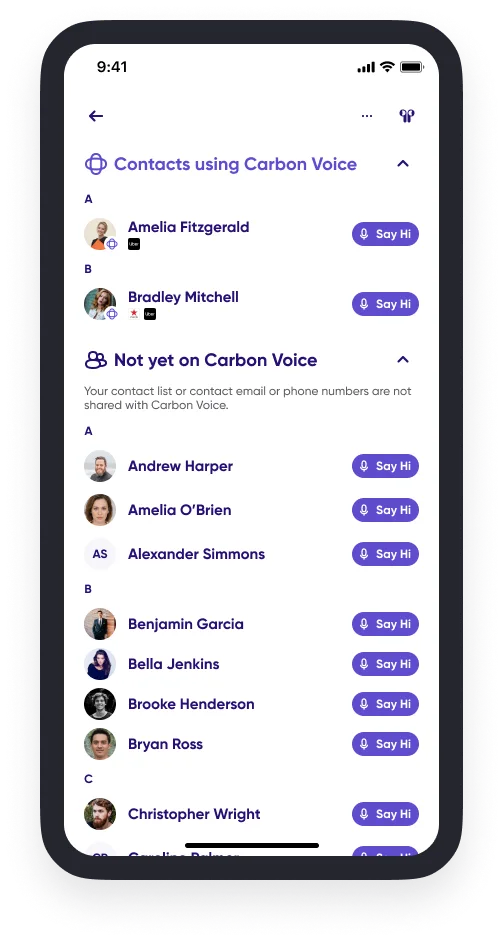
## Related
- [Start a conversation with a phone number or email](../conversations/creating/start-with-a-phone-number-or-email.md)
- [Linked Emails & Phone Numbers](directory-services.md)
---
URL: https://help.carbonvoice.app/account-and-settings
Source: https://raw.githubusercontent.com/PhononX/carbon-voice-docs/main/docs/account-and-settings/index.md
# Account & Settings
Manage your account, how people reach you, how you're notified, and which plan you're
on.
## Your identity
- [Claim your username](claim-your-username.md)
- [Get your personal CarbonLink](personal-carbonlink.md)
- [Linked Emails & Phone Numbers](directory-services.md)
- [Enabling phone contacts](enabling-phone-contacts.md)
## How it looks and sounds
- [Appearance](appearance.md)
- [Recording & playback settings](recording-and-playback.md)
## Notifications
- [Manage notification settings](notification-settings.md)
- [Notification inbox](inbox.md)
## Plan
- [Upgrade to premium](upgrade-to-premium.md)
For how your messages sound and translation, see
[Voice & Language](../voice-and-language/index.md).
## Devices
Widgets, your watch, and the shortcuts that let you send without opening the app are in
[Quick Capture](../quick-capture/index.md).
## Leaving
- [How to delete your account](delete-your-account.md)
---
URL: https://help.carbonvoice.app/account-and-settings/inbox
Source: https://raw.githubusercontent.com/PhononX/carbon-voice-docs/main/docs/account-and-settings/inbox.md
# Notification inbox
Your inbox is where Carbon Voice notifies you about important messages, actions,
workspace and conversation invites, and other updates.
## How it's organized
The inbox is split into sections so it stays manageable:
- **All** — everything across every section.
- **Workspace** — workspace activity: requests to join, name changes, invitations sent,
people joining, data export requests and their status, and other updates relevant to
admins.
- **Mentions** — every message where someone has tagged you, in one place.
- **Carbon Voice** — notifications when your contacts join Carbon Voice.
- **Security updates** — login attempts, conversation and workspace name changes, and
similar.
- **General** — news from the Carbon Voice team, including app updates and articles.
## Related
- [Manage notification settings](notification-settings.md)
---
URL: https://help.carbonvoice.app/account-and-settings/delete-your-account
Source: https://raw.githubusercontent.com/PhononX/carbon-voice-docs/main/docs/account-and-settings/delete-your-account.md
# How to delete your account
If you no longer want to use Carbon Voice, you can delete your account at any time.
## From the app
1. Tap your profile picture, at the bottom left on desktop or the top left on mobile.
2. Select **Help** from the menu.
3. Tap **Additional Resources**.
4. Choose **Delete My Account**.
5. Follow the on-screen instructions.
## From a web browser
1. Go to [carbonvoice.app/a/delete](https://carbonvoice.app/a/delete).
2. Log in to confirm access to the account.
3. Follow the instructions to delete it.
---
URL: https://help.carbonvoice.app/integrations/integration-credentials
Source: https://raw.githubusercontent.com/PhononX/carbon-voice-docs/main/docs/integrations/integration-credentials.md
# Integration credentials
Most integrations need a credential, a token that proves a request is really coming from
you. They're managed in one place: **Profile Menu → Integrations**.
## Personal access tokens
A personal access token lets another tool act as you. The Obsidian sync plugin uses one; so
does anything you build against the API, and most n8n or scripted workflows.
### Create one
1. Go to **Profile Menu → Integrations → Integration Credentials**.
2. Tap **Manage tokens**, then **Create token**.
3. Give it a name you'll recognise later. The tool it's for is the useful choice.
Tokens are created with **read and write permissions** and **expire after one year**.
> **Copy the token as soon as it's created.** It's shown once and never again. If you lose
> it, revoke it and make another.
### Revoke or delete one
Open a token to see when it was created, when it expires, and when it was last used.
- **Revoke** stops it working immediately. It stays in the list so you can see it was there.
- **Delete** removes it entirely.
Revoking is the right move if a token might have leaked. It takes effect at once, and
doesn't disturb your other integrations.
## Your user ID
The same screen shows **My user ID**, which some integrations ask for.
## Connected apps
**Connected Apps** lists the applications you've authorized to act on your behalf, and when
each was connected. Disconnect any of them from here.
> Some apps can only be disconnected by uninstalling them from the app itself, and you'll be
> told when that's the case.
## Related
- [Automations and webhooks](../conversations/access-and-sharing/access-and-sharing-settings.md)
- [Build with the Carbon Voice API](build-with-the-api.md)
- [Obsidian](obsidian.md)
---
URL: https://help.carbonvoice.app/integrations/automate-workflows
Source: https://raw.githubusercontent.com/PhononX/carbon-voice-docs/main/docs/integrations/automate-workflows.md
# Automate workflows
Carbon Voice integrates with workflow automation platforms, so what you say can drive
what happens next in the tools you already use.
A voice memo can become a blog post draft in Google Docs, or a bug report logged in
Jira, without extra effort. Add a label, send a message, or choose an AI Magic output,
and the result flows into the tool where you need it.
## Why this works well with voice
Voice is a good way to capture ideas on the go, and creativity thrives when thoughts
don't have to be structured as you go. The hard part has always been turning wandering
thoughts into structured, actionable information.
Carbon Voice covers that path: capture on the go, automatic upload, transcription a tap
away, and AI that shapes what you said into an output suited to the task.
## Examples
- **File a bug report** — add a **Bug Report** label to a message and a Jira issue is
created automatically.
- **Create emails** — post a message into a conversation named **Email Drafts** and a
structured email lands in your Gmail drafts.
- **Draft blog posts** — post into a conversation named **Blog Posts** and a draft
appears in Google Docs or Notion.
- **Update your CRM** — add a **CRM Update** label and a note is created in Salesforce
or Pipedrive.
Speaking notes after a meeting can produce a to-do list in your task app; talking
through a customer conversation can update the CRM.
## Setting one up
Step-by-step instructions for each workflow are organized by tool and automation
platform.
> **Placeholder.** The per-workflow instructions live in a Notion database that hasn't
> been ported yet. Each workflow will get its own page here.
For a direct integration rather than an automation platform, there's an API. See
[Build with the Carbon Voice API](build-with-the-api.md). Either way you'll need a token:
see [Integration credentials](integration-credentials.md).
## Related
- [Zapier](zapier.md)
- [Playlists and labels](../conversations/your-conversation-list/playlists-and-labels.md)
— labels are what trigger many of these workflows.
---
URL: https://help.carbonvoice.app/integrations/zapier
Source: https://raw.githubusercontent.com/PhononX/carbon-voice-docs/main/docs/integrations/zapier.md
# Zapier
The [Carbon Voice Zapier integration](https://zapier.com/apps/carbon-voice/integrations#zap-template-list)
means that sending or labeling a message can kick off a workflow in any of the
thousands of apps Zapier connects to.
📺 [Watch: getting started with Zapier](https://www.loom.com/share/d6715b19aa634e40813cc3c2b44b5269)
## What people build with it
- **Create emails** — post into a conversation named **Email Drafts** and a structured
email lands in your Gmail drafts.
- **Draft blog posts** — post into a conversation named **Blog Posts** and a draft
appears in Google Docs or Notion.
- **File bug reports** — add a **Bug Report** label and a Jira issue is created.
- **Update your CRM** — add a **CRM Update** label and a note is created in Salesforce
or Pipedrive.
## How Zapier works
Zapier is a no-code automation tool built around a simple shape: when a **trigger**
happens in one app, take an **action** in another.
Two things are worth knowing when building one:
- **Triggers start the workflow** — for example, a message being posted into a
particular conversation in Carbon Voice.
- **Formatting matters.** Some destination apps handle text better in a particular
form. Google Docs does better with text converted to HTML, while a to-do app usually
prefers a looped JSON response.
## What can start a workflow
Carbon Voice offers four triggers:
- **A new message** posted in a conversation.
- **A new AI result**, so an AI action's output can go straight somewhere else.
- **A new label** on a message, which makes press-and-hold labelling a manual trigger you
control. See [Playlists and labels](../conversations/your-conversation-list/playlists-and-labels.md).
- **A new voice memo**, optionally **filtered by folder** — so a memo recorded into "Email
drafts" runs a different workflow from one recorded into "Blog post ideas".
A [custom AI prompt](../ai/custom-prompts.md) can be a trigger too: choose **User** as the
type and your own prompts appear in the list.
The current list of supported triggers and actions is on
[Zapier](https://zapier.com/apps/carbon-voice/integrations#triggers-and-actions).
## Setting one up
> **Placeholder.** The step-by-step instructions for each workflow live in a Notion
> database that hasn't been ported yet.
Running into trouble? [Message support](https://cv.chat/support). To request new
triggers, actions, or AI transformations, send [feedback](https://cv.chat/feedback).
## Other automation platforms
Carbon Voice works the same way with **n8n** and similar tools. Create a personal access
token, point the workflow at the API, and trigger on the same events. See
[Integration credentials](integration-credentials.md) for the token, and
[Build with the Carbon Voice API](build-with-the-api.md) for the endpoints.
## Related
- [Automate workflows](automate-workflows.md)
- [Playlists and labels](../conversations/your-conversation-list/playlists-and-labels.md)
---
URL: https://help.carbonvoice.app/integrations/slack
Source: https://raw.githubusercontent.com/PhononX/carbon-voice-docs/main/docs/integrations/slack.md
# Slack
The Carbon Voice Slack app puts voice into the channels your team already sits in. People
who live in Carbon Voice can start conversations and share them into Slack; people who
rarely open it can listen and reply without leaving Slack at all.
That split is the point. A team rarely adopts a new tool all at once, and this lets the
people who haven't adopted it still take part.
## Installing it
1. Start from [the Slack app page](https://www.getcarbon.app/carbonvoice-for-slack).
2. Sign in to your Slack workspace.
3. Grant the Carbon Voice app its permissions.
4. Log in to your Carbon Voice account to link the two.
If the app is already installed in your workspace, type `/cv` or `/cv login` in any channel
to connect your own account to it.
## Slash commands
| Command | Does |
|---|---|
| `/cv new` | Record a new voice message |
| `/cv meeting` | Start an [async meeting](../meeting-notes/run-an-async-meeting.md) |
| `/cv retro` | Start a retro |
| `/cv login` | Link your Carbon Voice account |
## What you can do from Slack
- **Get notified** in Slack when there are new messages.
- **Listen and reply in one tap**, without opening Carbon Voice.
- **Preview a shared message** in the channel, and read or reply to it there.
- **Adjust permissions** on a message you've shared.
- **Link a conversation to a channel**, so messages and AI summaries post into Slack
automatically as the discussion goes.
## Retros
`/cv retro` runs a retrospective the async way: everyone records their thoughts at the same
time rather than taking turns in a meeting, covering what went well, what didn't, and what
to change. AI then organizes the responses and posts the summary back into Slack for
discussion.
Because everyone answers at once instead of in sequence, a retro takes as long as the
longest single answer rather than the sum of everyone's.
## What comes back
Anything recorded through Slack behaves like any other Carbon Voice message. It's
transcribed, it can be summarized, and it can be turned into
[action items or a document](../meeting-notes/get-the-notes.md).
## Related
- [Automate workflows](automate-workflows.md)
- [Meeting Notes](../meeting-notes/index.md)
---
URL: https://help.carbonvoice.app/integrations/using-your-carbonlink
Source: https://raw.githubusercontent.com/PhononX/carbon-voice-docs/main/docs/integrations/using-your-carbonlink.md
# Using and sharing your CarbonLink
Your CarbonLink lets people send you a voice message instead of scheduling a call. This
page covers editing it and putting it to use. See
[Get your personal CarbonLink](../account-and-settings/personal-carbonlink.md) for
claiming one in the first place.
## Editing and sharing it
1. Log into the mobile app, or the web app at
[carbonvoice.app](https://carbonvoice.app).
2. Tap your profile icon, at the top left of Home on mobile or the bottom of the
navigation sidebar on desktop.
3. Tap the **QR code icon** in the top right.
From there you can:
- **Settings** — change your photo or the URL of your CarbonLink.
- **Send messages to** — choose which workspace conversations get started in.
- **Tracking tag** — track where people found your link.
To share, tap the QR code image and choose where to send it, or tap the URL to copy it.
> Apply your settings before sharing, because they change both the URL and the QR code.
## Where to use it
The three most common places:
1. In outreach, as an alternative to finding time on a calendar.
2. Anywhere you already share contact details, such as an email signature, an
auto-responder, or a social profile.
3. On your website, so customers can talk to you without phoning or writing an email.
Other ideas people use:
- Printed on a business card or flyer, so someone can scan the QR code.
- As a reply to LinkedIn messages or cold emails asking to schedule a call.
- Embedded on an e-commerce or app site, instead of building a contact center.
- On a link-in-bio page, so followers can send feedback and talk.
- As a "respond with text" option when someone calls you.
## Why people take you up on it
It helps to explain the benefit to whoever you're sending it to:
- It's less intrusive than a phone call, because they can talk when they're ready.
- It saves them time, with no hold music and no phone tag.
- It's more personal than a text or email, while being as easy as a call.
- They hear back faster, because neither of you is waiting for calendars to align.
## Related
- [Get your personal CarbonLink](../account-and-settings/personal-carbonlink.md)
- [Claim your username](../account-and-settings/claim-your-username.md)
---
URL: https://help.carbonvoice.app/integrations/google-workspace
Source: https://raw.githubusercontent.com/PhononX/carbon-voice-docs/main/docs/integrations/google-workspace.md
# Google Workspace
Carbon Voice has add-ons for Google Workspace, so a discussion can land directly in the
document you were going to write anyway.
## Google Sheets
The Sheets add-on imports memos and messages into a spreadsheet, instead of selecting
messages, copying the transcript and pasting it somewhere.
1. [Install the add-on](https://www.getcarbon.app/google-add-on/sheets), or in Google Sheets
go to **Extensions → Add-ons → Get Add-ons** and search for "Carbon Voice".
2. Choose a conversation, or your voice memos.
3. Set a date range, up to 30 days.
4. Import.
Useful for organizing what came up across a discussion, tracking tasks out of it, or
analyzing a set of conversations together.
## Google Slides
The Slides add-on turns a **Presentation Outline** into a draft deck.
1. Record your thoughts, or have the discussion, in Carbon Voice.
2. Run the **Presentation Outline** AI action on a voice memo or a set of messages. See
[Transform with AI actions](../ai/transform-with-ai-actions.md).
3. Open the [Slides add-on](https://www.getcarbon.app/google-add-on/slides) and turn that
outline into slides, with suggested visuals.
## Google Docs
The Docs add-on brings voice into a document two ways:
- **Insert a voice memo transcription** straight into what you're writing.
- **Preview Carbon Voice links as smart chips**, so a link in a doc shows its context
instead of sitting there as a URL.
## Gmail
The Gmail add-on covers the email side:
- **Attach a voice memo link** to an email.
- **Pull the text out of a memo** to use in the message.
- **Preview the AI actions** you've run on a memo, so you can drop the output in.
## Installing them
- **Sheets, Slides and Docs** come as one listing:
[Carbon Voice for Editors](https://workspace.google.com/marketplace/app/carbon_voice_for_editors/393337891493).
- **Gmail** is separate:
[Carbon Voice](https://workspace.google.com/marketplace/app/carbon_voice/65829775758).
All of them are listed at
[getcarbon.app/google-add-on](https://www.getcarbon.app/google-add-on).
## Related
- [Transform with AI actions](../ai/transform-with-ai-actions.md)
- [Zapier](zapier.md) — for pushing output into Docs and Sheets automatically instead.
---
URL: https://help.carbonvoice.app/integrations/obsidian
Source: https://raw.githubusercontent.com/PhononX/carbon-voice-docs/main/docs/integrations/obsidian.md
# Obsidian
The **Carbon Voice Sync** community plugin pulls your conversations and voice memos into an
Obsidian vault as Markdown notes, so everything you've said lives alongside everything
you've written.
It's a one-way sync: Carbon Voice into Obsidian. Nothing you write in the vault comes back.
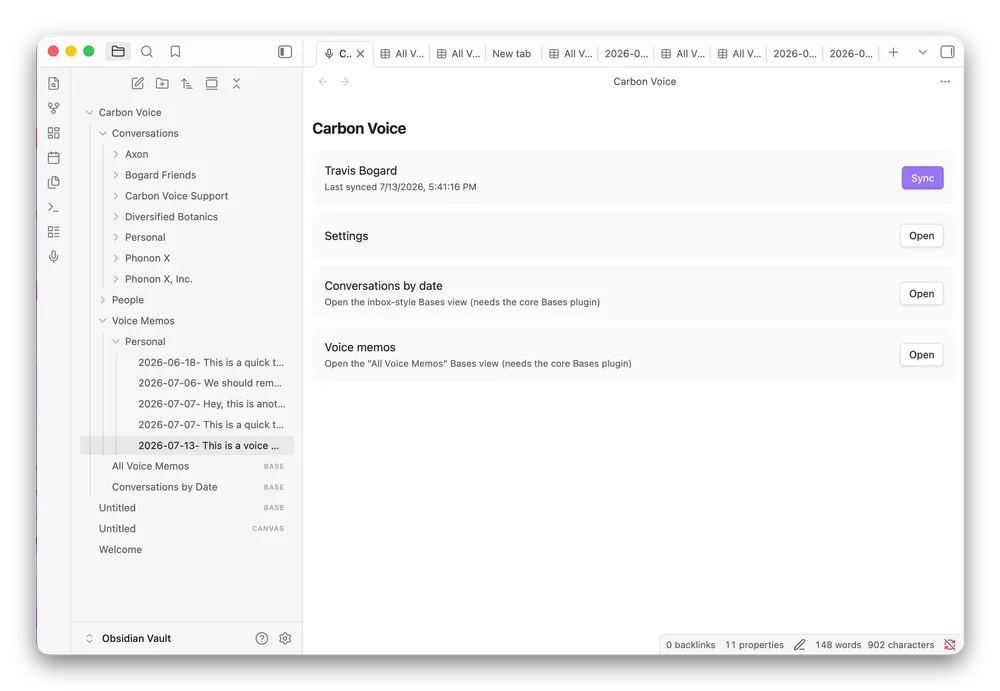
## What lands in the vault
- **Conversations, with their transcripts.**
- **Voice memos, with their AI summaries.**
- **Participant and workspace metadata**, as `[[wiki links]]`, so people and workspaces
become nodes in your graph.
- **Audio**, embedded and playable in the note, with the option to download for offline.
## Setting it up
1. **Create a personal access token.** In Carbon Voice, go to **Profile Menu → Integrations
→ Integration Credentials → Manage tokens** and create one. Copy it, because it's only
shown
once. See [Integration credentials](integration-credentials.md).
2. **Install the plugin.** In Obsidian, go to **Settings → Community plugins**, browse for
**Carbon Voice Sync**, and install it.
3. **Paste the token** into the plugin's settings. It's stored in your vault and sent only
to Carbon Voice.
4. **Choose what to sync** and run it.
The plugin works on both desktop and mobile Obsidian.
## What you can configure
- **Scope** — everything, particular workspaces, or conversations you pick by hand.
- **How far back** — 7, 30, 90 or 365 days, or all of it.
- **How often** — background sync on an interval, and optionally on startup.
## Why people do this
The common pattern is a "second brain": capture ideas by talking, let them sync into the
vault, and point an AI assistant at the vault so it answers with fuller context of you.
Carbon Voice is unusually good at the capture step because the material is a byproduct of
conversations you were having anyway.
See [Getting your content to an AI](../ai-assistants/getting-your-content-to-an-ai.md) for
how this compares with connecting an assistant directly over MCP.
## Related
- [Integration credentials](integration-credentials.md)
- [AI Assistants & MCP](../ai-assistants/index.md)
---
URL: https://help.carbonvoice.app/integrations/build-with-the-api
Source: https://raw.githubusercontent.com/PhononX/carbon-voice-docs/main/docs/integrations/build-with-the-api.md
# Build with the Carbon Voice API
Anything you set up inside Carbon Voice is documented in this help center. Building
*against* Carbon Voice, meaning writing code that reads or posts data, is documented
separately on the developer portal.
## What's possible
- **Direct API access** — read data in an authenticated account, and post messages and
conversations.
- **Webhooks** — subscribe to events on an account, such as a message being posted or
an AI response being generated.
- **OAuth applications** — authorize your app to act on behalf of a Carbon Voice user.
- **Agent identities** — give an AI agent its own presence, so it can take part in
conversations like a person. Most of this is now self-serve in the app. See
[AI Agents](../ai-agents/index.md).
- **Personal access tokens** — authenticate as yourself for scripts and personal
automations. Create these in the app. See
[Integration credentials](integration-credentials.md).
## Where to go
**[developer.carbonvoice.app](https://developer.carbonvoice.app)** — the developer
portal, covering API keys, OAuth applications, webhooks, agents, and how-to guides.
Questions go to [devsupport@phononx.com](mailto:devsupport@phononx.com).
## If you'd rather not write code
Most integrations don't need any. See [Automate workflows](automate-workflows.md) and
[Zapier](zapier.md), which connect Carbon Voice to thousands of apps without code, or the
[AI assistant guides](../ai-assistants/index.md) for connecting Claude or ChatGPT.
## Related
- [Automate workflows](automate-workflows.md)
- [Using and sharing your CarbonLink](using-your-carbonlink.md)
---
URL: https://help.carbonvoice.app/integrations
Source: https://raw.githubusercontent.com/PhononX/carbon-voice-docs/main/docs/integrations/index.md
# Integrations
Carbon Voice connects to the rest of your stack. How you do it depends on how much you want
to build.
## No code — send events out
When something happens in Carbon Voice, make something happen elsewhere.
- [Slack](slack.md) — send, listen and reply from Slack, and start async meetings and
retros with a slash command.
- [Google Workspace](google-workspace.md) — import into Sheets, build a deck in Slides.
- [Zapier](zapier.md) — thousands of apps, no code.
- [Automate workflows](automate-workflows.md) — the patterns people build, and what
triggers them.
## No code — bring your content in
Keep your Carbon Voice content where you already read and write.
- [Obsidian](obsidian.md) — sync conversations and voice memos into your vault as Markdown.
## Your account's plumbing
The credentials and hooks the other tiers run on.
- [Integration credentials](integration-credentials.md) — access tokens and connected apps.
## Build on it
- [Build with the Carbon Voice API](build-with-the-api.md) — the developer portal, OAuth
apps, and webhooks.
## Also here
- [Using and sharing your CarbonLink](using-your-carbonlink.md)
## Related
- **[AI Assistants & MCP](../ai-assistants/index.md)** — connecting Claude, ChatGPT, Cursor
or Windsurf to your content.
- **[AI Agents](../ai-agents/index.md)** — giving an AI its own Carbon Voice account.
---
URL: https://help.carbonvoice.app/troubleshooting/microphone-access
Source: https://raw.githubusercontent.com/PhononX/carbon-voice-docs/main/docs/troubleshooting/microphone-access.md
# Microphone access
If you can't start a recording because of a mic error:
- **On mobile.** Go to **Settings → Carbon Voice → Microphone** and enable access.
- **On the web.** Check your browser settings and allow microphone access for the
Carbon Voice site.
## Related
- [How to record a voice message](../messages/recording-and-sending/record-a-voice-message.md)
---
URL: https://help.carbonvoice.app/troubleshooting/missing-conversations
Source: https://raw.githubusercontent.com/PhononX/carbon-voice-docs/main/docs/troubleshooting/missing-conversations.md
# Conversations aren't showing up
If you've been notified of new messages by SMS or email but can't find them in the app,
there are two things to check.
## Refresh first
Pull down on the Home screen to refresh.
## Check your Linked Emails & Phone Numbers
If the conversation still doesn't appear, the message was most likely sent to an email
address or phone number that isn't registered to your Carbon Voice account. Anything sent
to an address you haven't linked won't reach your app, which is why you can get the SMS or
the email but find nothing when you open Carbon Voice.
Add the missing one under **Linked Emails & Phone Numbers**:
1. From inside the app, go to **Home**.
2. Tap your **profile picture** to open the Profile Menu. It's at the top left on mobile,
and at the bottom of the navigation sidebar on desktop.
3. Tap **Linked Emails & Phone Numbers**.
4. Add the email addresses and phone numbers people might use to reach you, and verify
each one if prompted.
Messages sent to any address or number on that list then arrive in your account, including
the ones already waiting.
## Related
- [Linked Emails & Phone Numbers](../account-and-settings/directory-services.md) — the full
page on adding and managing them.
---
URL: https://help.carbonvoice.app/troubleshooting/android-links
Source: https://raw.githubusercontent.com/PhononX/carbon-voice-docs/main/docs/troubleshooting/android-links.md
# Android — making links open in the app
If Carbon Voice links open in a browser instead of the app, set Carbon Voice as the
default handler for those links.
1. **Make sure the app is installed.**
2. **Open your device settings.**
3. **Go to the apps section** — "Apps" or "Apps & Notifications", depending on your
device.
4. **Select Carbon Voice.**
5. **Find link management** — the setting for opening supported web links or defaults.
6. **Set the link types** Carbon Voice should handle, such as HTTP and HTTPS.
7. **Confirm**, and those links will open in the app from then on.
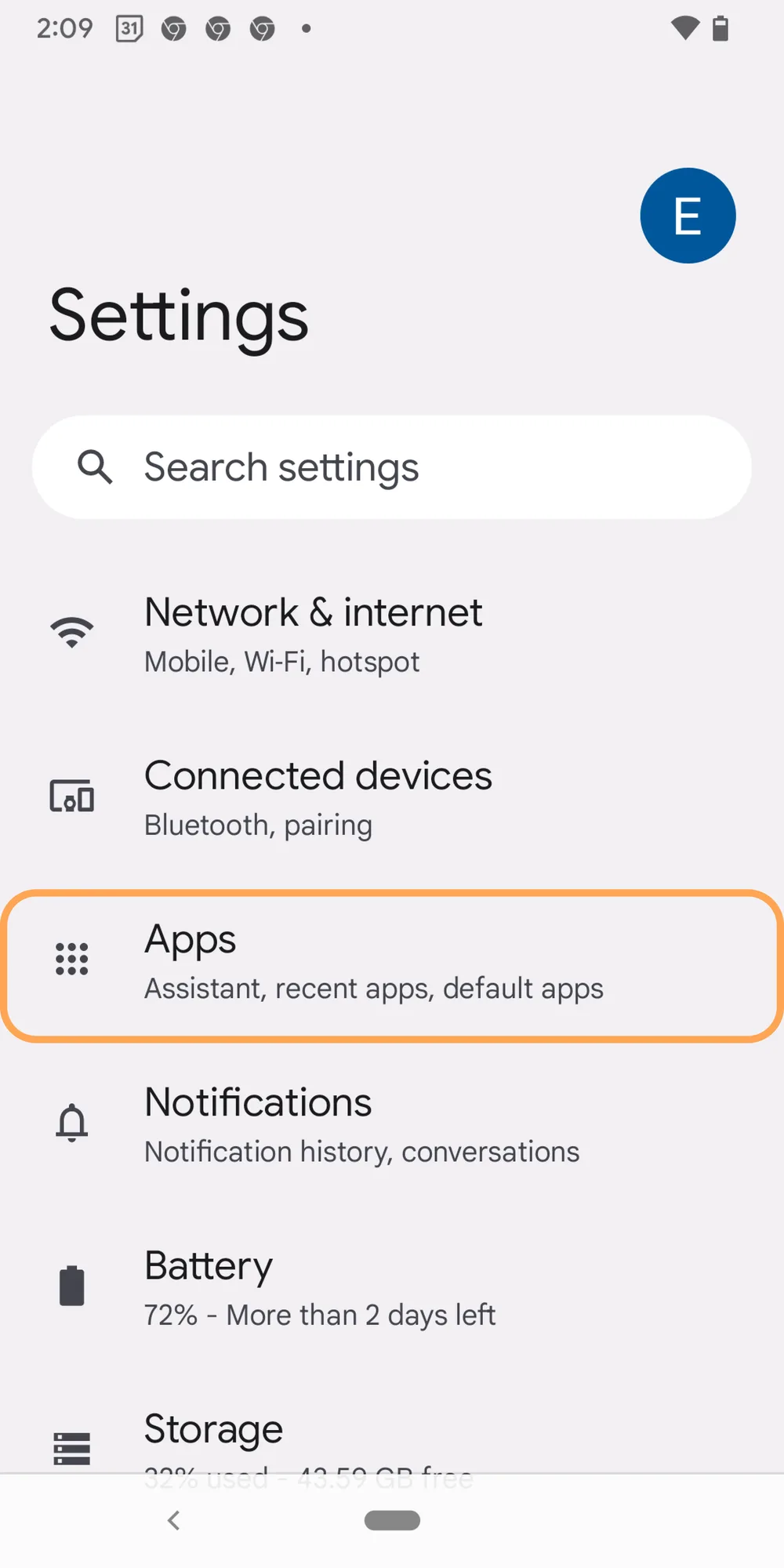
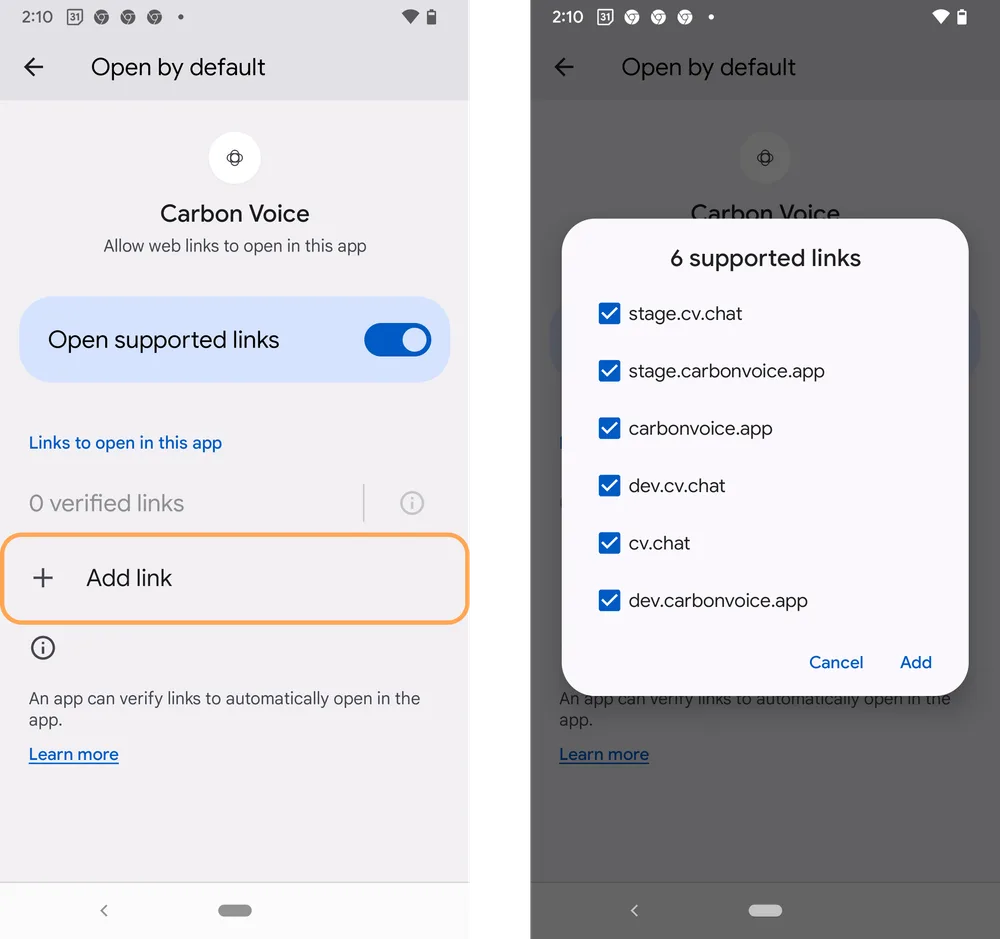
> Exact wording and menu locations vary by Android version and manufacturer. If you
> can't find the setting, check your device's own documentation.
---
URL: https://help.carbonvoice.app/troubleshooting/enabling-popups
Source: https://raw.githubusercontent.com/PhononX/carbon-voice-docs/main/docs/troubleshooting/enabling-popups.md
# Enabling pop-ups so you can log in on the web
Logging in on the web requires pop-ups to be enabled.
**On desktop**, tap the pop-up icon in the URL bar and allow pop-ups for the site.
Safari's own instructions are
[here](https://support.apple.com/guide/safari/block-pop-ups-sfri40696/17.0/mac/14.0).
**On iOS**, go to **Settings → Safari** and turn off **Block Pop-ups**.
---
URL: https://help.carbonvoice.app/troubleshooting
Source: https://raw.githubusercontent.com/PhononX/carbon-voice-docs/main/docs/troubleshooting/index.md
# Troubleshooting
- [Microphone access](microphone-access.md)
- [Conversations aren't showing up](missing-conversations.md)
- [Android — making links open in the app](android-links.md)
- [Enabling pop-ups so you can log in on the web](enabling-popups.md)
You can also reach us from inside the app: **Profile Menu → Help → Support** for a problem,
and **Profile Menu → Help → Feedback** to ask for something.
Still stuck? [Message support](https://cv.chat/support), or
[open an issue](https://github.com/PhononX/carbon-voice-docs/issues) if something in
this documentation is wrong.
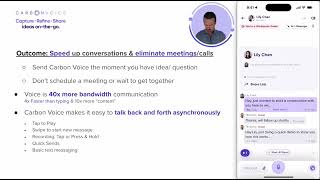 Talking in Carbon Voice
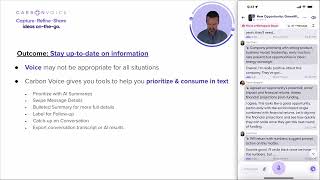 Staying up to date
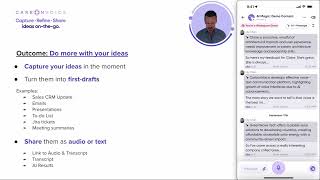 Using voice memos
 How I talk with voice to Claude Code on Speed Dial
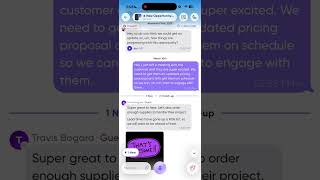 Update: New Messages & Listen Later
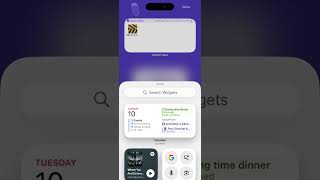 How to set up iPhone Home Screen Widgets for Carbon Voice
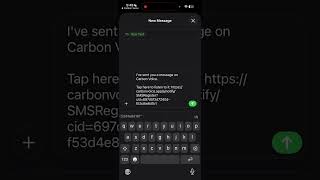 How to Create Carbon Voice Conversation with a Phone Number
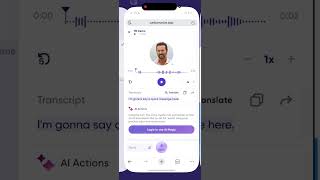 How to Share a Carbon Voice Message with someone not on Carbon Voice
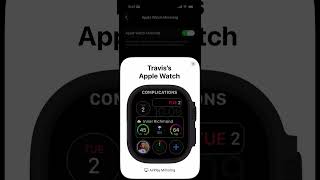 How to Record Voice Memos in Carbon Voice on Apple Watch #applewatch #voicemessage #voicememo
 How to Connect ChatGPT Company Knowledge with Carbon Voice
 ChatGPT Workspace Admin: Connect Company Knowledge to Carbon Voice
 How do export transcripts from Carbon Voice Conversations
 How to Create a Workspace for your Team in Carbon Voice
 Quickly record a Voice Memo right from the iPhone home screen
 How to create Google Slides from Voice Notes
 Start a Carbon Voice Voice Memo from iOS Shortcuts
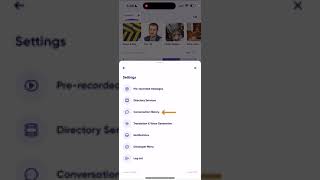 Managing longer messages
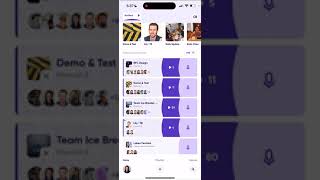 Turning off AI summaries
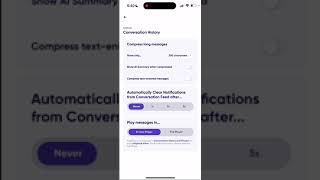 Clearing notify settings
 How to Talk to Your AI Agents with A No-Code Voice API for AI Agents
 How We File Bugs 10x Faster Using Voice + AI
 A Better Hiring Process: How I Cut Interview Time by 75% While Improving Candidate Experience
 How I hacked our Sprint Retrospective with MCP, Async Audio & Claude
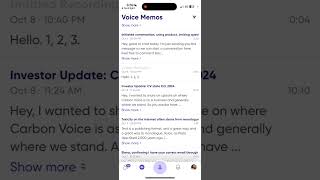 Draft an Investor Update, just by speaking into your phone!
 Create an investment memo draft, just by having a Conversation on Carbon Voice
 Create a product plan from a voice conversation with your teammate!
 Create performance reviews just by recording a voice note
 Create a email draft just by recording a voice note
 Create a blog post just by recording a voice note
 Creating a presentation draft by recording a voice note
 Send to-do list items to Gmail just by recording a voice note
 Create a LinkedIn Post draft just by recording a voice note
 Update your CRM (Salesforce, Pipedrive, and more) just by recording a voice note
 File a bug report in Jira just by recording a voice note
 How to Save a Voice Note Transcript into Google Sheets
 Create To Do items in Things App from Carbon Voice Memo with Zapier