A tour of the app
Home is a launchpad to the rest of the app. It also makes it as easy as possible to listen and reply to your messages and conversations.
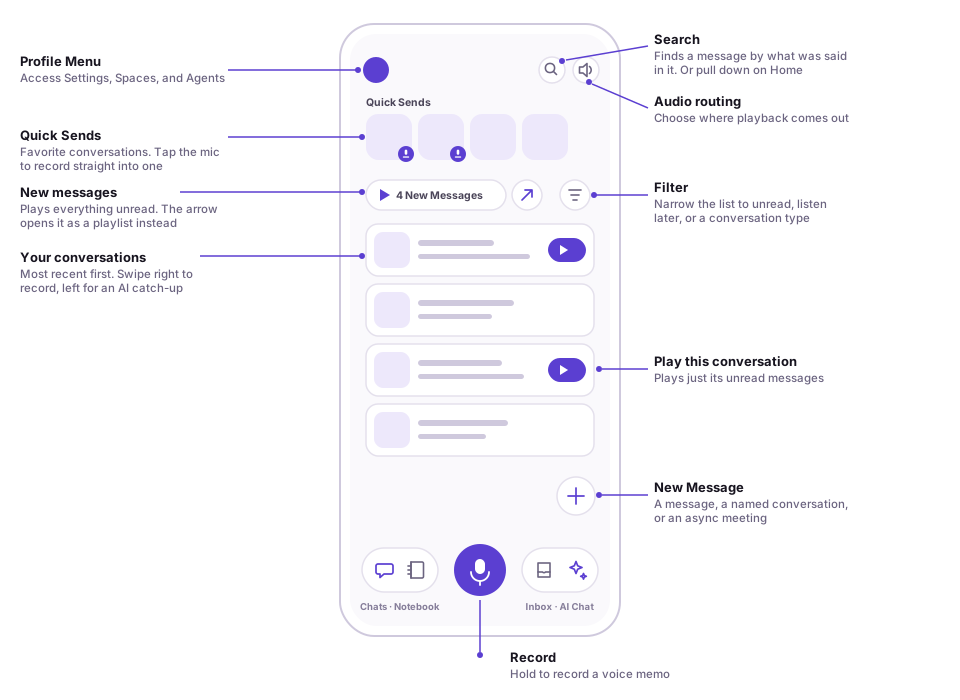
Home has three main sections
- New messages — a button above your conversation list showing how many unread messages you have. Tap the play button to listen to all of them; tap the button to its right to open them as a playlist first. Custom playlists you create appear here too.
- Quick send — send messages to your favorite conversations and contacts with a single tap.
- Conversations — sorted by most recent interaction. Conversation cards let you quickly find recent conversations to send a message, listen to unread messages, or open the full conversation.
Sending a message from Home
- Tap the microphone to record a new voice memo that you can save, share, or send to a conversation.
- Tap a Quick Send conversation tile.
- Swipe left to right on any conversation card.
- Tap the "+" to send a direct message, create a named conversation, or start an async meeting.
Search
Use Search in the upper right corner to find the conversation or contact you want to send a message to, or simply swipe down from the top of the page.
Catching up quickly
- Catch up on unread messages. Tap the play button above your conversation list to play everything, or the play area on a single conversation card for just that one.
- Catch up with AI. Swipe right to left on any conversation card to get a summary of the unheard messages in that conversation.