Carbon Voice on desktop
"Desktop" here means a wide screen rather than a particular device. You get the desktop layout in two places:
- The Mac app. Download it if you haven't yet. A Windows version is coming.
- A browser on a desktop-sized window, at carbonvoice.app.
Either way it's the same app and the same account as on your phone. What changes is the layout, and a few things live somewhere else as a result.
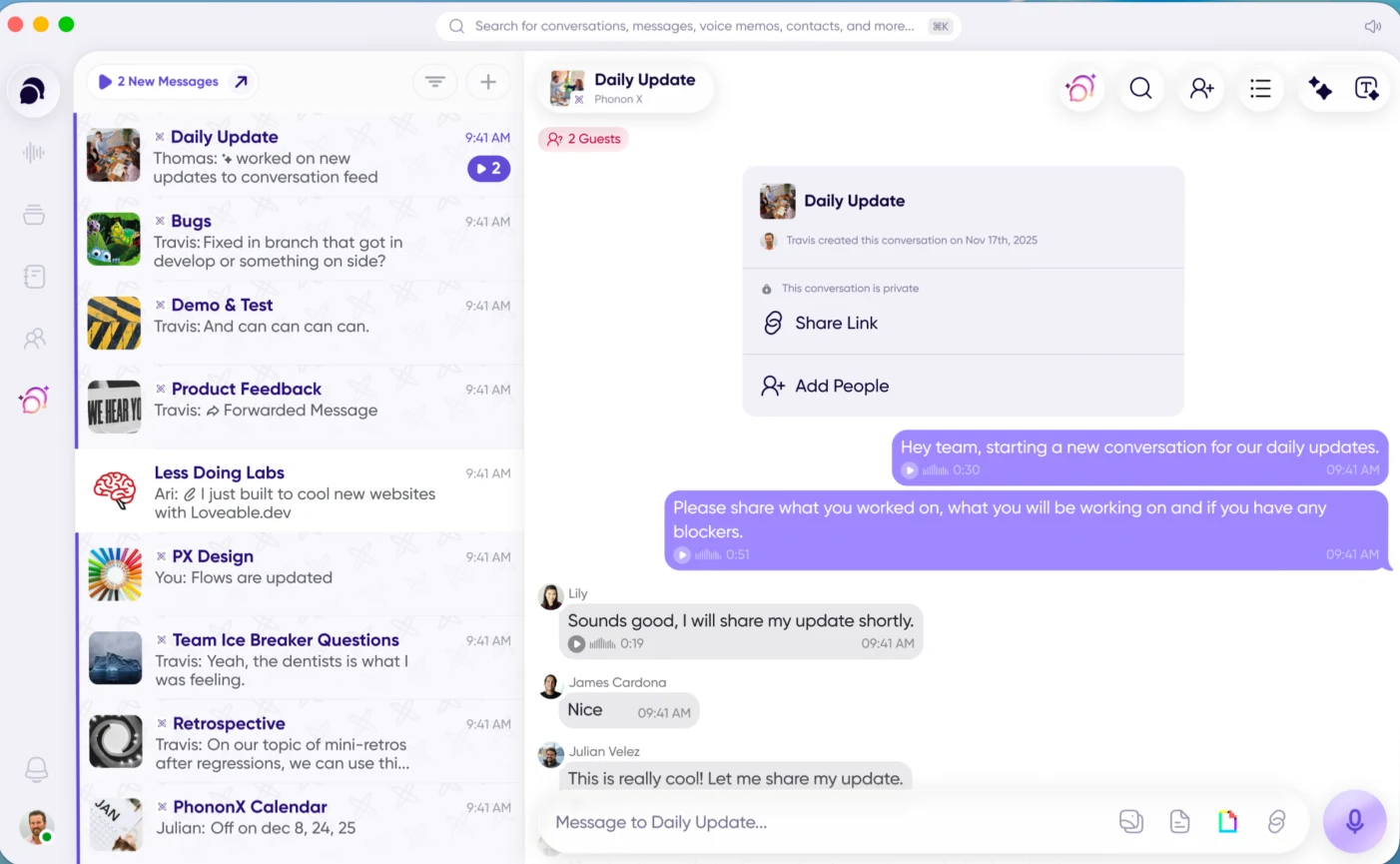
The wide-screen layout
On a window wider than about 1100 pixels you get three panels side by side:
- The navigation sidebar — icons for each part of the app, with your profile picture at the bottom.
- The list panel — the contents of whatever you've selected: your conversations, your voice memos, your notebook. Your unread count sits at the top of it.
- The main panel — the conversation or item you're working in.
Search runs across the top, and ⌘K puts your cursor in it from anywhere.
Narrow the window and it falls back to the mobile layout, which is also what you get on a phone-sized browser window. So the same browser gives you either layout depending on how wide you've made it.
Where things are
| Mobile | Desktop | |
|---|---|---|
| Navigation | Bottom bar: Conversations, Notebook, record, Inbox, AI | Left sidebar: Conversations, Voice Memos, Playlists, Contacts, Notebook, AI Agents, Inbox |
| Profile menu | Your picture, top left of Home | Your picture, bottom of the sidebar |
| Search | Icon top right, or pull down | ⌘K, or the search bar at the top |
| New conversation | The "+" on Home | ⌘N |
What behaves differently
- Conversation settings open as a panel beside the conversation, rather than as a sheet over it. Tap the conversation name again to close it.
- Recording happens in place in the main panel, instead of taking over the screen.
- AI Chat has its own button in the conversation's app bar, rather than living in the summarize menu.
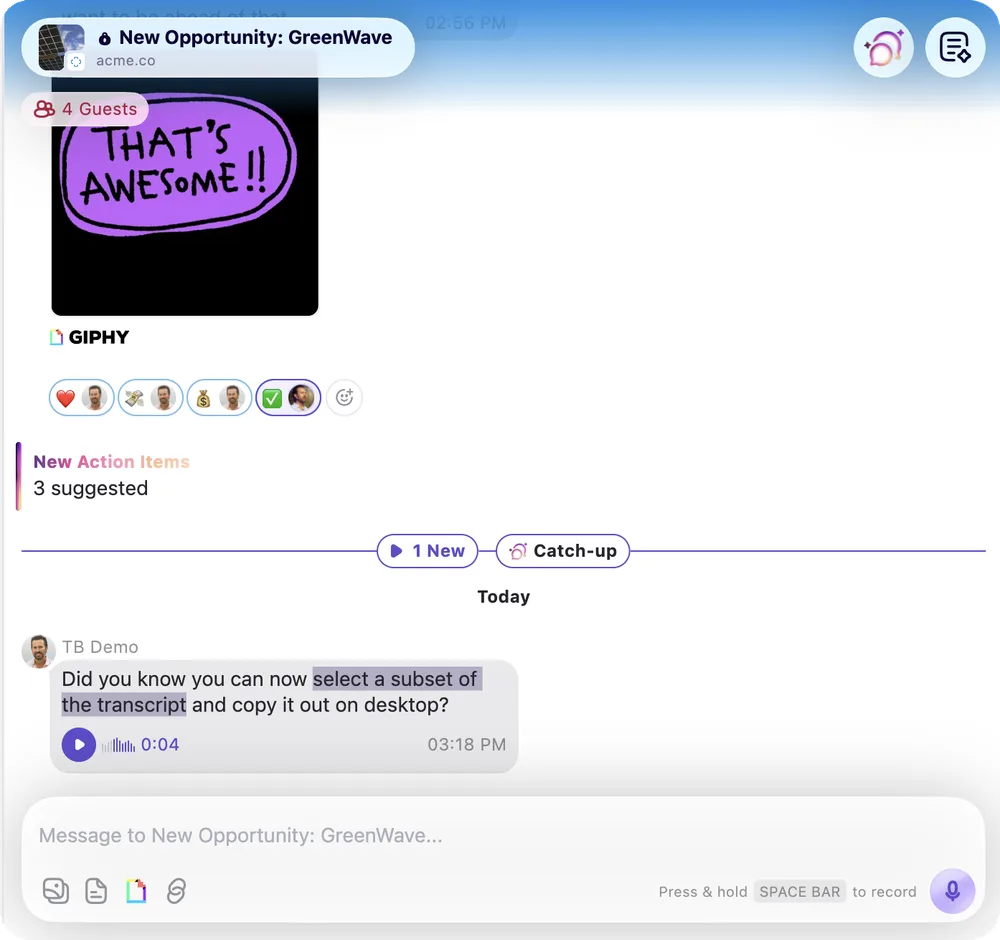
- You can select part of a transcript and copy just that, which is useful for pulling a quote or an action item out of a message.
Keyboard shortcuts
| Shortcut | Does |
|---|---|
| ⌘K | Open search |
| ⌘N | New conversation |
| Space | Pause or resume recording, or play/pause the player when you're not recording |
| Enter | Send the recording you're making |
| Esc | Close search, then the side panel, then the player |
| ⌘⇧⌃← / ⌘⇧⌃→ | Move between the three panels |
Once a panel has focus, the arrow keys move through it and Enter opens what's selected.
Global shortcuts, from anywhere
On macOS there's a second set that works even when Carbon Voice isn't the app you're in, so you can record a message without switching windows, or send to a conversation from a keystroke. That's covered separately in Keyboard shortcuts.
Related
- Keyboard shortcuts — the global ones, which work from any app on your Mac.
- Speed Dial
- A tour of the app