Speed Dial
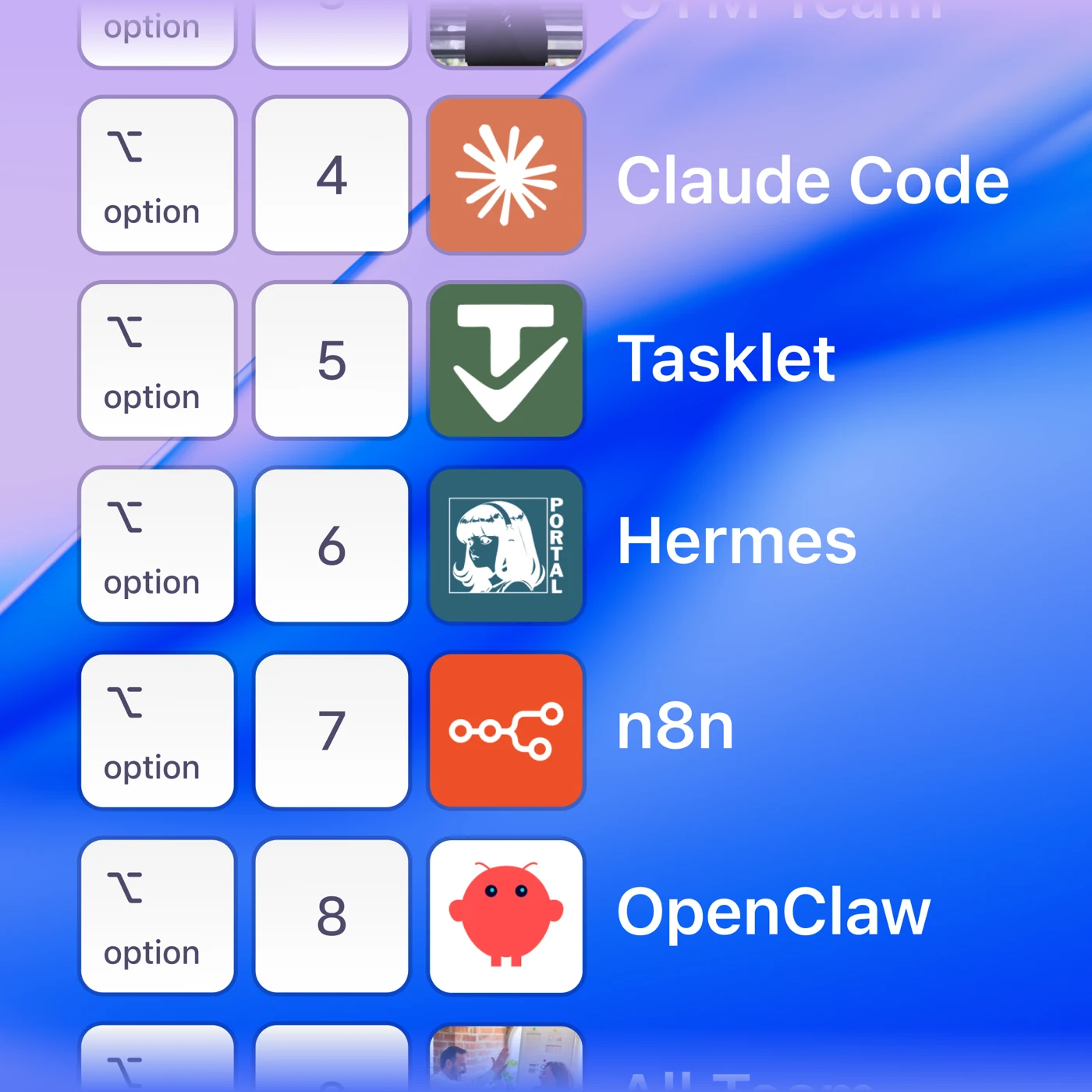
Speed Dial gives you ten slots, each bound to a destination and a keystroke. Press the shortcut, talk, and the message goes. No app switching, no picking a recipient.
Set it up in Profile Menu → Settings → Keyboard Shortcuts, under Speed Dial Shortcuts.
Setting up a slot
- Pick a slot and tap Add speed dial.
- Choose what it points at:
- Person or people — a direct message conversation.
- Voice Memo — a folder to record memos straight into.
- Agent — one of your AI agents, and which conversation to use.
- The slot takes a number key by default, so slot 1 gets 1, combined with the base modifier.
Change the base modifier once, at the top of the table, and every slot follows it. Or give an individual slot its own combination.
The floating panel
Press ⌥` (Option and backtick) to see all ten slots in a floating panel, with what each is pointing at. Useful when you've set up more than you can remember.
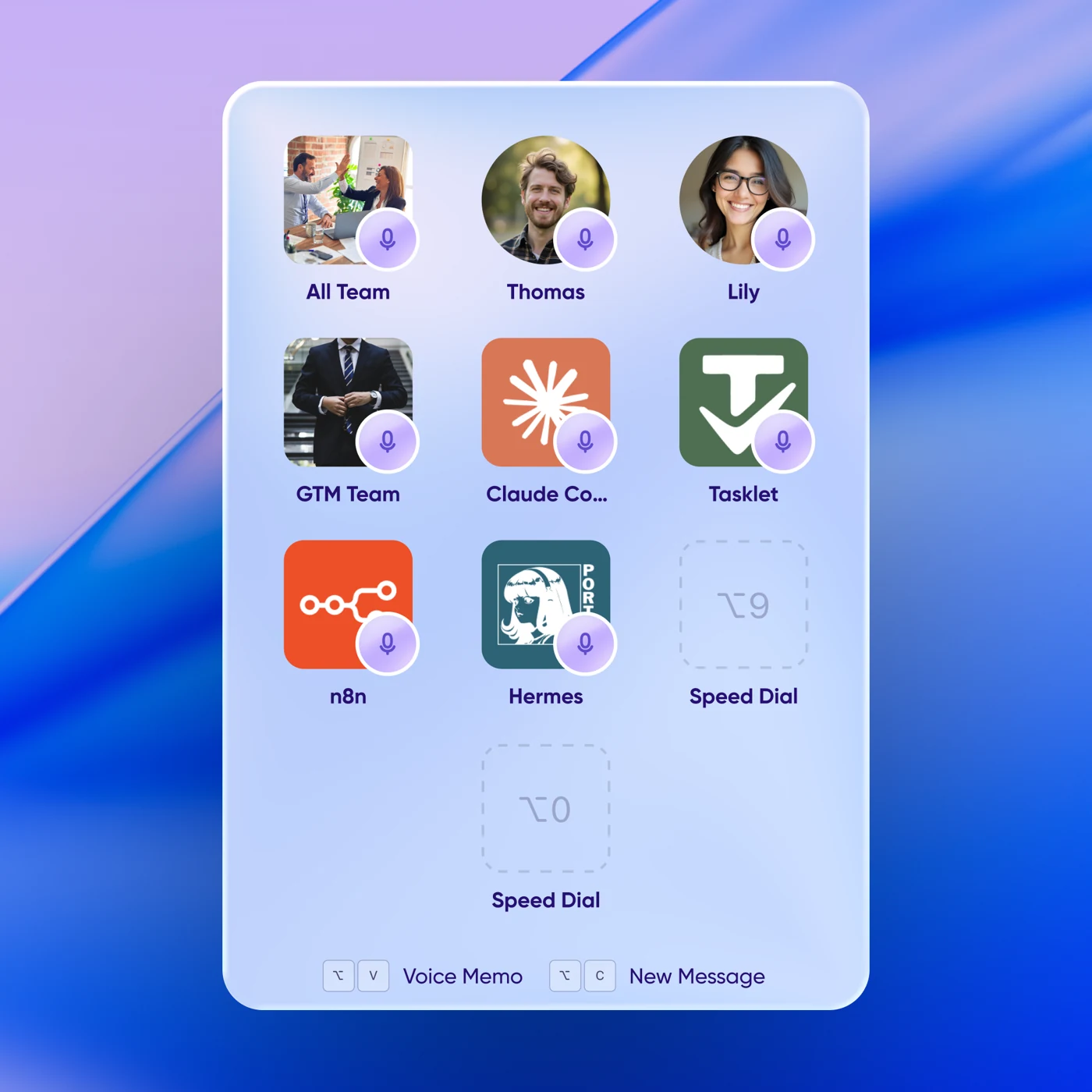
The panel also carries Voice Memo and New Message at the foot, for when you want neither of your ten destinations.
Actions on a slot
Each slot can also Configure Action, a webhook fired when you send to that slot, so a message can kick off something else. A slot needs a destination before you can add an action to it.
Slots pointing at an agent also offer Agent Settings as a shortcut into that agent's configuration.