Auto-translation and Global Voice
Global Voice lets a conversation work across languages, so nobody has to simplify their ideas into a shared language or slow down hunting for the right words. Messages are translated when needed, and everyone follows along in the language they prefer.
Carbon Voice Translate must be enabled for your account or workspace.
Getting started
- Set your languages. Everyone should do this.
- Turn on Auto-Translate in settings.
- Clone your voice (optional).
Set your languages
- Go to Profile Menu → Settings.
- Tap Global Voice - TTS & Translation and scroll down to languages.
Anyone can add their languages, whether or not they have Carbon Voice Translate enabled.
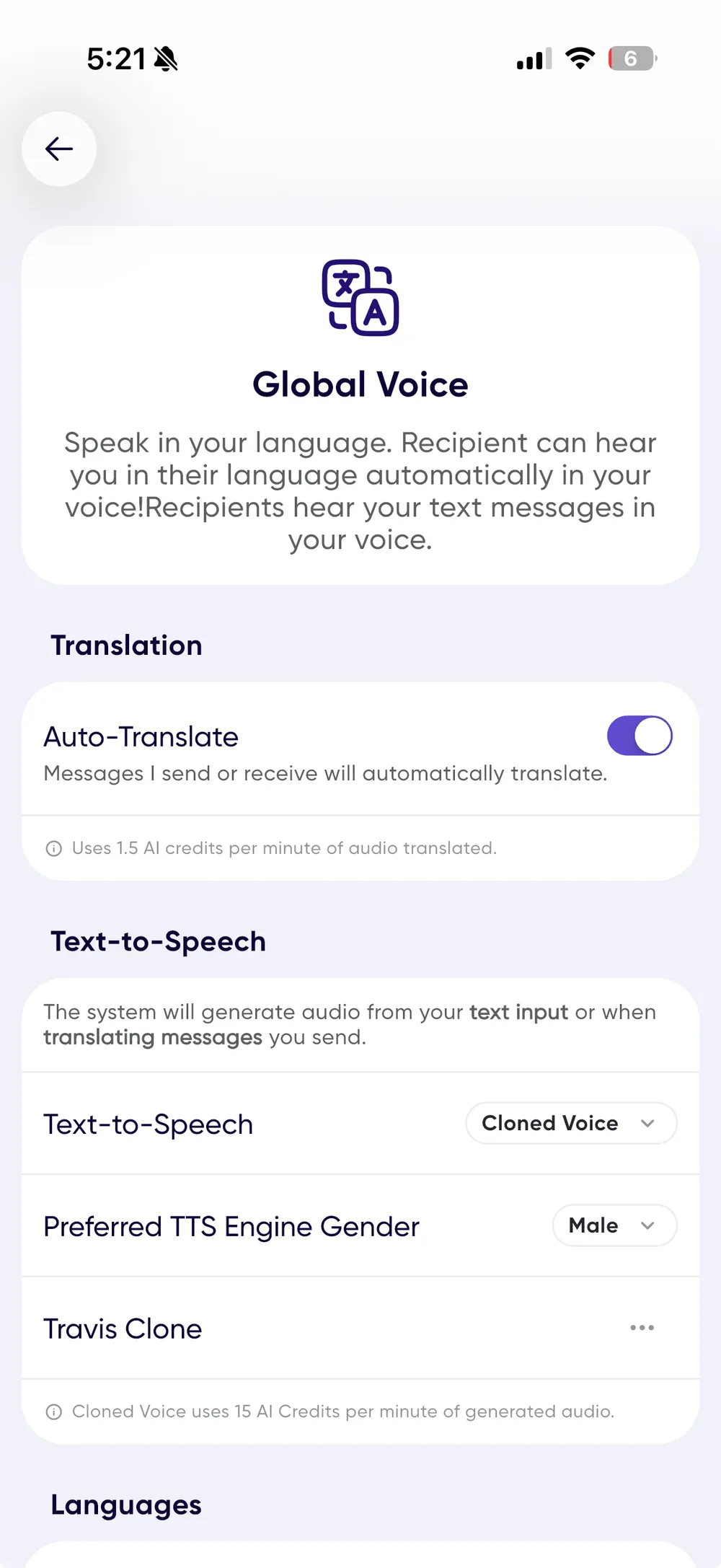
Ordering your languages tells the system your preferences. A message that arrives in any language on your list isn't translated, wherever it sits in the order, so you'll hear or read it as it was recorded.
How translation decides what to translate
Translation happens when someone with Carbon Voice Translate needs to understand others, or needs others to understand them. If nobody in a conversation has it enabled, nothing is translated.
Take a conversation where User A speaks English and has Translate enabled, alongside people speaking English, Italian, and Spanish:
- User A's English messages are translated into Italian and Spanish for the others.
- Italian and Spanish messages are translated into English for User A, and anyone else who reads English benefits.
- Nothing is translated between Italian and Spanish, because neither of those users has Translate enabled.
So Translate provides translation to and from User A's language, and others who share that language benefit as a side effect.
A translated message is marked with a translation icon and note below the message card.
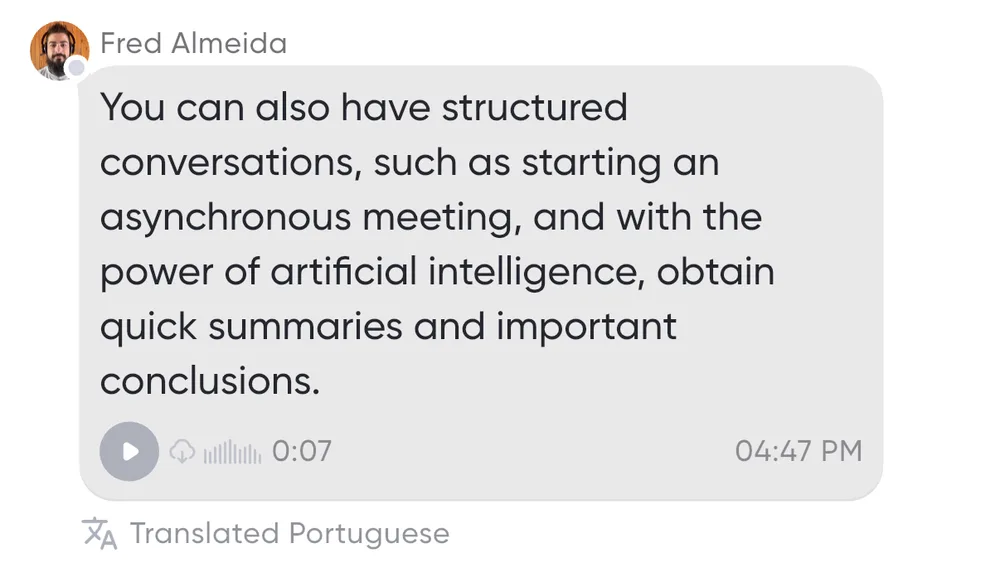
Seeing the original
Press and hold a message card to see the other languages available for it, including the original.
In your own voice
By default a translated message is read in a text-to-speech voice that changes with the language. With voice cloning set up, translations use your voice where possible, though some languages still fall back to the standard voice.
Sharing a translated voice memo
- Record a voice memo.
- Share a link to it.
- If the recipient speaks another language, they're asked whether to translate it.
- They hear the translated message in your voice, and if they reply, you hear their message in their voice, translated back into your language.
Known limitations
AI translation isn't perfect. Very short inputs like emoji or bare numbers may get described rather than translated, with 👍 becoming "thumbs up," for instance. If something reads oddly, ask for clarification.
Getting Global Voice for your team
New accounts start on a limited-time premium trial, and the first five auto-translated messages use your preserved speaker voice for free.
- Individually — upgrade through the plan details in Settings.
- For a team — see pricing and contact sales@getcarbon.app.