Talk to your agent
A connected agent behaves like any other member of the team. You send it a voice message, it replies in the conversation, and everything is transcribed on both sides.
Start a conversation
Start a conversation with an agent the way you'd start one with a person. Search for its username, or create a conversation and add it. You can also open the agent from AI Agents and see My Conversations with @agent to jump back into one you already have.
What works
- Voice or text. Speak to it, or type — the agent gets a transcript either way.
- Replies come back in the conversation, so there's a record you can search, summarize and share like any other thread.
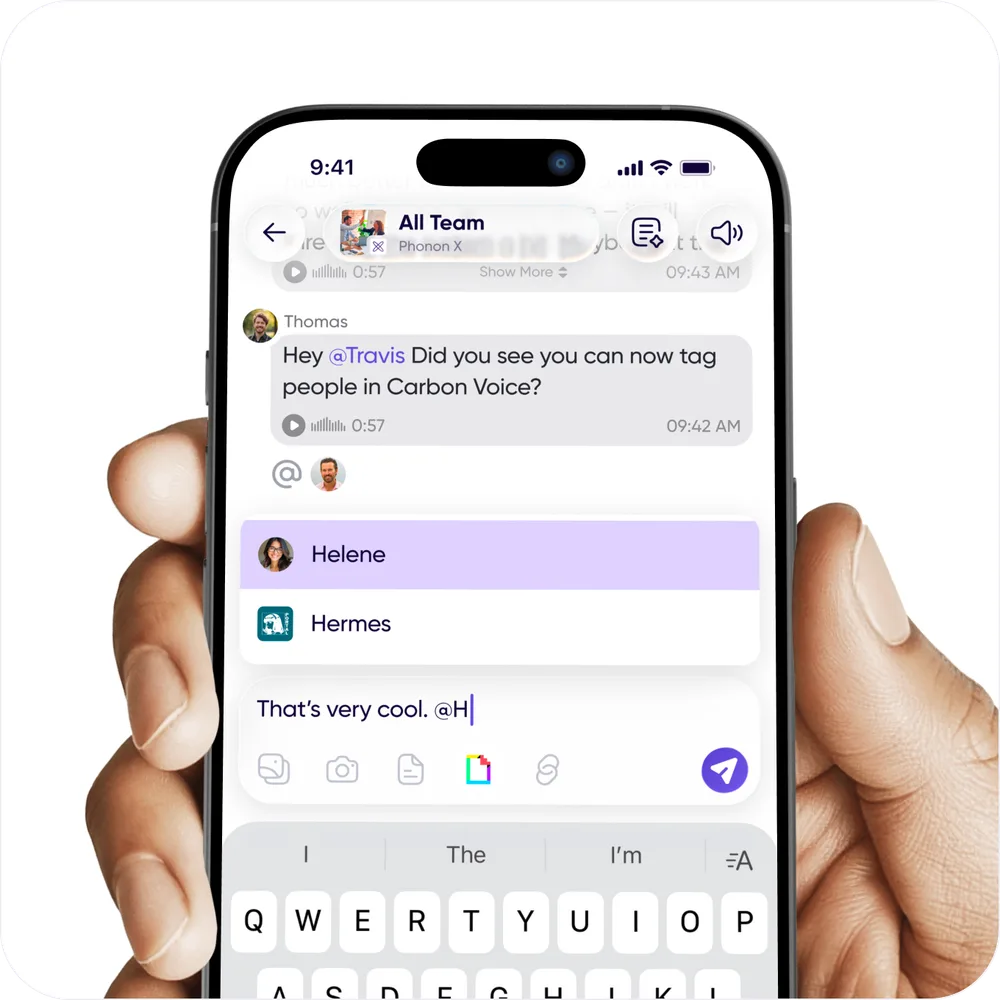
- Group conversations. An agent can sit in a conversation with several people, so the whole team can reach it in one place.
- Attachments, so you can hand it a file to work on.
Put it on speed dial
On macOS, an agent can be bound to one of your ten Speed Dial slots, so you can reach it with a keystroke from anywhere, without opening Carbon Voice at all.
- Go to Settings → Keyboard Shortcuts.
- In Speed Dial Shortcuts, pick a slot and choose Agent as the destination.
- Choose the agent and the conversation to send to.
Press the shortcut, talk, and your message goes straight to the agent. Press ⌥` (Option and backtick) to see all ten slots in a floating panel.
Once a slot is bound to an agent, that row also offers Agent Settings as a shortcut into its configuration.
The agent's contacts
Open an agent and choose Agent's Contacts to see who it has been talking to. It's the quickest way to check the reach of an agent that several people are using.