Action items
The part of a meeting write-up people actually use is the list of things someone agreed to do. Carbon Voice extracts those from the discussion so you don't have to comb back through it.
Finding them
In a conversation. Open Conversation Settings and tap Action Items to see what AI found in that discussion. Tap Find Action Items to scan again after new messages.
Across everything. Open Notebook → Action Items for every action item you have, from every conversation.
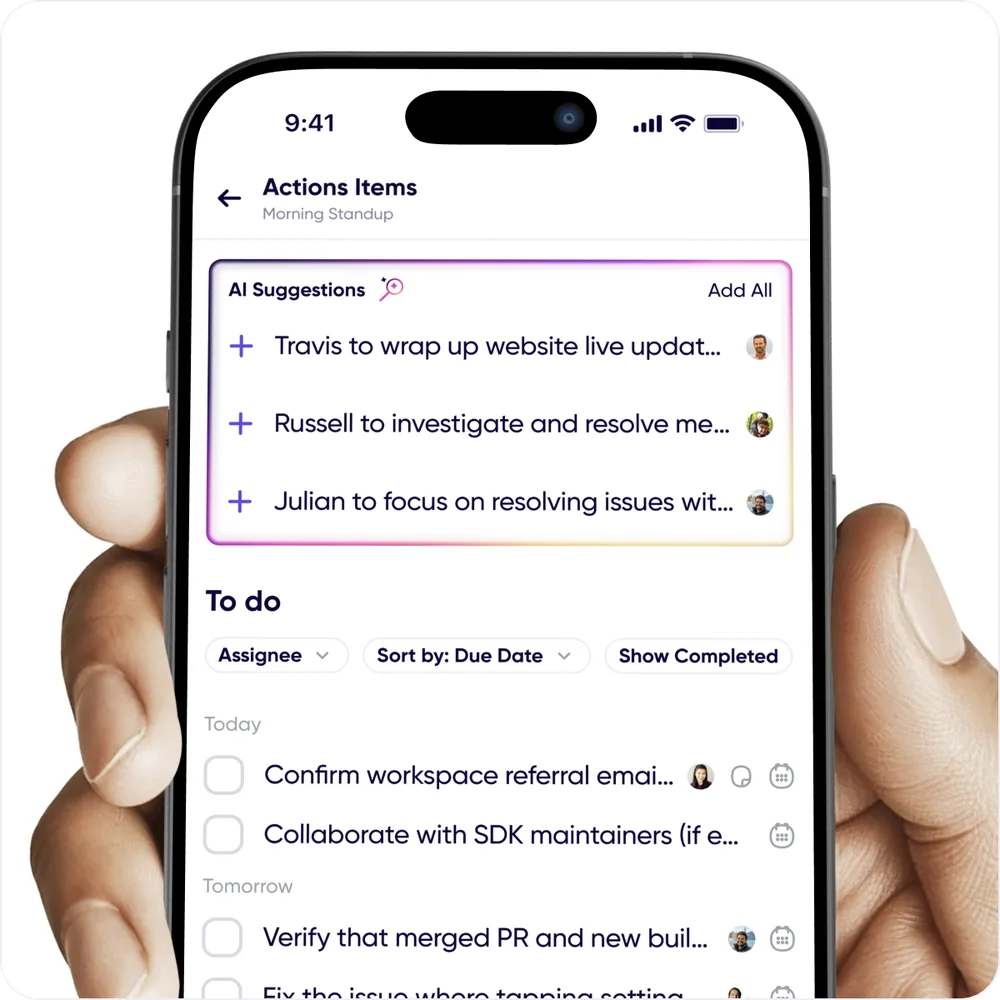
When AI spots new ones, you'll see an AI found new action items banner in the conversation.
Working through them
- Tick one off to mark it done, and untick to put it back.
- Assign one to a person, and give it a due date.
- Sort by due date, filter by assignee, or Show Completed to see what's done.
- Add your own with the "+", since you don't have to wait for AI to find something.
- Edit the wording if the extracted version isn't quite right.
- Move an item to a different conversation.
- Delete anything that isn't real.
If AI proposes a batch of items at once, you'll be asked to confirm before they're all added, so a long discussion doesn't dump twenty items on you unannounced.
Sharing them
Tap Share Action Items to send the list out of Carbon Voice, into a message, an email, or your task tracker.
From an AI assistant
If you've connected Claude or ChatGPT over MCP, you can work through action items from there too: pull them out of a voice memo or a conversation, ask what's still open, and mark things done. See what your assistant can do.
Offline
Action items work offline. Anything you tick, add or edit while disconnected is queued and applied when you're back. You'll see a note saying so rather than losing the change.