Access and sharing settings
Open conversation settings
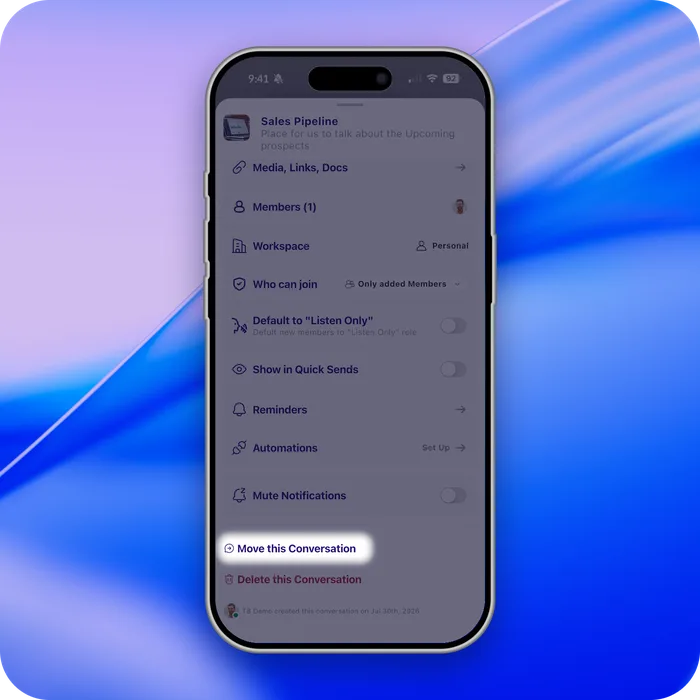
Tap the conversation name at the top of the screen to bring up the Settings menu. You can also press and hold a conversation on Home and select Conversation Settings.
Change who can join
Use the Who Can Join drop-down to change access. For example, to make a conversation public so anyone with the link can join, choose Anyone with Link.
Share the conversation link
Tap Share Link at the top of the conversation settings screen. You have three options:
- Add people directly to the conversation.
- Copy the link to your clipboard, to paste anywhere — a post, an email, a message.
- Use the share extension to send the link to a specific destination.
What else is in conversation settings
Beyond access and sharing, the same screen holds:
- Action Items — what AI has picked out of the conversation.
- Media, Links, Docs — everything attached to the conversation.
- Show in Quick Sends — a second way to pin it to Home, alongside press and hold.
- Reminders and Automations.
- Mute conversation, Move conversation to another workspace, Leave, and Delete.
- Engagement and Search, and for an async meeting, Change Time.
On desktop, conversation settings open as a panel beside the conversation rather than as a sheet. Tapping the conversation name again closes it.