Listen and reply from push notifications (iOS)
Many conversations are short and quick, so you can listen and reply right from the message notification on your phone's lock screen.
Using the notification preview
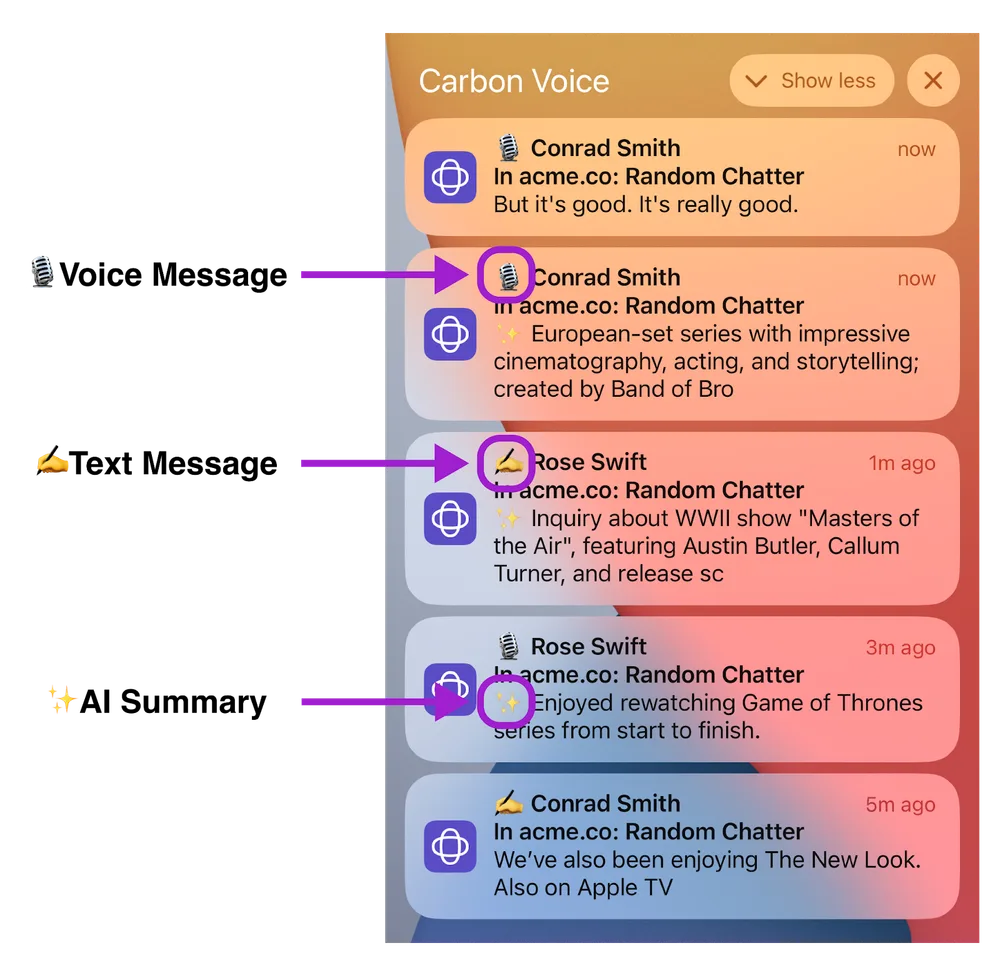
When a new message comes in, press and hold the notification. It expands so you can play the message, and also:
- Reply with a quick tap.
- See the message in the context of its thread, and jump to new messages by tapping the avatars.
- See a quick summary of the message with Top Words.
- View the discussion thread.
All without opening the app. Tap the large profile photo to jump straight to the conversation.
On most devices only the first 30 seconds of a message plays in notification preview before the screen shuts off. Press volume up or down to extend this.
If you're not getting notifications
Two things need to be true: Carbon Voice has to be set to send them, and iOS has to be set to show them.
In Carbon Voice
- Open your Profile Menu and go to Settings.
- Tap Notification Settings.
- Make sure Push Notifications is on.
In iOS
These are usually right by default, but if you declined the permission prompt you'll need to change them:
- Open the Settings app on your device.
- Select Notifications.
- Scroll to Carbon Voice.
- Make sure Allow Notifications is on. Turn on Time Sensitive Notifications if you want messages shown as they arrive.
Apple's own guidance on notification settings is here.