Marking messages read and unread
You can clear the unread flag by hand, put it back on something you want to revisit, or have it clear automatically as you read.
Inside a conversation, the dividing line between read and unread does most of this for you. It moves as you go, so messages mark themselves read without you doing anything. See the new-messages line.
On a whole conversation
Press and hold the conversation card on Home and tap Mark all Read. The option only appears when the conversation actually has unread messages.
Marking a conversation read preserves listen status. It drops the attention flag without pretending you've heard anything.
On a single message
- Tap the button underneath the message in a conversation. It reads Mark as Read when the message is unread, and Mark as Unread once it isn't. The same button toggles both ways.
- Press and hold the message and tap Mark as Unread to flag one you've already read.
- Play the message. Listening through it clears the flag on its own.
Swiping a message doesn't change its read state. Swipe left to right to reply (hold the swipe for a voice reply), or right to left for message info (hold it for Listen Later).
Listen Later
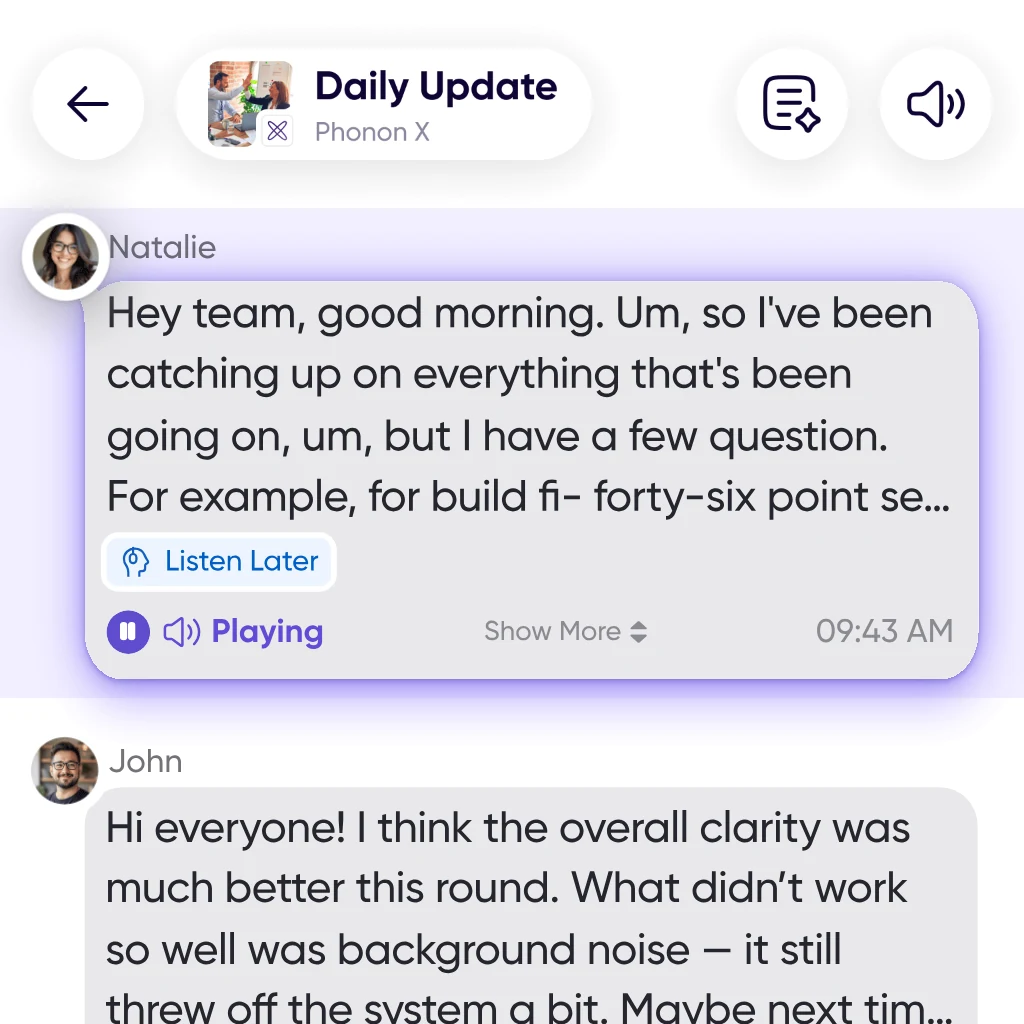
When a message is too long to play right now, long-swipe it from right to left to label it Listen Later.
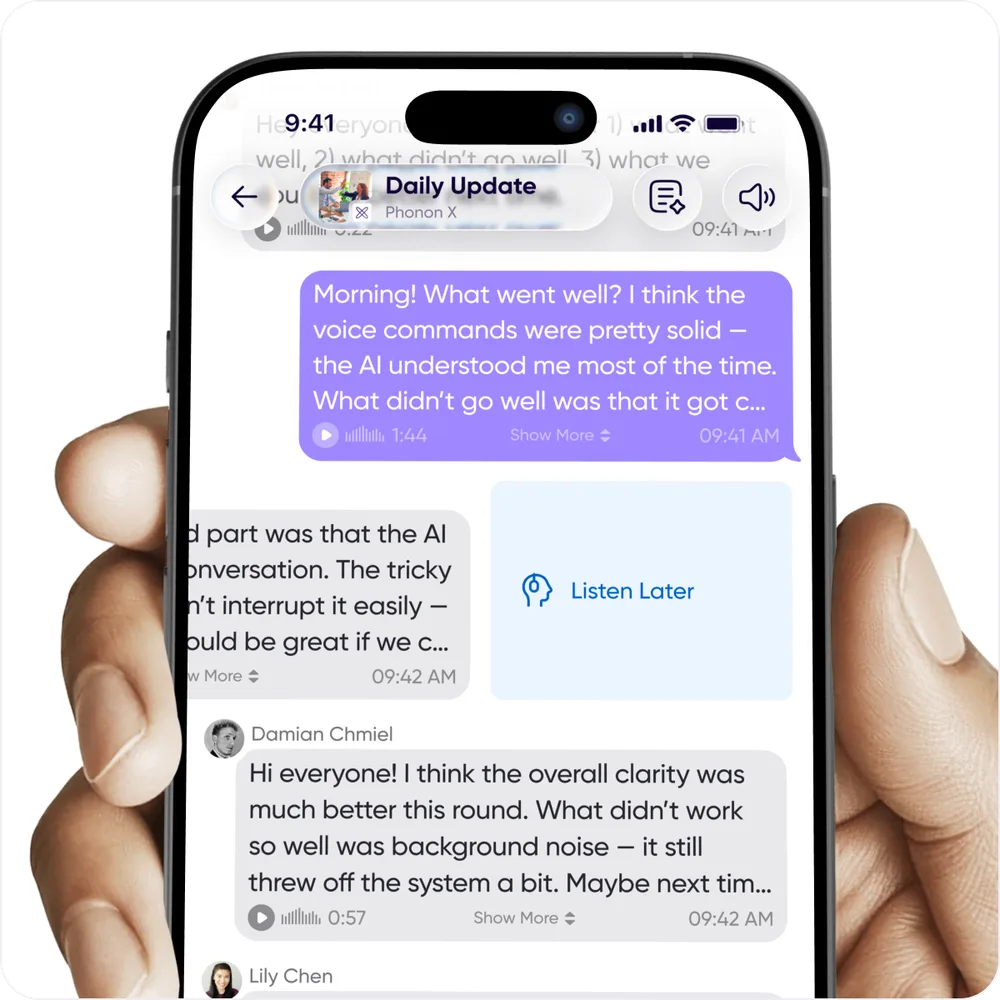
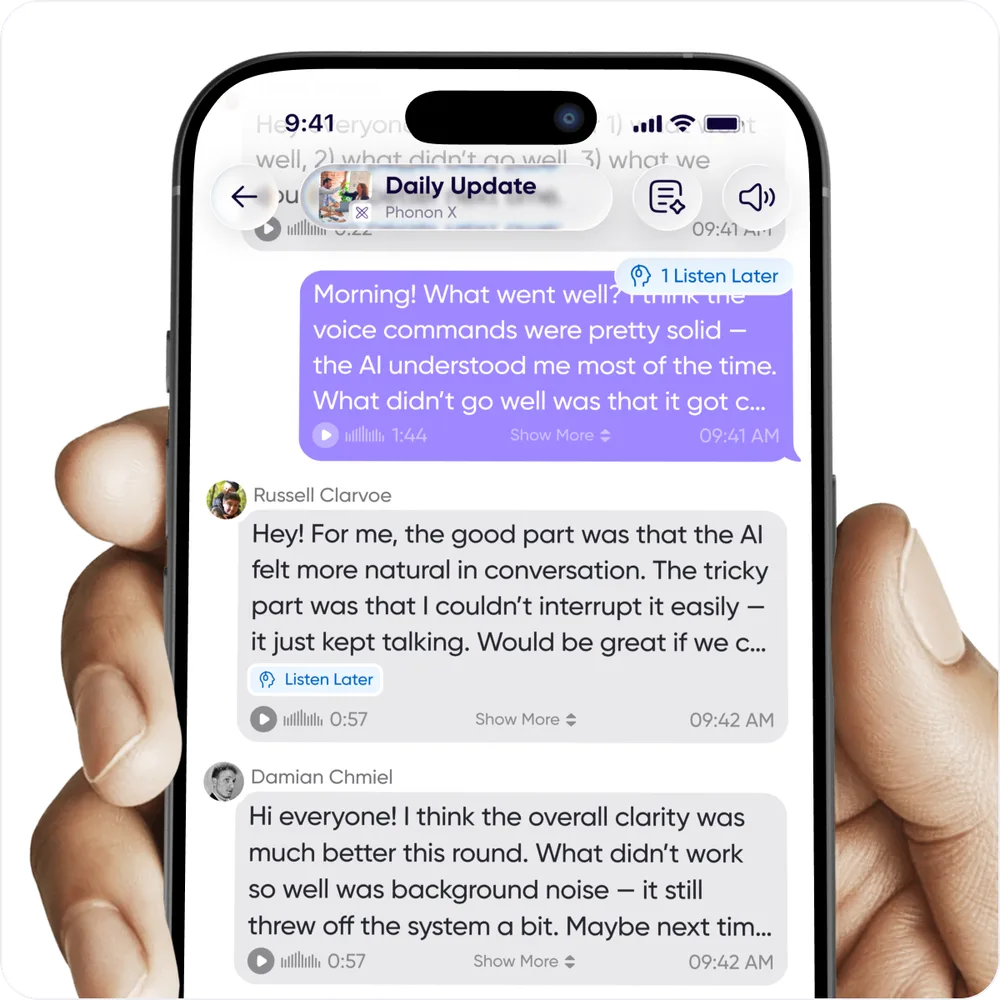
A message you've flagged carries a Listen Later chip, so it's obvious in the feed.
An indicator at the top of the conversation shows when you have messages saved for later. Tap it to get arrows for moving between them.
You can also filter your conversation list to Listen Later to find every conversation holding one. See Filtering your conversation list.
Clearing automatically
You can have messages mark themselves read as you read through a conversation.
Open your Profile Menu, which is your profile picture at the top left of Home on mobile or the bottom of the navigation sidebar on desktop. Then go to Settings → Conversation History and choose your automatic timing.