Unread messages versus unheard messages
In most inboxes, "unread" does double duty: it tells you what you haven't seen and gets used as a flag for what you still need to deal with. Carbon Voice separates those into two attributes:
- Heard status — how much of a message you've listened to.
- Unread — whether the message still wants your attention.
You'll occasionally see the word notified in the app, in Settings → Conversation History, and as Notified Cleared in engagement details. It means the same thing as unread; it's the original name for the attention flag.
The new-messages line
Inside a conversation, read and unread are separated by a single line. Everything above it you've read; everything below it is new.
Open a conversation and it scrolls to that line, so you start where you left off rather than at the bottom. When you leave, the line moves on its own, based on what you actually saw.
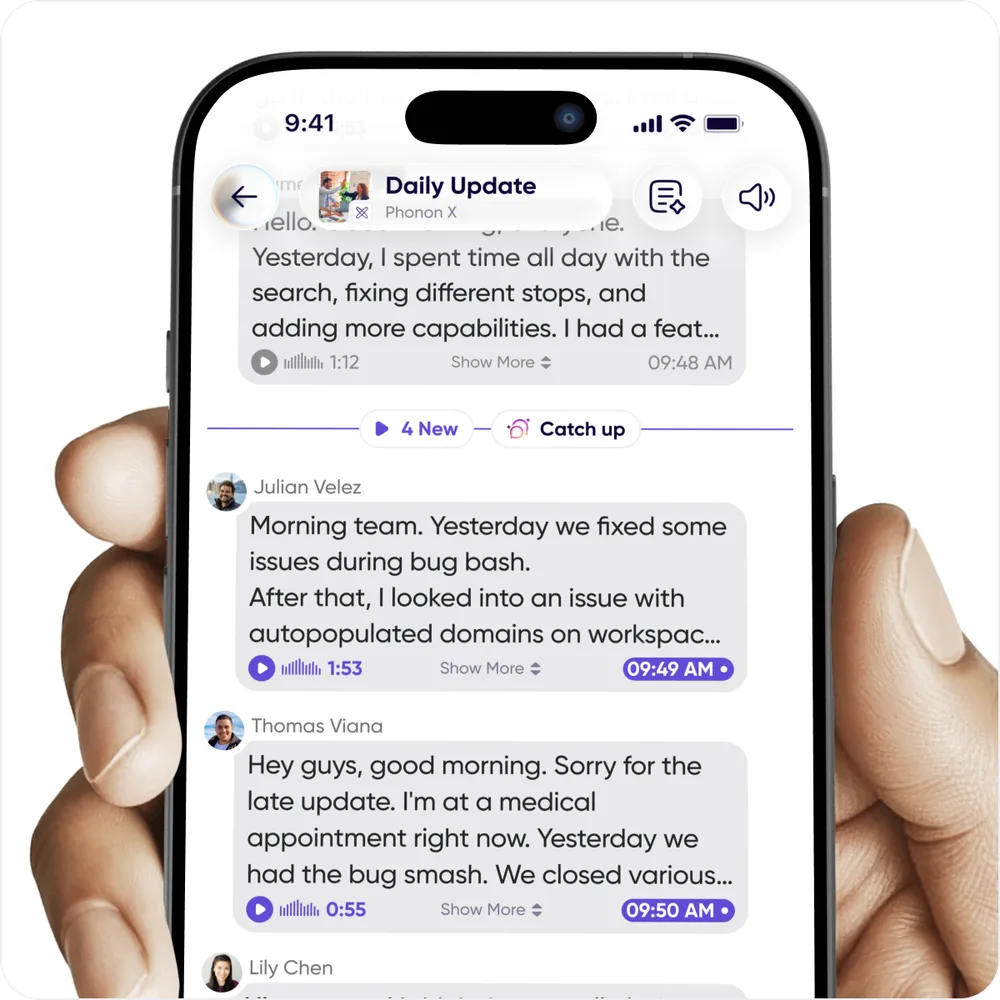
The line carries two buttons:
- The unread count plays everything below the line. The line moves down as it finishes.
- Catch-up summarizes what's new without playing it. See Catch up with AI.
To move the line back, press and hold a message and choose Mark as Unread. Everything from that message down becomes unread again.
Unread messages
Unread messages are seeking your attention, most often because they're new. They act as flags, indicating that action or acknowledgment is needed from you.
- New messages generally arrive unread, and they drive the count on the app badge and on your conversations.
- The flag clears automatically when you play through the message.
- Your own messages don't arrive unread.
- You can mark messages read and unread by hand. See Marking messages read and unread.
Playing your unread messages
Above your conversation list on Home there's a button showing how many new messages you have. It has two halves:
- Tap the play button to start playing every unread message, across all your conversations.
- Tap the button to its right to open them as a playlist first, so you can see what's queued and jump around.
You can also filter the conversation list to Unread, or tap the play area on an individual conversation card to play just that conversation's unread messages.
The playlist doubles as a way to clear the backlog without listening to it. Each conversation in the queue can be marked read from that screen, so you can work down the whole list in one place rather than opening each conversation.
See Play new messages.
Heard status
Carbon Voice remembers the furthest point you reached in a message. Leave it and come back, and playback resumes where you stopped.
- The dark purple waveform marks the unheard part of a message; the gray waveform marks what you've heard.
- New messages from other people always show as fully unheard. Your own messages show as fully heard.
- Joining an ongoing conversation shows historical messages as unheard, but read.
- Joining an async meeting shows historical messages as unheard and unread.
How the two interact
Because they're separate, a message can be in any combination of the two states.
Read the transcript, marked it read — unheard, but read. You read the text but never played the audio, so the message stays unheard; marking it read drops the flag.
Automatic clearing — unheard, but read. If your settings mark messages read as you scroll past them, the flag drops even though you haven't listened.
Manually mark as unread — heard, and unread again. You can re-apply the flag to a message you've already heard, to come back to it later.
Joining a conversation
- Ongoing conversations — earlier messages appear unheard, but read.
- Async meetings — earlier messages appear both unheard and unread.