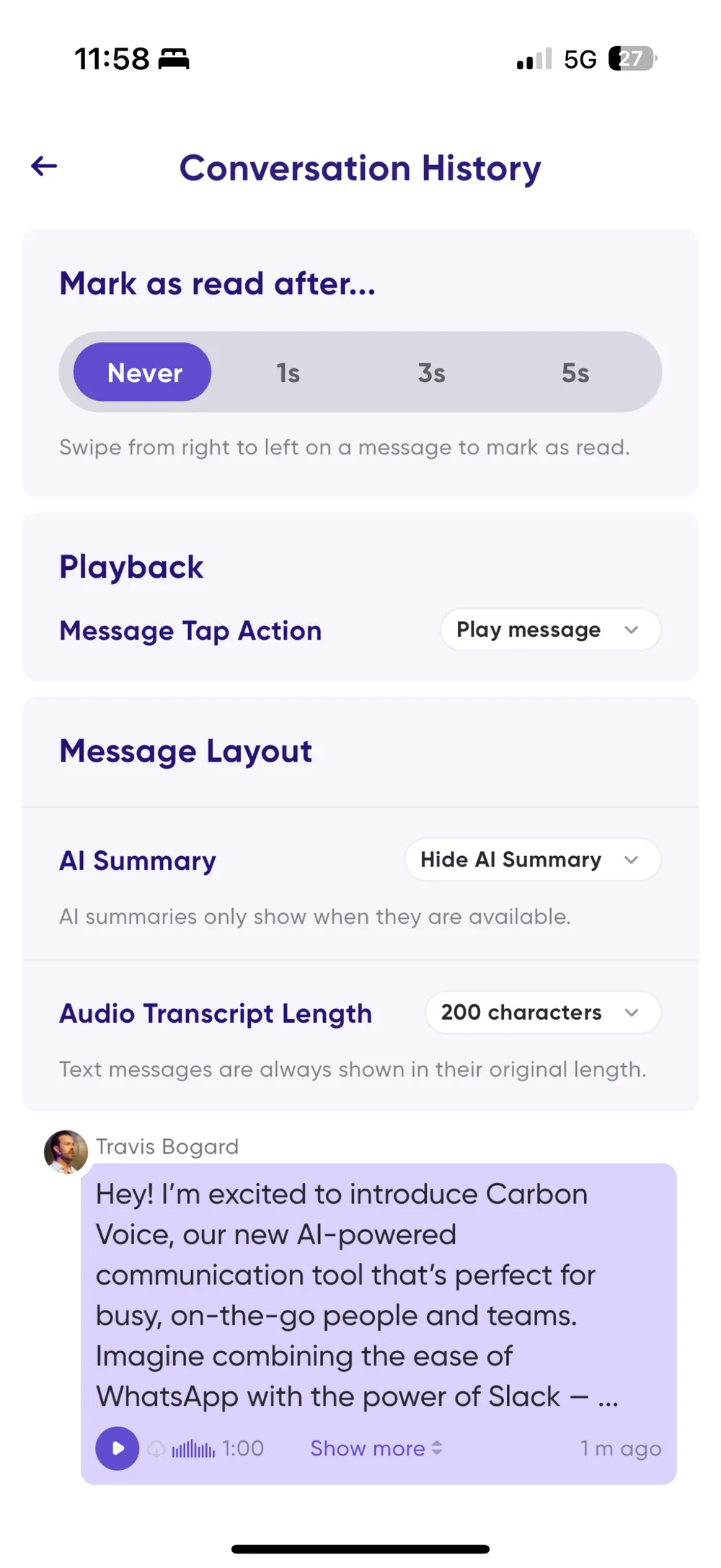
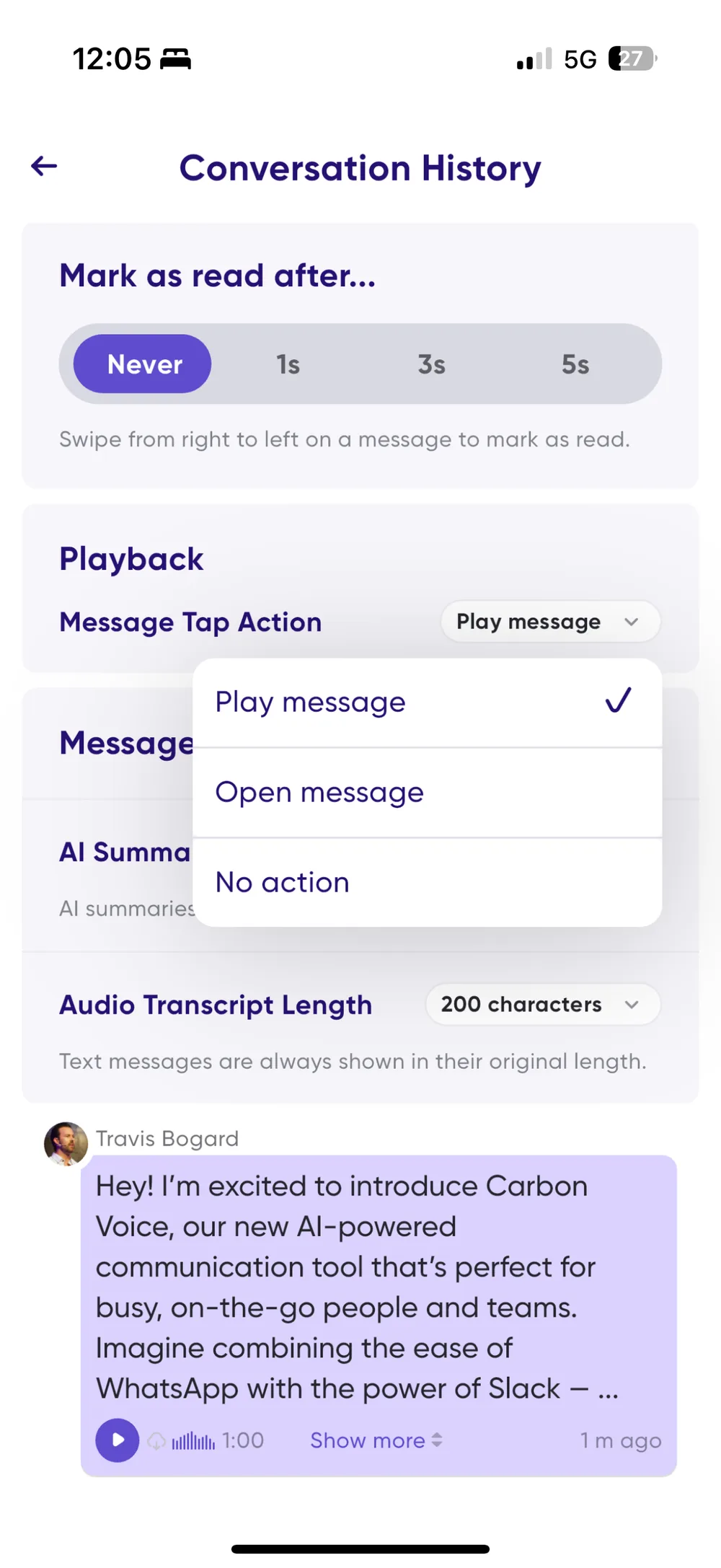
Control what tapping a message does
You told us it was too easy to start playback by accident in a conversation. This release takes that apart in three pieces.
Show More just expands now
It used to be easy to tap Show More and start playback instead. The tap area around it is now much larger, so that shouldn't happen.
A play button on message cards
Audio messages have a new play button in the lower left. It makes audio messages easy to spot, and gives you somewhere to tap when you've turned tap-to-play off.
Choose your tap action
You can now decide what tapping a message card does:
- Play Message — tapping a text or audio message starts playback, as before.
- Open Message — tapping opens message details instead. Text messages can be played from inside the details, and Play All still catches you up on everything unread, text included.
- Do Nothing — tapping the body of the card does nothing. Swipe right to left to open the message, or tap the play button in the lower left to play audio.
Change it in Settings → Conversation History → Message Tap Action.