Organize and share your ideas faster
Voice memos got two things in the latest app store release: faster sharing, and real organization with labels and folders.
Faster to share your ideas
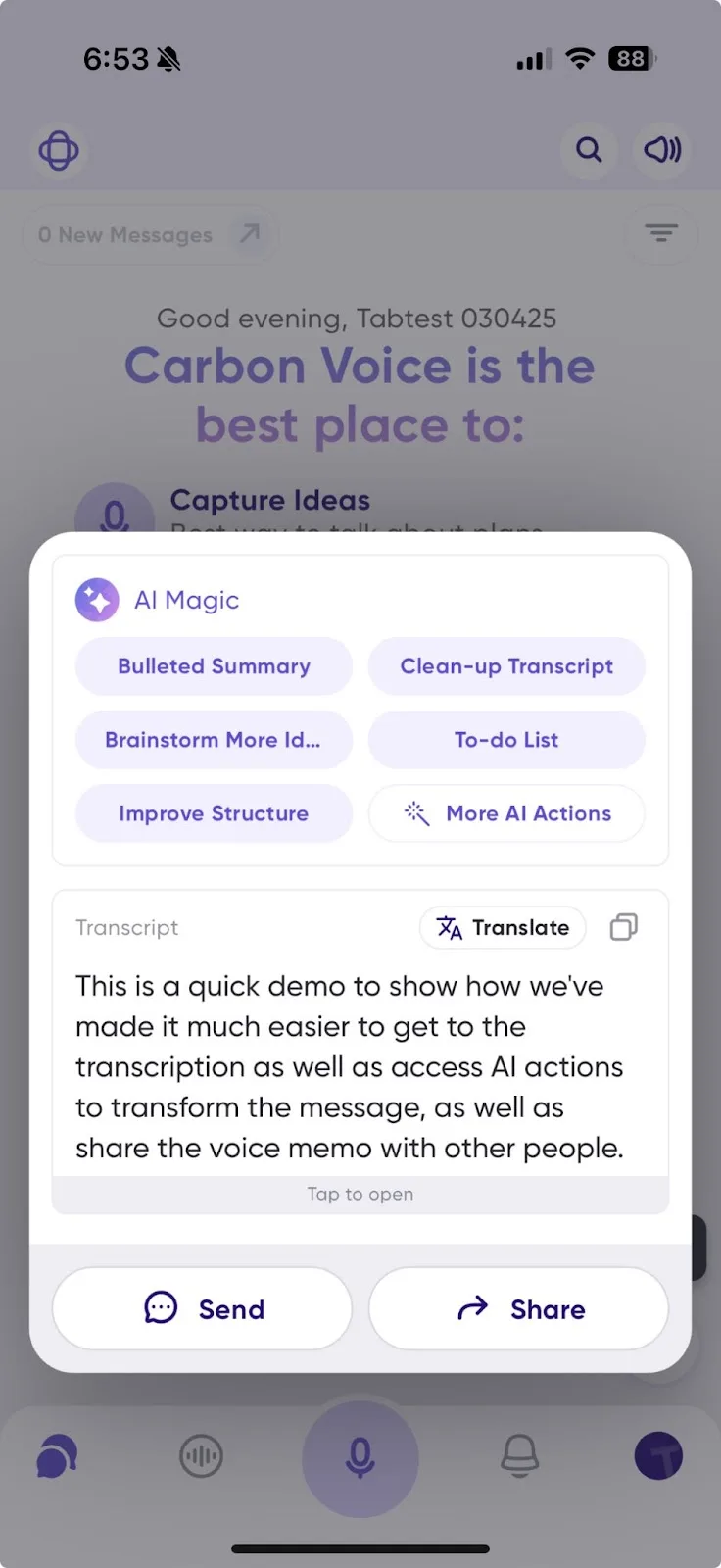
The voice memo ready screen now gives you one-tap access to:
- 💬 Send the memo to a colleague in a conversation, or as a link.
- ✂️ Copy the transcript to your clipboard.
- ✨ Use AI to transform the transcript into bullets, an email, a presentation outline, or more.
Labels
Ever scroll a long list of memos looking for one? Labels help you keep track of the important ones, and labeled memos show up in your feed for quick access.
- Tap a voice memo to open more options.
- Select a default label, or create your own by tapping +.
- Find all labeled memos in your list.
AI Actions appear in your list too, so you can see at a glance which AI tools you've used across your memos.
Folders
On a paid plan, you can create folders and keep everything sorted by workspace:
- Go to your list of voice memos and tap the folder icon in the bottom right.
- Choose which workspace to create the folder in.
- Name it and start organizing.
To move a memo, press and hold it, then select More → Move and choose a folder. Or swipe left to right on a folder to record straight into it.
See Organizing voice memos for the full details.